
1. Entwodiksyon
Thank you for choosing the EKSA Wireless Headset H5. This headset is designed to provide clear communication and comfortable wear for various professional environments, including office work, call centers, and trucking. It features AI noise-cancelling technology, dual connectivity options (Bluetooth and USB dongle), and extended battery life. This manual provides detailed instructions for setup, operation, maintenance, and troubleshooting to ensure optimal performance.
2. Pake kontni
Tanpri verifye ke tout atik yo prezan nan pakè ou a:
- EKSA Wireless Headset H5
- Dongle USB
- Chaje baz
- USB-C Chaje Kab
- Manyèl itilizatè
3. Pwodwi souview
Familiarize yourself with the components of your EKSA Wireless Headset H5.
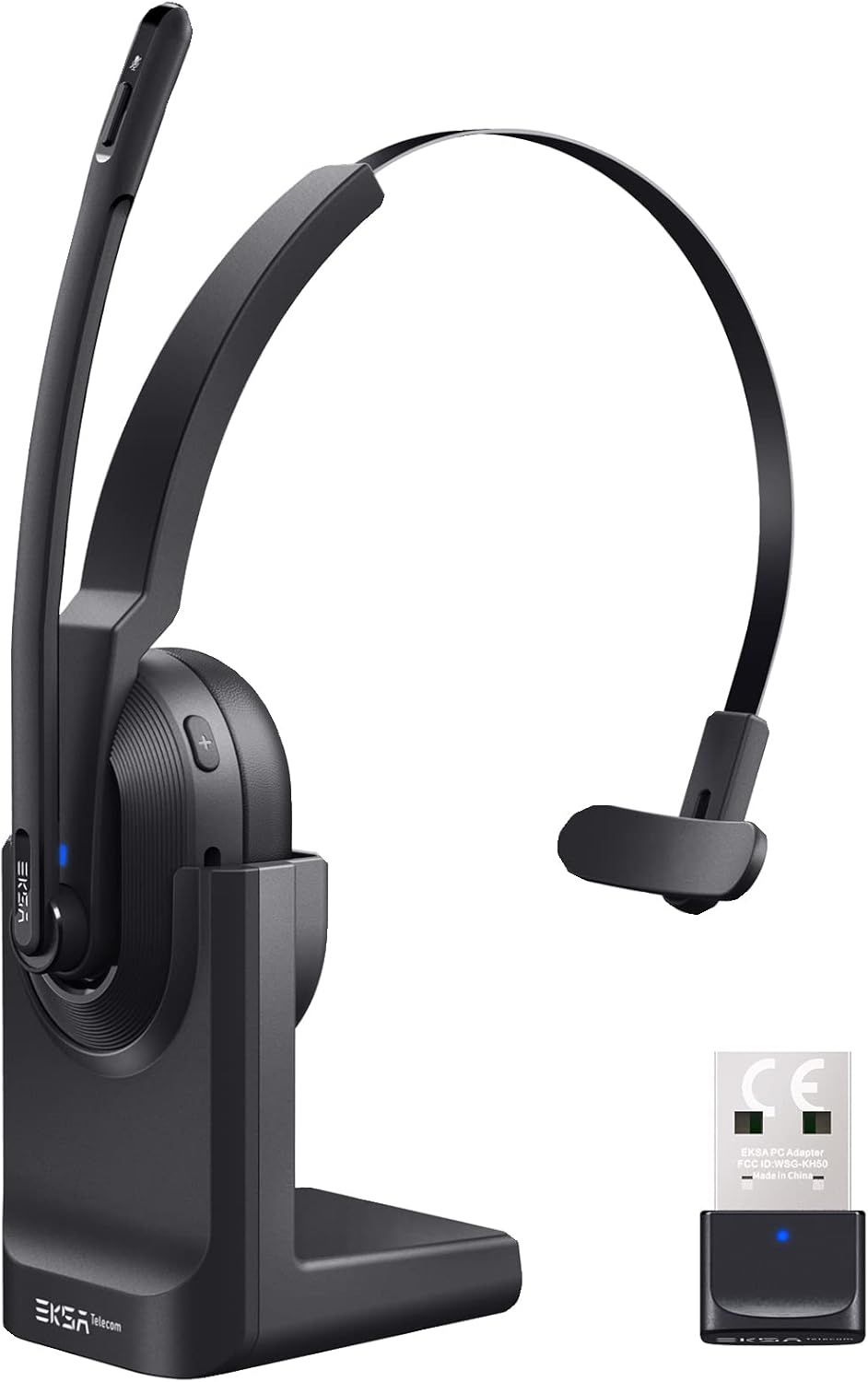

4. Enstalasyon
4.1 Chaje kas ekoutè a
The headset supports two charging methods:
- Chaje dirèk: Connect the USB-C charging cable directly to the headset's Type-C port and a power source.
- Baz chaje: Place the headset onto the included charging base. Ensure the charging contacts align. Connect the charging base to a power source using the USB-C cable.

A full charge takes approximately 1.5 hours. The headset provides up to 25 hours of talk time and 45 hours of music playback at 70% volume.

4.2 Konekte atravè yon kle USB
For PC and laptop connections, the USB dongle provides a stable wireless link.
- Insert the USB dongle into an available USB port on your PC or laptop.
- The LED indicator on the dongle will turn solid blue when successfully paired with the headset.
- On your PC/laptop, navigate to Anviwònman> Son.
- Mete EKSA Telecom H5 as both the input and output device.

4.3 Konekte atravè Bluetooth 5.0
The headset can connect to mobile phones, tablets, and other Bluetooth-enabled devices.
- Ensure the headset is powered on and in pairing mode (the Bluetooth indicator will flash).
- Sou aparèy mobil ou, ale nan Settings > Bluetooth & other devices.
- Chwazi "Ajoute Bluetooth oswa yon lòt aparèy" epi chèche "EKSA Telecom H5".
- Chwazi EKSA Telecom H5 pou pè.
- Once connected, set EKSA Telecom H5 as the input and output device in your device's sound settings.


4.4 Meeting Application Settings
For applications like Zoom or Skype:
- In the application's audio/video settings, select EKSA Telecom H5 as both the microphone and speaker.

5. Operasyon Enstriksyon
5.1 Kontwòl debaz yo
- Limen/Etenyen: Peze epi kenbe bouton milti-fonksyon an.
- Volim Up / Next Track: Press the '+' button. Hold for next track.
- Volim Dawonn / Previous Track: Press the '-' button. Hold for previous track.
- Reponn/Fen Apèl: Press the Multi-Function Button during an incoming call or active call.
- Rejte apèl: Press and hold the Multi-Function Button during an incoming call.
- Mikwofòn pou fèmen/retire son: Press the Mute Button located on the microphone arm.
5.2 Mete kas ekoutè a
The headset is designed for comfort and flexibility:
- The microphone arm can be rotated up to 270 degrees, allowing you to wear the headset on either your left or right ear.
- Ajiste bandeau a pou yon anfòm sekirite ak konfòtab.

5.3 AI Noise Cancelling Microphone
The headset features an AI-powered Environmental Noise Cancelling (ENC) microphone with a Qualcomm chip. This technology intelligently suppresses up to 99.6% of environmental noise, ensuring your voice is clear during calls, even in noisy environments.


6. Antretyen
To ensure the longevity and optimal performance of your headset:
- Netwaye kas ekoutè a regilyèman avèk yon twal mou epi sèk.
- Evite ekspoze kas ekoutè a nan tanperati ekstrèm, imidite, oswa limyè solèy dirèk.
- Pa sèvi ak pwodui netwayaj abrazif oswa solvang.
- Store the headset in a cool, dry place when not in use, preferably on its charging base or in a protective case.
NAN. Depanaj
| Pwoblèm | Kòz posib | Solisyon |
|---|---|---|
| Headset pa limen | Batri ki ba | Charge the headset using the USB-C cable or charging base. |
| No sound/microphone not working | Not connected or incorrect audio settings | Ensure the headset is paired via Bluetooth or dongle. Check your device's sound settings to confirm "EKSA Telecom H5" is selected as input/output. |
| Poor sound quality/intermittent connection | Out of range, interference, or low battery | Move closer to the connected device (within 10 meters). Avoid strong electromagnetic interference. Charge the headset. |
| Pa ka konekte via Bluetooth | Headset not in pairing mode or device already connected | Ensure the headset is in pairing mode (flashing indicator). Disconnect from any other devices. Restart Bluetooth on your device. |
| AI Noise Cancelling not effective | Pozisyon mikwofòn | Ensure the microphone is positioned correctly near your mouth for optimal voice pickup and noise suppression. |
8. Espesifikasyon
| Karakteristik | Detay |
|---|---|
| Non modèl | H5 |
| Koneksyon Teknoloji | Wireless (Bluetooth 5.0, USB Dongle) |
| Wireless Range | Jiska 10 mèt |
| Dire Batri (Mizik) | Jiska 45 èdtan (nan 70% volim) |
| Lavi batri (Pale) | Jiska 25 èdtan (nan 70% volim) |
| Tan pou chaje | Apeprè. 1.5 èdtan |
| Kontwòl bri | Active Noise Cancellation (AI Environmental Noise Cancelling) |
| Mikwofòn | 270° Rotatable, AI ENC |
| Pwa | Approx. 75g (headset only) / 0.54 kg (packaged) |
| Materyèl | Metal, Plastik |
| Konpozan ki enkli | Charging Base, USB Dongle |
| Gamme frekans | 20 Hz - 20,000 Hz |
9. Garanti ak sipò
EKSA products come with a standard manufacturer's warranty. For specific warranty details, please refer to the warranty card included in your package or visit the official EKSA website. For technical support, troubleshooting assistance, or any inquiries, please contact EKSA customer service through their official channels. You can find contact information on the EKSA websit la oubyen atravè platfòm acha ou a.