
1. Entwodiksyon
The Crestron HD-CONV-USB-300 is a versatile USB converter designed to seamlessly integrate HDMI and analog audio sources into a USB stream. This device facilitates the capture and conversion of high-definition video and audio signals for various applications, including conferencing, streaming, and recording. This manual provides essential information for the proper installation, operation, and maintenance of your HD-CONV-USB-300 converter.
2. Enfòmasyon sou Sekirite
Please read and understand all safety instructions before operating this device to prevent injury or damage.
- Pouvwa: Use only the power adapter supplied with the unit. Ensure the power source matches the voltage kondisyon.
- Vantilasyon: Do not block ventilation openings. Install the device in a location with adequate airflow.
- Imidite: Pa ekspoze aparèy la nan lapli, imidite, oswa plonje l nan dlo.
- Chalè: Kenbe aparèy la lwen sous chalè tankou radyatè, recho, oswa lòt aparèy ki pwodui chalè.
- Netwayaj: Disconnect power before cleaning. Use a dry cloth only. Do not use liquid cleaners or aerosol sprays.
- Sèvis: Pa eseye fè sèvis pwodui sa a tèt ou. Refere tout sèvis yo bay pèsonèl sèvis kalifye.
3. Pake kontni
Verifye ke tout atik yo prezan nan pakè ou a:
- 1x Crestron HD-CONV-USB-300 USB Converter
- 1x pouvwa adaptè
- 1x USB Cable (Type A to Type B)
- 1x Quick Start Guide (or similar documentation)
4. Pwodwi souview
The HD-CONV-USB-300 features multiple input and output ports for flexible connectivity.
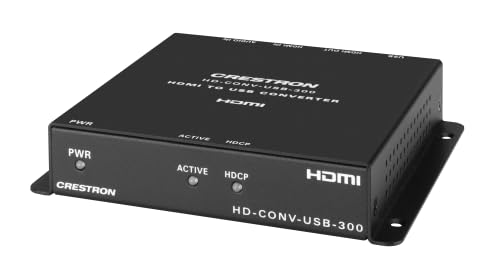
Figi 1: Devan view of the Crestron HD-CONV-USB-300 USB Converter. This image shows the compact design and the Crestron branding on the device.
4.1. Front Panel
- Ki ap dirije Status: Indicates power and operational status.
- Antre Chwazi bouton: Toggles between HDMI and Analog audio inputs.
4.2. Panel aryè
- Antre HDMI: Connect your HDMI video and audio source here.
- Analog Audio Input (3.5mm): Connect analog audio sources.
- USB Output (Type B): Connect to your computer for data transfer.
- Power Input (DC 5V): Konekte adaptè pouvwa a apwovizyone.
5. Enstalasyon
Follow these steps to set up your Crestron HD-CONV-USB-300 converter:
- Konekte Sous HDMI a: Connect an HDMI cable from your video source (e.g., camera, media player) to the Dmi D ' port on the HD-CONV-USB-300.
- Connect Analog Audio Source (Optional): If using an analog audio source, connect a 3.5mm audio cable from your audio device to the Antre odyo analòg pò.
- Konekte ak òdinatè: Connect the supplied USB cable from the USB Output (Type B) port on the converter to an available USB port on your computer.
- Konekte pouvwa: Plug the supplied power adapter into the Antre pouvwa (DC 5V) port on the converter, then plug the adapter into a power outlet. The Status LED should illuminate.
- Enstalasyon chofè: The HD-CONV-USB-300 is typically plug-and-play and does not require specific drivers for most operating systems (Windows, macOS, Linux). It will be recognized as a standard USB Video Class (UVC) and USB Audio Class (UAC) device.
- Lojisyèl konte genyen: Open your preferred video conferencing, streaming, or recording software (e.g., OBS Studio, Zoom, Microsoft Teams). In the software's settings, select the Crestron HD-CONV-USB-300 as your video and audio input device.
6. Operasyon Enstriksyon
Once the device is set up, follow these steps for operation:
- Pouvwa sou: Ensure the converter is powered on and connected to your computer. The Status LED should be solid green.
- Chwazi Antre: Peze a Antre Chwazi bouton on the front panel to switch between HDMI and Analog audio inputs. The Status LED may change color or blink to indicate the active input (refer to specific model documentation for LED behavior).
- Verify Input in Software: In your chosen software, confirm that the video and audio from your selected source are being received. Adjust any necessary settings within the software, such as resolution, frame rate, or audio levels.
- Start Application: Begin your video conference, streaming session, or recording.
Nòt: The quality of the captured video and audio will depend on the source device and the capabilities of your computer and software.
7. Antretyen
Proper maintenance ensures the longevity and optimal performance of your HD-CONV-USB-300.
- Netwayaj: Disconnect the power before cleaning. Use a soft, dry, lint-free cloth to wipe the exterior of the device. Do not use abrasive cleaners, solvents, or chemical sprays.
- Depo: If storing the device for an extended period, disconnect all cables and store it in a cool, dry place away from direct sunlight and extreme temperatures.
- Jesyon kab: Ensure all cables are routed neatly and are not under strain or sharply bent to prevent damage.
NAN. Depanaj
If you encounter issues with your HD-CONV-USB-300, refer to the following common problems and solutions:
| Pwoblèm | Kòz posib | Solisyon |
|---|---|---|
| No power / Status LED off | Adaptè kouran an pa konekte oswa li gen pwoblèm. | Ensure the power adapter is securely connected to the converter and a working power outlet. Try a different outlet. |
| No video output in software | Incorrect input selected; HDMI cable issue; Software not configured correctly. |
|
| No audio output in software | Incorrect input selected; Audio cable issue; Software not configured correctly; Source audio settings. |
|
| Computer does not recognize device | USB cable issue; USB port issue; Driver conflict. |
|
9. Espesifikasyon
| Nimewo Modèl | 6512272 |
| Mak | Crestron |
| Entèfas | HDMI, USB, Analog Audio (3.5mm) |
| Dimansyon (L x W x H) | 10.69 x 25.9 x 29.4 cm |
| Pwa | 730 gram |
| Manifakti | Crestron |
| Dat Disponibilite | 18 me 2023 |
10. Enfòmasyon sou Garanti
Crestron products are typically covered by a limited manufacturer's warranty. The specific terms and duration of the warranty may vary by region and product type. For detailed warranty information, please refer to the warranty card included with your product or visit the official Crestron websit.
Nòt: Kenbe prèv ou achte pou reklamasyon garanti.
11. Enfòmasyon Sipò
For technical support, product updates, or additional resources, please visit the official Crestron websit:
You may also find FAQs and community forums on their support pages.