
1. Entwodiksyon
This manual provides detailed instructions for the installation, operation, maintenance, and troubleshooting of your TouchWo 65-inch Interactive Touchscreen Monitor. Please read this manual thoroughly before using the product to ensure proper functionality and to prevent damage. Keep this manual for future reference.
2. Pwodwi souview
2.1 Karakteristik kle
- 10-Point Touch Screen: Supports multi-finger gestures for zooming, writing, and annotation without drivers or a stylus. Operable with gloves.
- Smart Interactive Whiteboard: Integrated Windows 10 OS (Intel i7, 8GB RAM, 256GB SSD) allows installation of various applications for meetings, classrooms, gaming, smart TV, digital signage, and live streaming.
- Plug and Play & Multi-Interface: Equipped with 4x USB, VGA, HDMI, LAN, and WiFi. Features built-in speakers and a 3.5mm audio jack. Supports real-time editing and sharing across multiple users and devices.
- Fonksyonalite avanse: Supports screen mirroring from mobile phones and laptops, wireless and USB connectivity for live streaming, horizontal and vertical display modes, and external camera/microphone for video conferencing.
2.2 Sa ki nan bwat la
- 1 x Touchscreen All-in-One PC
- 1 x Power Line
- 1 x Manyèl pwodwi (dokiman sa a)
- 1 x Support mi-monte
- 1 x antèn WiFi

Figure 2.1: The TouchWo 65-inch Interactive Touchscreen Monitor highlighting its 4K HDR display and 10-point touch capabilities.

Figure 2.2: The monitor's versatile functionality, integrating six devices into one unit.

Figi 2.3: Plis paseview of the HD Series Touchscreen Monitor's core features.
3. Enstriksyon Enstalasyon
3.1 Debake
Carefully remove the monitor and all accessories from the packaging. Inspect all components for any signs of damage. Retain the packaging for future transport or storage.
3.2 Montaj
The monitor includes a wall-mounted bracket. Follow the instructions provided with the bracket for secure installation. Ensure the mounting surface can support the monitor's weight (approximately 85.8 pounds).
3.3 Konekte periferik
Connect the power line to the monitor and a suitable power outlet (110V AC). Utilize the available ports for external devices:
- Pò USB (x4): For connecting keyboards, mice, external storage, or other USB devices.
- VGA & HDMI Ports: For connecting external display sources.
- Pò LAN: Pou koneksyon rezo filaire.
- Antèn WiFi: Attach the included WiFi antenna for wireless network access.
- 3.5mm Audio Jack: Pou konekte aparèy odyo ekstèn tankou kas ekoutè oswa oratè.

Figure 3.1: Physical dimensions and key specifications for installation planning.
4. Operasyon Enstriksyon
4.1 Power On/Off
Press the power button located on the monitor to turn it on or off. The system will boot into the Windows 10 operating system.
4.2 Basic Touchscreen Operation
The monitor supports 10-point multi-touch. Use your fingers for navigation, selection, zooming, and writing. Common gestures include:
- Tape: Ekivalan a yon klik sourit.
- Zòrèy/Lonje: Agrandi oswa diminye kontni an.
- Glise: Defile nan paj yo oswa kontni an.
- Tape ak de dwèt: Often functions as a right-click.

Figi 4.1: Egzamples of 10-point touch technology gestures.
4.3 Windows 10 OS Usage
The integrated Windows 10 operating system provides a familiar desktop environment. You can install and run standard Windows applications. Ensure all necessary drivers are updated for optimal performance.
4.4 Miroir ekran
The monitor supports screen mirroring from compatible mobile phones and laptops. Refer to your device's instructions for initiating screen mirroring. Connectivity can be established wirelessly or via USB.

Figure 4.2: Screen mirroring functionality for displaying content from mobile devices.
4.5 Using as an Electronic Whiteboard
Utilize the pre-installed whiteboard software or download your preferred application. The 10-point touch allows multiple users to write, draw, and annotate simultaneously.
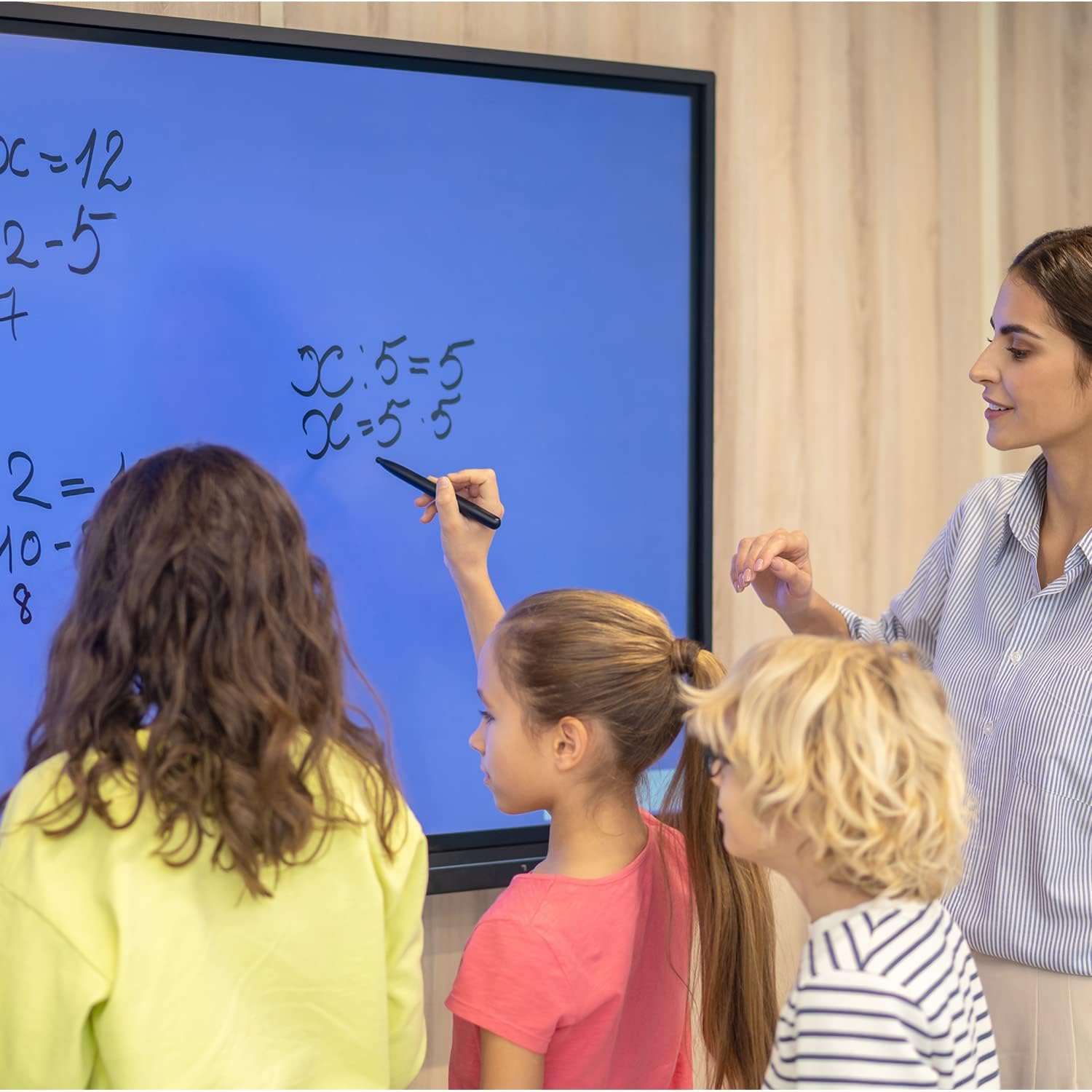
Figure 4.3: The monitor used as an interactive whiteboard in a classroom.
4.6 Multi-device Functionality
The monitor can serve various roles, including a presentation display, video conferencing hub, or digital signage. Connect external cameras and microphones for video calls.

Figure 4.4: The monitor facilitating a business presentation.

Figure 4.5: The monitor used for effective video conferencing.

Figi 4.6: Egzamples of the monitor's use in public display environments.
5. Antretyen
5.1 Netwaye ekran an
To clean the screen, power off the monitor and disconnect it from the power source. Use a soft, lint-free cloth lightly dampened with a non-abrasive, screen-safe cleaning solution. Do not spray liquid directly onto the screen.
5.2 Mizajou lojisyèl
Regularly check for and install Windows operating system updates and any specific TouchWo software updates to ensure optimal performance and security.
NAN. Depanaj
If you encounter issues with your TouchWo Interactive Touchscreen Monitor, please refer to the following common solutions:
- Pa gen pouvwa: Asire w ke kab kouran an byen konekte ak tou de monitè a ak yon priz kouran k ap travay.
- Pa gen ekspozisyon: Check HDMI/VGA connections if using an external source. Ensure the monitor is powered on.
- Ekran taktil la pa reponn: Restart the monitor. Ensure no foreign objects are on the screen surface. If using an external PC, verify touch drivers are installed.
- Kalite imaj pòv: Check display resolution settings in Windows. Ensure cables are securely connected.
- Pa gen son: Verify volume settings in Windows and on the monitor. Check external speaker/headphone connections if applicable.
Pou pwoblèm ki pèsiste, tanpri kontakte sèvis kliyan.
7. Espesifikasyon
| Karakteristik | Spesifikasyon |
|---|---|
| Mak | TouchWo |
| Nimewo Modèl | HD650WE |
| Gwosè ekran | 65 pous |
| Rezolisyon | 3840 x 2160 piksèl (4K UHD) |
| Aspè rapò | 16:9 |
| Imaj klète | 300 lm |
| Deskripsyon Sifas Ekran an | Flat |
| Dimansyon pwodwi | 3.19 x 58.46 x 33.87 pous |
| Pwa atik | 85.8 liv |
| Voltage | 110 Vòlt (AC) |
| Total pò USB | 4 |
| Sistèm operasyon | Windows 10 |
| Processeur | Intel Nwayo i7 |
| RAM | 8GB |
| Depo | 256GB SSD |
8. Garanti ak sipò
8.1 Sètifikasyon
This interactive whiteboard is FCC, CE, and RoHS certified, ensuring compliance with relevant safety and environmental standards.
8.2 Sipò pou Kliyan
For any usage questions, technical assistance, or quality issues, TouchWo provides 24/7 online support. Please refer to the contact information below:

Figure 8.1: TouchWo customer support contact details.
You can also visit the official seller page for more information: TouchWo Seller Page