
1. Entwodiksyon
This manual provides detailed instructions for the Hexgears GK715 Mechanical Gaming Keyboard. Please read this manual thoroughly before using the product to ensure proper operation and to maximize your experience.

Image 1.1: The Hexgears GK715 Mechanical Gaming Keyboard.
2. Karakteristik kle
- Layout 104-Kle: Klavye gwosè konplè pou fonksyonalite konplè.
- Kailh Box Switches: Durable and responsive mechanical switches.
- Blue Backlighting: Enhances visibility and aesthetic appeal.
- Konsepsyon ranplasabl a cho: Pèmèt ranplasman switch fasil san soude.
- Double Shot ABS Keycaps: Ensures legends do not fade over time and provides a premium feel.
- Anti-Ghosting: Guarantees accurate registration of multiple simultaneous key presses.
- Konstriksyon ki enpèmeyab: Provides protection against accidental spills.

Image 2.1: The GK715 keyboard showcasing its 104-key layout and anti-ghosting capability.

Imaj 2.2: Detaye view of the double-shot ABS keycaps and blue backlighting on the GK715 keyboard.
3. Enstalasyon
- Depake klavye a: Carefully remove the Hexgears GK715 keyboard from its packaging.
- Konekte ak PC: Plug the USB cable from the keyboard into an available USB port on your computer. The keyboard is a corded electric device and requires a USB connection.
- Enstalasyon chofè: Sistèm operasyon ou an ta dwe detekte epi enstale chofè ki nesesè yo otomatikman. Anjeneral, ou pa bezwen enstale okenn lòt lojisyèl.
- Ajiste Ang Klavye a: The keyboard features dual-segment foot support. Adjust the feet on the underside of the keyboard to your preferred typing angle for ergonomic comfort.
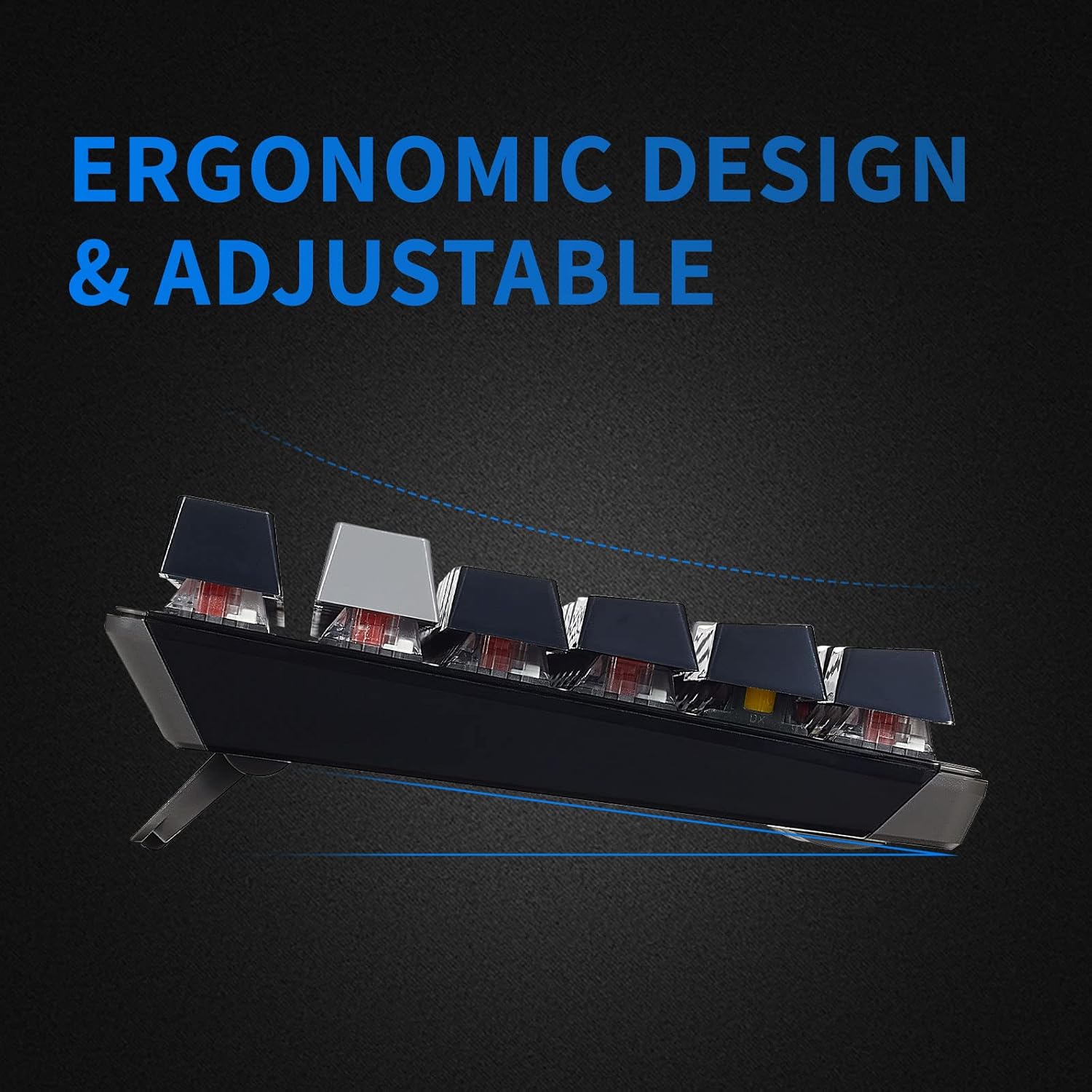
Image 3.1: The adjustable feet of the GK715 keyboard, allowing for ergonomic customization.

Image 3.2: The GK715 keyboard in a typical computer setup, demonstrating its wired connection and blue backlighting.
4. Operasyon Enstriksyon
4.1 Itilizasyon debaz
The Hexgears GK715 functions as a standard 104-key mechanical keyboard. Simply begin typing after connecting it to your PC. The indicator lights (Caps Lock, Num Lock, Scroll Lock) will illuminate to show their active status.
4.2 Kontwòl ekleraj
The keyboard features blue backlighting. Specific key combinations (often involving the 'Fn' key) are used to adjust brightness or switch between lighting modes. Refer to the keycap legends for specific function key assignments related to lighting.
4.3 Switch ki ka ranplase a cho
The GK715 supports hot-swappable Kailh Box switches, allowing you to change switches without soldering. Use the included keycap puller and switch puller tools for this process.
- Sèvi ak rale bouchon kle a pou retire bouchon kle ou vle a dousman.
- Use the switch puller to carefully grip and pull out the switch from the PCB.
- Aliyen broch nouvo switch la ak twou ki sou PCB a epi peze byen fèm jiskaske li klike an plas.
- Ranplase kouvèti kle a.
Video 4.1: Demonstration of hot-swapping Kailh Box switches on the Hexgears GK715 keyboard, including keycap and switch removal and installation.
Videyo 4.2: Finiview of the GK715 Black Grey keyboard, showcasing its design, backlighting, and typing experience.
5. Antretyen
5.1 Netwayaj
To clean the keyboard, disconnect it from your computer. Use a soft, dry cloth to wipe down the keycaps and chassis. For deeper cleaning, you may remove keycaps using a keycap puller and clean underneath with compressed air or a small brush. Avoid using harsh chemicals or abrasive materials.
5.2 Karakteristik ki enpèmeyab
The GK715 is designed with waterproof features to protect against accidental spills. While it offers protection, it is not recommended to submerge the keyboard in liquid. In case of a spill, disconnect the keyboard immediately, wipe off any liquid, and allow it to air dry completely before reconnecting.
NAN. Depanaj
- Klavye a pa reponn:
- Asire w kab USB a byen konekte ak klavye a ak òdinatè a.
- Eseye branche klavye a nan yon lòt pò USB.
- Rekòmanse òdinatè w lan.
- Backlight Not Working/Dim:
- Check if the backlight is turned off or set to the lowest brightness level using the designated function keys (e.g., Fn + arrow keys or other indicated keys).
- Asire w klavye a ap resevwa ase kouran nan pò USB a.
- Kle yo pa anrejistre:
- If individual keys are not working, ensure the switch underneath is properly seated. If you have hot-swapped switches, try re-seating or replacing the affected switch.
- Clean any debris that might be under the keycap or switch.
- Connection Issues After Sleep Mode:
- If the keyboard experiences connection issues after the computer enters sleep mode, try unplugging and re-plugging the USB cable.
- Ensure your computer's USB power management settings are not set to turn off USB devices to save power.
7. Espesifikasyon
| Karakteristik | Detay |
|---|---|
| Mak | Hexgears |
| Non modèl | GK715 |
| Koneksyon Teknoloji | USB (elektrik ak fil) |
| Aparèy konpatib | PC |
| Kantite kle | 104 |
| Chanje Kalite | Kailh BOX |
| Karakteristik espesyal | Waterproof, Hot-Swappable |
| Dimansyon pwodwi (L x W x H) | 17.2" x 5.08" x 1.42" |
| Oryantasyon men | Anbidextr |

Imaj 7.1: Plis paseview of various Kailh BOX switch types, highlighting their tactile and linear characteristics.
8. Garanti ak sipò
For warranty information and technical support, please refer to the official Hexgears websit la oubyen kontakte sèvis kliyan yo dirèkteman. Kenbe resi acha w la kòm prèv acha pou nenpòt reklamasyon garanti.