
MUBVIEW J9
MUBVIEW J9 Wireless Video Doorbell User Manual
Modèl: J9
1. Entwodiksyon
Thank you for choosing the MUBVIEW J9 Wireless Video Doorbell. This manual provides essential information for setting up, operating, and maintaining your device. The MUBVIEW J9 is designed for enhanced home security and convenience, featuring high-definition video, two-way communication, and smart motion detection. Its wireless design and long-lasting battery ensure easy installation and reliable performance.
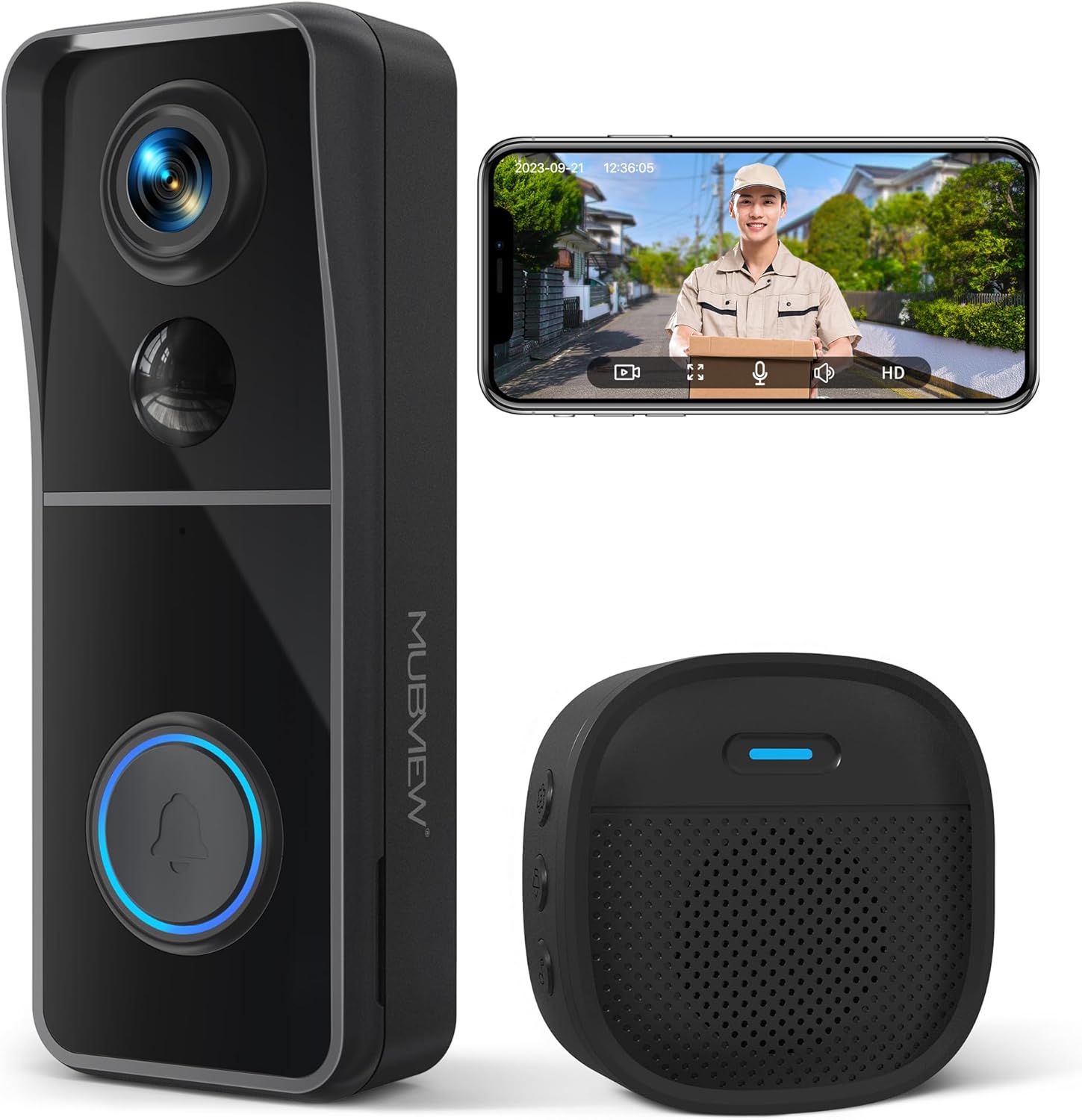
Image: The MUBVIEW J9 Wireless Video Doorbell and its accompanying chime unit.
2. Sa ki enkli
Tanpri verifye sa ki nan pake a pou asire w tout atik yo la:
- Video Doorbell Unit
- Inite sonèt san fil
- Manyèl itilizatè
- USB Chaje Kab
- Vis pou enstalasyon
- 3M Double-Sided Strong Tape
Image: All components included in the MUBVIEW J9 package.
3. Enstalasyon ak Enstalasyon
MUB laVIEW J9 doorbell is designed for easy, wire-free installation. Before mounting, ensure the doorbell is fully charged using the provided USB cable. A full charge takes approximately 6-8 hours and can last up to 3 months, depending on usage.
3.1 Chaje Sonèt Pòt la
Connect the USB charging cable to the doorbell's charging port (located on the side, under a protective flap) and plug it into a standard USB power adapter (not included). The indicator light will show charging status.
3.2 Telechaje Aplikasyon an ak Koneksyon
Download the 'Mubview' app from your smartphone's app store (iOS or Android). Follow the in-app instructions to create an account and add your device. Ensure your Wi-Fi network is 2.4GHz, as 5GHz is not supported.
Video: Step-by-step guide on connecting the MUBVIEW J9 doorbell to your Wi-Fi network via the app.
3.3 Enstalasyon Fizik
The doorbell can be installed using either the provided 3M double-sided tape or the screw set. For optimal performance, install the doorbell at least 4 feet (1.2 meters) above the ground.
- Using 3M Tape: Clean the mounting surface thoroughly. Apply the tape to the backplate of the doorbell and firmly press it onto the desired location on your wall or door frame.
- Sèvi ak vis: Use the backplate as a template to mark drill holes. Drill the holes, insert the wall anchors (if needed), and secure the backplate with screws. Then, slide the doorbell unit onto the mounted backplate until it clicks into place.
Video: Detailed instructions on how to physically install the MUBVIEW J9 doorbell on your door or wall.
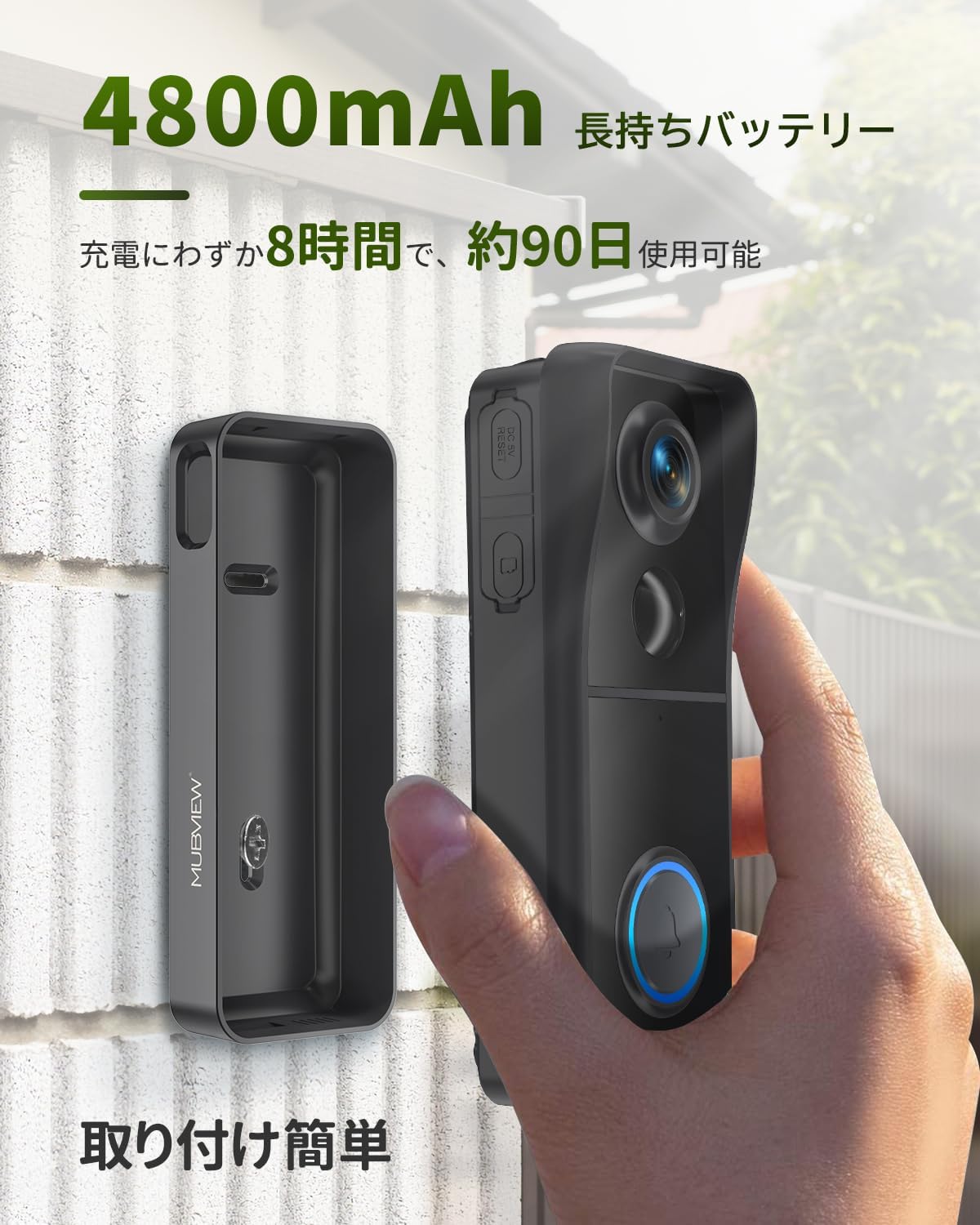
Image: The doorbell unit being attached to its mounting bracket on a wall, highlighting its easy installation.
4. Operasyon Enstriksyon
Once installed and connected, your MUBVIEW J9 doorbell offers a range of features for enhanced security and communication.
4.1 Viv View ak Two-Way Talk
Access the live video feed from your doorbell anytime through the Mubview app. When a visitor presses the doorbell, you will receive an instant notification on your smartphone, allowing you to see and speak to them in real-time, even when you're away from home.
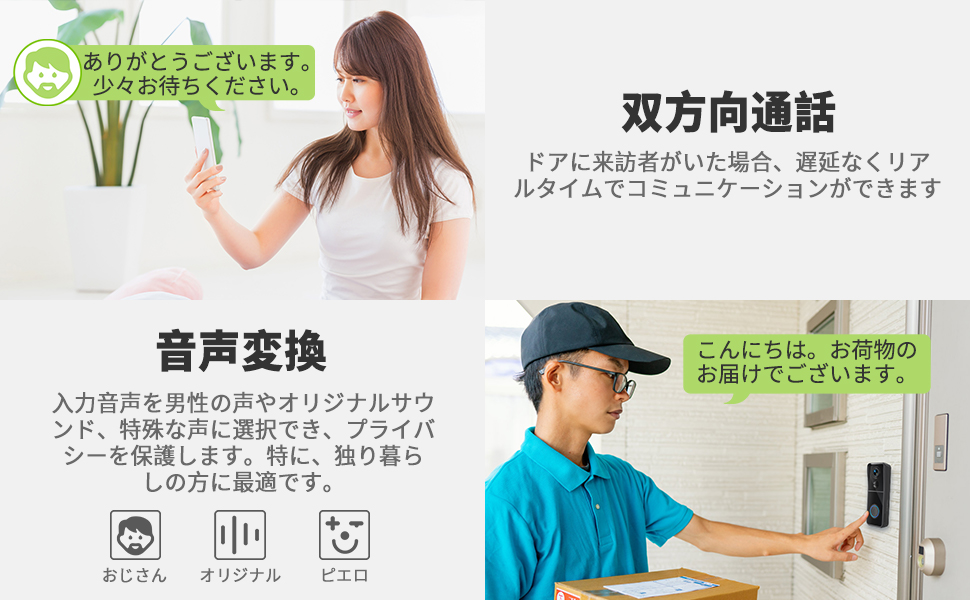
Image: A user engaging in two-way communication with a visitor via the MUBVIEW app on their smartphone.
4.2 Deteksyon Mouvman ak Alèt
The doorbell features PIR motion detection. When motion is detected within the customizable area, the doorbell automatically starts recording and sends an alert to your phone. You can adjust the detection sensitivity and schedule within the app to minimize false alarms.
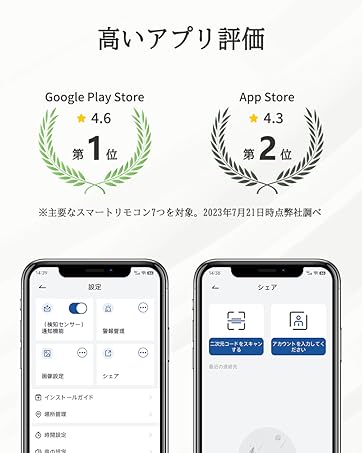
Image: Screenshot of the app interface showing how to customize the motion detection area for the doorbell.
4.3 Videyo definisyon wo ak vizyon lannwit
MUB laVIEW J9 captures video in 1080P high-definition, ensuring clear visuals. Its infrared night vision, powered by a Starlight CMOS image sensor, provides excellent visibility up to 10 meters even in complete darkness. The 166° ultra-wide-angle lens offers a broad field of view.
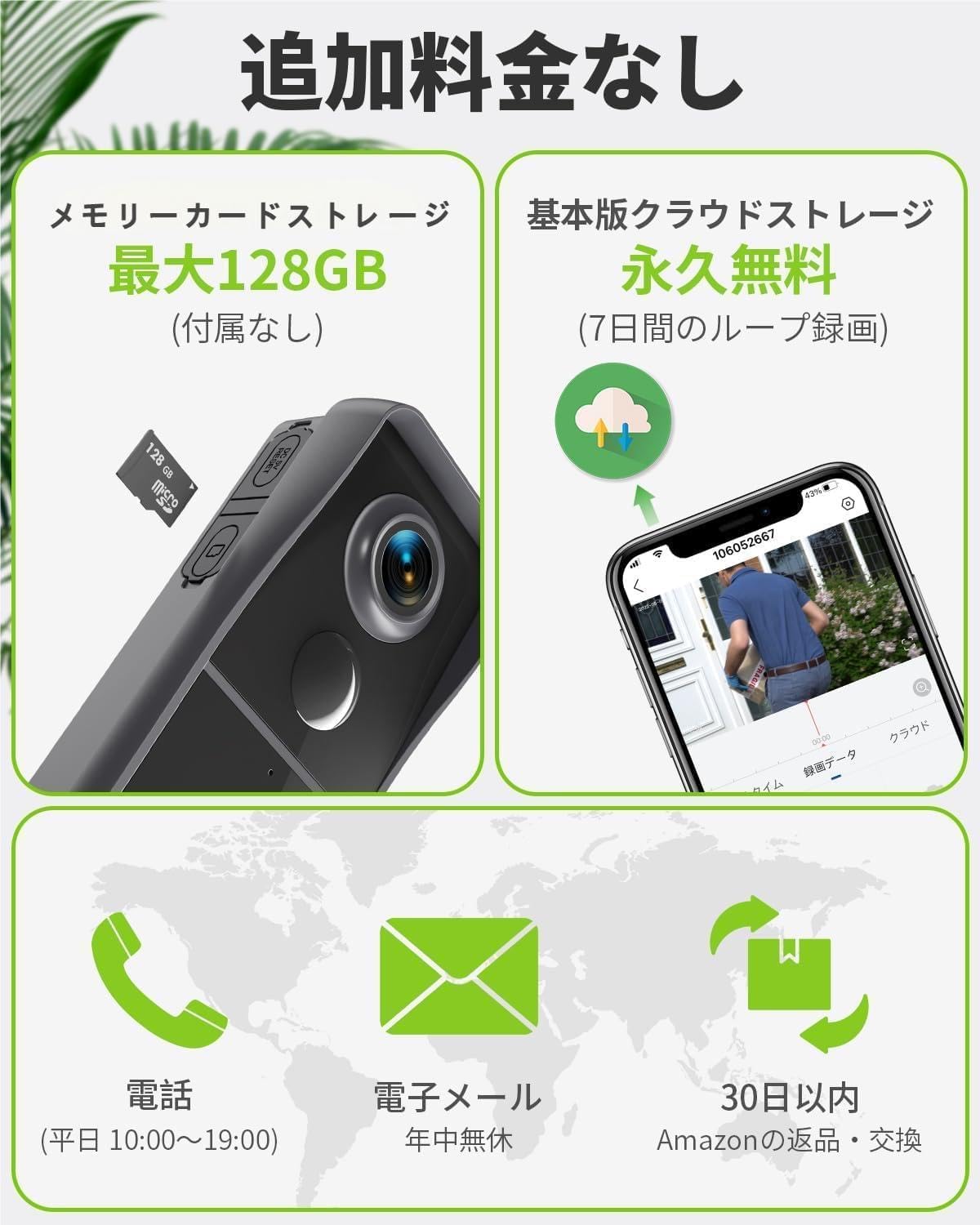
Image: Comparison of daytime 1080P video quality and clear infrared night vision captured by the doorbell.
4.4 Voice Message and Sharing
You can pre-record up to three 10-second voice messages to respond to visitors quickly. The doorbell also supports sharing access with multiple family members or friends through their own accounts on the Mubview app.
Image: Illustration of how multiple users can share access to the doorbell's features via the app.
5. Antretyen
To ensure the longevity and optimal performance of your MUBVIEW J9 doorbell, follow these maintenance guidelines:
- Netwayaj regilye: Wipe the camera lens and the doorbell surface with a soft, damp twal pou retire pousyè ak pousyè tè. Evite itilize pwodwi chimik piman bouk oswa materyèl abrazif.
- Jesyon batri: Monitor the battery level via the app. Recharge the doorbell promptly when the battery is low to ensure continuous operation.
- Mizajou mikrolojisyèl: Keep the Mubview app and doorbell firmware updated to the latest versions to benefit from new features and security enhancements.
- Rezistans move tan: The doorbell is IP66 rated, meaning it is dustproof and waterproof. It can withstand temperatures from -20°C to 50°C. However, avoid submerging it in water or exposing it to extreme conditions beyond its specified limits.
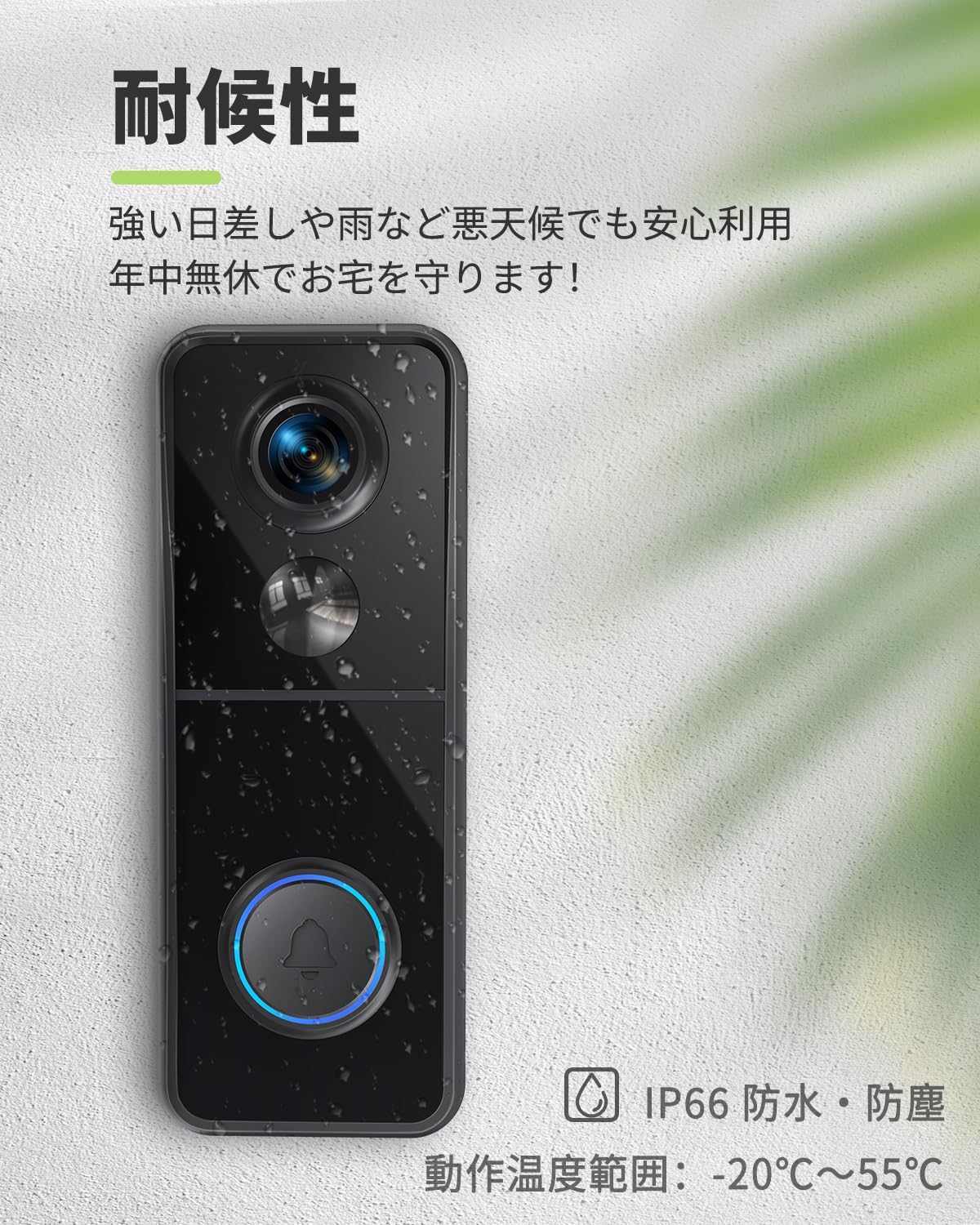
Image: The doorbell unit shown with water droplets, illustrating its IP66 weather-resistant design.
NAN. Depanaj
Si ou rankontre pwoblèm ak MUB ou aVIEW J9 doorbell, try the following troubleshooting steps:
- Pa gen pouvwa/pa limen: Ensure the doorbell is fully charged. Connect it to the USB charging cable and check if the indicator light turns on.
- Pa ka konekte ak Wi-Fi: Verify that your Wi-Fi network is 2.4GHz. Ensure the doorbell is within range of your router. Try resetting the doorbell by pressing the reset button for 5 seconds until the red indicator light flashes.
- Pa gen Notifikasyon: Check your smartphone's app settings to ensure notifications for the Mubview app are enabled. Verify that motion detection is activated and configured correctly in the app.
- Kalite videyo pòv: Ensure the camera lens is clean. Check your Wi-Fi signal strength in the app; a weak signal can affect video quality.
- Pwoblèm odyo de sans: Ensure the microphone and speaker are not obstructed. Check the volume settings in the app.
If the issue persists after trying these steps, please contact MUBVIEW sipò pou kliyan.
7. Espesifikasyon
| Karakteristik | Spesifikasyon |
|---|---|
| Kalite aliye | Mi mòn |
| Rezolisyon Capture Videyo | 1080p |
| Koulè | J9 |
| Teknoloji kominikasyon san fil | Wi-Fi (2.4GHz sèlman) |
| Jaden nan View | 166 Degre |
| Vizyon lannwit Range | 10 mèt |
| To Frame | 30fps |
| Materyèl | Plastik |
| Voltage | 5 Vòlt (AC) |
| Dimansyon pwodwi (LxWxH) | 14.7 x 5.6 x 3.8 cm |
| Pwa pwodwi | 430 g |
| Sous limyè | Enfrawouj |
| Batri enkli | Wi |
| Kalite batri | Lityòm Ion (4800mAh) |
| Itilizasyon Rekòmande | Deyò Sekirite |
| Andedan kay la / Deyò Itilizasyon | Deyò |
| Aparèy konpatib | Telefòn entelijan (iOS, Android) |
| Sous pouvwa | Batri Powered |
8. Garanti ak sipò
MUBVIEW offers a 3-year quality guarantee for this product. If you experience any defects or malfunctions, MUBVIEW will provide a new product exchange or a refund.
For any inquiries or support, please contact MUBVIEW sèvis kliyan nan sipò@mubview.com. They strive to provide prompt assistance and continuously improve their software based on customer feedback.
Ask a question about this manual
Ask about setup, troubleshooting, compatibility, parts, safety, or missing instructions. Manuals+ will review the question and use this page’s manual context to help answer it.