
CUPEISI CP20
CUPEISI CP20 Android 15 Tablet User Manual
Modèl: CP20
1. Entwodiksyon
Thank you for choosing the CUPEISI CP20 Android 15 Tablet. This manual provides essential information for setting up, operating, and maintaining your device. Please read it thoroughly to ensure optimal performance and longevity of your tablet.
2. Ki sa ki nan bwat la
Verifye ke tout atik yo prezan nan pakè ou a:
- CUPEISI CP20 Android 15 Tablet
- Wireless klavye
- Foldable Protective Cover
- Bluetooth sourit
- Stylus
- Kalite-C Kab
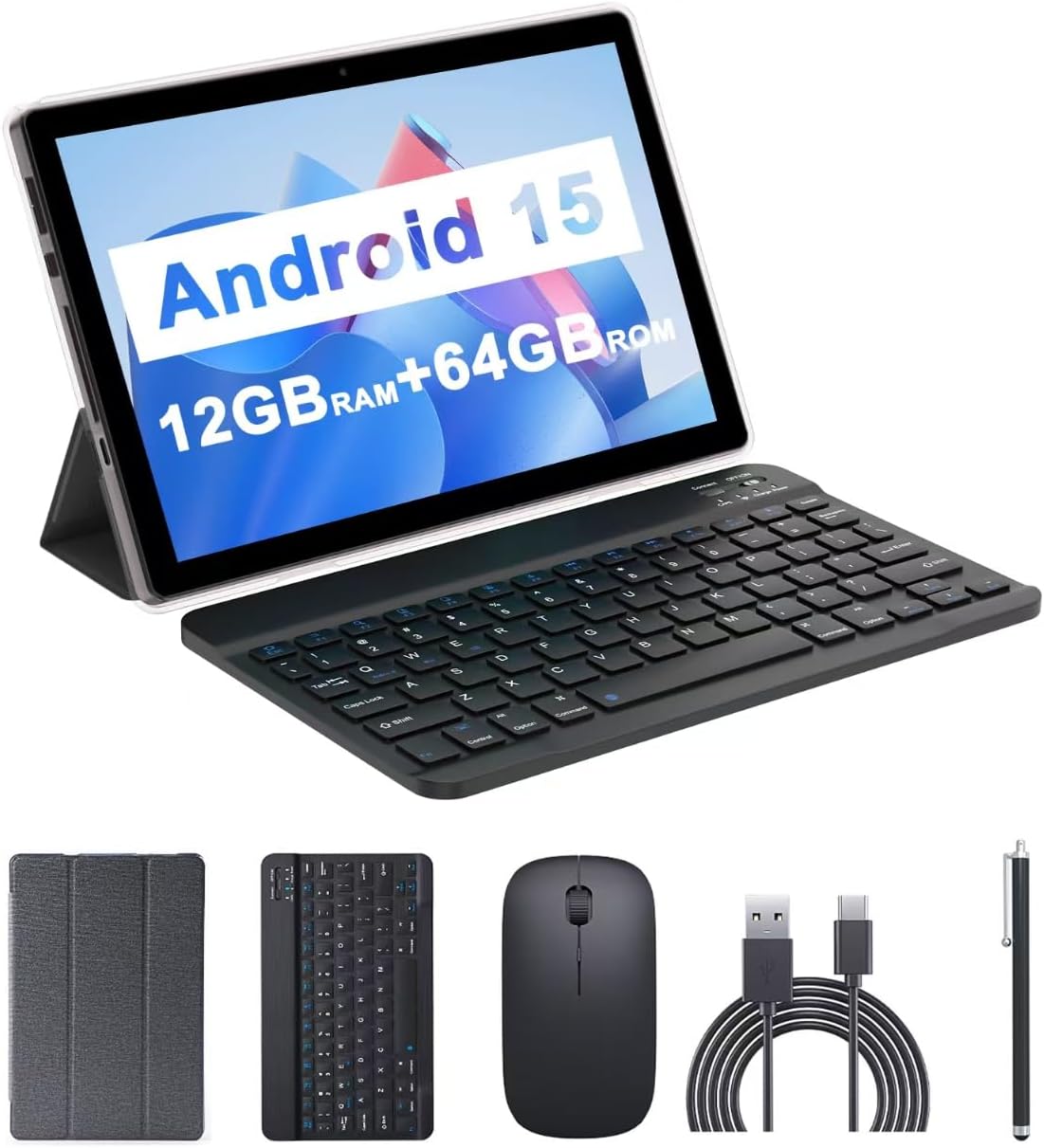
Image: The CUPEISI CP20 Tablet alongside its accessories, including the wireless keyboard, Bluetooth mouse, stylus, and foldable protective cover.
3. Karakteristik ak konpozan pwodwi yo
The CUPEISI CP20 Tablet is designed for versatility and performance, offering a seamless user experience for both work and entertainment.
3.1 Karakteristik kle
- Sistèm operasyon: Stable Android 15.0 system.
- Processeur: Built-in 1.8GHz Quad-core CPU for efficient multitasking.
- Memwa ak Depo: 12GB RAM (4GB+8GB expansion) and 64GB ROM, expandable up to 1TB via microSD card.
- Ekspozisyon: Stunning 10.1-inch 1280x800 IPS HD touch screen for immersive visuals and eye protection.
- Batri: Powered by a 6000mAh battery, providing approximately 6 hours of regular operation and up to 12 hours of standby time. Charges via 5V2A Type-C port.
- Kamera: 8MP rear camera with auto-focus and flash, and a 2MP front camera for clear video calls and photos.
- Koneksyon: Supports 5G WiFi 6 and Bluetooth 5.0.
- Fonksyonalite 2-an-1: Transforms into a laptop or computer mode with the included Bluetooth keyboard, wireless mouse, and foldable protective case.

Imaj: Plis paseview of the tablet's core specifications and features.
3.2 Konpozan fizik yo
Familyarize w ak aparans fizik tablèt la:
- Bouton pouvwa: Sitiye sou bò a, yo itilize li pou limen/etenn tablèt la oswa reveye/dòmi ekran an.
- Bouton Volim: Ajiste nivo odyo yo.
- Kalite-C Port: Pou chaje ak transfè done.
- TF/SIM Card Slot: Insert a microSD card for expanded storage.
- Kamera devan: Pou apèl videyo ak selfie.
- Rear Camera & Flash: Pou foto ak videyo kalite siperyè.
- Oratè: Two speakers for audio output.

Image: Labeled diagram of the tablet's ports and buttons.
4. Gid Enstalasyon
4.1 Premye chaj
Before first use, fully charge your tablet. Connect the Type-C cable to the tablet's charging port and the other end to a compatible power adapter (5V2A recommended). The battery indicator will show charging status.
4.2 Limen/Etenyen
- Pou limen: Press and hold the Power Button until the screen lights up.
- Pou etenn: Press and hold the Power Button, then select 'Power off' from the options that appear on the screen.
- Pou rekòmanse: Press and hold the Power Button, then select 'Restart'.
4.3 Konekte ak Wi-Fi
- Ale nan Anviwònman > Rezo ak entènèt > Wi-Fi.
- Limen Wi-Fi.
- Chwazi rezo Wi-Fi ou vle a nan lis la.
- Antre modpas la si yo mande w, epi tape Konekte.
4.4 Pairing Bluetooth Accessories
To use the wireless keyboard and Bluetooth mouse, they must be paired with your tablet.
- Ensure the keyboard and mouse are charged and powered on.
- Sou tablèt ou a, ale nan Anviwònman > Aparèy ki konekte > Bluetooth.
- Limen Bluetooth.
- The tablet will scan for available devices. Select the keyboard or mouse from the list.
- Swiv nenpòt envit ki sou ekran pou konplete pwosesis kouple a.

Image: Instructions for connecting the wireless keyboard and mouse via Bluetooth.
4.5 Mete yon Kat MicroSD
To expand storage, insert a microSD card (up to 1TB) into the TF/SIM card slot. Ensure the tablet is powered off before inserting or removing the card.
5. Itilizasyon Tablèt ou a
5.1 Navigasyon debaz
Navigate the Android interface using touch gestures:
- Tape: Chwazi yon atik oubyen louvri yon aplikasyon.
- Glise: Defile nan paj yo oubyen lis yo.
- Zoom-pou-zoom: Enlarge or shrink content.
- Long peze: Jwenn aksè nan meni kontèks yo oubyen deplase ikòn yo.
5.2 Using Keyboard and Mouse
Once paired, the keyboard and mouse function similarly to a laptop. The keyboard allows for efficient typing, while the mouse provides precise cursor control, enhancing productivity.

Image: The tablet in laptop mode, demonstrating its use for productivity tasks.
5.3 Itilizasyon Kamera
Open the Camera app to capture photos and videos. Switch between the 2MP front camera and the 8MP rear camera as needed. The rear camera features auto-focus and flash for improved image quality.

Image: Demonstrating the tablet's front and rear camera functionality for video calls and photography.
5.4 App Installation and Management
Download and install applications from the Google Play Store. To manage installed apps, go to Anviwònman > Aplikasyon yo.

Image: The tablet running Android 15 OS, showing popular applications like YouTube, Google Play, and Netflix.
6. Antretyen
6.1 Netwayaj
Sèvi ak yon twal mou ki pa gen pousyè pou netwaye ekran an ak kò tablèt la. Evite itilize pwodui chimik ki agresif oswa materyèl abrazif. Pou tach ki difisil pou retire, siye yon ti kras.ampRense twal la avèk dlo oswa yon pwodui netwayaj ekran ki fèt pou aparèy elektwonik.
6.2 Mizajou lojisyèl
Tcheke epi enstale mizajou lojisyèl regilyèman pou asire tablèt ou a gen dènye karakteristik yo, patch sekirite yo ak amelyorasyon pèfòmans yo. Ale nan Anviwònman > Sistèm > Aktyalizasyon sistèm lan.
6.3 Jesyon Depo
Pou kenbe pèfòmans optimal, re-detanzantanview epi jere depo tablèt ou a. Efase sa ki pa nesesè yo files, dezenstale aplikasyon ou pa itilize yo, epi deplase gwo medya yo files to external storage (microSD card) if applicable. Go to Anviwònman > Depo pou view itilizasyon epi libere espas.
NAN. Depanaj
This section addresses common issues you might encounter with your CUPEISI CP20 Tablet.
Tablèt 7.1 la pa limen
- Ensure the tablet is sufficiently charged. Connect it to the charger for at least 30 minutes.
- Perform a forced restart by pressing and holding the Power Button for 10-15 seconds.
7.2 Pèfòmans Ralanti
- Fèmen aplikasyon ou pa itilize k ap fonksyone nan background nan.
- Clear cached data for apps (Settings > Apps > [App Name] > Storage & cache > Clear cache).
- Asire w ke gen ase espas depo lib.
- Rekòmanse tablèt la detanzantan.
7.3 Pwoblèm koneksyon Wi-Fi
- Aktive epi dezaktive Wi-Fi a nan Anviwònman yo.
- Rekòmanse routeur Wi-Fi ou a.
- Forget the network and reconnect (Settings > Network & internet > Wi-Fi > [Network Name] > Forget).
7.4 Drenaj rapid batri
- Diminye klète ekran an.
- Dezaktive Wi-Fi, Bluetooth, ak GPS lè w pa ap itilize yo.
- Limite rafrechisman aplikasyon an nan background nan.
- Check battery usage in Settings > Battery to identify power-hungry apps.
8. Espesifikasyon
| Karakteristik | Spesifikasyon |
|---|---|
| Mak | CUPEISI |
| Non modèl | CP20 |
| Sistèm operasyon | Android 15 |
| Gwosè ekran | 10 pous |
| Rezolisyon ekran | 1280 x 800 pixels (IPS HD) |
| Processeur | 1.8 GHz kat-nwayo |
| RAM | 12 GB (4GB+8GB expansion) |
| Gwosè memwa flash | 64 GB |
| Depo dilatabl | Jiska 1TB (mikroSD) |
| Dèyè WebCam Rezolisyon | 8 MP |
| Rezolisyon kamera devan | 2 MP |
| Kalite san fil | 802.11ax (5G WiFi 6) |
| Bluetooth | Bluetooth 5.0 |
| Kapasite batri | 6000mAh Lityòm Polymère |
| Mwayèn lavi batri | 8 èdtan |
| Pwa atik | 1 liv |
| Dimansyon pwodwi | 9.7 x 6.5 x 0.3 pous |
9. Garanti ak sipò
For warranty information and technical support, please refer to the documentation included with your purchase or visit the official CUPEISI websit la. Kenbe prèv acha ou pou reklamasyon garanti.
If you encounter issues not covered in this manual, please contact CUPEISI customer service for assistance.
Ask a question about this manual
Ask about setup, troubleshooting, compatibility, parts, safety, or missing instructions. Manuals+ will review the question and use this page’s manual context to help answer it.