
1. Entwodiksyon
The SIIG Thunderbolt 4 Docking Station (Model: JU-DK0U11-S1) is designed to expand the connectivity of your laptop, providing a comprehensive workstation solution. This docking station offers 15 ports, enabling connections for multiple displays, peripherals, network, and power through a single Thunderbolt 4 cable. It supports high-speed data transfer and versatile display configurations for both Mac and Windows systems.

Image 1.1: SIIG Thunderbolt 4 Docking Station (JU-DK0U11-S1) overview.
2. Pake kontni
Verifye ke tout atik yo prezan nan pakè ou a:
- SIIG Thunderbolt 4 Docking Station (JU-DK0U11-S1)
- 150W pouvwa adaptè
- Thunderbolt 4 kab
- Manyèl itilizatè

Image 2.1: Contents included in the SIIG Thunderbolt 4 Docking Station package.
3. Pwodwi souview
3.1 Pò Panèl Devan an
- 3.5mm Stereo Out: Pou kas ekoutè oswa oratè ekstèn.
- SD 3.0 Card Slot: Supports SD 3.0 UHS-1 memory cards up to 2TB.
- USB-A 3.2 Gen 1 (5Gbps) Ports (x2): For connecting USB-A peripherals, supporting 5V/0.9A charging.
- Thunderbolt 4 Port: For connecting Thunderbolt 4 devices or displays.
- Bouton pouvwa: Pou limen oswa etenn estasyon docking la.

Imaj 3.1: Detaye view of the front panel ports.
3.2 Pò Panèl Dèyè
- DC Power Jack (20V/7.5A): Li konekte ak adaptè kouran 150W ki enkli a.
- Thunderbolt 4 Port (Host PD 60W): Connects to your laptop via the Thunderbolt 4 cable, providing up to 60W power delivery.
- 3.5mm Mic In: Pou konekte yon mikwofòn ekstèn.
- Micro SD (TF) 3.0 Card Slot: Supports Micro SD (TF) 3.0 UHS-1 memory cards up to 2TB.
- USB-A 2.0 (480Mbps) Ports (x2): For connecting USB-A peripherals, supporting 5V/1.5A charging.
- Pò Gigabit Ethernet: Pou koneksyon rezo filaire.
- DisplayPort soti: Pou konekte yon ekran ekstèn.
- HDMI soti: Pou konekte yon ekran ekstèn.
- Thunderbolt 4 Ports (x2): For connecting additional Thunderbolt 4 devices or displays, providing 45W power delivery.

Imaj 3.2: Detaye view of the rear panel ports.
4. Enstriksyon Enstalasyon
- Konekte pouvwa: Plug the included 150W power adapter into the DC Power Jack on the rear of the docking station, then connect it to a power outlet.
- Konekte ak òdinatè pòtab prensipal la: Use the provided Thunderbolt 4 cable to connect the Thunderbolt 4 Host port (60W PD) on the rear of the docking station to your laptop's Thunderbolt 4 or USB-C port.
- Pouvwa sou: Press the power button on the front panel of the docking station. The power indicator LED should illuminate.
- Konekte Ekran yo: Connect your monitors to the available DisplayPort, HDMI, and Thunderbolt 4 output ports on the docking station. Refer to the 'Display Configuration' section for supported setups.
- Konekte periferik: Connect your USB devices, Ethernet cable, and audio devices to the corresponding ports on the docking station.
5. Operasyon Enstriksyon
5.1 Konfigirasyon ekspozisyon
The docking station supports various display setups, including single 8K or quad 4K displays, utilizing Thunderbolt 4 and DisplayLink technology. Ensure DisplayLink drivers are installed for optimal performance, especially for additional displays beyond native Thunderbolt outputs.
- Single Display Output: Supports up to 8K resolution.
- Dual Display Output: Supports up to 2x 4K resolution via two Thunderbolt 4 ports.
- Quad Display Output: Achieved by combining two Thunderbolt 4 ports with the DisplayPort and HDMI ports, enabling four 4K displays.

Imaj 5.1: Egzanpample of a quad display setup using the docking station.

Image 5.2: Display compatibility and resolution matrix for Windows and Mac M1/M2 systems.
5.2 Livrezon pouvwa
The docking station provides power to your connected devices:
- Chaje òdinatè pòtab: Up to 60W Power Delivery (PD) to the host laptop via the Thunderbolt 4 host port.
- Thunderbolt 4 pò: Each of the three downstream Thunderbolt 4 ports provides up to 45W of power.
- USB-A Fast Charging: Two USB-A 5Gbps ports support 5V/0.9A charging, and two USB-A 2.0 ports support 5V/1.5A charging.

Image 5.3: Power delivery capabilities of the docking station.
5.3 Transfè Done
Experience high-speed data transfer for efficient workflow:
- Thunderbolt 4: Up to 40Gbps data transfer speed, 8 times faster than USB 3.0.
- USB-A 3.2 Jen 1: Up to 5Gbps data transfer speed.
- Lektè Kat Memwa: Supports SD 3.0 UHS-1 and Micro SD (TF) 3.0 UHS-1 with data transfer rates up to 104MB/s.
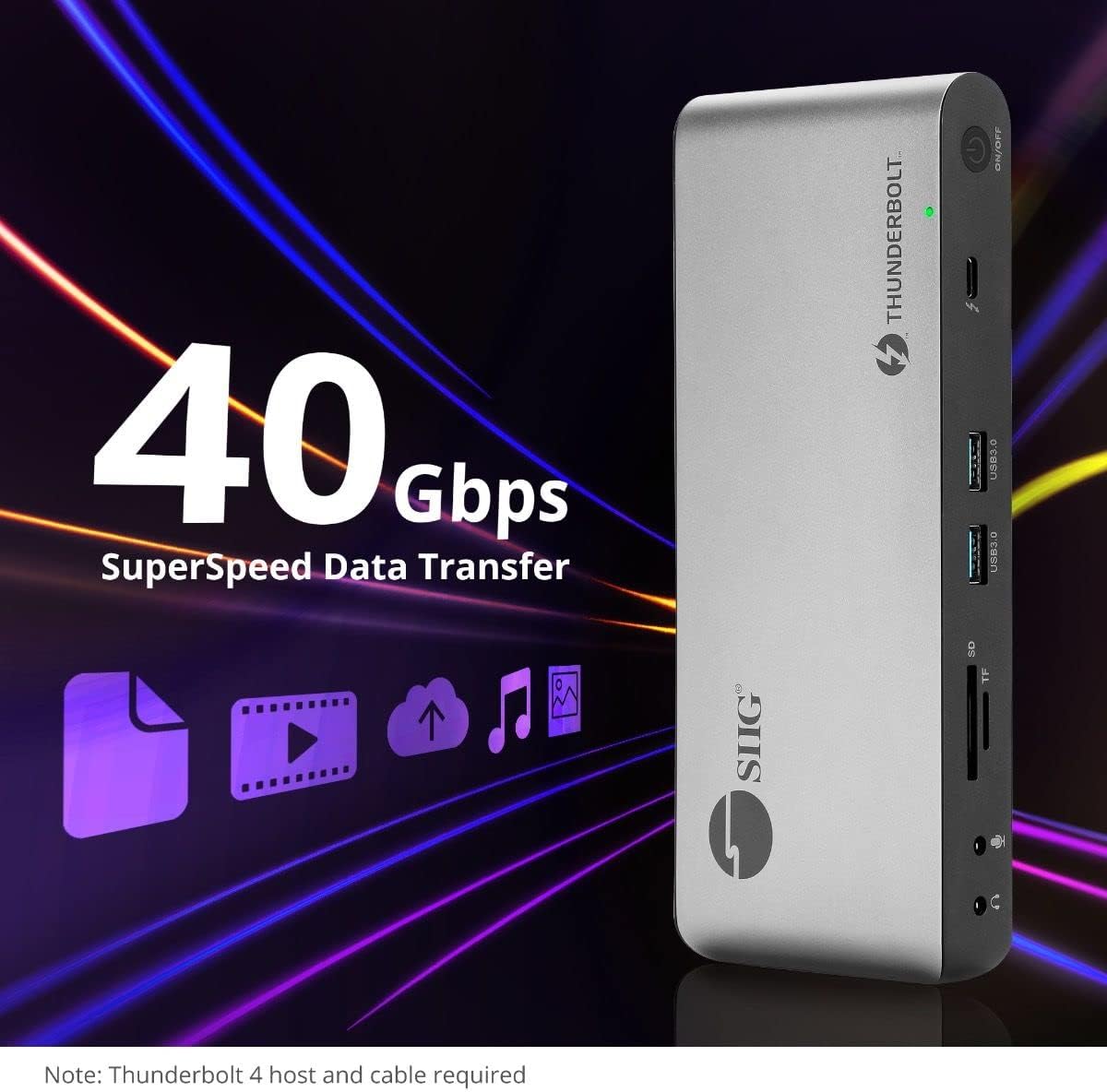
Image 5.4: High-speed data transfer capabilities.
6. Konpatibilite
The SIIG Thunderbolt 4 Docking Station is broadly compatible with various systems:
- Sistèm operasyon: Mac M1/M2/M3 Pro & Max, Intel chip Macs, Windows PCs (Intel/AMD/Snapdragon), and Chromebooks.
- Konpatibilite bak: Fully compatible with Thunderbolt 3, USB4, and USB-C equipped computers.
7. Antretyen
Pou asire lonjevite ak pèfòmans optimal estasyon docking ou a, swiv gid antretyen sa yo:
- Netwayaj: Sèvi ak yon twal mou epi sèk pou netwaye deyò aparèy la. Evite pwodui netwayaj likid oswa solvan.
- Vantilasyon: Ensure the docking station is placed in a well-ventilated area to prevent overheating. Do not block any ventilation openings.
- Depo: Sere aparèy la nan yon kote ki fre epi sèk, lwen limyè solèy dirèk ak tanperati ekstrèm.
- Manyen: Evite jete oswa sibi aparèy la nan gwo enpak.
NAN. Depanaj
If you encounter issues with your SIIG Thunderbolt 4 Docking Station, refer to the following common problems and solutions:
- Pa gen pouvwa:
- Ensure the power adapter is securely connected to both the docking station and a working power outlet.
- Verify the power button on the docking station is pressed and the power indicator LED is on.
- Pwoblèm ekspozisyon (Pa gen siyal/Rezolisyon ki pa kòrèk):
- Check all display cables (HDMI, DisplayPort, Thunderbolt) are securely connected to both the docking station and the monitors.
- Ensure your laptop's display settings are configured correctly to detect and extend/mirror displays.
- For multi-display setups, especially beyond two monitors, ensure DisplayLink drivers are installed and up to date on your operating system.
- Verify your monitors support the selected resolution and refresh rate.
- Periferik pa detekte:
- Ensure USB devices are properly connected to the docking station's USB ports.
- Try connecting the peripheral directly to your laptop to confirm it is functional.
- Restart the docking station and your laptop.
- Surchof:
- Ensure the docking station is placed in an area with adequate airflow and not covered.
- Reduce the number of high-power devices connected if possible, or consider using a cooling pad if persistent.
- Transfè Done Ralanti:
- Ensure you are using Thunderbolt 4 certified cables for Thunderbolt connections.
- Verify the connected device supports the expected transfer speeds.
9. Espesifikasyon
| Karakteristik | Detay |
|---|---|
| Nimewo Modèl | JU-DK0U11-S1 |
| Dimansyon pwodwi | 3.27 x 7.8 x 1.14 pous |
| Pwa atik | 15.4 ons (0.96 Liv) |
| Total Pò | 15 (including 7 USB ports) |
| Akèy Koneksyon | Thunderbolt 4 (USB-C) |
| Sorti Videyo | 1x HDMI, 1x DisplayPort, 3x Thunderbolt 4 (USB-C) |
| Rezolisyon maksimòm ekspozisyon | Single 8K@30Hz, Quad 4K@60Hz |
| Livrezon pouvwa (Òt) | Jiska 60W |
| Power Delivery (Downstream TB4) | Jiska 45W pou chak pò |
| Vitès Transfè Done | Thunderbolt 4: 40Gbps, USB-A 5Gbps: 5Gbps |
| Ethernet | Gigabit Ethernet |
| Lektè kat | SD 3.0 UHS-1, Micro SD (TF) 3.0 UHS-1 (up to 2TB) |
| Pò odyo | 3.5mm Stereo Out, 3.5mm Mic In |
| OS konpatib | Mac M1/M2/M3 Pro & Max, Intel Macs, Windows, Chromebooks |
| Koulè | Nwa |
| UPC | 662774045689 |
10. Garanti ak sipò
SIIG products are designed for reliability and performance. For warranty information and technical support, please refer to the documentation included with your product or visit the official SIIG websit. Kenbe resi acha ou pou reklamasyon garanti.