
Phomemo PM241BT
Phomemo PM241BT Bluetooth Thermal Label Printer User Manual
Modèl: PM241BT
1. Entwodiksyon
This manual provides detailed instructions for the Phomemo PM241BT Bluetooth Thermal Label Printer. Please read this guide thoroughly before using the printer to ensure proper operation and to maximize its lifespan. This printer is designed for efficient label printing for various applications, including shipping, addressing, and product labeling.

Image 1.1: Phomemo PM241BT printer in operation, connected via Bluetooth to a smartphone.
2. Enfòmasyon sou Sekirite
Obsève prekosyon sekirite sa yo pou evite domaje enprimant lan oswa blese tèt ou:
- Do not disassemble or modify the printer.
- Keep the printer away from water, moisture, and direct sunlight.
- Sèvi ak sèlman adaptè pouvwa ak câbles yo bay la.
- Ensure the printer is placed on a stable, flat surface.
- Evite touche tèt enprime a touswit apre enprime, paske li ka cho.
3. Pake kontni
Verifye ke tout atik yo prezan nan pakè a:
- Phomemo PM241BT Thermal Label Printer
- Adaptè pouvwa
- USB kab
- USB-C adaptè
- Kòd pouvwa
- Gid Quick Start
- 10 x 4x6 inch Labels
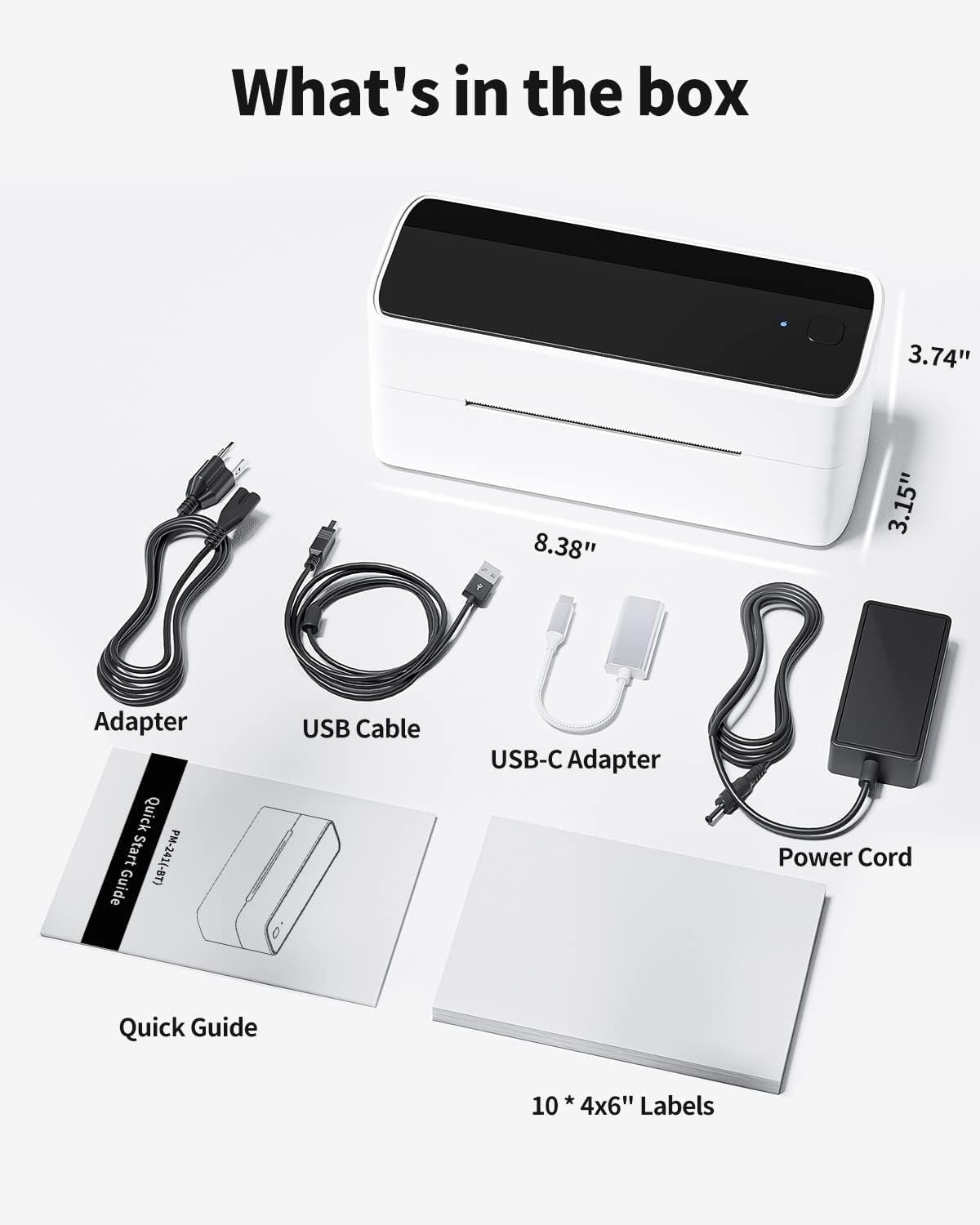
Image 3.1: All components included in the Phomemo PM241BT product package.
4. Enstalasyon
4.1. Koneksyon Materyèl
- Connect the power cord to the power adapter, then plug the adapter into the printer's power port.
- Ploge fil elektrik la nan yon priz miray.
- If connecting via USB, connect the USB cable from the printer to your computer. Use the USB-C adapter if necessary.
4.2. Loading Labels
The printer supports thermal labels with a width of 1 inch (25.4 mm) to 4.6 inches (116 mm).
- Asire enprimant lan limen.
- Louvri kouvèti anwo enprimant lan dousman.
- Insert the thermal labels into the feed slot, ensuring the print side faces upwards.
- Adjust the label guides to fit the label width snugly.
- Close the top cover. The printer will automatically detect and calibrate the label size.
4.3. Enstalasyon lojisyèl ak koneksyon
The Phomemo PM241BT offers both Bluetooth and USB connectivity.
4.3.1. Bluetooth Connection (Mobile Devices & Computers)
For Bluetooth connectivity, download the "Labelife" application or software.
- For Mobile (iOS/Android):
- Scan the QR code in the Quick Start Guide or search for "Labelife" in your device's app store to download the app.
- Pèmèt Bluetooth sou aparèy mobil ou.
- Open the Labelife app and follow the on-screen instructions to connect to the PM241BT printer.
- For Computers (macOS/Windows/ChromeOS/Linux):
- Download the Labelife software from the official Phomemo website or the provided link in the Quick Start Guide.
- Install the software and ensure your computer's Bluetooth is enabled.
- Open Labelife and pair with the PM241BT printer.

Image 4.1: Bluetooth connection steps for mobile devices using the Labelife app.
4.3.2. USB Connection (Computers Only)
For USB connection, you will need to install the printer driver.
- Konekte enprimant lan nan òdinatè w lan lè l sèvi avèk kab USB la.
- Vizite labelife.net/#/pm246sbt to download the appropriate printer driver for your operating system (macOS, Windows, ChromeOS, Linux).
- Enstale chofè a swiv enstriksyon ki sou ekran an.
- Once installed, your computer should recognize the PM241BT as a standard printer.

Image 4.2: USB connection and driver installation for PC.
5. Itilizasyon Enprimant lan
5.1. Printing via Bluetooth
After connecting your device via Bluetooth using the Labelife app:
- Open the Labelife app on your smartphone or computer.
- Select or create the label you wish to print. The app offers various templates for shipping, address, circular, and barcode labels.
- Confirm print settings (e.g., number of copies).
- Lanse kòmandman enprime a nan aplikasyon an.

Image 5.1: Wireless printing from a smartphone using Bluetooth.
5.2. Printing via USB
Once the USB driver is installed, you can print from any application on your computer that supports printing.
- Open the document or label file you want to print (e.g., PDF, image, or a label created in Labelife software).
- Ale nan 'File' > 'Print' or use the print shortcut (Ctrl+P or Cmd+P).
- Select "Phomemo PM241BT" from the list of available printers.
- Adjust print settings as needed (e.g., paper size, orientation). Ensure the label size matches the loaded labels.
- Klike sou 'Enprime'.

Image 5.2: Printing from a laptop using a USB connection.
5.3. Supported Label Types and Platforms
The PM241BT printer is compatible with various thermal label types and major e-commerce/shipping platforms:
- Kalite etikèt: Shipping labels (4x6 inches), address labels, circular labels, barcode labels, FBA labels, Amazon Warehouse labels, price labels.
- Platfòm: Shopify, Etsy, eBay, Amazon, Hermes, Royal Mail Click & Drop, Parcelforce, DPD, UPS, DHL, FedEx, and others.

Imaj 5.3: Egzanpamples of various label types and sizes supported by the printer.
6. Antretyen
Regular maintenance ensures optimal performance and extends the printer's life.
6.1. Netwaye tèt enpresyon an
Clean the print head if print quality degrades or after every few rolls of labels.
- Etenn enprimant lan epi deploge fil elektrik la.
- Louvri kouvèti anwo a.
- Use an alcohol swab (70% isopropyl alcohol) to gently wipe the print head.
- Kite tèt enprime a seche nèt anvan ou fèmen kouvèti a epi limen enprimant lan.
6.2. Cleaning the Platen Roller
Clean the platen roller if labels are not feeding smoothly.
- Etenn enprimant lan epi deploge fil elektrik la.
- Louvri kouvèti anwo a.
- Use an alcohol swab to clean the platen roller, rotating it manually to clean the entire surface.
- Allow it to dry completely before use.
NAN. Depanaj
Gade tablo ki anba la a pou pwoblèm komen ak solisyon yo:
| Pwoblèm | Kòz posib | Solisyon |
|---|---|---|
| Enprimant lan pa limen | Power cable not connected; power outlet issue | Tcheke koneksyon kouran yo; eseye yon lòt priz kouran. |
| Move kalite enprime | Dirty print head; incorrect label type; low print density setting | Clean the print head; ensure thermal labels are used; adjust print density in software. |
| Etikèt yo pa ap byen manje | Labels loaded incorrectly; label guides not adjusted; dirty platen roller | Reload labels correctly; adjust label guides; clean platen roller. |
| Echèk koneksyon Bluetooth | Bluetooth off; incorrect pairing; app issue | Ensure Bluetooth is on; re-pair device in Labelife app; restart app/device. |
| Printer not recognized by PC via USB | Driver not installed; faulty USB cable | Install or reinstall the printer driver; try a different USB cable or port. |
8. Espesifikasyon
- Modèl: PM241BT
- Teknoloji enprime: Tèmik
- Koneksyon: Bluetooth (iOS, Android, macOS, Windows, ChromeOS, Linux via Labelife app), USB (macOS, Windows, ChromeOS, Linux)
- Rezolisyon enprime: 203 dpi
- Max Print Speed: 150 mm/s (72 pages per minute)
- Supported Label Width: 1 inch (25.4 mm) to 4.6 inches (116 mm)
- Dimansyon: 11 x 22 x 16 cm (4.3 x 8.7 x 6.3 pous)
- Pwa: 1.05 kg (2.3 liv)
- Sistèm operasyon konpatibilite: iOS, Android, macOS, Windows, ChromeOS, Linux

Imaj 8.1: Plis paseview of connectivity options and compatible operating systems.
9. Garanti ak sipò
Phomemo offers a limited warranty for the PM241BT printer. For specific warranty terms, please refer to the documentation included with your purchase or contact customer support.
9.1. Sipò pou Kliyan
For technical assistance, troubleshooting, or warranty claims, please contact Phomemo customer service. Support is available 24 hours a day. You may also be eligible for free returns within 30 days of purchase.
Please visit the official Phomemo website for contact information or refer to your Quick Start Guide.
Ask a question about this manual
Ask about setup, troubleshooting, compatibility, parts, safety, or missing instructions. Manuals+ will review the question and use this page’s manual context to help answer it.