
1. Entwodiksyon
Mèsi pou acha aasing the Ysametp 5G WiFi Bluetooth Projector. This device is designed to provide a high-quality home theater experience with its native 1080p Full HD resolution, 4K support, and integrated Android system. Please read this manual thoroughly before using the projector to ensure proper operation and to maximize its lifespan.
2. Enfòmasyon sou Sekirite
Please observe the following safety precautions to prevent damage to the projector and ensure user safety:
- Pwovizyon pou pouvwa: Use only the specified power adapter. Ensure the power outlet voltage koresponn ak egzijans pwojektè a.
- Vantilasyon: Pa bloke ouvèti vantilasyon yo. Asire w ke gen ase lè k ap sikile toutotou pwojektè a pou anpeche l chofe twòp.
- Plasman: Place the projector on a stable, level surface. Avoid placing it in direct sunlight, near heat sources, or in environments with high humidity or dust.
- Netwayaj: Dekonekte kouran an anvan ou netwaye li. Sèvi ak yon twal mou epi sèk. Pa sèvi ak pwodui netwayaj likid oswa ayewosòl.
- Pwoteksyon je: Pa gade dirèkteman nan lantiy pwojektè a lè l ap limen.amp limen, paske limyè klere a ka domaje je yo.
- Reparasyon: Pa eseye repare pwojektè a tèt ou. Konfye tout antretyen bay pèsonèl kalifye.
3. Pake kontni
Verifye ke tout atik yo prezan nan pakè a:
- Ysametp 5G WiFi Bluetooth Projector (Model DE-M8-E-An)
- Kontwòl Remote
- Power Cable (AC 220V with Schuko plug)
- HDMI kab
- Manyèl itilizatè
4. Pwodwi souview
Familyarize w ak konpozan ak interfaces pwojektè a.
4.1 Devan View

Imaj: Devan view of the Ysametp Projector, highlighting the projection lens and side ventilation grilles.
4.2 Rear and Side Interfaces
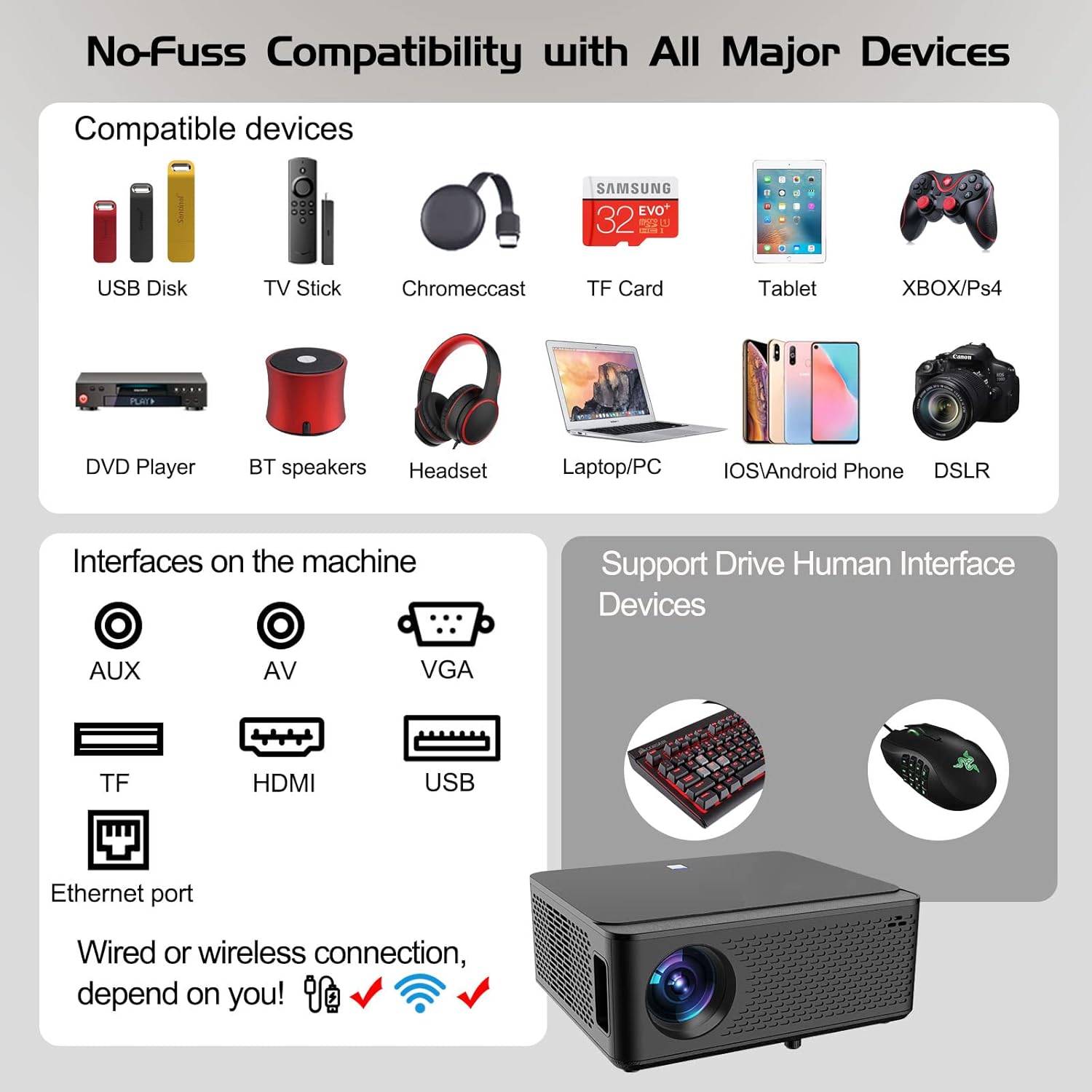
Image: Diagram illustrating the various input and output ports available on the Ysametp Projector, including USB, HDMI, AV, VGA, TF card slot, and Ethernet port.
The projector features a comprehensive set of ports for versatile connectivity:
- Ethernet Port: Pou koneksyon entènèt filaire.
- Pò VGA: For connecting to older computers.
- USB-A pò: For connecting USB flash drives or external devices.
- HDMI Port: For high-definition audio and video input from various sources.
- Antre AV: For connecting analog audio/video devices.
- 3.5mm odyo soti: Pou konekte oratè ekstèn oswa kas ekoutè.
- TF Kat plas: For reading media from Micro SD cards.
- Antre pouvwa: Pou konekte kab kouran AC a.
4.3 Kontwòl Top
The top of the projector includes a power button for basic on/off functionality. Further controls are available via the remote control and the on-screen display.
4.4 Ajisteman Konsantre
A mechanical focus adjustment screw is located on the side of the lens for manual image clarity control.
5. Enstalasyon
5.1 Plasman
Position the projector on a stable surface. The projection distance will determine the screen size. For optimal viewing, ensure the projector is perpendicular to the projection surface.
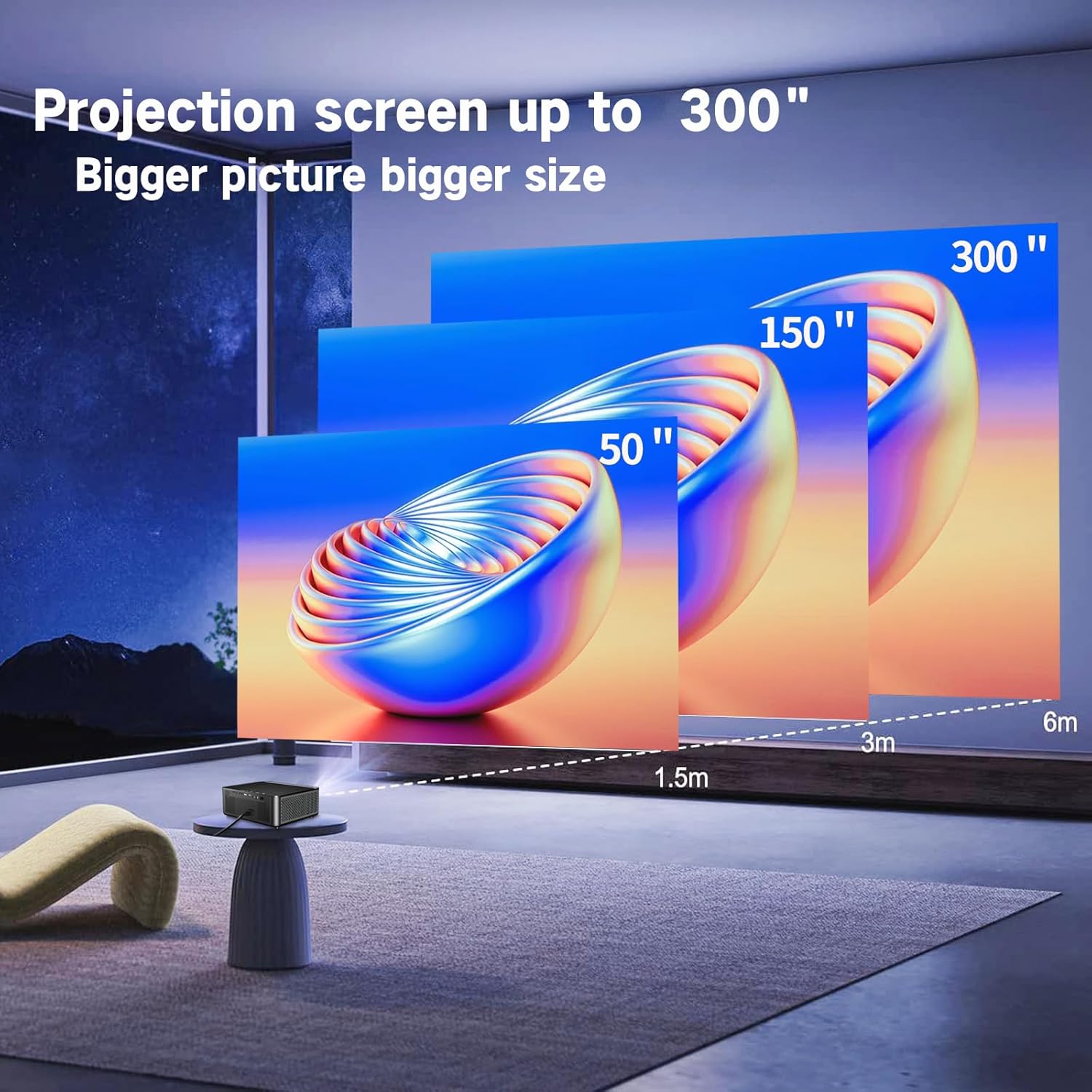
Image: Illustration demonstrating recommended projection distances for achieving screen sizes of 50, 150, and 300 inches.
5.2 Koneksyon pouvwa
- Konekte kab kouran an nan pò antre kouran pwojektè a.
- Branche lòt bout kab kouran an nan yon priz elektrik ki apwopriye.
5.3 Premye pouvwa sou
- Peze bouton pouvwa a sou pwojektè a oswa kontwòl remote la pou limen aparèy la.
- Allow a few moments for the projector to boot up.
5.4 Koreksyon Fokus ak Keystone
After powering on, adjust the image for clarity and proper geometry:
- Konsantre: Rotate the mechanical focus adjustment screw near the lens until the image appears sharp and clear.
- Koreksyon Keystone: If the projected image is trapezoidal (wider at the top or bottom), use the 4D keystone correction feature via the on-screen menu to adjust the image corners until it forms a perfect rectangle.

Image: Diagram showing how 4P/4D keystone correction can be used to adjust the corners of a projected image to achieve a rectangular shape.
6. Operasyon Enstriksyon
6.1 Konekte Aparèy Ekstèn yo
Pwojektè a sipòte plizyè metòd koneksyon:
- HDMI: Connect gaming consoles (PS4, Xbox), laptops, or other HDMI-enabled devices using an HDMI cable.
- USB: Insert a USB flash drive into the USB-A port to play media files dirèkteman.
- Kat TF: Insert a Micro SD (TF) card into the TF card slot to access media.
- VGA/AV: Use these ports for older devices requiring analog connections.
- Bluetooth: Pair Bluetooth speakers or headphones for enhanced audio.

Image: The projector shown with various compatible devices, including laptops, smartphones, gaming consoles, USB drives, and external speakers, demonstrating its versatile connectivity.
6.2 Using the Integrated Android System
The projector comes with an integrated Android system, allowing access to a wide range of applications.

Image: The projector displaying its Android interface, featuring icons for popular streaming services and apps such as Netflix, YouTube, Prime Video, Hulu, Spotify, and TikTok.
- Rezo Koneksyon: Connect the projector to your home Wi-Fi network via the settings menu or use an Ethernet cable for a wired connection.
- Aksè Aplikasyon: Navigate the Android interface using the remote control. You can download and install applications from the Google Play Store.
- Difizyon: Enjoy content from pre-installed or downloaded streaming services.
6.3 5G WiFi Screen Mirroring
Mirror your smartphone, tablet, or PC screen wirelessly to the projector.

Image: A family enjoying content mirrored from a smartphone onto the large projected screen, illustrating the 5G WiFi Screen Mirroring feature for iOS, Android, and Windows devices.
- Ensure both the projector and your device are connected to the same 5G WiFi network.
- Select the "Screen Mirroring" option on the projector's menu.
- On your smartphone/tablet/PC, activate its screen mirroring function (e.g., "Smart View" for Android, "AirPlay" for iOS, "Cast" for Windows).
- Select the projector from the list of available devices to establish the connection.
7. Antretyen
7.1 Netwaye Lantiy la
Siye lantiy pwojektè a dousman avèk yon twal mou ki pa gen pousyè, espesyalman fèt pou sifas optik. Pa sèvi ak pwodui netwayaj abrazif oswa fòs twòp.
7.2 Netwayaj kò pwojektè a
Use a soft, dry cloth to clean the exterior of the projector. Avoid using harsh chemicals or solvents.
7.3 Optical Engine Protection
The projector features a full-sealed optical engine designed to prevent dust from entering the internal components, reducing the need for frequent internal cleaning and extending the device's lifespan.

Imaj: Yon entèn view diagram of the projector's full-sealed optical engine, highlighting its design to prevent dust from entering and affecting performance.
7.4 Lamp Lavi
The projector utilizes advanced SmarEco technology to minimize energy consumption and extend the lamp's lifespan up to 60,000 hours, providing long-term reliability.

Imaj: Yon dyagram detaye ki montreasing the projector's lamp technology, indicating a lifespan of over 30,000 hours.
NAN. Depanaj
Si ou rankontre pwoblèm ak pwojektè ou a, gade pwoblèm ak solisyon komen sa yo:
| Pwoblèm | Kòz posib | Solisyon |
|---|---|---|
| Pa gen imaj sou ekran an. | Power cable loose; incorrect input source; device not connected. | Check power connections. Select correct input source (HDMI, AV, etc.). Ensure external device is powered on and connected properly. |
| Imaj la twoub. | Focus not adjusted; projector too far/close. | Adjust the focus ring on the lens. Ensure projector is within optimal projection distance. |
| Imaj la se trapezoidal. | Pwojektè a pa pèpandikilè ak ekran an. | Use the 4D keystone correction feature in the settings menu to adjust the image shape. |
| Pa gen son. | Volume too low; external audio device not connected; incorrect audio output selected. | Increase volume. Check external speaker/headphone connection. Ensure correct audio output is selected in settings. |
| Pa ka konekte ak WiFi. | Modpas ki pa kòrèk; deyò limit; pwoblèm rezo. | Verify WiFi password. Move projector closer to router. Restart router and projector. |
9. Espesifikasyon
Key technical specifications for the Ysametp 5G WiFi Bluetooth Projector (Model DE-M8-E-An):
- Mak: Ysametp
- Nimewo Modèl: DE-M8-E-An
- Koulè: Nwa
- Kalite pwodwi: Pwojektè pòtab
- Koneksyon Teknoloji: HDMI, USB, Wi-Fi (5G), Bluetooth
- Karakteristik espesyal: Integrated WiFi, Android System, 4D Keystone Correction
- Aparèy konpatib: Game Consoles, Speakers, Laptops, Smartphones, Tablets
- Rezolisyon ekspozisyon: Natif natal 1920 x 1080 (Full HD)
- Rezolisyon ekspozisyon maksimòm: 4096 x 2160 (4K Support)
- Kalite ekspozisyon: DLP
- Dimansyon pwodwi: 26L x 23W x 11H santimèt
- Faktè fòm: Pòtab
- Kalite montaj: Mòn tab la
- Lamp Viv lavi: Jiska 60,000 èdtan

Image: A visual comparison highlighting the projector's 20,000 Lumens brightness, Native 1080P resolution, and 4K support, contrasting it with a lower specification projector.
10. Garanti ak sipò
The Ysametp Projector comes with a 3-year service warranty. For technical support or warranty claims, please contact Ysametp customer service through your purchase platform or the official Ysametp websit.