
1. Entwodiksyon
This manual provides detailed instructions for the setup, operation, and maintenance of your CUPEISI Android 14 Tablet, Model Q2S. Please read this manual thoroughly before using your device to ensure proper functionality and to maximize its lifespan.
The CUPEISI Q2S is a 7-inch tablet featuring the Android 14 operating system, a 1.6GHz Quad-core processor, 8GB RAM (4GB fixed, 4GB virtual), 32GB internal storage expandable up to 1TB, a 1024x600 IPS touch screen, and dual cameras.
2. Pake kontni
Verifye ke tout atik ki nan lis anba a yo prezan nan anbalaj pwodwi ou a:
- CUPEISI Android 14 Tablet (Model Q2S)
- Kalite-C USB kab
- Manyèl Itilizatè (dokiman sa a)
Si gen nenpòt atik ki manke oswa ki domaje, tanpri kontakte sèvis kliyan.
3. Aparèy souview
Familyarize w ak konpozan fizik tablèt ou a.
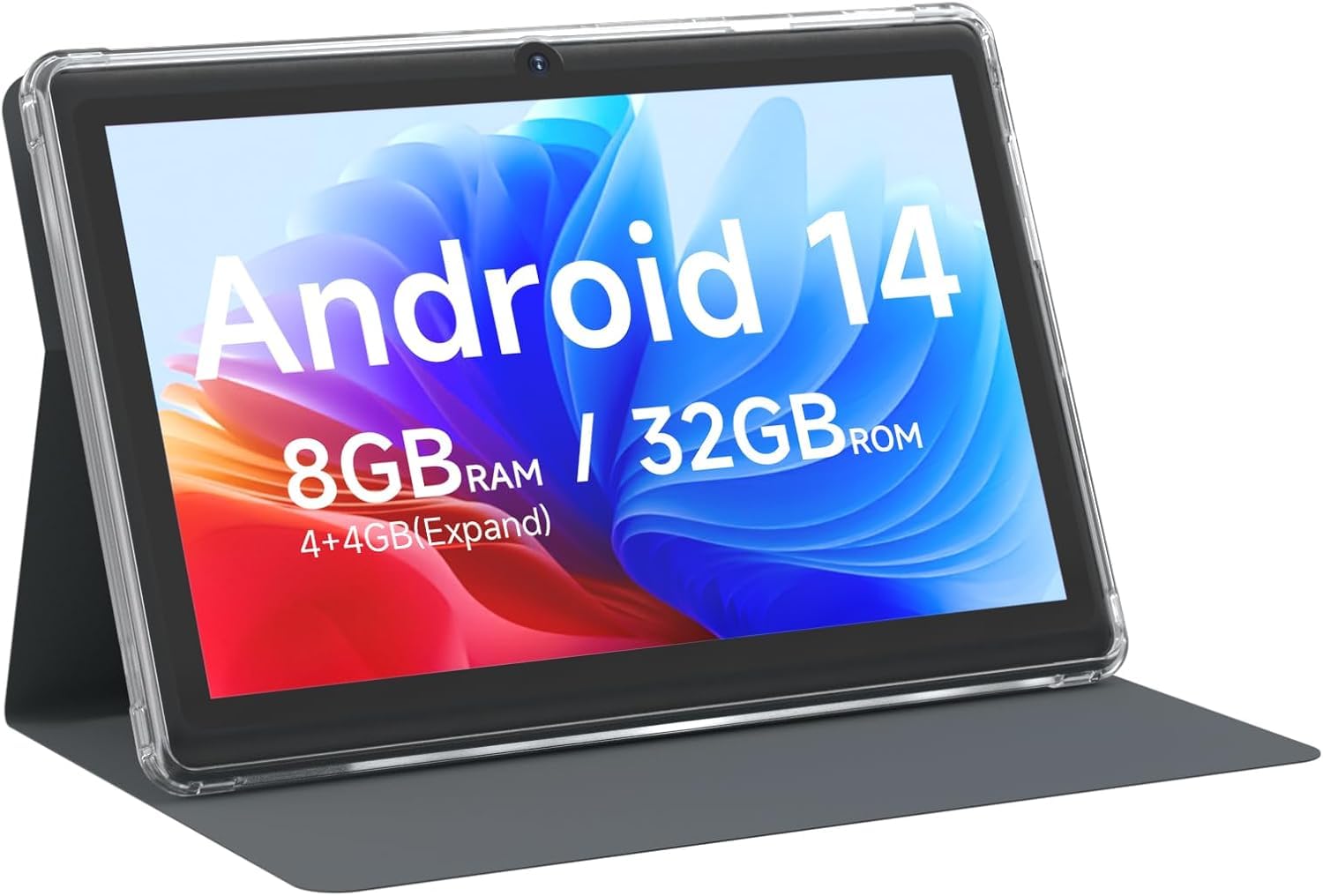
Figi 3.1: Devan view of the CUPEISI Q2S Tablet, showing the display with various application icons.

Figi 3.2: Devan ak dèyè views of the CUPEISI Q2S Tablet, highlighting its compact design and textured rear panel.

Figi 3.3: The 7-inch IPS screen of the CUPEISI Q2S Tablet, showcasing its display quality.
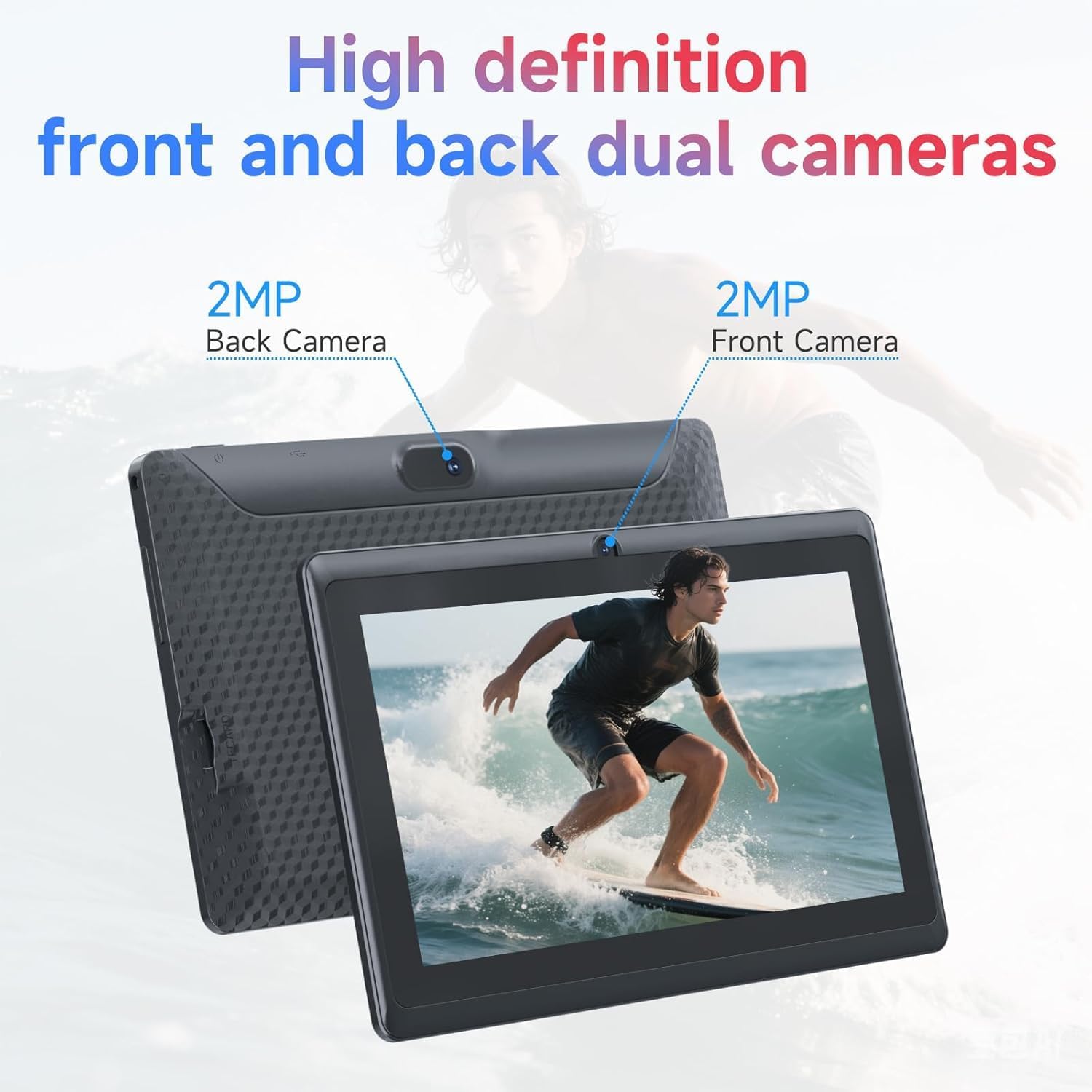
Figi 3.4: Illustration of the CUPEISI Q2S Tablet's front and rear camera locations.
3.1 Bouton ak pò
- Bouton pouvwa: Press and hold to turn the tablet on or off. Press briefly to sleep or wake the screen.
- Bouton Volim: Ajiste volim odyo a.
- USB Kalite-C Port: For charging the tablet and connecting to a computer for data transfer.
- MicroSD Kat plas: Insert a microSD card for expanded storage.
- Kamera devan: Sitiye sou ankadreman devan an, yo itilize li pou apèl videyo ak selfie.
- Kamera dèyè: Sitiye sou panèl dèyè a, yo itilize li pou pran foto ak videyo.
- Oratè: Pwodiksyon odyo.
4. Enstalasyon
4.1 Chaje tablèt la
Before first use, fully charge the tablet. Connect the provided Type-C USB cable to the tablet's charging port and the other end to a compatible USB power adapter (not included) or a computer's USB port. The battery indicator on the screen will show charging status.
4.2 Limen/Etenyen
- Pou limen: Press and hold the Power button until the CUPEISI logo appears.
- Pou etenn: Peze epi kenbe bouton pouvwa a jiskaske meni opsyon pouvwa a parèt. Chwazi "Etenn" epi konfime.
- Pou rekòmanse: Nan meni opsyon pouvwa a, chwazi "Rekòmanse" epi konfime.
4.3 Asistan Enstalasyon Inisyal
Upon first power-on, the tablet will guide you through an initial setup process:
- Seleksyon Lang: Chwazi lang ou prefere.
- Koneksyon Wi-Fi: Connect to an available Wi-Fi network. This is essential for downloading apps and accessing online services.
- Kont Google: Sign in with your Google account or create a new one. This allows access to Google Play Store, Gmail, and other Google services.
- Dat ak Lè: Mete dat ak lè ki kòrèk la, oubyen kite rezo a mete l otomatikman.
- Fèmen ekran: Mete yon kòd PIN, yon modèl, oswa yon modpas pou sekirite ekran an.
5. Operasyon Enstriksyon
5.1 Navigasyon debaz
- Jès manyen: Tape pou chwazi, glise pou defile, pense pou agrandi.
- Ekran Kay: Sant santral pou aplikasyon ak widjèt ou yo.
- Panèl Notifikasyon: Glise anba soti anwo ekran an pou jwenn aksè a notifikasyon yo ak paramèt rapid yo.
- Tiwa aplikasyon: Glise moute anba nan fon an nan ekran an view tout aplikasyon enstale.
5.2 Installing and Managing Apps
You can download and install applications from the Google Play Store. The tablet is GMS certified, ensuring compatibility with Google services.
- Enstale Aplikasyon: Louvri a Jwe magazen app, search for your desired app, and tap "Install".
- Dezenstale aplikasyon yo: Press and hold an app icon on the home screen or app drawer, then drag it to "Uninstall" or select the uninstall option. Alternatively, go to Settings > Apps > See all apps, select the app, and tap "Uninstall".
6. Koneksyon
6.1 Koneksyon Wi-Fi
Pou konekte ak yon rezo Wi-Fi:
- Ale nan Anviwònman > Rezo ak entènèt > Wi-Fi.
- Aktive Wi-Fi a On.
- Chwazi rezo ou vle nan lis rezo ki disponib yo.
- Antre modpas la si yo mande w epi tape Konekte.
The tablet supports 2.4G/5G WiFi 6 for faster and more stable connections.
6.2 Bluetooth Pairing
Pou konekte ak yon aparèy Bluetooth (pa egzanp, kas ekoutè, oratè):
- Ale nan Anviwònman> Aparèy Konekte> Preferans Koneksyon> Bluetooth.
- Aktive Bluetooth On.
- Asire w aparèy Bluetooth ou a nan mòd koneksyon.
- Tape Pè nouvo aparèy epi chwazi aparèy ou an nan lis la.
- Swiv nenpòt envit ki sou ekran pou konplete koupi.
7. Itilizasyon kamera
Your tablet is equipped with a 2MP front camera and a 5MP rear camera.
- Louvri a Kamera app.
- Tape ikòn kamera a pou chanje ant kamera devan ak dèyè.
- Tape bouton deklanchè a pou pran yon foto.
- Chwazi mòd videyo pou anrejistre videyo.
8. Jesyon Depo
The tablet comes with 32GB of internal storage. You can expand this storage up to 1TB using a microSD card.

Figi 8.1: Tablet screen illustrating available storage space (8GB RAM, 32GB ROM).
8.1 Mete yon Kat MicroSD
- Locate the microSD card slot on the side of the tablet.
- Mete kat microSD la avèk prekosyon nan fant lan jiskaske li fè yon klik pou l antre nan plas li.
- The tablet will detect the new storage. You may be prompted to format the card for optimal use with the tablet.
8.2 Jesyon Depo
Pou view and manage your storage, go to Anviwònman > Depo. Here you can see how much space is used by apps, photos, videos, and other files, and manage your microSD card.
9. Antretyen
9.1 Netwaye Tablèt la
- Sèvi ak yon twal mou ki pa gen pousyè pou netwaye ekran an ak kò tablèt la.
- Pou tach ki difisil pou retire, yon ti kras dampRense twal la avèk dlo oswa yon pwodui netwayaj ekran ki fèt pou aparèy elektwonik.
- Evite itilize pwodui chimik ki agresif, pwodui netwayaj abrazif, oswa espre ayewosòl.
9.2 Swen Batri
- Evite ekspoze tablèt la nan tanperati ekstrèm (cho oswa frèt).
- Do not allow the battery to fully discharge frequently. Charge it before it drops below 20%.
- Sèvi sèlman ak kab Kalite-C ki vini ak aparèy la pou chaje.
9.3 Mizajou lojisyèl
Periodically check for software updates to ensure optimal performance and security. Go to Anviwònman > Sistèm > Mizajou sistèm.
NAN. Depanaj
Seksyon sa a adrese pwoblèm komen ou ka rankontre ak tablèt ou a.
10.1 Tablèt la pa limen
- Ensure the tablet is sufficiently charged. Connect it to a power source and wait a few minutes before attempting to power it on again.
- Peze epi kenbe bouton Pouvwa a pou omwen 10-15 segonn pou fòse rekòmanse.
10.2 Slow Performance or Apps Crashing
- Fèmen aplikasyon background ki pa nesesè yo.
- Clear the cache of frequently used apps (Anviwònman > Aplikasyon > Gade tout aplikasyon yo > [Non aplikasyon an] > Depo ak kach > Efase kach la).
- Ensure you have sufficient free storage space. Uninstall unused apps or move large files nan yon kat microSD.
- Rekòmanse tablèt la.
10.3 Pwoblèm Koneksyon Wi-Fi
- Ensure Wi-Fi is enabled on the tablet (Anviwònman > Rezo ak entènèt > Wi-Fi).
- Rekòmanse routeur Wi-Fi ou a.
- Bliye rezo a epi rekonekte (Anviwònman > Rezo ak entènèt > Wi-Fi, tap the network, then Bliye).
10.4 Batri a ap dechaje byen vit
- Diminye klète ekran an.
- Dezaktive Wi-Fi, Bluetooth, ak GPS lè w pa ap itilize yo.
- Fèmen aplikasyon ki an background epi ki konsome anpil enèji.
- Tcheke itilizasyon batri a nan Anviwònman> Batri pou idantifye aplikasyon ki konsome anpil enèji.
11. Espesifikasyon
Detailed technical specifications for the CUPEISI Android 14 Tablet Q2S.
| Non modèl | Q8MPRO |
| Nimewo Modèl Atik | Q2S |
| Sistèm operasyon | Android 14 |
| Processeur | 1.6 GHz Quad-core (ARM) |
| RAM | 8GB (4GB fixed, 4GB virtual) |
| Depo Entèn | 32 GB Flash memwa |
| Depo dilatabl | Jiska 1TB atravè kat MicroSD |
| Gwosè ekran | 7 pous |
| Rezolisyon ekran | 1024 x 600 pixels IPS HD Touch Screen |
| Kamera dèyè | 5 MP |
| Kamera devan | 2 MP |
| Kalite san fil | 802.11g (2.4G/5G WiFi 6) |
| Bluetooth | BT 5.0 |
| Mwayèn lavi batri | 6 èdtan |
| Pwa atik | 13.4 ons |
| Dimansyon pwodwi | 7.5 x 0.3 x 4.3 pous |
12. Enfòmasyon sou Sekirite
- Do not expose the tablet to water or excessive moisture.
- Avoid dropping or subjecting the tablet to severe impacts.
- Do not attempt to disassemble or repair the tablet yourself. This may void the warranty and cause damage.
- Use the tablet in well-ventilated areas.
- Keep the tablet away from strong magnetic fields.
- Dispose of the tablet and its battery responsibly according to local regulations.
13. Garanti ak sipò
For warranty information and customer support, please refer to the documentation provided with your purchase or visit the official CUPEISI website. If you encounter any issues not covered in this manual, please contact CUPEISI customer service for assistance.