
1. Entwodiksyon
This manual provides essential information for the setup, operation, maintenance, and troubleshooting of your Blackview Mini PC MP60. Nwa aview MP60 is a compact desktop computer designed for home and business use, featuring an Intel N5095 processor, 16GB DDR4 RAM, and a 512GB M.2 SSD. It supports 4K HD dual display output and offers various connectivity options.
2. Ki sa ki nan bwat la
Upon opening the Blackview MP60 Mini PC package, you should find the following items:
- Nwaview MP60 Mini PC Unit
- Adaptè pouvwa (12V)
- HDMI kab
- VESA Mounting Bracket with Screws
- Manyèl Itilizatè (dokiman sa a)

Imaj: Kontni Nwa aview MP60 Mini PC package, including the mini PC, power adapter, HDMI cable, VESA mount, and user manual.
Videyo: Yon finiview nan Nwa aview Mini PC MP60, montreasing its unboxing, included accessories, and various ports. This video provides a visual guide to the product's physical features and what to expect in the package.
3. Pwodwi souview
3.1. Front and Side Ports
Nwa aview MP60 Mini PC features a compact design with strategically placed ports for easy access and connectivity.
- Bouton pouvwa: Located on the side for easy power on/off.
- Pò USB 3.0 (x2): Pou transfè done gwo vitès ak aparèy konpatib.
- Pò USB 2.0 (x1): For connecting standard USB peripherals.
3.2. Rear Ports
The rear panel provides essential ports for display, networking, and audio.
- DC Jack: Pou konekte adaptè pouvwa a.
- Pò USB 2.0 (x1): Additional port for peripherals.
- HDMI 1.4b Ports (x2): Supports dual 4K (60Hz) display output.
- RJ45 Gigabit Ethernet Port: Pou koneksyon rezo filaire.
- 3.5mm Audio-in/out Jack: For connecting headphones, speakers, or a microphone.
- Fant Kensington Lock: Pou sekirite fizik.

Imaj: Detaye view of the various input/output ports available on the Blackview MP60 Mini PC, highlighting its comprehensive connectivity options.
4. Enstalasyon
Swiv etap sa yo pou konfigire Black ou aview Mini òdinatè MP60:
- Konekte ak pouvwa: Plug the power adapter into the DC jack on the rear of the Mini PC, then plug the adapter into a power outlet.
- Konekte ak Display: Use the provided HDMI cable to connect the Mini PC to your monitor or TV. If using dual monitors, connect a second display to the other HDMI port.
- Konekte periferik: Connect your keyboard, mouse, and any other USB devices to the available USB ports.
- Konekte ak rezo a (Si ou vle): For wired internet, connect an Ethernet cable to the RJ45 port. For wireless, the Mini PC supports 2.4G+5.0G dual-band WiFi.
- Pouvwa sou: Press the power button on the side of the Mini PC. The system will boot up, and you will see the Windows 11 Pro setup screen or desktop.
- Premye enstalasyon Windows: Swiv enstriksyon ki parèt sou ekran an pou w konplete konfigirasyon Windows 11 Pro a, tankou lang, rejyon, rezo ak kreyasyon kont itilizatè.
4.1. Montaj VESA
Nwa aview MP60 Mini PC can be mounted to the back of a VESA-compatible monitor using the included bracket and screws. This helps save desk space and creates a cleaner workspace.
5. Operasyon Enstriksyon
Nwa aview MP60 Mini PC comes pre-installed with Windows 11 Pro, offering a familiar and user-friendly operating environment.
- Limen/Etenyen: Press the power button once to turn on the device. To shut down, use the Windows Start menu options (Start > Power > Shut down). A short press on the power button can also initiate sleep mode.
- Rekòmanse: Use the Windows Start menu options (Start > Power > Restart) to restart the system.
- Doub ekspozisyon: Connect two monitors to the HDMI ports. Windows 11 Pro will automatically detect both displays. You can configure display settings (extend, duplicate, etc.) via Display Settings in Windows.
- Koneksyon Wireless: Connect to Wi-Fi networks via the network icon in the taskbar. Bluetooth 4.2 allows connection to wireless peripherals like keyboards, mice, and headphones.
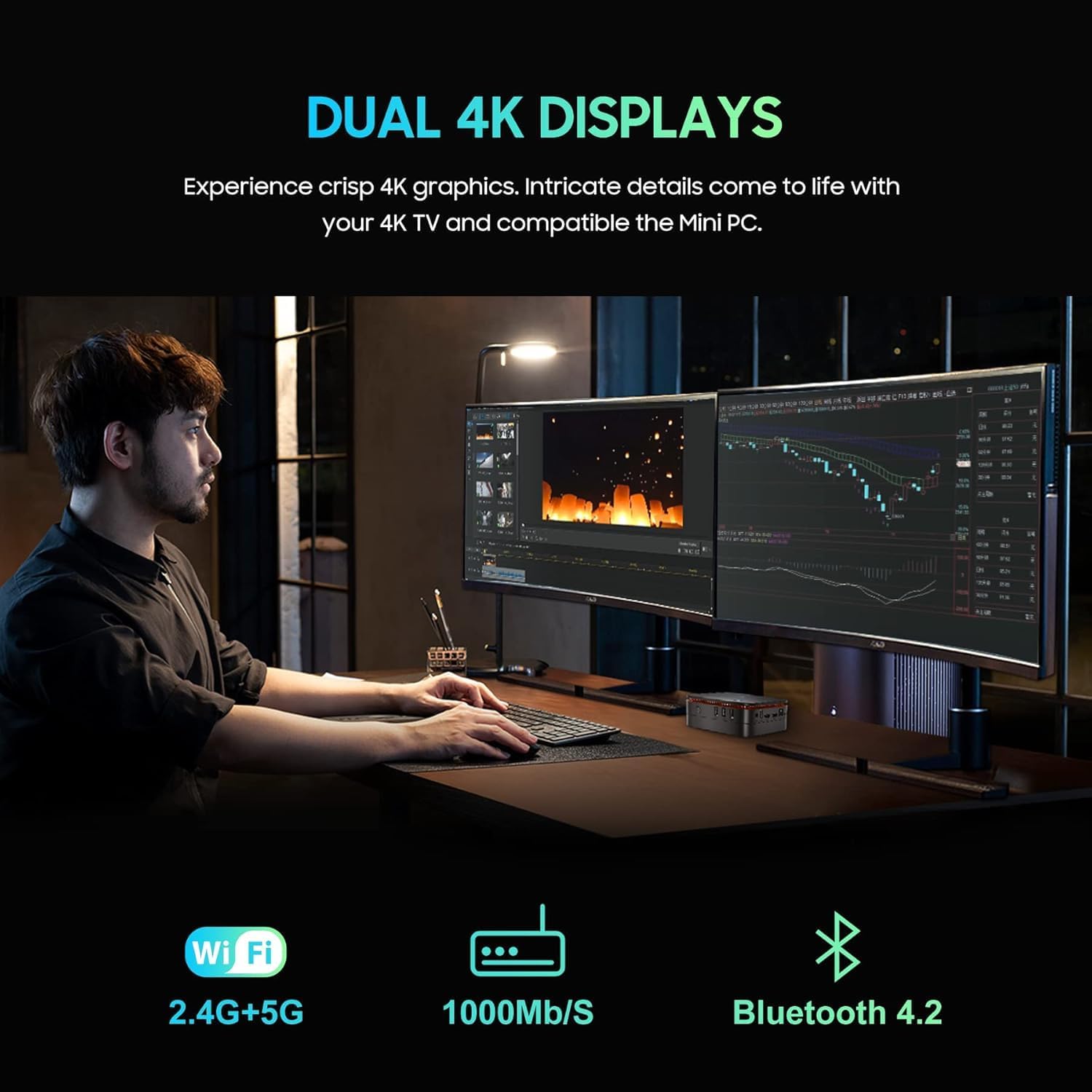
Imaj: Nwa aview MP60 Mini PC in a dual-monitor setup, illustrating its capability to support extended desktop environments for enhanced productivity.
6. Antretyen
Regular maintenance ensures optimal performance and longevity of your Mini PC.
- Netwayaj: Keep the Mini PC clean and free from dust. Use a soft, dry cloth for external surfaces. For internal components, especially the fan and vents, use compressed air periodically to prevent dust buildup, which can affect cooling efficiency.
- Mizajou lojisyèl: Regularly update Windows 11 Pro and device drivers to ensure security, stability, and performance.
- Vantilasyon: Ensure the Mini PC is placed in a well-ventilated area. Do not block the air vents to allow for proper heat dissipation by the internal fan and heat sink.
- Jesyon Depo: Netwaye sa ki pa nesesè detanzantan files ak aplikasyon pou kenbe pèfòmans depo optimal.
NAN. Depanaj
Si ou rankontre pwoblèm ak Black ou aview Mini PC MP60 la, gade etap depanaj komen sa yo:
- Pa gen pouvwa: Asire w adaptè kouran an byen konekte ak Mini PC a ak yon priz kouran ki fonksyone. Eseye yon lòt priz si sa nesesè.
- Pa gen ekspozisyon: Verify that the HDMI cable is firmly connected to both the Mini PC and the monitor. Ensure the monitor is set to the correct input source. Try a different HDMI cable or monitor if possible.
- Pa gen koneksyon entènèt: For wired connections, check the Ethernet cable and router status. For Wi-Fi, ensure the Wi-Fi adapter is enabled and you are connected to the correct network with the correct password.
- Pèfòmans Ralanti: Close unnecessary applications. Check for background processes consuming high CPU or RAM. Ensure sufficient free storage space. Consider running a disk cleanup.
- Periferik pa detekte: Ensure USB devices are properly plugged in. Try connecting them to a different USB port. Update or reinstall device drivers if needed.
- Sistèm bloke/kraze: Restart the Mini PC. If issues persist, check for recent software installations or updates that might be causing conflicts. Consider performing a system restore or reinstalling Windows if necessary (back up your data first).
8. Espesifikasyon
Espesifikasyon teknik detaye pou Nwa aview Mini òdinatè MP60:
| Mak | Nwaview |
| Nimewo Modèl | MP60 |
| Processeur | Intel Celeron N5095 (4C/4T, 4 MB L3 Cache, 2.0GHz base, up to 2.9 GHz burst) |
| Grafik | Intel UHD Graphics (750 MHz) |
| RAM | 16GB DDR4 (Soldered, not upgradeable) |
| Depo | 512GB M.2 2280 SSD (Upgradeable to 2TB) |
| Ekspansyon Depo | Supports additional 2.5-inch SATA SSD/HDD up to 2TB |
| Sistèm operasyon | Windows 11 Pro |
| Sòti videyo | 2 x HDMI 1.4b (Supports Dual 4K@60Hz) |
| Pò USB | XNX x USB NAN, X NAN X USB NAN |
| Rezo | RJ45 Gigabit Ethernet, 2.4G+5.0G Dual Band WiFi (802.11ac) |
| Bluetooth | Bluetooth 4.2 |
| Odyo | 3.5mm Audio-in/out Jack |
| Metòd refwadisman | Air Cooling (Fan and Heat Sink) |
| Dimansyon | Approx. 5 x 5 x 2.1 pous |
| Montaj | VESA Mountable |
9. Storage Expansion and Upgrades
Nwa aview MP60 Mini PC offers options for storage expansion:
- M.2 SSD: The pre-installed 512GB M.2 2280 SSD can be upgraded to a larger capacity, up to 2TB. Note that replacing the primary SSD will require reinstalling the operating system.
- 2.5-inch SATA Drive: An empty bay is available for adding an additional 2.5-inch SATA SSD or HDD, supporting up to 2TB of extra storage. This allows for significant expansion without replacing the primary drive.
- RAM: The 16GB DDR4 RAM is soldered onto the motherboard and is not user-upgradeable.
To access the internal components for storage upgrades, you will need to carefully remove the bottom panel. This involves unscrewing the two visible screws and then removing the four sticky feet to reveal additional screws. Once these are removed, the bottom panel can be detached to access the M.2 slot and the 2.5-inch drive bay.

Imaj: Yon entèn view nan Nwa aview MP60 Mini PC, illustrating the layout of the motherboard, M.2 SSD, cooling fan, and other components relevant for potential upgrades.
10. Garanti ak sipò
For warranty information, technical support, or service inquiries, please refer to the warranty card included in your product packaging or visit the official Blackview sipò websit la. Kenbe resi acha ou kòm prèv acha pou reklamasyon garanti.