
1. Entwodiksyon
This manual provides essential information for the proper installation, configuration, and operation of your Teltonika RUT951 4G LTE Router. The RUT951 is a robust industrial cellular router designed for professional applications, offering reliable internet connectivity via 4G LTE, Wi-Fi, and Ethernet. It features dual-SIM support for network redundancy and is powered by RutOS, providing advanced customization and security features.
2. Pwodwi souview
2.1 Karakteristik kle
- Dual-SIM 4G LTE cellular connectivity for reliable network access.
- Integrated Wi-Fi (802.11b/g/n) for local wireless networking.
- Four Ethernet interfaces (3x LAN, 1x WAN) for wired connections.
- Powered by RutOS for advanced customization, automation, and security.
- Robust design suitable for various IoT and industrial scenarios.
2.2 Kontni pake a
The standard package for the Teltonika RUT951 router typically includes:
- Teltonika RUT951 Router Unit
- Adaptè pouvwa
- 2 x Mobile Antennas (SMA)
- 2 x Wi-Fi Antennas (RP-SMA)
- Ethernet kab
- Gid Quick Start
2.3 Router Layout
Familiarize yourself with the router's ports, indicators, and slots.
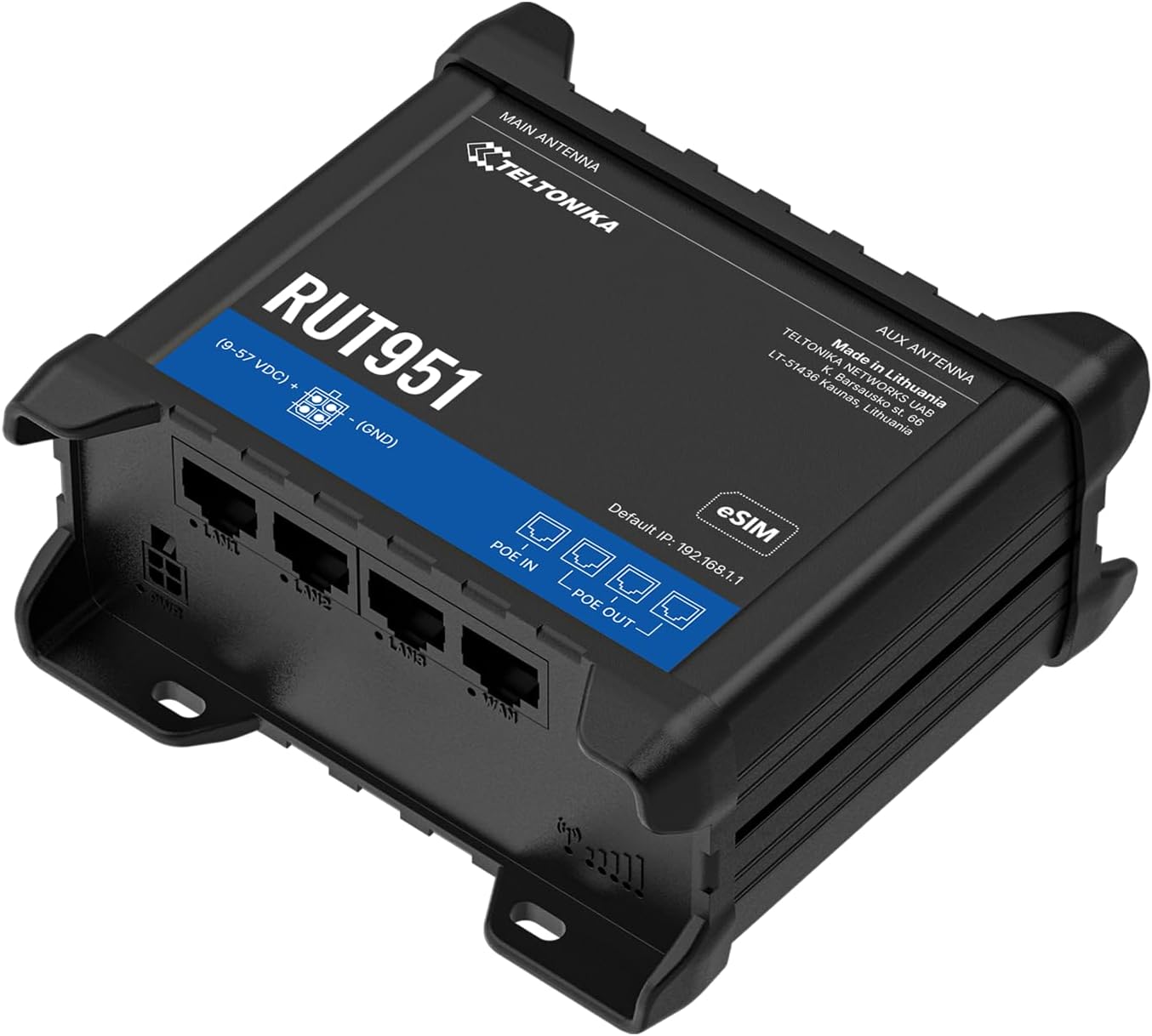
Figi 1: Devan view of the Teltonika RUT951 router, showing the model name and general design.

Figi 2: Detailed diagram illustrating the various ports and indicators on the Teltonika RUT951 router, including mobile and Wi-Fi antenna connectors, SIM slots, Ethernet ports, power socket, and LED indicators.
- Mobile AUX Antenna Connector (SMA female): For secondary mobile antenna.
- Mobile MAIN Antenna Connector (SMA female): For primary mobile antenna.
- SIM1 / SIM2 Slots: For inserting cellular SIM cards.
- Bouton RESET: To restore factory settings or reboot.
- Wi-Fi Antenna Connectors (RP-SMA female): Pou antèn Wi-Fi.
- Pouvwa priz: Pou konekte adaptè pouvwa a.
- Pò Ethernet LAN: Pou konekte aparèy rezo lokal yo.
- Pò Ethernet WAN: For connecting to an external network (e.g., fiber modem).
- Mobile Signal Strength LEDs: Indicate cellular signal strength.
- Mobile Connection Status LED: Indicates cellular connection status.
- LED LAN: Indicate activity on LAN ports.
- WAN dirije: Indicates activity on the WAN port.
3. Enstriksyon Enstalasyon
3.1 Enstalasyon kat SIM
- Locate the SIM card slots (SIM1 and SIM2) on the top panel of the router.
- Using a SIM ejector tool or a paperclip, gently press the small button next to the SIM slot to open it.
- Insert your activated Mini-SIM card(s) into the slot(s) with the gold contacts facing down and the notched corner oriented correctly.
- Push the SIM tray back into the router until it clicks into place.

Figi 3: Top view of the RUT951, highlighting the SIM card slots and antenna connectors.
3.2 Koneksyon antèn
- Screw the two mobile antennas onto the SMA connectors labeled 'MOBILE' (MAIN and AUX) on the top panel.
- Screw the two Wi-Fi antennas onto the RP-SMA connectors labeled 'WIFI' on the top panel.
- Ensure all antennas are securely tightened for optimal signal reception.
3.3 Koneksyon pouvwa
- Connect the provided power adapter to the power socket on the router.
- Ploge lòt bout adaptè pouvwa a nan yon priz kouran apwopriye.
- The router will power on automatically. Observe the power LED indicator.

Figi 4: Anba view of the RUT951, showing the Ethernet ports and power input.
3.4 Koneksyon Ethernet
To connect a device directly to the router:
- Connect one end of an Ethernet cable to any of the LAN ports (LAN1, LAN2, LAN3) on the router.
- Connect the other end of the Ethernet cable to your computer or network device.
- If you are using the router as a WAN gateway, connect your external modem (e.g., fiber modem) to the WAN port.
4. Operasyon Enstriksyon
4.1 Initial Access to WebUI
- Ensure your computer is connected to the router via Ethernet or Wi-Fi. The default Wi-Fi SSID and password can be found on the router's label.
- Louvri a web navigatè a epi antre adrès IP pa defo a: 192.168.1.1
- You will be prompted for login credentials. The default username is admin. The default password is also admin (or as specified on the router's label).
- Upon first login, you will be guided through a setup wizard to change the default password and configure basic settings.
4.2 Konfigirasyon Rezo
After initial login, you can configure various network settings through the WebUI:
- Anviwònman WAN: Configure your cellular (4G LTE) connection, including APN settings, or set up the Ethernet WAN port.
- Anviwònman LAN: Manage the local network IP address range and DHCP server.
- Wi-Fi Anviwònman: Change Wi-Fi SSID, password, security protocols, and channel settings.
- Doub SIM: Configure failover or load balancing between the two SIM cards for continuous connectivity.
- VPN: Set up various VPN protocols for secure remote access.
5. Antretyen
5.1 Mizajou Firmware
Regularly updating the router's firmware is crucial for security, performance, and new features. Firmware updates can be performed via the WebUI under the 'System' or 'Firmware' section. Always download firmware from the official Teltonika Networks websit.
5.2 Reset faktori
Si ou rankontre pwoblèm ki pèsiste oswa ou bliye enfòmasyon koneksyon ou yo, ou ka fè yon reset faktori:
- With the router powered on, locate the RESET button (refer to Figure 2).
- Press and hold the RESET button for approximately 10 seconds until all LEDs flash.
- Lage bouton an. Routeur a pral rekòmanse ak paramèt defo faktori yo.
NAN. Depanaj
- Pa gen koneksyon entènèt:
- Check SIM card insertion and activation.
- Verifye paramèt APN yo nan WebUI.
- Ensure mobile antennas are securely connected.
- Check cellular signal strength LEDs.
- Wi-Fi a pa fonksyone:
- Ensure Wi-Fi is enabled in the WebUI.
- Check Wi-Fi antenna connections.
- Verifye SSID ak modpas Wi-Fi a.
- Pa Ka Aksè WebUI:
- Ensure your device is connected to the router (Ethernet or Wi-Fi).
- Verify your computer's IP settings (should be set to obtain IP automatically).
- Eseye efase kach navigatè w la oubyen itilize yon lòt navigatè.
- Perform a factory reset if you suspect incorrect IP configuration or forgotten password.
7. Espesifikasyon
| Karakteristik | Spesifikasyon |
|---|---|
| Mak | Teltonica |
| Non modèl | RUT951 |
| Koneksyon Teknoloji | Wi-Fi, 4G LTE, 3G, 2G |
| Wireless Kominikasyon Creole | 802.11b, 802.11g, 802.11n |
| Gwoup Gwoup Frekans | Doub-Band |
| Kantite pò | 4 (3x LAN, 1x WAN) |
| Lajè Bande Pò LAN | 100 Mbps |
| Pousantaj Transfè Done | 150 Megabits Per Second (Max Upstream) |
| Sistèm operasyon | RutOS |
| Pwa atik | 287 gram |
| Voltage | 30 Volts |
| Pwotokòl Sekirite Sosyal | WPS (and others via RutOS) |
| Kouvèti | Dual SIM network redundancy |
8. Enfòmasyon sou Sekirite
- Sèvi ak adaptè pouvwa a sèlman ki bay aparèy la.
- Pa ekspoze aparèy la nan dlo, imidite, oswa tanperati ekstrèm.
- Evite mete aparèy la toupre sous chalè oswa nan limyè solèy la dirèk.
- Asire bon vantilasyon pou anpeche surchof.
- Do not attempt to open or modify the device. This will void the warranty.
- Jete aparèy la ak akseswa li yo yon fason responsab dapre règleman lokal yo.
9. Garanti ak sipò
The Teltonika RUT951 router comes with a standard manufacturer's warranty. For detailed warranty terms and conditions, please refer to the documentation included with your product or visit the official Teltonika Networks website. For technical support, firmware downloads, and additional resources, please visit the Teltonika Networks support portal or contact your vendor.