
Entwodiksyon
This manual provides essential information for setting up, operating, maintaining, and troubleshooting your CUPEISI 7-inch Android 14 Tablet. Please read this guide thoroughly to ensure proper use and to maximize your tablet's performance and longevity.
Ki sa ki nan bwat la
Verifye ke tout atik yo la lè w ap debale bwat la:
- CUPEISI 7-inch Android 14 Tablet
- Kalite-C Kab
- Manyèl Itilizatè (dokiman sa a)
Pwodwi souview
The CUPEISI Q2S tablet features a 7-inch HD IPS display, powered by a 1.6GHz Quad-core processor and running Android 14. It includes 8GB RAM (4GB physical + 4GB virtual) and 32GB internal storage, expandable up to 1TB via microSD card. The tablet is equipped with dual cameras and supports Wi-Fi and Bluetooth connectivity.
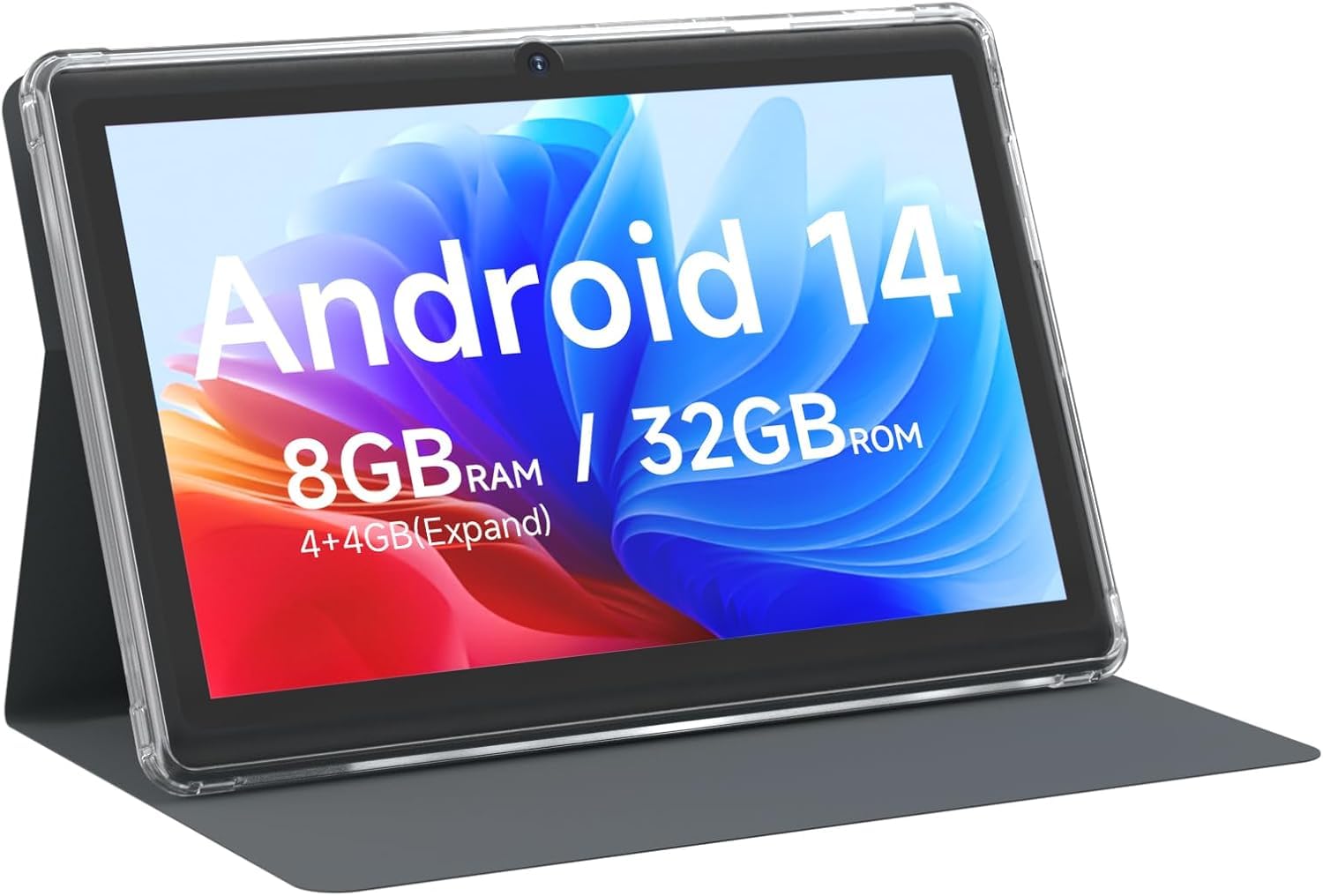
CUPEISI 7-inch Android 14 Tablet, front view.

Plis paseview of CUPEISI 7-inch Android 14 Tablet features including OS, CPU, RAM, ROM, Screen, Camera, Battery, and WiFi.
Enstalasyon
1. Chaje tablèt la
Before first use, fully charge the tablet. Connect the provided Type-C cable to the tablet's charging port and the other end to a compatible USB power adapter (not included) or a computer's USB port. The battery indicator on the screen will show charging status.
2. Limen ak Premye Konfigirasyon
- Peze epi kenbe bouton pouvwa a jiskaske ekran an limen.
- Follow the on-screen prompts to select your language, region, and other initial settings.
3. Konekte ak Wi-Fi
- Ale nan Anviwònman > Rezo ak entènèt > Wi-Fi.
- Aktive Wi-Fi a On.
- Chwazi rezo Wi-Fi ou vle a nan lis la.
- Antre modpas rezo a si yo mande w, epi tape Konekte.
4. Konfigirasyon Kont Google
A Google account is required to download apps from Google Play Store and access Google services. You can sign in with an existing account or create a new one during the initial setup or later via Anviwònman > Kont.
Opere tablèt ou a
1. Basic Navigation and Gestures
- Tape: Chwazi yon atik oubyen louvri yon aplikasyon.
- Glise: Defile nan ekran yo oswa lis yo.
- Zongle: Agrandi oswa diminye imaj yo epi web paj.
- Long Press: Jwenn aksè nan meni kontèks yo oubyen deplase ikòn yo.
2. Jesyon Aplikasyon yo

Tablet screen showing various application icons, illustrating the 8GB RAM and 32GB ROM storage capacity.
- Enstale Aplikasyon: Open the Google Play Store app, search for your desired app, and tap Enstale.
- Dezenstale aplikasyon yo: Long-press an app icon on the home screen or app drawer, then drag it to the Dezenstale opsyon, oubyen ale nan Anviwònman > Aplikasyon yo > select the app > Dezenstale.
3. Jesyon Depo
The tablet has 32GB of internal storage. You can expand this by inserting a microSD card (up to 1TB) into the designated slot. To manage storage, go to Anviwònman > Depo.
4. Sèvi ak Kamera a
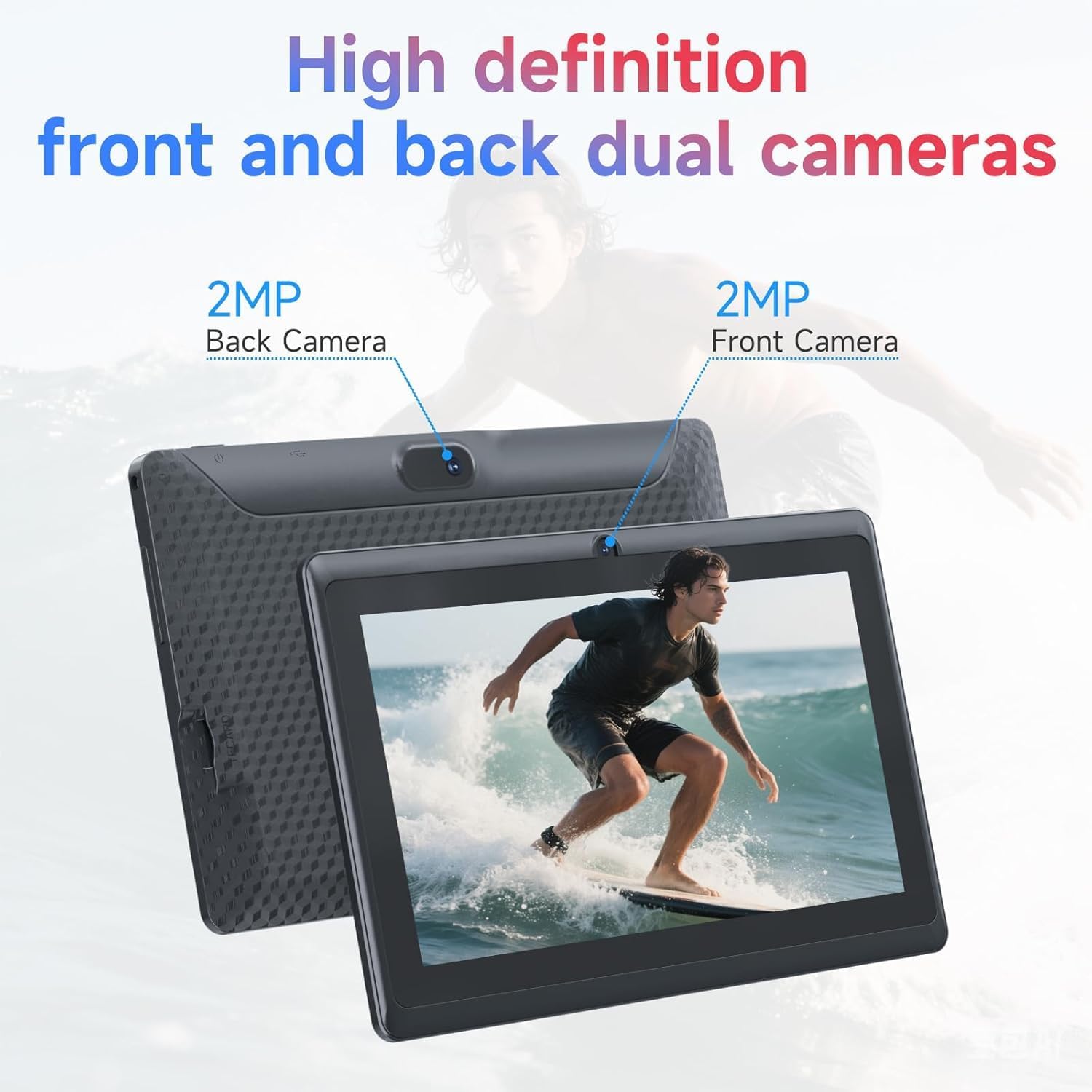
Illustration of the tablet's dual cameras, featuring a 5MP front camera and an 8MP rear camera.
The tablet features a 5MP front camera and an 8MP rear camera. Open the Kamera app to take photos or record videos. Tap the camera icon to switch between front and rear cameras.
5. Connectivity (Bluetooth)
Pou konekte aparèy Bluetooth:
- Ale nan Anviwònman > Aparèy ki konekte > Bluetooth.
- Aktive Bluetooth On.
- Chwazi Pè nouvo aparèy and choose your device from the list.
6. Mòd Pwoteksyon Je

The 7-inch IPS HD screen of the tablet displaying a colorful image, highlighting its 1024x600 resolution.
The tablet's display is designed to reduce blue light emission for eye comfort. You can enable or adjust eye protection settings in Anviwònman > Ekspozisyon.

A user engaged in a video conference on the tablet, demonstrating its suitability for work and study.
Antretyen
1. Netwayaj ak Swen
- Sèvi ak yon twal mou ki pa gen pousyè pou netwaye ekran an ak kò tablèt la.
- Evite itilize pwodwi chimik piman bouk oswa materyèl abrazif.
- Kenbe grenn nan lwen tanperati ekstrèm, limyè solèy dirèk, ak imidite.

An image depicting the tablet's drop protection feature, showing it withstands impacts.
2. Mizajou lojisyèl
Tcheke epi enstale mizajou lojisyèl regilyèman pou asire pèfòmans ak sekirite optimal. Ale nan Anviwònman > Sistèm > Aktyalizasyon sistèm lan.
3. Optimizasyon Batri
- To prolong battery life, reduce screen brightness, disable Wi-Fi/Bluetooth when not in use, and close background apps.
- Evite dechaje batri a nèt souvan.
Depanaj
| Pwoblèm | Solisyon posib |
|---|---|
| Tablèt la pa limen | Ensure the tablet is charged. Connect to a power source and wait a few minutes before attempting to power on again. |
| Pwoblèm koneksyon Wi-Fi | Check if Wi-Fi is enabled in settings. Restart your router and the tablet. Ensure you have entered the correct password. |
| Pèfòmans dousman | Close unnecessary background applications. Clear cache from apps in Settings > Apps. Consider performing a factory reset if issues persist (back up data first). |
| Aplikasyon yo ap plante oswa bloke | Update the app to the latest version. Clear the app's cache and data in Settings > Apps. Reinstall the app. |
Espesifikasyon
| Mak | CUPEISI |
| Nimewo Modèl | Q2S |
| Sistèm operasyon | Android 14 |
| Processeur | 1.6 GHz Quad-core (ARM Cortex) |
| RAM | 8 GB (4GB fixed + 4GB virtual) |
| Depo Entèn | 32 GB |
| Depo dilatabl | Jiska 1 TB atravè kat microSD |
| Gwosè ekran | 7 pous |
| Rezolisyon ekspozisyon | 1024 x 600 Pixels IPS HD |
| Kamera devan | 5 MP |
| Kamera dèyè | 8 MP |
| Kapasite batri | 3000 mAh |
| Mwayèn lavi batri | 6 èdtan |
| Koneksyon | Wi-Fi (802.11g), Bluetooth |
| Entèfas | USB Kalite-C |
| Dimansyon (L x W x P) | 7.5" x 4.3" x 0.3" |
| Pwa atik | 0.38 Kilogram |
Enfòmasyon sou Garanti
The CUPEISI Q2S Tablet comes with a 1-year limited warranty from the date of purchase. This warranty covers manufacturing defects and workmanship under normal use. It does not cover damage caused by misuse, accidents, unauthorized modifications, or external factors. Please retain your proof of purchase for warranty claims.
Sipò pou Kliyan
For further assistance, technical support, or warranty inquiries, please refer to the contact information provided with your product packaging or visit the official CUPEISI website. When contacting support, please have your tablet model number (Q2S) and proof of purchase ready.