
FLAMMA FX200
Manyèl Itilizatè Processeur Gita Milti-Efè FLAMMA FX200 la
Modèl: FX200
1. Entwodiksyon
This manual provides detailed instructions for the operation and maintenance of your FLAMMA FX200 Multi Effects Guitar Processor. Please read this manual thoroughly to ensure proper usage and to maximize the potential of your device.
The FLAMMA FX200 is a versatile multi-effects processor designed for guitarists, featuring a 5-inch LCD touch screen, extensive input/output options, and a wide array of effects, amplifier models, and cabinet simulations.
2. Prekosyon sekirite
- Pa ekspoze aparèy la anba lapli, imidite, oswa tanperati ekstrèm.
- Evite mete aparèy la toupre sous chalè oswa anba limyè solèy dirèk.
- Sèvi ak adaptè kouran ki espesifye a sèlman.
- Pa eseye demonte oswa modifye aparèy la. Konfye tout antretyen bay pèsonèl kalifye.
- Kenbe soti nan atenn timoun yo.
3. Pake kontni
Verifye ke tout atik yo prezan nan pakè a:
- FLAMMA FX200 Multi Effects Guitar Processor
- Adaptè pouvwa
- USB-C kab
- Manyèl Itilizatè (dokiman sa a)

Figure 3.1: Contents of the FLAMMA FX200 package.
4. Aparèy souview
4.1 Panèl devan
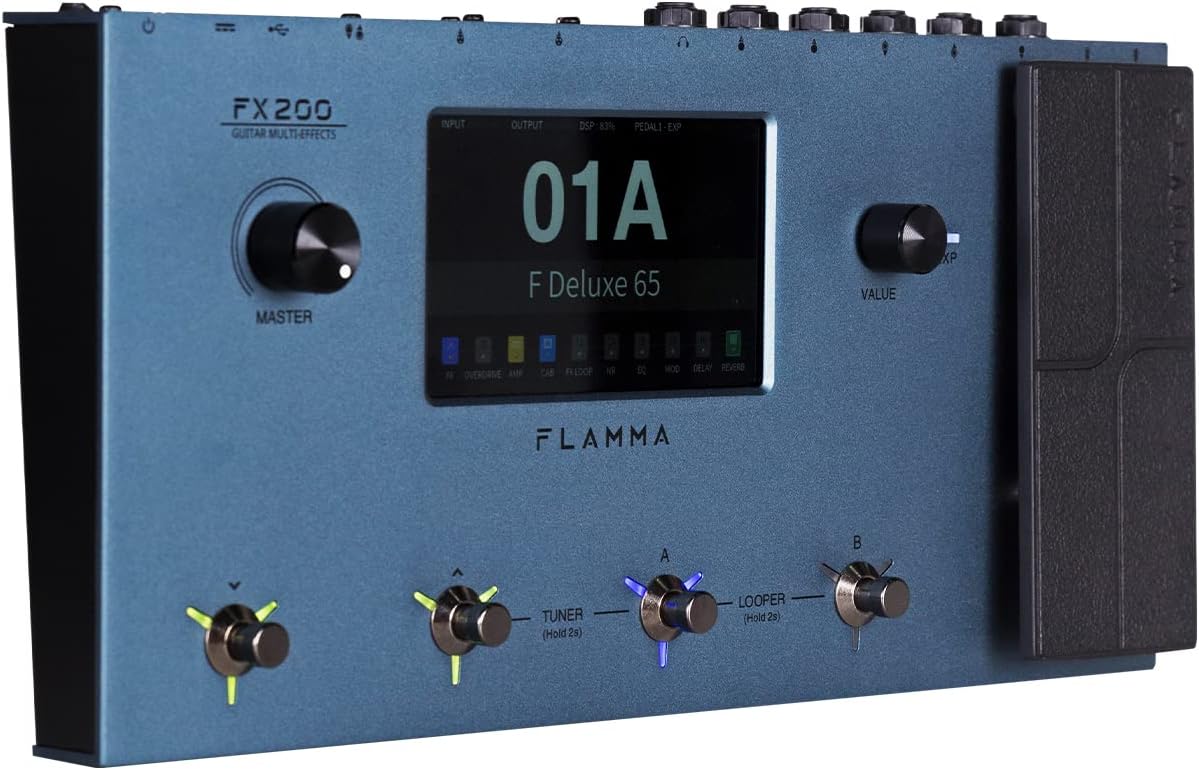
Figure 4.1: Front Panel Layout of the FX200.
- Mèt bouton: Ajiste volim pwodiksyon jeneral la.
- LCD Touch ekran: 5-inch display for navigation, parameter editing, and preset management.
- Value Knob: Used for data entry and parameter adjustments.
- Footswitches (A, B, C, D): Control presets, effects, looper, and tuner functions.
- Pedal ekspresyon: Assignable for real-time control of various effects parameters.
4.2 Rear Panel (I/O)

Figure 4.2: Rear Panel Input/Output Connections.
- AUX NAN: 3.5mm stereo input for external audio devices.
- EXP2: External expression pedal input.
- ENTRÈ: 1/4-inch mono input for guitar.
- SEND/RETURN: Stereo FX Loop for integrating external effects pedals.
- SOTI (G/MONO, D): 1/4-inch stereo outputs to amplifier oswa mixer.
- TELEFÒN: 3.5mm pwodiksyon ekoutè stereo.
- GND/LIFT: Ground lift switch to eliminate hum.
- XLR OUT (L, R): Balanced XLR stereo outputs for direct connection to PA systems or audio interfaces.
- MIDI ANTRE/SÒTI: 5-pin MIDI connectors for external MIDI control.
- USB DC IN: USB-C port for power and connection to a computer.
- Pouvwa switch: Vire inite a sou / sou.
5. Enstalasyon
5.1 Premye pouvwa-up
- Connect the provided power adapter to the USB DC IN port on the rear panel.
- Ploge adaptè pouvwa a nan yon priz AC apwopriye.
- Flip the Power Switch to the ON position. The unit will power on and display the startup screen.
5.2 Connecting Your Guitar and Amplifier
- Konekte gita ou a Antre jack lè l sèvi avèk yon kab enstriman estanda 1/4-pous.
- Konekte a SOTI L/MONO jack to your guitar amplifier's input using a 1/4-inch instrument cable. For stereo output, connect the SORTI R jack to a second amplifier or mixer input.
- Alternatively, for direct recording or PA system connection, use XLR cables from the XLR OUT L epi XLR OUT R ports to your audio interface or mixer.
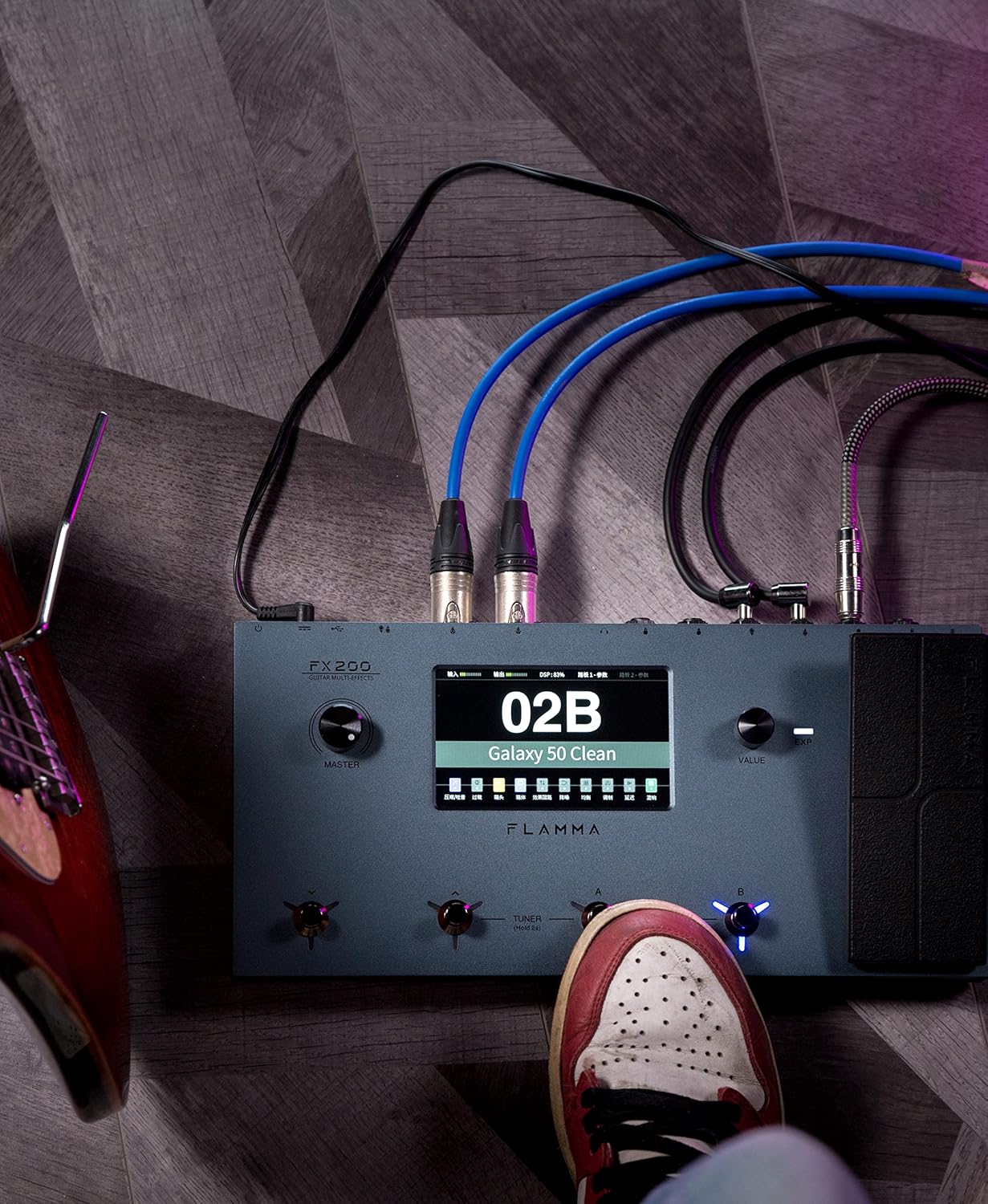
Figure 5.1: Typical connection setup for the FX200.
5.3 Konekte sou yon òdinatè
The FX200 can be connected to a computer for editing presets, firmware updates, and USB audio recording.
- Download the specialized editing software from the official FLAMMA websit.
- Connect the FX200 to your computer using the provided USB-C cable.
- Launch the editing software. The software will detect the FX200, allowing you to manage presets, effects, and perform firmware updates.

Figure 5.2: FX200 connected to a computer for software editing.
6. Operasyon Enstriksyon
6.1 Navige sou ekran taktil la
The 5-inch LCD touch screen is the primary interface for controlling the FX200. Tap icons and parameters to select them, and use the Value Knob to adjust values.

Figure 6.1: Interacting with the touch screen interface.
6.2 Jesyon Prereglaj
The FX200 features 200 editable user preset slots. Presets can be selected using the footswitches or by navigating the touch screen.
- Chwazi Prereglaj: In Play mode, press footswitches A or B to cycle through presets within a bank. Press footswitches C or D to change banks.
- Edite Prereglaj: Tap on an effect module icon on the touch screen to access its parameters. Adjust settings using the Value Knob.
- Ekonomize Prereglaj: After editing, tap the 'Save' icon on the touch screen and follow the prompts to store your changes to a user preset slot.
6.3 Effect Modules and Chain
The FX200 includes 10 effect modules with over 160 different effect types, 58 preamp models, and 30 cabinet simulations. The effects chain can be customized.
- Module Order: Drag and drop effect module icons on the touch screen to change their order in the signal chain.
- Activating/Deactivating Modules: Tap an effect module icon to toggle it on or off within a preset.
- Third-Party IRs: The unit supports third-party impulse response files (up to 1024 sampling points) with 50 empty slots for custom cabinet simulations. Use the editing software to load IRs.

Figure 6.2: Customizable effects chain on the FX200.
6.4 Looper ak machin tanbou
The FX200 includes an integrated 52-second looper and 80 drum machine variations with 10 metronome styles.
- Looper: Access the looper function via a dedicated footswitch or the touch screen. Record, overdub, play, and stop loops.
- Tanbou machin: Select drum patterns and metronome styles from the touch screen interface. Adjust tempo and volume.
6.5 USB Audio Recording
The FX200 supports USB audio recording, allowing you to record directly to your computer.
- Connect the FX200 to your computer via USB-C.
- Select the FX200 as your audio input device in your Digital Audio Workstation (DAW) software.
- Adjust input levels on both the FX200 and your DAW for optimal recording.
7. Antretyen
- Netwayaj: Sèvi ak yon twal mou epi sèk pou netwaye aparèy la. Pa sèvi ak pwodui netwayaj abrazif oswa solvan.
- Depo: When not in use for extended periods, store the unit in a dry, cool place away from direct sunlight.
- Mizajou mikrolojisyèl: Regularly check the FLAMMA website for firmware updates to ensure optimal performance and access to new features. Updates are performed via the USB-C connection and editing software.
NAN. Depanaj
| Pwoblèm | Kòz posib | Solisyon |
|---|---|---|
| Pa gen pouvwa | Power adapter not connected or faulty; Power switch off. | Ensure power adapter is securely connected and plugged into a working outlet. Check power switch. |
| Pa gen pwodiksyon son | Incorrect cable connections; Master volume too low; Amplifier off; Effect module bypassed. | Verify all audio cables are correctly connected. Increase Master volume. Check amplifier power. Ensure desired effect modules are active. |
| Humming or noise | Ground loop; Faulty cables; Interference. | Engage the GND/LIFT switch. Try different cables. Ensure power supply is stable and away from other electronics. |
| Manyen ekran pa reponn | Pwoblèm lojisyèl tanporè. | Restart the unit by cycling the power switch. If the issue persists, contact customer support. |
| Pa ka konekte ak òdinatè | USB-C cable issue; Driver not installed; Software not running. | Ensure USB-C cable is functional. Install necessary drivers. Launch the FLAMMA editing software. |
9. Espesifikasyon
| Karakteristik | Detay |
|---|---|
| Ekspozisyon | Ekran taktil LCD 5 pous |
| Modil efè | 10 modules, 160+ effect types |
| Preamp Modèl | 58 |
| Cabinet Simulations | 30 (IR-based, 1024pts), 50 user IR slots |
| Prereglaj Itilizatè yo | 200 editable slots |
| Looper | 52 segonn |
| Tanbou machin | 80 variations, 10 metronome styles |
| Koneksyon | AUX IN, EXP2, INPUT, SEND/RETURN, OUTPUT (L/MONO, R), PHONES, XLR OUT (L, R), MIDI IN/OUT, USB-C |
| USB Audio Recording | Sipòte |
| Dimansyon (L x W x H) | 13.5 x 6.6 x 2 pous (34.3 x 16.8 x 5.1 cm) |
| Pwa | 3.9 liv (1.77 kg) |
| Pwovizyon pou pouvwa | 9V DC (via USB-C) |
| Materyèl kò | Metal |
10. Garanti ak sipò
FLAMMA products are covered by a limited warranty. For detailed warranty information, product registration, and technical support, please visit the official FLAMMA websit oswa kontakte sèvis kliyan yo.
Official FLAMMA Websit: www.flamma.com
For any issues not covered in this manual, please refer to the online resources or contact FLAMMA customer support directly.
Ask a question about this manual
Ask about setup, troubleshooting, compatibility, parts, safety, or missing instructions. Manuals+ will review the question and use this page’s manual context to help answer it.