
1. Entwodiksyon
This manual provides detailed instructions for the setup, operation, and maintenance of your AVMATRIX PVS0403U Multi-Format Video Mixer Switcher. The PVS0403U is an integrated solution for live video production, featuring a 10.1-inch IPS FHD display, multiple video inputs, and advanced switching capabilities. Please read this manual thoroughly before using the device to ensure proper functionality and to maximize your experience.
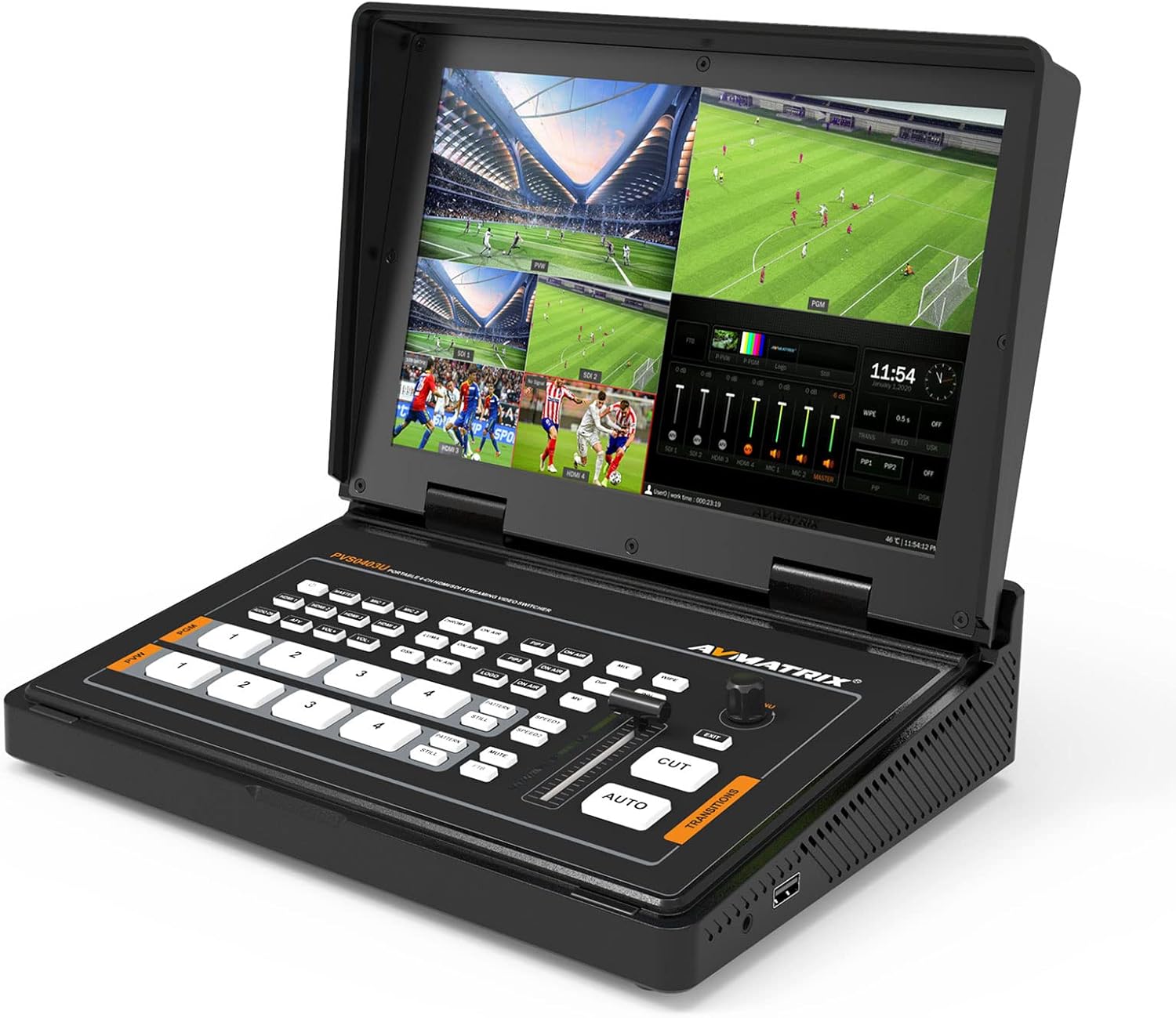
Figure 1: AVMATRIX PVS0403U Multi-Format Video Mixer Switcher.
2. Pake kontni
Verifye ke tout atik yo prezan nan pakè a:
- PVS0403U Video Switcher Unit
- Alimantasyon (12V 2A)
- USB Cable (Type A-C)
- Tally Connector (DB-15)

Figi 2: Devan view of the PVS0403U packaging.
3. Aparèy souview
The PVS0403U integrates a control panel, a 10.1-inch display, and various input/output ports for comprehensive video switching and live production.
3.1 Panèl Devan ak Ekran
The front panel features dedicated buttons for input selection, transition effects, keying, and audio control. The integrated 10.1-inch IPS FHD display provides real-time monitoring of all input channels, program (PGM) output, and preview (PVW) output.
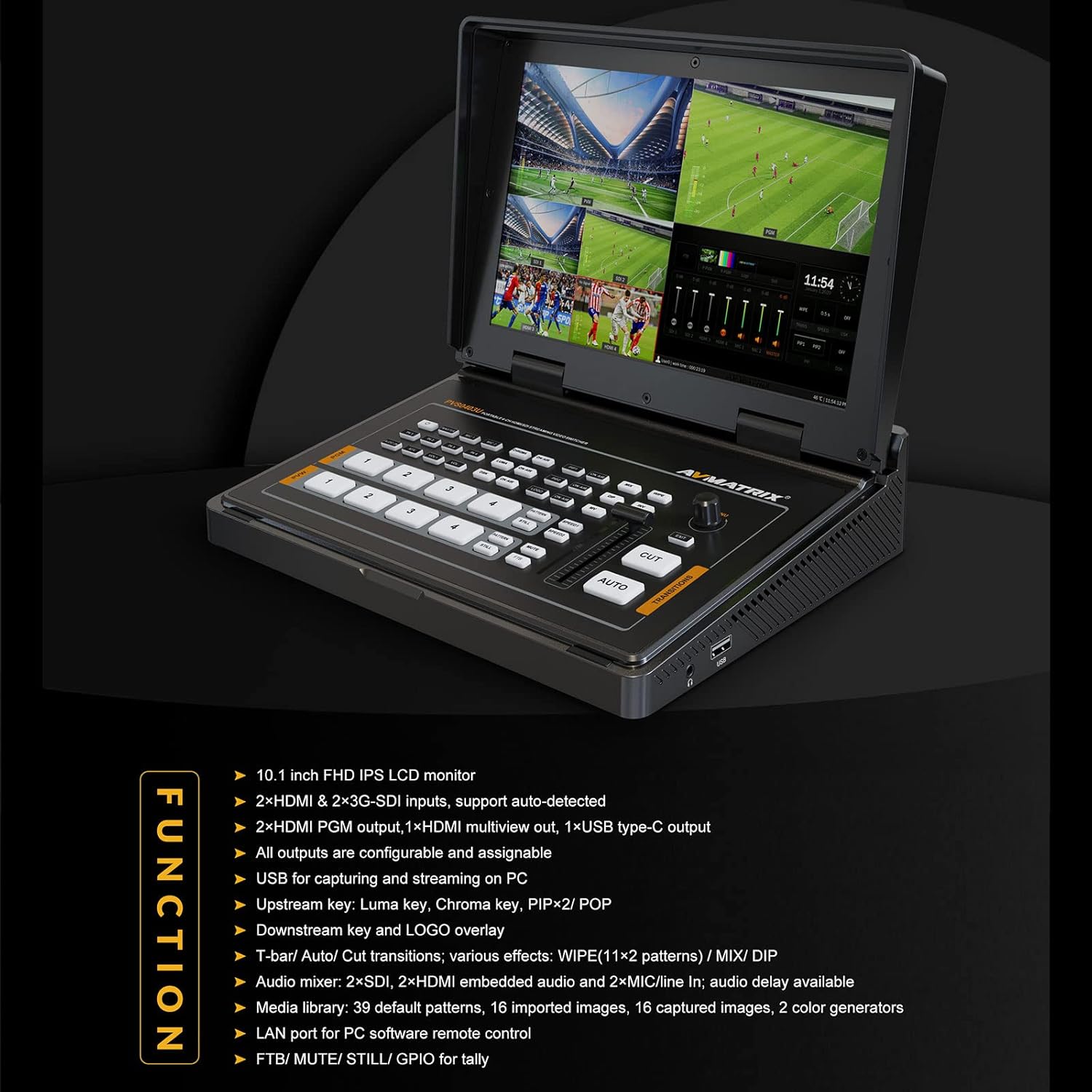
Figure 3: The 10.1-inch IPS FHD display for real-time monitoring.
3.2 Koneksyon Panèl Dèyè
The rear panel houses all necessary input and output ports for connecting cameras, computers, and external monitors.

Figure 4: Rear panel connections of the PVS0403U.

Figure 5: Detailed diagram of the PVS0403U interface ports.
The available ports include:
- 2x SDI Inputs
- 2x Antre HDMI
- 2x MIC IN (Audio Inputs)
- 2x HDMI PGM Output
- 1x HDMI Multiview Sòti
- 1x USB Type-C Output (for PC capture/streaming)
- LAN Port (for PC remote control)
- Tally Port (DB-15)
- DC-12V Power Input
4. Enstalasyon
4.1 Koneksyon pouvwa
- Connect the provided 12V 2A power adapter to the DC-12V input port on the rear panel.
- Ploge adaptè pouvwa a nan yon priz elektrik apwopriye.
- Press the power button to turn on the device. The integrated screen will display the boot sequence.
4.2 Video Input Connections
Connect your video sources (cameras, computers, gaming consoles) to the appropriate input ports:
- For SDI sources, use the 2x SDI IN pò.
- For HDMI sources, use the 2x HDMI IN pò.
4.3 Video Output Connections
Connect external monitors or recording devices to the output ports:
- For program output, use the 2x HDMI PGM Output pò.
- Pou miltiview monitoring on an external display, use the 1x HDMI Multiview Sòti pò.
- For streaming or capturing to a PC, connect the USB Kalite-C Sòti to your computer using the provided USB cable.
4.4 Koneksyon Audio
Connect external microphones or audio mixers to the 2x MIC IN ports for additional audio sources.
4.5 PC Remote Control Connection
To control the switcher remotely from a PC, connect an Ethernet cable from the LAN port on the PVS0403U to your computer or network.
5. Operasyon Enstriksyon
5.1 Basic Switching
The PVS0403U allows seamless switching between four input sources. The integrated 10.1-inch display shows all four inputs, the preview (PVW) feed, and the program (PGM) feed simultaneously.
- Seleksyon Antre: Press the corresponding input buttons (1, 2, 3, 4) on the program (PGM) row to send that input directly to the program output. Press buttons on the preview (PVW) row to select the next source for preview.
- Tranzisyon: Use the T-bar fader or the OTO button for smooth transitions between PVW and PGM. The KOUPE button provides an instant switch.
Video 1: Demonstration of basic switching and transition effects on the PVS0403U.
5.2 Efè Tranzisyon
The switcher offers various transition effects to enhance your live production:
- WIPE: A transition where one image replaces another by wiping across the screen.
- MIX: A dissolve transition where one image fades out as another fades in.
- Plonje: A transition that dips to a solid color before transitioning to the next source.
Select the desired transition effect using the dedicated buttons and adjust speed if applicable.

Figi 6: Plis paseview of transition effects and other advanced features.
5.3 Keying (Chroma Key & Luma Key)
The PVS0403U supports both Chroma Key and Luma Key for creating virtual sets or overlaying graphics.
- Kle Kwoma: Used to remove a specific color (e.g., green screen) from a video source, allowing another video or image to show through.
- Luma Key: Used to key out areas based on brightness levels.
Activate these features using the CHROME epi LUMA buttons and adjust parameters as needed for optimal results.

Figure 7: Visual representation of keying and other overlay functions.
5.4 Picture-in-Picture (PIP) / Picture-by-Picture (POP)
The switcher supports PIP and POP functions, allowing you to display multiple video sources simultaneously on the program output. You can adjust the size and position of the sub-screens.
- PIP: Displays one video source as a smaller inset window over another main video source.
- POP: Displays two or more video sources side-by-side.
5.5 Logo Overlay
You can add a custom logo to your program output. Logos can be imported from a USB flash drive in PNG, JPG, or GIF format. The size and position of the logo are adjustable.
5.6 Audio Mixing
The PVS0403U includes an audio mixer for managing embedded audio from HDMI and SDI inputs, as well as external microphone inputs. Adjust audio levels for each source independently.
5.7 Media Management
The device has a built-in media library with 39 default patterns and supports importing up to 16 images from a USB flash drive. These can be used as backgrounds or overlays.
5.8 PC Remote Control
All settings and functions of the PVS0403U can be controlled remotely using PC-based control software. Connect your PC via the LAN port and install the appropriate software (available from the AVMATRIX website) for comprehensive control.
5.9 USB-C Output for Streaming/Capture
Connect the USB Type-C output to a PC to use the PVS0403U as a webcam source for live streaming platforms (e.g., OBS, PotPlayer, Zoom, Twitch, YouTube) or for video capture. The USB output carries both video and audio.
6. Antretyen
6.1 Netwayaj
Regularly clean the device with a soft, dry cloth. Avoid using liquid cleaners or solvents, as these may damage the surface or internal components. Ensure the device is powered off and unplugged before cleaning.
6.2 Mizajou Firmware
Periodically check the official AVMATRIX website for firmware updates. Firmware updates can improve performance, add new features, or resolve known issues. Follow the instructions provided with the firmware update package carefully. Typically, firmware updates are performed via the USB port or LAN connection.
NAN. Depanaj
This section addresses common issues you might encounter with the PVS0403U.
- No Video Input Signal:
- Ensure video sources are powered on and connected securely to the correct SDI or HDMI input ports.
- Verify that the input resolution and frame rate are supported by the PVS0403U (refer to Specifications).
- Check the input selection on the switcher.
- No Video Output on External Monitor:
- Confirm the external monitor is powered on and connected to an HDMI PGM or Multiview pwodiksyon.
- Check the monitor's input selection.
- Ensure the output resolution is compatible with your monitor.
- Pa gen odyo:
- Check audio levels in the audio mixer section of the switcher.
- Verify that audio is embedded in your HDMI/SDI sources or that external microphones are properly connected and powered.
- Ensure the output device (monitor, speaker) has its volume turned up.
- PC Not Recognizing USB-C Output:
- Ensure the USB Type-C cable is securely connected to both the switcher and the PC.
- Eseye yon lòt pò USB sou òdinatè w la.
- Restart the PC and the PVS0403U.
- Check device manager on your PC for driver issues.
- PC Remote Control Not Working:
- Verify the LAN cable connection.
- Ensure the PC control software is correctly installed and configured.
- Check network settings on both the PC and the switcher.
If you encounter issues not covered here, please refer to the official AVMATRIX support resources.
8. Espesifikasyon
Below are the technical specifications for the AVMATRIX PVS0403U:
| Karakteristik | Detay |
|---|---|
| Antre Videyo | 2x SDI, 2x HDMI |
| Sorti Videyo | 2x HDMI PGM, 1x HDMI Multiview, 1x USB Type-C |
| Entrain Audio | 2x MIC IN |
| Ekspozisyon | 10.1-inch IPS FHD |
| Kontwòl | Front Panel Buttons, T-bar, LAN (PC Remote) |
| Efè Tranzisyon | WIPE (11x2 patterns), MIX, DIP |
| Kle | Chroma Key, Luma Key |
| Overlay Functions | PIP/POP, Logo Overlay |
| USB Capture | USB Type-C 2.0 for PC streaming/capture (UVC/UAC) |
| Pwovizyon pou pouvwa | DC 12V, 2A |
| Dimansyon (LWD) | 261.4 x 193.9 x 58 mm |
| Pwa | 1673.5 g (apeprè 3.69 liv) |
| Tanperati Fonksyònman | -20 ° C a 60 ° C |
| Tanperati Depo | -30 ° C a 70 ° C |

Figure 8: Comprehensive technical specifications table.
9. Garanti ak sipò
AVMATRIX products are designed for reliability and performance. For warranty information, please refer to the warranty card included with your product or visit the official AVMATRIX website. For technical support, troubleshooting assistance, or service inquiries, please contact AVMATRIX customer support through their official channels.
Resous sou entènèt: For the latest drivers, software, and additional documentation, please visit the AVMATRIX official websit.