
Entwodiksyon
This manual provides detailed instructions for the setup, operation, maintenance, and troubleshooting of your Pokitter Go Pro Mini Portable Projector. Please read this manual thoroughly before using the product to ensure proper functionality and to extend the lifespan of your device.
The Pokitter Go Pro is a compact and powerful portable projector featuring integrated Android TV 10.0, Google Assistant, 200 ANSI lumens brightness, 1080p Full HD resolution with 4K support, dual-band 2.4G/5G WiFi, and a maximum projection size of 120 inches. It is designed for versatile entertainment, offering a cinematic experience on the go.
Kontni pake
Tanpri verifye ke tout atik yo prezan nan pakè a:
- Pokitter Go Pro Mini Portable Projector
- Kontwòl Remote
- Adaptè pouvwa
- Manyèl Itilizatè (dokiman sa a)
- Pote Mare

Image: The Pokitter Go Pro Mini Portable Projector, highlighting its compact design and integrated handle for easy portability.
Pwodwi souview
Devan View
Devan pwojektè a gen lantiy pwojeksyon an ak griy vantilasyon yo.
Dèyè View
The rear panel typically includes various ports for connectivity.
- HDMI Port: For connecting external devices like laptops, gaming consoles, or Blu-ray players.
- Pò USB: For connecting USB drives for media playback or external peripherals.
- Sòti Odyo (Jack 3.5mm): Pou konekte oratè ekstèn oswa kas ekoutè.
- DC Nan: Pò D 'pouvwa.
Top View
The top surface may include control buttons or indicators.
Side View
The sides often feature additional ventilation and a carrying handle.
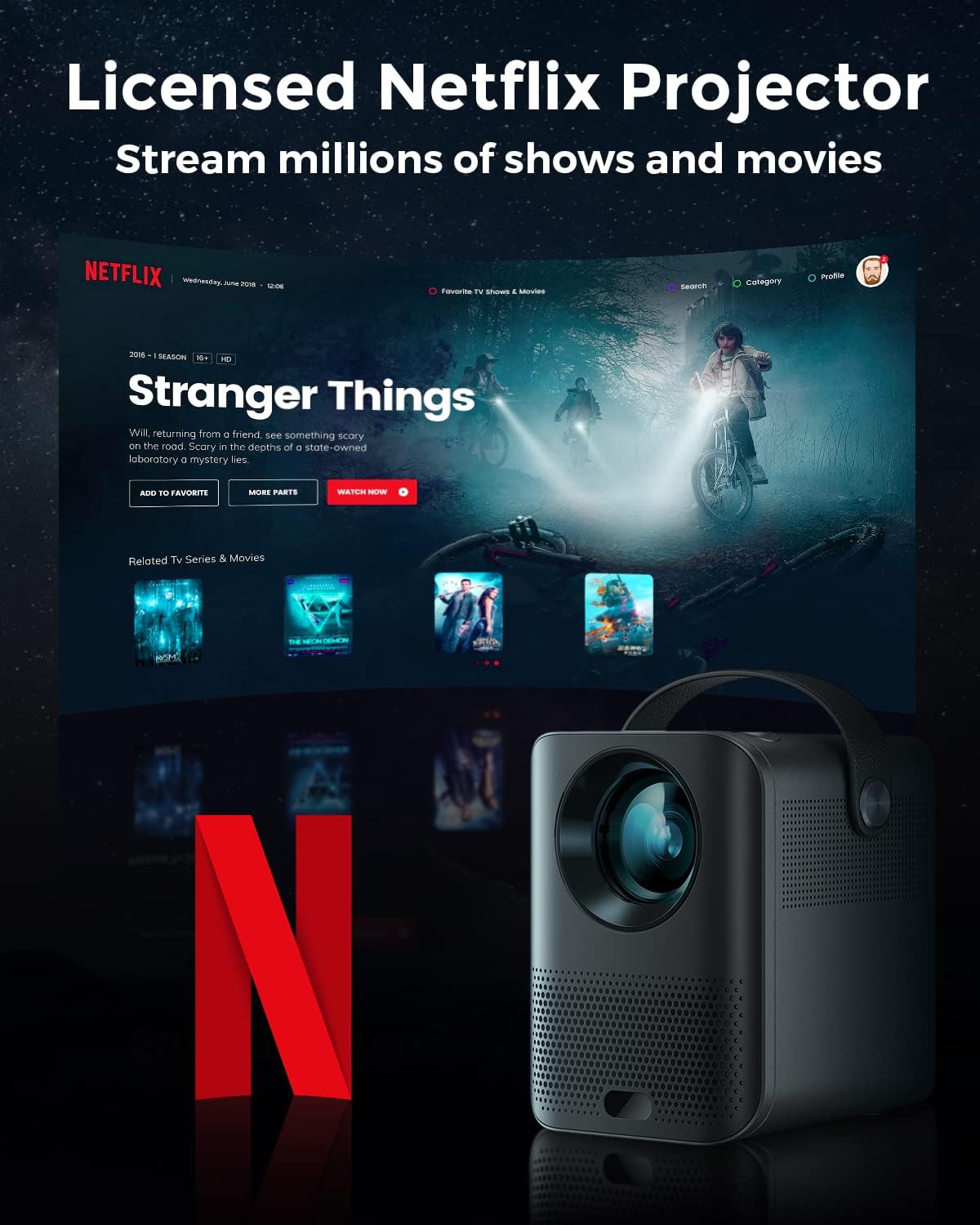
Image: The Pokitter Go Pro projector showcasing its integrated Netflix license and streaming capabilities.

Image: A size comparison of the Pokitter Go Pro projector with a smartphone, illustrating its mini and portable form factor.
Enstalasyon
1. Koneksyon pouvwa
- Connect the power adapter to the DC In port on the projector.
- Ploge adaptè pouvwa a nan yon priz miray.
- Limyè endikatè pouvwa a pral limen.
2. Premye Limen
- Peze bouton pouvwa a sou pwojektè a oswa kontwòl remote la pou limen aparèy la.
- Allow a few moments for the Android TV system to boot up.
3. Konsantre Ajisteman
Use the focus ring (if mechanical) or the remote control's focus buttons to achieve a clear image. The Pokitter Go Pro features automatic vertical keystone correction up to 40 degrees.

Image: Illustration of the automatic keystone correction feature, which adjusts the image for optimal viewing even when the projector is not perfectly aligned.
4. Screen Size Adjustment
Adjust the distance between the projector and the projection surface to achieve the desired screen size. The projector supports a screen size up to 120 inches.

Image: Guide for optimal projection distances to achieve screen sizes of 40, 80, and 120 inches.
5. Koneksyon Rezo (Wi-Fi)
- Navigate to the Wi-Fi settings in the Android TV interface.
- Chwazi rezo Wi-Fi ou vle a nan lis la.
- Antre modpas la si yo mande.
- The projector supports dual-band 2.4G and 5G Wi-Fi for stable and fast transmission.

Image: The Pokitter Go Pro projector demonstrating its 2.4/5GHz WiFi capabilities for seamless wireless screen casting from various devices.
Enstriksyon Operasyon
Sèvi ak kontwòl remote la
The included remote control allows full navigation and control of the Android TV interface. Key functions include:
- Bouton pouvwa: Limen/éteint pwojektè a.
- Navigasyon Pad: For moving through menus.
- OK bouton: Konfime seleksyon yo.
- Bouton tounen: Retounen nan ekran anvan an.
- Bouton Kay: Retounen nan ekran prensipal Android TV a.
- Bouton Volim: Ajiste volim odyo a.
- Bouton Asistan Google la: Aktive kòmandman vokal yo.
Entèfas Android TV
The Pokitter Go Pro runs on Android TV 10.0, providing access to a wide range of streaming applications such as Netflix, YouTube, Amazon Prime Video, and Disney+.
- Navigasyon aplikasyon: Use the remote's navigation pad to select and open applications.
- Kontni Streaming: Log in to your streaming accounts to access content.
- Google Asistan: Press the Google Assistant button on the remote and speak your commands to search for content, control playback, or get information.

Imaj: Yon plis paseview of the Pokitter Go Pro's key features, including its Android TV operating system, Google Assistant integration, and display capabilities.
Screen Mirroring (Chromecast Built-in)
The projector features built-in Chromecast for easy screen mirroring from compatible devices (smartphones, tablets, laptops).
- Ensure your device and the projector are connected to the same Wi-Fi network.
- Open a Chromecast-enabled app on your device (e.g., YouTube, Netflix).
- Tape ikòn Cast la (anjeneral yon rektang ak yon senbòl Wi-Fi) nan aplikasyon an.
- Select your Pokitter Go Pro projector from the list of available devices.
- The content from your device will be mirrored or cast to the projector.

Image: Demonstrating the Chromecast built-in feature, allowing users to stream content from their smartphone to the projector's large display.
Konekte Aparèy Ekstèn (HDMI/USB)
- HDMI: Connect an HDMI cable from your external device (e.g., laptop, game console) to the HDMI port on the projector. The projector will automatically switch to the HDMI input or you may need to select it from the input source menu.
- USB: Insert a USB flash drive into the USB port. The Android TV system will typically prompt you to open a file browser to access media files sou kondwi a.
Antretyen
Netwaye Lantiy la
Sèvi ak yon twal mou ki pa gen pousyè, espesyalman fèt pou lantiy optik, pou siye lantiy pwojektè a dousman. Pa sèvi ak pwodui netwayaj abrazif oswa fòs twòp, paske sa ka grate lantiy la.
Cleaning the Projector Body
Wipe the exterior of the projector with a soft, dry cloth. For stubborn stains, a slightly damp cloth can be used, followed by a dry cloth. Avoid getting liquids inside the projector.
Vantilasyon
Ensure that the ventilation grilles are not blocked during operation to prevent overheating. The Pokitter Go Pro features a dust-proof design to maintain picture quality.

Image: An internal diagram of the Pokitter Go Pro, illustrating its dust-proof design for long-lasting, flawless picture quality.
Depo
Lè w pa itilize pwojektè a pou yon bon bout tan, sere l nan yon kote ki fre epi sèk, lwen limyè solèy dirèk ak tanperati ekstrèm. Li rekòmande pou w itilize anbalaj orijinal la oswa yon kouvèti pwoteksyon.
Depanaj
| Pwoblèm | Kòz posib | Solisyon |
|---|---|---|
| Pa gen pouvwa | Kab kouran an pa konekte; Priz kouran an gen pwoblèm. | Asire w kab kouran an byen konekte. Eseye yon lòt priz kouran. |
| Pa gen imaj / Imaj twoub | Lens out of focus; Incorrect input source; Obstruction in projection path. | Adjust focus using the remote or focus ring. Select correct input source. Remove any obstructions. |
| Pa gen Son | Volim twò ba; Sou silans; Oratè ekstèn yo pa byen konekte. | Ogmante volim nan. Dezaktive son pwojektè a. Tcheke koneksyon oratè ekstèn yo. |
| Pwoblèm Koneksyon Wi-Fi | Modpas ki pa kòrèk; Routeur twò lwen; Entèferans rezo. | Verifye modpas Wi-Fi a. Pi pre routeur la epi deplase pwojektè a. Rekòmanse routeur la ak pwojektè a. |
| Remote Control pa travay | Pil mouri; Gen obstak ant telekòmand lan ak pwojektè a. | Ranplase pil yo. Asire w ke liy vizyon an klè ak reseptè IR pwojektè a. |
Espesifikasyon
- Modèl: F1A
- Mak: Pokitè
- Teknoloji ekspozisyon: dirije
- Rezolisyon natif natal: 1920 x 1080 (Full HD)
- Rezolisyon maksimòm sipòte: 3840 x 2160 (4K)
- Klate: Jiska 200 ANSI Lumens
- Gwosè pwojeksyon: Jiska 120 pous
- Sistèm operasyon: Android TV 10.0
- Asistan vwa: Google Asistan entegre
- Koneksyon Wireless: 2.4G/5G Dual-band Wi-Fi, Bluetooth 5.1
- Pò koneksyon: HDMI, USB, 3.5mm Audio Out, DC In
- Oratè: Integrated (2x5W as per infographic)
- Average Lifespan (Light Source): 50,000 èdtan
- Faktè fòm: Pòtab
- Kalite montaj: Mòn tab la

Image: An illustration of the projector's internal speaker system, designed to provide true-to-life sound for a cinematic vieweksperyans nan.
Garanti ak sipò
The Pokitter Go Pro Mini Portable Projector comes with a 2-ane garanti. For any questions or professional assistance regarding this product, please contact Pokitter customer support. We are committed to supporting our customers.
For the latest support information, FAQs, and contact details, please visit the official Pokitter websit la oubyen gade enfòmasyon kontak yo te bay avèk acha ou a.