
1. Entwodiksyon
The NovaStar VX16s is an advanced all-in-one controller designed for LED display systems. It seamlessly integrates video processing, video control, and LED screen configuration into a single unit. This device supports Ultra HD 4K×2K@60Hz image processing and sending capabilities, managing up to 10.4 million pixels. When used with NovaStar's V-Can video control software, the VX16s facilitates rich image mosaic effects and streamlined operations. This manual provides essential information for the proper installation, operation, and maintenance of your VX16s unit.
2. Enfòmasyon sou Sekirite
Tanpri li epi konprann tout enstriksyon sekirite yo anvan ou itilize aparèy la pou evite blesi oswa domaj. Kenbe manyèl sa a pou referans pita.
- Asire ekipman pou pouvwa a voltage matches the device's requirements (AC 100~240V).
- Pa ekspoze aparèy la anba lapli, imidite, oswa tanperati ekstrèm.
- Evite bloke ouvèti vantilasyon pou anpeche surchof.
- Sèlman sèvi ak akseswa espesifye pa manifakti a.
- Refere tout sèvis yo bay pèsonèl ki kalifye.
- Dekonekte kouran an anvan ou netwaye oswa fè antretyen.
3. Pake kontni
Carefully unpack the box and verify that all items listed below are included. If any items are missing or damaged, contact your supplier.

Figi 3.1: NovaStar VX16s Package Contents. This image shows the VX16s unit, a power cord, DVI cable, HDMI cable, USB cable, Ethernet cable, and a Quick Start Guide, all neatly packed in the box.
- NovaStar VX16s Unit
- Kòd pouvwa
- DVI kab
- HDMI kab
- USB kab
- Ethernet kab
- Gid Quick Start
4. Pwodwi souview
4.1 Panèl devan
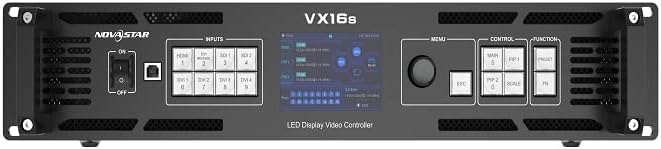
Figi 4.1: NovaStar VX16s Front Panel. The front panel features an ON/OFF switch, input selection buttons (HDMI, DVI, SDI), a central display screen, a menu control knob, and dedicated function buttons for MAIN, PIP1, PIP2, ESC, SCALE, and FN.
The front panel provides access to essential controls and indicators for real-time operation and monitoring.
- Pouvwa switch: Limen oswa etenn aparèy la.
- Bouton Antre: Selects the active input source (HDMI, DVI, SDI).
- Ekspozisyon ekran: Shows current status, menu options, and configuration details.
- Bouton kontwòl: Navigates menus and adjusts parameters.
- Bouton Fonksyon:
- PRINCIPAL: Controls the main layer.
- PIP1/PIP2: Controls Picture-in-Picture layers.
- ESC: Exits current menu or cancels an operation.
- ECHÈL: Accesses image scaling options.
- FN: Customizable function button.
4.2 Panèl dèyè

Figi 4.2: NovaStar VX16s Rear Panel. This image details the rear panel, featuring Ethernet ports (1-16), Control ports (Ethernet, RS232, USB), Input ports (DVI 1-4, HDMI 2.0, 3G-SDI 1-2), an Output Monitor port (HDMI), and the AC power input.
The rear panel houses all input, output, and control connections.
- Konektè Antre:
- 2x 3G-SDI
- 1x HDMI 2.0
- 4x SL-DVI
- Ethernet Output Ports: 16 ports for LED screen connection, supporting up to 10,400,000 pixels.
- Pò kontwòl: Ethernet, RS232, USB for V-Can software connection and device control.
- Sòti pou kontwole: HDMI port for monitoring the output signal.
- AC pouvwa Antre: Pou konekte kòd elektrik la.
5. Enstalasyon
5.1 Enstalasyon Fizik
The VX16s is designed for rack mounting. Ensure adequate ventilation around the unit.
- Mount the device securely in a standard 19-inch equipment rack.
- Ensure sufficient space for cable connections and airflow.
- Connect the power cord to the AC power input on the rear panel and then to a grounded power outlet.

Figi 5.1: NovaStar VX16s Dimensions. This diagram shows the top-down view of the VX16s unit with its physical dimensions in millimeters, useful for rack installation planning.
5.2 Input/Output Connections
Connect your video sources and LED display panels to the appropriate ports on the rear panel.
- Videyo Antre: Connect your video sources (e.g., media players, cameras) to the HDMI, DVI, or 3G-SDI input ports.
- LED Display Outputs: Connect the Ethernet output ports (1-16) to your LED display panels using standard Ethernet cables.
- Sòti pou kontwole: Connect an external monitor to the HDMI MONITOR output for real-time preview of the processed video.
- Koneksyon kontwòl: Connect a computer running NovaStar V-Can software to the CONTROL Ethernet port or USB port for advanced configuration and control.
6. Operasyon Enstriksyon
6.1 Power On/Off
To power on the device, flip the power switch on the front panel to the 'ON' position. The display screen will illuminate. To power off, flip the switch to 'OFF'.
6.2 Seleksyon Sous Antre
Press the corresponding input button on the front panel (HDMI, DVI, SDI) to select your desired video source. The active input will be indicated on the display screen.
6.3 Layer Management (Main and PIPs)
The VX16s supports 3 independent layers: one 4K×2K main layer and two 2K×1K Picture-in-Picture (PIP) layers (PIP 1 and PIP 2). Use the MAIN, PIP1, and PIP2 buttons on the front panel to select and configure each layer. Layer priorities are adjustable via the menu.
6.4 Image Scaling
Peze a ECHÈL button to access image scaling options. The VX16s offers three scaling modes:
- Pixel-to-Pixel: Displays the input source at its native resolution without scaling.
- Ekran konplè: Scales the input source to fill the entire LED display area.
- Custom Scaling: Allows for manual adjustment of resolution and position.
6.5 3D Display Function
The device supports 3D display effects on the LED screen. To enable this function, navigate through the menu using the control knob. Nòt: When the 3D function is enabled, the device's output capacity will be halved.
6.6 DVI Mosaic
Up to four DVI inputs can be combined to form a single, independent input source, known as DVI Mosaic. This feature is configured via the V-Can software or the device's menu.
6.7 Jesyon Prereglaj
The VX16s allows you to save up to 10 presets for various display configurations. This enables quick recall of frequently used setups. Presets can be saved and loaded via the device's menu or V-Can software.
6.8 Jesyon EDID
The device supports both custom EDID and standard EDID management, allowing for optimized communication between the video sources and the processor. This can be configured in the system settings.
6.9 Device Backup
The VX16s includes a device backup design to ensure system stability and data integrity. Consult the full user manual for detailed instructions on utilizing backup features.
7. Antretyen
Regular maintenance ensures optimal performance and extends the lifespan of your VX16s.
- Netwayaj: Sèvi ak yon twal mou epi sèk pou netwaye deyò aparèy la. Pa sèvi ak pwodui netwayaj likid oswa ayewosòl.
- Vantilasyon: Periodically check that all ventilation openings are clear of dust and obstructions.
- Mizajou mikrolojisyèl: Check the NovaStar official website for the latest firmware updates to ensure compatibility and access to new features.
NAN. Depanaj
Seksyon sa a adrese pwoblèm komen ou ka rankontre. Pou pwoblèm ki pi konplèks, kontakte sipò teknik.
| Pwoblèm | Kòz posib | Solisyon |
|---|---|---|
| Pa gen pouvwa | Power cable disconnected; Power switch off; Power outlet fault. | Tcheke koneksyon kab kouran an; Asire w ke switch kouran an limen; Teste priz kouran an ak yon lòt aparèy. |
| No video output on LED screen | Incorrect input selected; Output cables disconnected; LED screen not configured correctly. | Verify active input source; Check Ethernet cable connections to LED panels; Ensure LED screen configuration (resolution, mapping) is correct via V-Can software. |
| Image distortion or incorrect colors | Incorrect EDID settings; Cable issues; Scaling issues. | Adjust EDID settings; Replace video cables; Check image scaling options. |
| V-Can software cannot connect to device | Ethernet/USB cable disconnected; Network settings incorrect; Firewall blocking connection. | Check control cable connections; Verify IP address settings; Temporarily disable firewall for testing. |
9. Espesifikasyon
Technical specifications for the NovaStar VX16s 4K LED Video Processor.
- Modèl: VX16s
- Antre Voltage: AC 100 ~ 240V
- Max Loading Capacity: 10,400,000 piksèl
- Konektè Antre:
- 2x 3G-SDI
- 1x HDMI 2.0
- 4x SL-DVI
- Pò Sòti: 16x Ethernet output ports
- Kouch: 3 independent layers (1x 4K×2K main, 2x 2K×1K PIPs)
- Tretman Imaj: Ultra HD 4K×2K@60Hz
- Decimal Frame Rate Support: 23.98 Hz, 29.97 Hz, 47.95 Hz, 59.94 Hz, 71.93 Hz, 119.88 Hz
- Ekspozisyon 3D: Supported (output capacity halved when enabled)
- Scaling Options: Pixel-to-pixel, full screen, custom scaling
- DVI Mosaic: Up to 4 DVI inputs can form an independent source
- Prereglaj: Up to 10 configurable presets
- Kontwòl: V-Can software, front panel controls
- Aparèy konpatib: Monitor, Television, Projector (as output/monitoring)
- Koulè: Nwa
10. Garanti ak sipò
For warranty information and technical support, please refer to the warranty card included with your product or visit the official NovaStar websit la. Kenbe resi acha ou kòm prèv acha pou reklamasyon garanti.
- Sipò sou entènèt: Visit the NovaStar official websit pou kesyon yo poze souvan, telechajman lojisyèl, ak enfòmasyon pou kontakte yo.
- Asistans teknik: Contact NovaStar customer service for assistance with setup, troubleshooting, or operational questions.