
1. Entwodiksyon
This manual provides essential information for the proper installation, operation, and maintenance of your SUNMI T2s Lite 15.6-inch Android Point of Sale (POS) system. Please read this manual thoroughly before using the device to ensure optimal performance and safety. Keep this manual for future reference.
2. Enfòmasyon sou Sekirite
- Pa ekspoze aparèy la nan tanperati ekstrèm, imidite, oswa limyè solèy la dirèk.
- Evite jete oswa sibi aparèy la nan gwo enpak.
- Use only the power adapter supplied with the device. Using an incorrect adapter may cause damage or fire.
- Pa eseye demonte oswa repare aparèy la tèt ou. Konsilte pèsonèl sèvis kalifye.
- Kenbe aparèy la lwen dlo oswa lòt likid.
- Asire w ke gen bon vantilasyon toutotou aparèy la pandan l ap fonksyone.
3. Pake kontni
Verifye ke tout atik yo prezan nan pakè a:
- SUNMI T2s Lite POS Terminal
- Adaptè pouvwa
- Pouvwa kab
- Gid pou kòmanse rapidman (si sa aplikab)
- Kat Garanti (si sa aplikab)
Si gen nenpòt atik ki manke oswa ki domaje, tanpri kontakte vandè ou imedyatman.
4. Pwodwi souview
The SUNMI T2s Lite is an integrated Android-based POS system designed for retail environments. It features a 15.6-inch capacitive touchscreen display and various connectivity options.
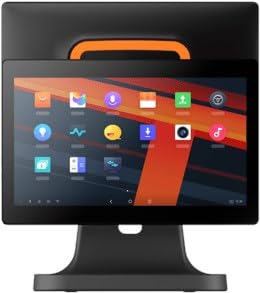
Figi 4.1: Devan view of the SUNMI T2s Lite POS system. This image displays the main 15.6-inch touchscreen, which is the primary interface for operating the device. The design is compact and suitable for various retail settings.
4.1 Konpozan kle
- Ekran taktil 15.6 pous: High-resolution (1920x1080) capacitive touch interface.
- Bouton pouvwa: Located typically on the side or rear for turning the device on/off.
- Pò USB: For connecting peripherals such as barcode scanners, external printers, or cash drawers.
- Ethernet Port: Pou koneksyon rezo filaire.
- Antre pouvwa: Pou konekte adaptè pouvwa a.
- Kamera devan: For specific applications requiring image capture.
5. Enstalasyon
5.1 Debalaj ak plasman
- Retire aparèy la ak tout akseswa yo nan anbalaj la avèk prekosyon.
- Place the POS terminal on a stable, flat surface in a well-ventilated area.
- Ensure there is sufficient space around the device for cable connections and heat dissipation.
5.2 Konekte pouvwa
- Konekte kab pouvwa a ak adaptè pouvwa a.
- Plug the power adapter into the power input port on the back of the SUNMI T2s Lite.
- Branche lòt bout kab kouran an nan yon priz elektrik ki gen tè.
5.3 Initial Boot and Network Connection
- Press and hold the power button until the screen lights up. The device will boot into the Android operating system.
- Swiv enstriksyon ki parèt sou ekran an pou premye konfigirasyon an, tankou seleksyon lang lan ak zòn tan an.
- Koneksyon Wi-Fi: Ale nan Anviwònman > Rezo ak entènèt > Wi-Fi, chwazi rezo w la, epi antre modpas la.
- Koneksyon Ethernet: Connect an Ethernet cable from your router/switch to the Ethernet port on the device. The device should automatically connect to the wired network.
5.4 Konekte periferik
- Aparèy USB: Plug USB peripherals (e.g., barcode scanner, external printer, cash drawer) into the available USB ports. The system will typically recognize them automatically.
- Aparèy Bluetooth: Ale nan Anviwònman > Aparèy konekte > Bluetooth, enable Bluetooth, and pair with your desired device.
6. Operasyon Enstriksyon
6.1 Limen/Etenyen
- Pou limen: Peze epi kenbe bouton pouvwa a jiskaske ekran an limen.
- Pou etenn: Press and hold the power button until a power menu appears. Select "Power off" and confirm. Alternatively, a short press of the power button will put the device to sleep.
6.2 Touchscreen Usage
- Tape: To select an item or activate a button.
- Tape epi kenbe: To open context menus or drag items.
- Glise: To scroll through lists or navigate between screens.
- Zoom-pou-Zoom: Pou agrandi oswa diminye imaj yo oubyen web paj.
6.3 Navigasyon sistèm operasyon Android
- Ekran Kay: The central hub for your applications and widgets.
- Tiwa aplikasyon: Access all installed applications.
- Panèl Notifikasyon: Glise desann soti nan tèt ekran an pou view notifikasyon ak paramèt rapid.
- Anviwònman: Configure Wi-Fi, Bluetooth, display, sound, and other system options.
6.4 Basic POS Functions
The specific POS functions will depend on the software application installed on your device. Refer to the documentation provided with your POS software for detailed instructions. Generally, you will:
- Launch your POS application from the home screen or app drawer.
- Konekte avèk kalifikasyon itilizatè ou yo.
- Process transactions using the touchscreen and connected peripherals (e.g., scanning items, accepting payments).
- Print receipts if an external or integrated printer is configured.
7. Antretyen
7.1 Netwaye Aparèy la
- Toujou etenn epi debranche aparèy la anvan ou netwaye li.
- Sèvi ak yon ti moso twal mou, ki san pèl dampened with water or a mild, non-abrasive cleaner to wipe the screen and exterior surfaces.
- Pa flite likid dirèkteman sou aparèy la.
- Evite itilize pwodui chimik ki agresif, solvang, oswa materyèl abrazif.
7.2 Mizajou lojisyèl
Regularly check for and install system and application updates to ensure optimal performance, security, and access to new features. You can usually find system updates in Anviwònman > Sistèm > Mizajou sistèm.
7.3 Depo
When not in use for extended periods, store the device in a cool, dry place, away from direct sunlight and extreme temperatures. If storing for a long time, ensure the battery is charged to about 50% to prolong its lifespan.
NAN. Depanaj
Seksyon sa a adrese pwoblèm komen ou ka rankontre. Pou pwoblèm ki pi konplèks, kontakte sèvis kliyan.
- Aparèy la pa vle limen:
- Asire w adaptè kouran an byen konekte ak aparèy la epi li nan yon priz kouran ki fonksyone.
- Verifye priz kouran an fonksyonèl.
- Try holding the power button for 10-15 seconds to force a restart.
- Touchscreen is unresponsive:
- Rekòmanse aparèy la.
- Asire w ekran an pwòp epi li pa gen debri oswa likid.
- Network connection issues (Wi-Fi/Ethernet):
- Check if the Wi-Fi is enabled and you are connected to the correct network with the right password.
- For Ethernet, ensure the cable is properly connected and your router/switch is working.
- Rekòmanse routeur/modèm ou a.
- Peripherals (e.g., printer, scanner) not working:
- Asire w ke periferik la byen konekte nan pò ki kòrèk la.
- Check if the peripheral has its own power supply and is turned on.
- Verify that the necessary drivers or software for the peripheral are installed and configured within your POS application.
9. Espesifikasyon
The following are key technical specifications for the SUNMI T2s Lite:
| Karakteristik | Spesifikasyon |
|---|---|
| Mak | SUNMI |
| Manifakti | Sunmi |
| Rezolisyon ekspozisyon natif natal | 1920x1080 piksèl |
| Koneksyon Teknoloji | Bluetooth, Ethernet, USB, WLAN |
| Deskripsyon kamera | Frontal |
| ASIN | B0B53FLFT8 |
10. Garanti ak sipò
The SUNMI T2s Lite POS system comes with a standard manufacturer's warranty. Please refer to the warranty card included in your package for specific terms and conditions, including warranty period and coverage details.
For technical support, service, or warranty claims, please contact your authorized SUNMI dealer or the customer support channel specified in your purchase documentation. Ensure you have your product model number (T2s Lite) and ASIN (B0B53FLFT8) ready when contacting support.