
1. Entwodiksyon
This manual provides detailed instructions for the setup, operation, and maintenance of your Rapoo E9700M Wireless Keyboard. Please read this manual thoroughly before using the product to ensure proper functionality and to prevent damage.

Image 1.1: The Rapoo E9700M Wireless Keyboard. This image shows the keyboard from an angled perspective, highlighting its slim profile and dark gray finish.
2. Pake kontni
Verifye ke tout atik yo prezan nan pakè a:
- Klavye san fil Rapoo E9700M
- USB-C Chaje Kab
- Nano USB Receiver (typically stored in the keyboard's battery compartment)
- Gid pou kòmanse rapidman (dokiman sa a sèvi kòm yon gid konplè)
3. Karakteristik
- Multi-Mode Wireless Connectivity: Supports Bluetooth 3.0, 5.0, and 2.4 GHz for stable transmission up to 10 meters.
- Smart Switching: Automatically pairs and connects to multiple devices, allowing one-click switching.
- Ultra-Mens konsepsyon: Constructed with an aluminum alloy for stability and durability.
- Batri rechargeable: Integrated eco-friendly lithium battery eliminates the need for disposable batteries.
- Raccourcis miltimedya: Dedicated keys for quick access to multimedia functions.
- DE-Layout QWERTZ: German keyboard layout.
4. Enstalasyon
4.1. Chaje klavye a
Before initial use, fully charge the keyboard. Connect the supplied USB-C cable to the keyboard's charging port and the other end to a USB power source (e.g., computer USB port, USB wall adapter).
- Limyè endikatè chaj la ap limen pandan chaj la.
- The light will turn off or change color once fully charged.
4.2. Konekte atravè yon rezo san fil 2.4 GHz
- Locate the Nano USB receiver, typically stored in a compartment on the underside of the keyboard.
- Plug the Nano USB receiver into an available USB port on your computer.
- Turn on the keyboard using the power switch (usually located on the side or back).
- Peze a Fn + 4 key combination to activate 2.4 GHz mode. The corresponding indicator light will blink.
- Your computer should automatically detect and install the necessary drivers. The keyboard is ready for use.

Imaj 4.2: Anwo-anba view of the Rapoo E9700M keyboard, showing the German (DE-Layout QWERTZ) key arrangement. Note the function keys with blue icons for connectivity modes.
4.3. Konekte via Bluetooth
The keyboard supports two Bluetooth channels (Bluetooth 1 and Bluetooth 2).
- Limen klavye a lè l sèvi avèk switch pouvwa a.
- Peze Fn + 1 for Bluetooth 1 or Fn + 2 for Bluetooth 2. The corresponding indicator light will blink slowly.
- Pou antre nan mòd appariement, peze epi kenbe Fn + 1 or Fn + 2 for 3 seconds until the indicator light blinks rapidly.
- On your device (PC, Mac, smartphone, tablet), open Bluetooth settings and search for new devices.
- Chwazi "Rapoo E9700M" nan lis aparèy ki disponib yo.
- Follow any on-screen prompts to complete the pairing process. The indicator light will stop blinking once connected.
4.4. Chanje ant Aparèy Konekte yo
The Rapoo E9700M allows seamless switching between up to three connected devices (one 2.4 GHz and two Bluetooth devices).
- Peze Fn + 1 pou chanje nan aparèy Bluetooth 1.
- Peze Fn + 2 pou chanje nan aparèy Bluetooth 2.
- Peze Fn + 4 to switch to the 2.4 GHz wireless connection.
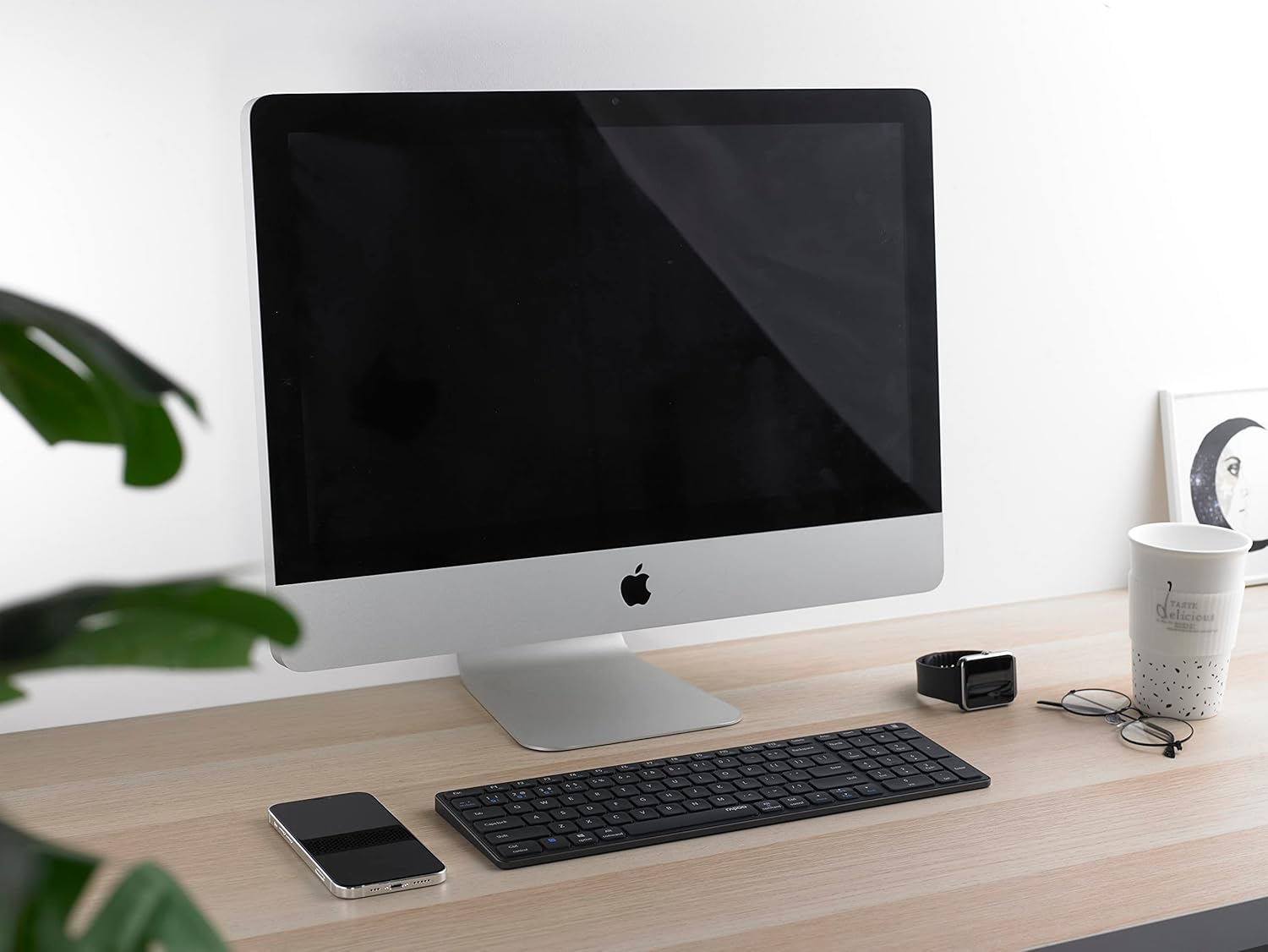
Image 4.4: The Rapoo E9700M keyboard positioned on a desk next to an iMac, demonstrating its compatibility with macOS devices.
5. Operasyon Enstriksyon
5.1. Rakoursi klavye miltimedya
The keyboard features multimedia hotkeys for quick access to various functions. These keys are typically activated by pressing the Fn key simultaneously with the corresponding function key (F1-F12).
| Konbinezon kle | Fonksyon |
|---|---|
| Fn + F1 | Media Player |
| Fn + F2 | Volim desann |
| Fn + F3 | Volim leve |
| Fn + F4 | bèbè |
| Fn + F5 | Previous Track |
| Fn + F6 | Next Track |
| Fn + F7 | Jwe/Poz |
| Fn + F8 | Sispann |
| Fn + F9 | Paj Kay |
| Fn + F10 | Imèl |
| Fn + F11 | Òdinatè mwen an |
| Fn + F12 | Favoris |
5.2. Limyè Endikatè
The keyboard has indicator lights to show connection status and battery level:
- Bluetooth 1/2/4 (2.4G) Indicator: Blinks slowly when searching for connection, blinks rapidly when in pairing mode, solid when connected.
- Endikatè Caps Lock: Li limen lè Caps Lock la aktive.
- Endikatè estati batri: Illuminates when charging, blinks when battery is low.
6. Antretyen
To ensure the longevity and optimal performance of your Rapoo E9700M keyboard, follow these maintenance guidelines:
- Netwayaj: Sèvi ak yon twal mou epi sèk pou siye sifas klavye a. Pou pousyè tè ki difisil pou retire, siye yon ti kras.ampRense twal la avèk dlo oswa yon pwodui netwayaj dou ki pa abrazif. Evite imidite twòp.
- Depo: Sere klavye a nan yon kote ki fre epi sèk, lwen limyè solèy dirèk ak tanperati ekstrèm.
- Evite likid: Do not expose the keyboard to liquids. In case of accidental spills, immediately power off the keyboard and allow it to dry completely before reuse.
- Reseptè USB: When not in use, store the Nano USB receiver in its designated compartment within the keyboard to prevent loss.

Image 6.1: The underside of the Rapoo E9700M keyboard, showing the smooth aluminum finish and regulatory markings. The USB receiver compartment is typically located here.
NAN. Depanaj
Si ou rankontre pwoblèm ak klavye ou a, gade pwoblèm ak solisyon komen sa yo:
- Klavye a pa reponn:
- Asire w ke klavye a limen.
- Tcheke nivo batri a epi chaje l si sa nesesè.
- Verify the correct connection mode (2.4 GHz, Bluetooth 1, or Bluetooth 2) is selected using Fn + 1/2/4.
- For 2.4 GHz, ensure the Nano USB receiver is securely plugged into a working USB port.
- Pou Bluetooth, asire w ke Bluetooth aktive sou aparèy ou an epi klavye a konekte. Eseye konekte ankò si sa nesesè.
- Eseye konekte li ak yon lòt pò USB oswa aparèy pou elimine pwoblèm pò/aparèy.
- Koneksyon ki ralanti oswa ki pa mache byen:
- Reduce the distance between the keyboard and your device (maximum 10 meters).
- Remove any obstacles that might interfere with the wireless signal (e.g., large metal objects).
- Avoid using the keyboard near other strong wireless interference sources (e.g., Wi-Fi routers, other wireless devices).
- Asire w klavye a byen chaje.
- Keys not working or typing incorrectly:
- Netwaye klavye a pou retire tout debri ki ta ka bloke kle yo.
- Rekòmanse òdinatè/aparèy ou a.
- If using Bluetooth, try unpairing and re-pairing the keyboard.
8. Espesifikasyon
| Karakteristik | Detay |
|---|---|
| Mak | Rapoo |
| Modèl | E9700M |
| Koneksyon Teknoloji | Bluetooth 3.0, Bluetooth 5.0, 2.4 GHz Wireless (USB-C, WLAN) |
| Aparèy konpatib | Laptop, PC, Smart TV, Gaming Console, Smartphone, Tablet |
| Deskripsyon klavye | Miltimedya |
| Karakteristik espesyal | Multimedia Hotkeys, Rechargeable Battery |
| Koulè | Gri nwa |
| Style | Klasik |
| Materyèl | Aliminyòm |
| Konpozan ki enkli | Keyboard, USB-C Cable, Nano USB Receiver |
| Layout | DE-Layout (QWERTZ) |
9. Garanti ak sipò
Rapoo products are designed with quality and reliability in mind. For warranty information and technical support, please refer to the warranty card included with your product or visit the official Rapoo websit la. Kenbe prèv acha ou pou reklamasyon garanti.
For further assistance, please contact Rapoo customer support through their official channels.