
Entwodiksyon
This manual provides detailed instructions for the installation, operation, and maintenance of the Turing TP-MFD4A4 Smart Series TwilightVision 4MP IR Dome IP Camera. This camera is designed for outdoor surveillance, featuring 4MP resolution, TwilightVision for low-light clarity, Smart IR up to 30m (98ft), and robust protection ratings (IP67, IK10).
Karakteristik kle
- Max. 4MP (2688x1520) resolution at 30/25fps.
- TwilightVision technology for optimal image clarity in low light conditions.
- Support for up to 256 GB microSD card for local storage.
- Advanced analytics including line crossing detection, enter area detection, motion detection (up to four areas), tampering alarm, and audio detection.
- Smart IR illumination up to 30 meters (98 feet).
- IP67 weather resistance and IK10 vandal resistance.
- Power over Ethernet (PoE) support for simplified installation.
- Wide Dynamic Range (WDR) for clear images in varying light conditions.
Ki sa ki nan bwat la
Upon unpacking, verify that all items are present and in good condition:
- Turing TP-MFD4A4 Smart Series TwilightVision 4MP IR Dome IP Camera
- Montaj pyès ki nan konpitè (vis, lank)
- Gid pou kòmanse rapidman (pa enkli nan manyèl sa a)
Enstalasyon
1. Enstalasyon Fizik
The TP-MFD4A4 camera is designed for ceiling mount installation. Ensure the mounting surface is strong enough to support the camera's weight.
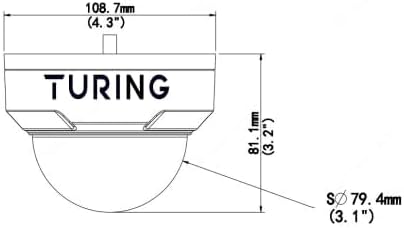
Imaj: Devan view of the Turing TP-MFD4A4 Dome IP Camera, showing its compact design suitable for ceiling mounting.
- Chwazi Kote: Choose a suitable outdoor location for optimal surveillance coverage, considering the 4mm fixed lens angle of view (H: 83.7°, V: 44.9°, D: 89.2°).
- Montaj: Use the provided mounting template (if applicable) to drill pilot holes. Secure the camera base to the ceiling using the screws and anchors.
- Ajiste ang: Once mounted, adjust the camera's dome to achieve the desired viewang ang.
2. Koneksyon pouvwa ak rezo
The camera supports Power over Ethernet (PoE) for simplified installation, allowing both power and data transmission over a single Ethernet cable. Alternatively, it can be powered via a DC 12V power adapter (not included).

Image: A standard Ethernet cable with an RJ45 connector, used for both power (PoE) and data connection to the camera.
- Koneksyon PoE: Connect one end of an Ethernet cable to the camera's RJ45 port and the other end to a PoE-enabled switch or NVR.
- DC Power (Optional): If not using PoE, connect a 12V DC power adapter to the camera's power input and an Ethernet cable to a standard network switch or router.
- Konfigirasyon rezo: The camera will obtain an IP address automatically via DHCP. For advanced network settings, refer to the Turing Vision software or NVR manual.
3. Enstalasyon Kat MicroSD (Si ou vle)
The camera supports a microSD card up to 256 GB for onboard storage. This allows for local recording even if network connectivity is temporarily lost.
- Access Slot: Carefully open the camera housing to locate the microSD card slot. Refer to the camera's physical diagram for exact location.
- Mete kat: Mete kat microSD la nan fant lan ak kontak yo anba jiskaske li fè yon klik pou l ankre nan plas li.
- Fòma Kat: After installation, it is recommended to format the microSD card via the camera's web interface or connected NVR for optimal performance.
Opere kamera a
The Turing TP-MFD4A4 camera integrates with Turing Smart Series NVRs and the Turing Vision Cloud platform for comprehensive surveillance management.

Image: A tablet screen showing a multi-view display of live video feeds from several surveillance cameras, demonstrating remote monitoring capabilities.
1. Aksè a Live View ak Anrejistreman
- Turing Smart Series NVR: Connect the camera to a compatible Turing Smart Series NVR to view live feeds, manage recordings, and configure settings.
- Turing Vision Cloud: Utilize the Turing Vision Cloud platform for remote access, monitoring, and cloud storage features. This requires a compatible NVR, Bridge, and CORE AI license.
- Web Entèfas: Jwenn aksè a kamera a web interface directly via its IP address for detailed configuration and live view.
2. Understanding Key Technologies
- TwilightVision: This technology enhances image clarity in extremely low-light environments, providing color images where traditional cameras would switch to black and white.
- Smart IR: The camera's Smart IR automatically adjusts the intensity of its infrared LEDs to prevent overexposure of objects closer to the camera, ensuring balanced night vision up to 30m (98ft).
- WDR (Wide Range Dinamik): WDR technology balances areas of high contrast in a scene, ensuring details are visible in both very bright and very dark regions simultaneously.
3. Configuring Analytics
The TP-MFD4A4 camera offers advanced onboard analytics. These features must be used with Turing Smart Series NVRs for full functionality.
- Deteksyon kwaze liy: Triggers an alert when an object crosses a predefined virtual line.
- Enter Area Detection: Generates an alert when an object enters a specified virtual area.
- Deteksyon Mouvman: Detects movement within the camera's field of view. Up to four distinct motion detection areas can be configured.
- TampAlam ki ap sonnen: Alerts if the camera is obstructed, moved, or spray-painted.
- Deteksyon odyo: Triggers an alert based on detected sound levels.
Refer to your Turing NVR or Turing Vision Cloud documentation for detailed instructions on configuring these analytics.
Antretyen
Regular maintenance ensures optimal performance and longevity of your Turing TP-MFD4A4 camera.
- Netwayaj: Netwaye lantiy kamera a ak kouvèti dòm nan detanzantan avèk yon twal mou.amp twal. Evite pwodui netwayaj abrazif ki ka grate sifas la.
- Mizajou mikrolojisyèl: Check the Turing website or your NVR/Cloud platform for available firmware updates. Keeping the firmware updated ensures the latest features and security patches.
- Jesyon kat MicroSD: If using a microSD card for storage, regularly review epi fè yon kopi manje enpòtan yotage. Consider setting up automatic overwriting for continuous recording.
- Enspeksyon kab: Periodically inspect all cables (Ethernet, power) for any signs of wear or damage, especially in outdoor installations.
Depanaj
This section addresses common issues you might encounter. For more complex problems, contact Turing technical support.
Pa gen Feed Videyo
- Tcheke pouvwa: Ensure the camera is receiving power, either via PoE or a 12V DC adapter. Verify the PoE switch or injector is functioning.
- Tcheke Koneksyon Rezo a: Confirm the Ethernet cable is securely connected at both ends and that the network switch/router is operational.
- Konfli Adrès IP: Ensure the camera has a unique IP address on your network. Check your router's DHCP client list.
- NVR/Software Connection: Verify the camera is properly added and configured within your Turing NVR or Turing Vision Cloud platform.
Pòv Kalite Imaj
- Netwaye Lantiy: Ensure the camera lens and dome cover are clean and free from dirt, dust, or smudges.
- Kondisyon ekleraj: While TwilightVision and WDR improve image quality, extreme lighting conditions can still affect performance. Adjust camera placement if possible.
- Bandwidth rezo: Insufficient network bandwidth can lead to pixelated or choppy video. Ensure your network can handle the 4MP video stream.
- Ajisteman konsantre: Although it has a fixed lens, ensure the camera is correctly positioned for the desired focal area.
Anrejistreman Pwoblèm
- Kat MicroSD: Verify the microSD card is correctly inserted, formatted, and has sufficient free space. Check if it's corrupted.
- Anrejistreman Orè: Ensure recording schedules are correctly configured on the NVR or through the camera's web koòdone.
- Anviwònman deteksyon mouvman: If recording is motion-triggered, check the sensitivity and area settings for motion detection.
Espesifikasyon
Detailed technical specifications for the Turing TP-MFD4A4 Smart Series TwilightVision 4MP IR Dome IP Camera.
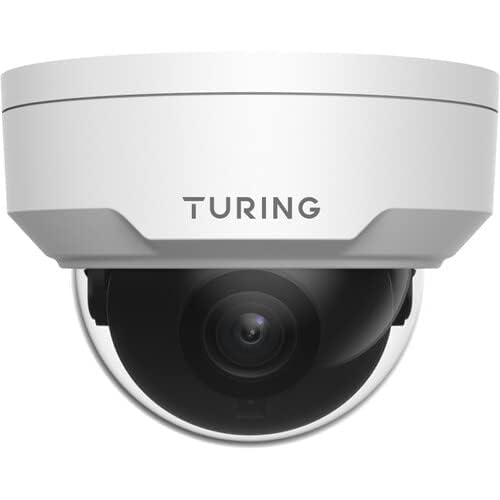
Image: Technical diagram showing the dimensions of the Turing TP-MFD4A4 Dome IP Camera, including height (81.1mm / 3.2") and diameter (108.7mm / 4.3").
| Karakteristik | Spesifikasyon |
|---|---|
| Modèl | TP-MFD4A4 |
| Capteur | 1/3-inch 4MP 16:9 Progressive Scan CMOS |
| Lantiy | 4 mm lantiy fiks |
| Ang nan View | H: 83.7°; V: 44.9°; D: 89.2° |
| Minimòm ekleraj | Color: 0.002 Lux (F1.6, AGC on); 0 Lux with IR on |
| IR Range | Smart IR up to 30m (98ft) |
| Rezolisyon videyo | Max. 4MP (2688x1520) at 30/25fps |
| Kodaj videyo | Ultra 265, H.265, H.264, MJPEG |
| Pwosesis dijital | 120 dB WDR; 2D/3D DNR; Defog |
| Odyo | G.711; 64 Kbps; 8 KHz; noise suppression |
| Abò Depo | microSD (not included), up to 256 GB |
| Pouvwa | DC 12V+/-25% PoE (IEEE 802.3af); up to 4.5W |
| Evalyasyon Pwoteksyon | IP67, IK10, 4KV Surge Protection |
| Dimansyon (D x H) | 4.3 x 3.2 pous (108.7 x 81.1 mm) |
| Pwa | 0.93 liv (0.42 kg) |
| Aparèy konpatib | Turing SMART Series NVRs, Turing Vision Cloud platform |
| NDAA konfòme | Wi |
Enfòmasyon sou Garanti
The Turing TP-MFD4A4 Smart Series TwilightVision 4MP IR Dome IP Camera comes with a 3-ane garanti apati dat acha a. Garanti sa a kouvri domaj nan materyèl ak nan fabrikasyon anba itilizasyon nòmal. Tanpri konsève prèv acha ou pou reklamasyon garanti.
For detailed warranty terms and conditions, please refer to the official Turing websit oswa kontakte sipò kliyan.
Sipò
For technical assistance, product inquiries, or warranty service, please contact Turing customer support through their official websit la oswa enfòmasyon kontak ki vini ak anbalaj pwodwi ou a.
Resous sou entènèt: Visit the Turing official websit pou kesyon yo poze souvan (FAQ), telechajman lojisyèl, ak lòt dokiman.