
1. Entwodiksyon
Thank you for choosing the InFocus P120 INL412 Multimedia Projector. This manual provides essential information for the safe and efficient operation of your projector. Please read it thoroughly before using the device and retain it for future reference. The InFocus P120 INL412 is designed for versatile multimedia presentations, offering clear and vibrant images for various applications.
2. Enfòmasyon sou Sekirite
To ensure safe operation and prevent damage to the projector, please observe the following safety precautions:
- Pa bloke ouvèti vantilasyon yo. Asire w ke gen ase espas otou pwojektè a pou bon sikilasyon lè a anpeche l chofe twòp.
- Evite gade dirèkteman nan lantiy pwojektè a lè lamp limen, paske limyè klere a ka domaje je yo.
- Do not place the projector on an unstable cart, stand, or table. The projector may fall, causing serious injury to a child or adult, and serious damage to the unit.
- Disconnect the power cord from the wall outlet if the projector will not be used for an extended period.
- Konfye tout sèvis bay pèsonèl sèvis kalifye. Pa eseye louvri oswa repare pwojektè a tèt ou.
- Keep the projector away from water or moisture. Do not expose it to rain or immerse it in liquid.
- Use only the power cord supplied with the projector or an authorized replacement.
3. Pake kontni
Verifye ke tout atik ki nan lis anba a yo enkli nan pake pwojektè ou a:
- InFocus P120 INL412 Multimedia Projector
- Kòd pouvwa
- Kontwòl Remote ak pil
- VGA kab
- Manyèl Itilizatè (dokiman sa a)
- Gid Quick Start
4. Pwodwi souview
Familiarize yourself with the main components of your InFocus P120 INL412 projector.
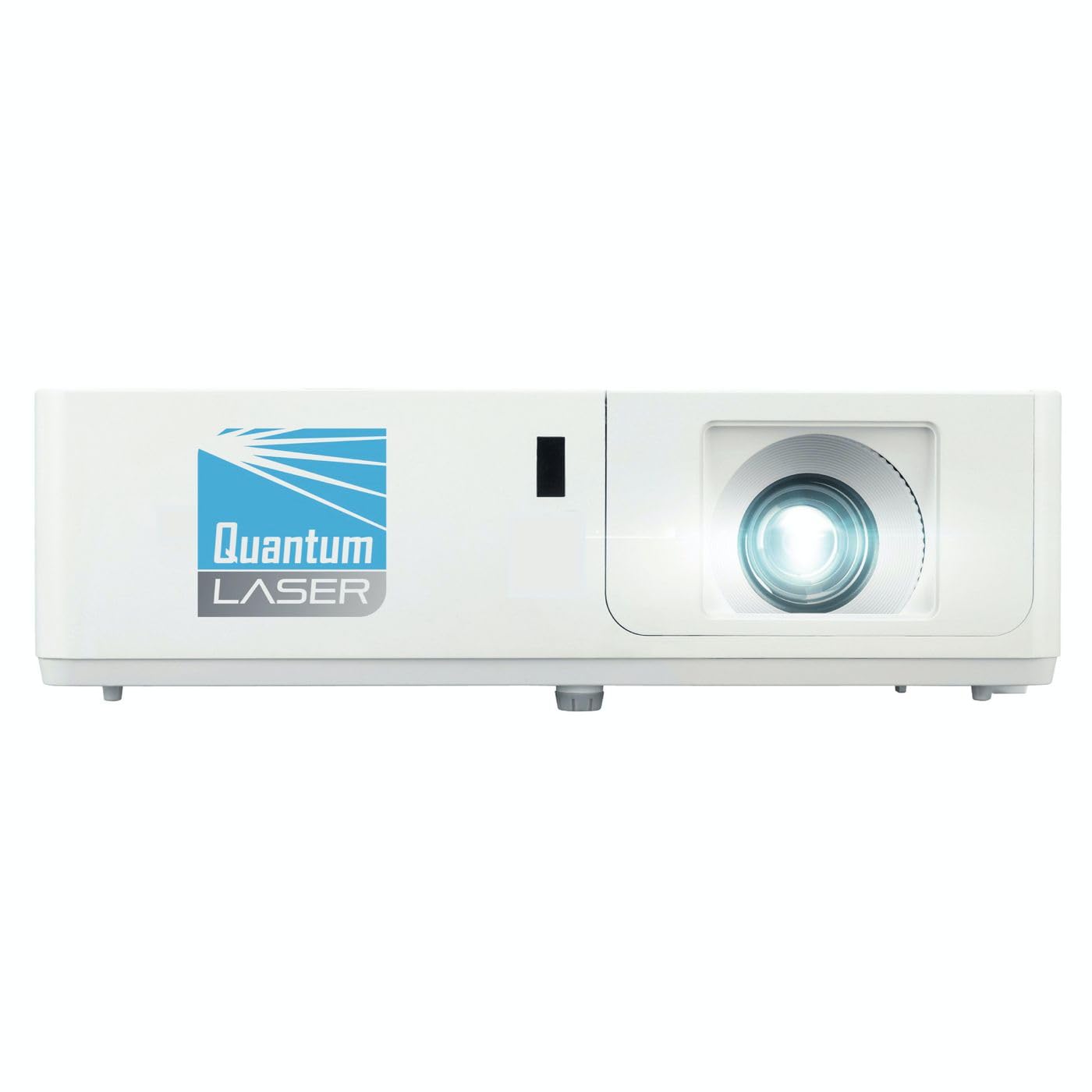
Imaj 1: Devan view of the InFocus P120 INL412 Multimedia Projector, showing the lens and ventilation grilles.
4.1 Panèl devan
- Lantiy pwojeksyon: Emèt imaj la sou ekran an.
- Bag konsantre: Ajiste klète imaj pwojekte a.
- Zoom Ring: Ajiste gwosè imaj projetée a.
- IR Reseptè: Resevwa siyal soti nan kontwòl la remote.
4.2 Top Panel
- Kontwòl Panel: Buttons for power, menu navigation, source selection, and keystone correction.
- Limyè endikatè: Display the projector's status (e.g., power, lamp, temperature).
4.3 Rear Panel (Connectivity)
- Antre HDMI: Connects to HDMI-enabled devices (laptops, Blu-ray players).
- Antre VGA: Connects to computers with VGA output.
- Pò USB: For service or connecting USB devices (if supported by model).
- Antre/soti odyo: For connecting external audio sources or speakers.
- Pouvwa Inlet: Konekte kòd la pouvwa.
5. Enstalasyon
Swiv etap sa yo pou premye konfigirasyon pwojektè w la:
- Plasman: Place the projector on a stable, flat surface or mount it securely. Ensure the projector is positioned at an appropriate distance from the screen to achieve the desired image size.
- Koneksyon pouvwa: Konekte kòd kouran an nan priz kouran pwojektè a epi answit nan yon priz elektrik ki gen tè.
- Konekte Aparèy Sous: Connect your source device (e.g., laptop, DVD player) to the projector using an appropriate cable (HDMI, VGA, etc.). Ensure the cable is securely connected to both the source and the projector.
- Pouvwa sou: Press the power button on the projector's control panel or the remote control to turn on the projector. The power indicator light will illuminate.
- Adjust Focus and Zoom: Once an image is projected, rotate the focus ring on the lens until the image is sharp and clear. Use the zoom ring to adjust the image size to fit your screen.
- Koreksyon Keystone: If the image appears trapezoidal, use the keystone correction function (either via buttons on the projector/remote or through the on-screen menu) to square the image.
6. Operasyon Enstriksyon
6.1 Power On/Off
- Pou limen: Press the power button once. The projector will go through a warm-up sequence.
- Pou etenn: Press the power button twice. The first press will prompt a shutdown confirmation; the second press will initiate shutdown. Allow the projector to cool down completely before unplugging.
6.2 Seleksyon Sous
Press the 'Source' button on the projector or remote control to cycle through available input sources (HDMI, VGA, etc.) until your desired source is displayed.
6.3 Navigasyon meni
Press the 'Menu' button to access the on-screen display (OSD) menu. Use the arrow buttons to navigate through options and 'Enter' or 'OK' to select. Use the 'Exit' or 'Menu' button to close the OSD.
- Anviwònman imaj: Adjust brightness, contrast, color, aspect ratio, and picture mode.
- Montre Anviwònman: Configure keystone, projection mode (front/rear, desktop/ceiling), and resolution.
- Anviwònman odyo: Kontwole volim ak opsyon pwodiksyon odyo.
- Anviwònman sistèm: Manage language, timer, power-saving modes, and factory reset.
7. Antretyen
Antretyen regilye asire pèfòmans optimal epi pwolonje dire lavi pwojektè ou a.
- Netwayaj lantiy: Siye lantiy pwojektè a dousman avèk yon twal mou ki pa gen pousyè, espesyalman fèt pou sifas optik. Pa sèvi ak pwodui netwayaj abrazif oswa fòs twòp.
- Netwayaj kabinè: Sèvi ak yon twal mou epi sèk pou netwaye deyò pwojektè a. Pou mak ki difisil pou retire, dampen the cloth slightly with water. Avoid using harsh chemicals.
- Netwayaj/Ranplasman Filtè Lè a: Check the air filter periodically. If your model has a removable filter, clean it with a soft brush or vacuum cleaner. Replace the filter as recommended in the on-screen menu or when visibly dirty to maintain proper ventilation.
- Lamp Ranplasman: Pwojektè a lamp gen yon dire lavi fini. Lè l laamp life indicator appears, or the image brightness significantly decreases, replace the lamp according to the instructions provided in the full service manual or by a qualified technician. Always allow the projector to cool down completely before attempting lamp ranplasman.
NAN. Depanaj
Gade tablo ki anba a pou pwoblèm komen ak solisyon yo:
| Pwoblèm | Kòz posib | Solisyon |
|---|---|---|
| Pa gen imaj ki parèt | Power cord disconnected, incorrect input source, source device off. | Check power connections. Select correct input source. Ensure source device is powered on. |
| Imaj la twoub | Lens out of focus, incorrect projection distance. | Adjust the focus ring on the lens. Reposition the projector closer or further from the screen. |
| Imaj la se trapezoidal | Pwojektè a pa pèpandikilè ak ekran an. | Use keystone correction (manual or automatic) to square the image. |
| Pwojektè a chofe twòp epi li fèmen | Blocked ventilation, dirty air filter. | Ensure clear space around vents. Clean or replace the air filter. |
| Remote kontwòl pa travay | Dead batteries, obstruction between remote and projector, incorrect angle. | Replace batteries. Ensure clear line of sight to IR receiver. Point remote directly at the projector. |
9. Espesifikasyon
Key technical specifications for the InFocus P120 INL412 Multimedia Projector:
| Karakteristik | Spesifikasyon |
|---|---|
| Nimewo Modèl | P120 INL412 (Item model number: 7296144) |
| Kalite ekspozisyon | DLP |
| Rezolisyon natif natal | 1280 x 800 |
| Rezolisyon ekspozisyon maksimòm | 1280 x 800 |
| Koneksyon Teknoloji | USB (and other standard inputs like HDMI, VGA) |
| Dimansyon pwodwi | 5.25 x 0.31 x 1.66 pous |
| Pwa atik | 6.6 liv |
| Manifakti | Nan Konsantre |
10. Garanti ak sipò
The InFocus P120 INL412 Multimedia Projector comes with a standard manufacturer's warranty. Please refer to the warranty card included in your package for specific terms and conditions, including warranty duration and coverage details. For technical support, service, or further inquiries, please visit the official InFocus support websit oswa kontakte depatman sèvis kliyan yo.
Pou jwenn enfòmasyon sipò ki pi ajou yo, tanpri vizite: www.infocus.com/support