
1. Entwodiksyon
The GTMEDIA V7 Pro is a versatile satellite receiver designed to provide access to DVB-S/S2/S2X and DVB-T/T2 digital television broadcasts. This device supports advanced features such as VCM/ACM/Multi-Stream, HEVC 10bit decoding, and includes a CA card slot for conditional access. It also offers USB WiFi connectivity for network features and online content. This manual provides essential information for setting up, operating, and maintaining your GTMEDIA V7 Pro receiver.
2. Enfòmasyon sou Sekirite
- Ensure the device is placed on a stable, flat surface with adequate ventilation.
- Avoid exposing the receiver to moisture, extreme temperatures, or direct sunlight.
- Pa bloke ouvèti vantilasyon ki sou aparèy la.
- Dekonekte kouran an anvan ou netwaye oswa fè nenpòt antretyen.
- Only use the provided power adapter to prevent damage.
- Pa eseye ouvri oswa repare aparèy la tèt ou. Konsilte pèsonèl sèvis ki kalifye.
3. Pake kontni
Verifye ke tout atik ki nan lis anba a yo enkli nan pakè ou a:
- GTMEDIA V7 Pro Satellite Receiver
- Adaptè pouvwa
- IR Remote Control
- HDMI kab
- Manyèl Itilizatè (dokiman sa a)
- Kat Garanti
- USB Wi-Fi Dongle

Image 3.1: All items included in the GTMEDIA V7 Pro package, showing the receiver, remote control, power adapter, HDMI cable, USB WiFi dongle, user manual, and warranty card.
4. Pwodwi souview
The GTMEDIA V7 Pro features a compact design with essential ports for connectivity. Understanding the layout of the device will assist in proper setup and operation.
4.1 Front and Side Panels
- Ekspozisyon: Shows channel numbers, time, and status indicators.
- Pouvwa dirije: Endike estati pouvwa aparèy la.
- CA Card Slot: Located on the side, for inserting conditional access cards.
4.2 Koneksyon Panèl Dèyè

Imaj 4.1: Detaye view of the GTMEDIA V7 Pro's rear panel, illustrating the various input and output ports including LNB IN, ANT IN, HD OUT, AV OUT, RF TO TV, USB ports, DC 12V Power input, and the Power ON/OFF switch.
- LNB NAN: Connects to your satellite dish LNB for DVB-S/S2/S2X signals (950MHz to 2150MHz).
- FOMI NAN: Connects to a terrestrial antenna for DVB-T/T2 signals.
- HD SOTI: HDMI output for connecting to a high-definition television (up to 1080p).
- AV SOTI: Analog video and audio output for older televisions.
- RF POU TELEVIZYON: RF output for connecting to a TV's antenna input.
- Pò USB: Two USB ports for connecting USB storage devices (for PVR, media playback, firmware upgrade) or the included USB WiFi dongle.
- DC 12V Power: Connects to the provided 12V power adapter.
- Pouvwa ON/OFF: Entèriptè prensipal pou pouvwa aparèy la.
5. Enstalasyon
Follow these steps to set up your GTMEDIA V7 Pro receiver:
- Konekte ak televizyon an: Connect the receiver to your television using an HDMI cable (for best quality) or AV cables. Ensure the TV input is set to the corresponding HDMI or AV port.
- Connect Antenna/LNB:
- For satellite reception, connect your satellite dish LNB cable to the LNB IN pò.
- For terrestrial reception, connect your terrestrial antenna cable to the FOMI NAN pò.
- Connect USB WiFi Dongle: Insert the provided USB WiFi dongle into one of the USB ports on the rear panel.
- Konekte pouvwa: Ploge adaptè pouvwa a nan la DC 12V pouvwa input on the receiver, then plug the adapter into a wall outlet.
- Pouvwa sou: Vire a Pouvwa ON/OFF switch to the ON position. The front display will show "boot" then "Load" as the system starts.
- Inisyal Enstalasyon Sòsye: Upon first power-on, the receiver may guide you through an initial setup wizard. Follow the on-screen prompts to select your preferred language and configure basic settings.
- Konfigirasyon rezo: Navige nan Rezo meni. Chwazi Rezo konfigirasyon, lè sa a WiFi. Scan for available networks, select your network, and enter the password to connect.
- Chènye rechèch:
- Ale nan Enstalasyon meni.
- Chwazi Lis satelit for satellite channels or Terrestre for terrestrial channels.
- Choose your desired satellite (e.g., Hot Bird 13B/13C) or ensure the correct terrestrial region is selected.
- Fè yon Auto Search or Blind Scan to find available channels. This process may take several minutes.
Video 5.1: This video demonstrates the physical overview, port connections, initial power-on sequence, and basic menu navigation for the GTMEDIA V7 Pro Satellite Receiver, including satellite list selection, channel search, and network configuration.
6. Operasyon Enstriksyon
6.1 Navigasyon debaz
Use the included remote control to navigate the receiver's menus and functions. The arrow keys are used for selection, OK for confirmation, and EXIT/MENU for returning to previous screens or the main menu.
6.2 Jesyon chanèl
After performing a channel search, you can organize your channels. The receiver supports various channel sorting options and allows you to create favorite lists.
6.3 Lekti Medya (USB)
Insert a USB storage device containing media files (music, pictures, movies) into a USB port. Navigate to the Medya menu to browse and play your content.
6.4 Program Recording (PVR)
With a connected USB storage device, you can record live TV programs. Access the PVR functions through the remote control or the Medya menu. You can also set timers for scheduled recordings.
6.5 Karakteristik sou Entènèt
Once connected to the internet via WiFi, the receiver provides access to online applications such as YouTube and Youporn. Navigate to the Rezo menu, then Online Movie App pou jwenn aksè nan karakteristik sa yo.
6.6 Conditional Access (CA Card)
The GTMEDIA V7 Pro includes a CA card slot. Insert your smart card into the slot to decrypt encrypted channels. Ensure the card is inserted correctly according to the card's orientation. The receiver supports various card types including Albertis/Tivusat/BBC Satback/Irdeto Card.

Image 6.1: A hand inserting a smart card into the CA card slot of the GTMEDIA V7 Pro receiver, demonstrating the conditional access feature for viewing encrypted programs.
6.7 Multi-Room Functionality
The Multi-Room feature allows you to share program resources across multiple satellite receivers within the same local area network, eliminating the need for multiple subscription cards for different devices.
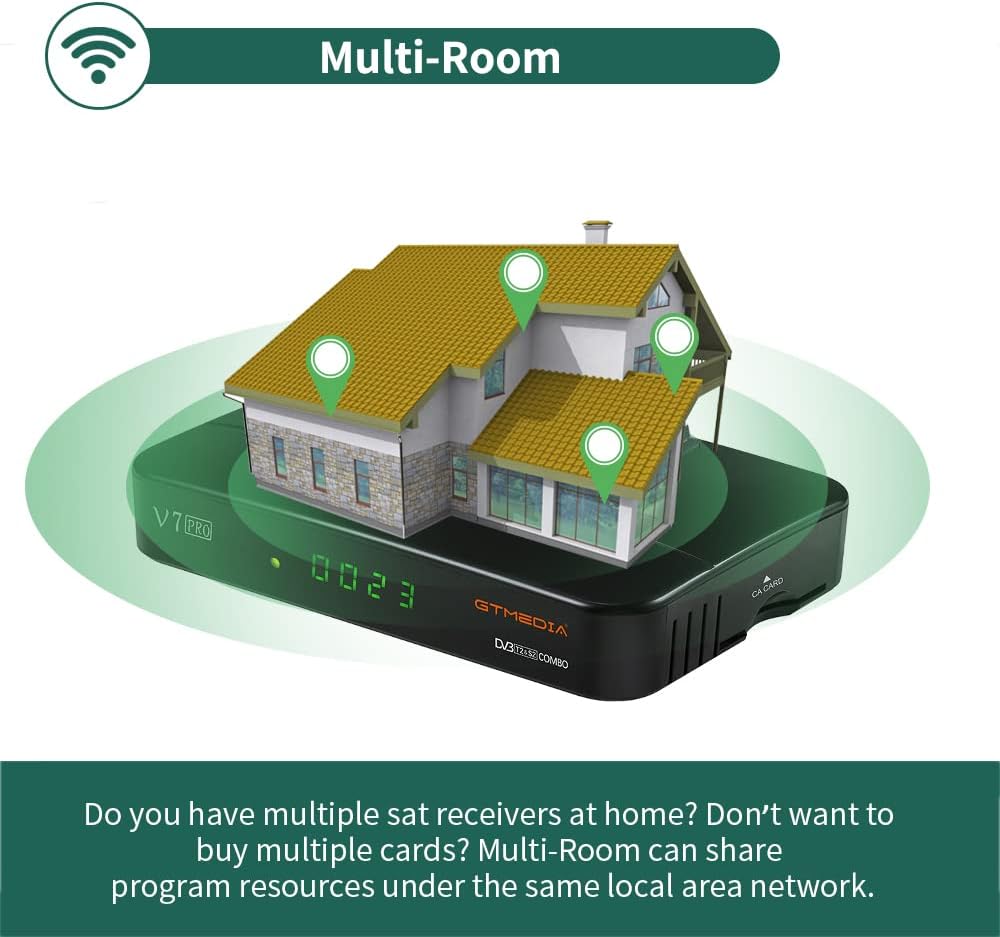
Image 6.2: An illustration depicting the GTMEDIA V7 Pro receiver connected to a house, symbolizing its Multi-Room capability to share content across multiple devices on a local network.
7. Antretyen
7.1 Netwayaj
Pou netwaye reseptè a, dekonekte li nan ekipman pou kouran an. Sèvi ak yon twal mou epi sèk pou siye deyò a. Pa sèvi ak pwodui netwayaj likid oswa materyèl abrazif.
7.2 Mizajou Firmware
The GTMEDIA R&D center continuously optimizes and improves the receiver's firmware. New firmware versions are released on the official forum for users to download and update. To update, download the firmware to a USB drive, insert it into the receiver, and navigate to Tools > USB Upgrade nan meni an.
NAN. Depanaj
If you encounter issues with your GTMEDIA V7 Pro, refer to the following common problems and solutions:
- Pa gen siyal:
- Check all cable connections (LNB IN, ANT IN) to ensure they are secure.
- Verify that your satellite dish or terrestrial antenna is properly aligned.
- Ensure the correct satellite is selected in the Installation menu.
- Pa gen imaj/son:
- Confirm the HDMI or AV cable is securely connected to both the receiver and the TV.
- Check that your TV's input source is set to the correct HDMI or AV port.
- Asire w ke volim televizyon an pa twò ba oswa li pa twò ba.
- Kontwòl Remote pa travay:
- Tcheke epi ranplase pil yo nan kontwòl remote la.
- Ensure there are no obstructions between the remote control and the receiver's IR sensor.
- Pwoblèm Koneksyon Rezo:
- Verify the USB WiFi dongle is properly inserted.
- Check your WiFi network name and password in the Network Config menu.
- Rekòmanse routeur WiFi ou a.
9. Espesifikasyon
The GTMEDIA V7 Pro is equipped with the following technical specifications and features:
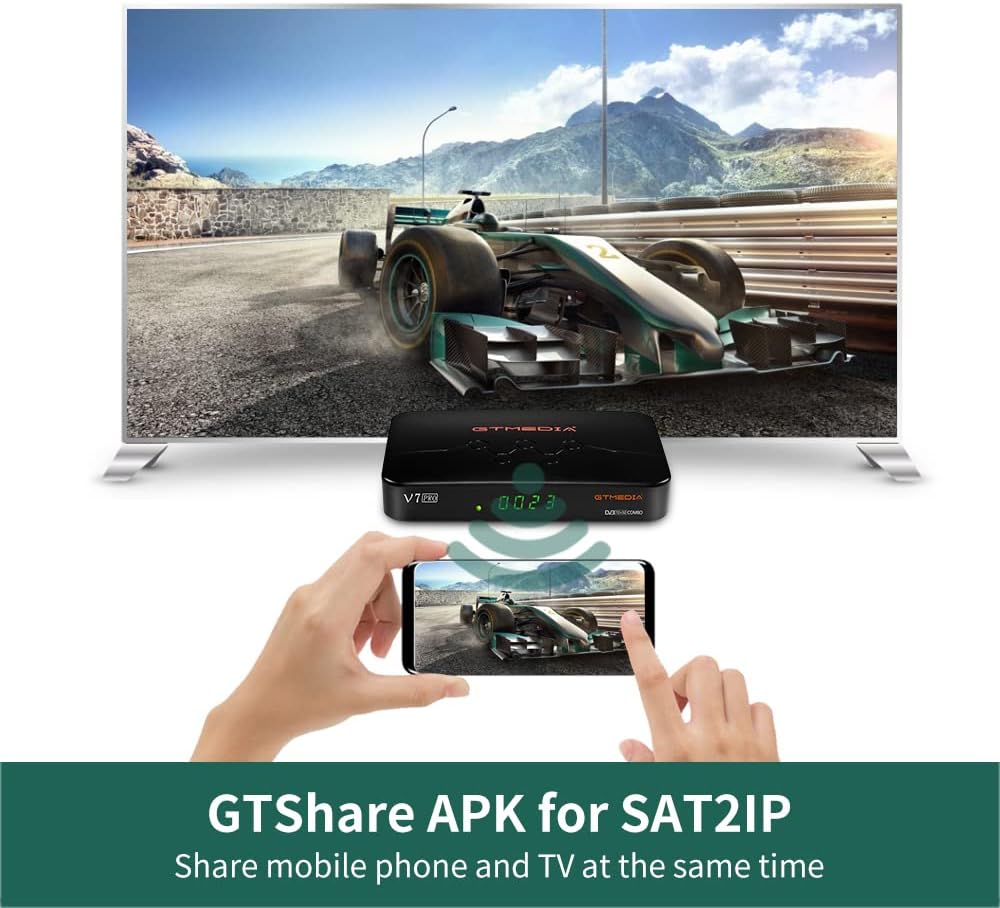
Image 9.1: A table detailing the product parameters of the GTMEDIA V7 Pro, including dimensions, unit weight, power supply, operating and storage temperatures, humidity, and included accessories.
| Karakteristik | Deskripsyon |
|---|---|
| Tuner Support | DVB-S/S2/S2X + DVB-T/T2 |
| Dekodaj videyo | VCM/ACM/Multi-Stream/T2MI, Multi-PLP, HEVC main 10 profile (10bit), AVS+ |
| Aksè Kondisyonèl | CA Card Slot, supports BISS auto roll, Full PowerVu, DRE & Biss key, Albertis/Tivusat/BBC Satback/Irdeto Card |
| DiSEqC Support | Unicable, DiSEqC1.0/1.1/1.2/USALS Motor |
| Koneksyon | USB (2 ports), USB WiFi dongle support, USB 3/4G dongle support |
| Sèvis sou entènèt | YouTube, Youporn, CCCAM, NEWCAM, MGCAM |
| Multi-Sal | Supported for sharing program resources on a local network |
| Lang | English, Spanish, French, Russian, Portuguese, Polish, Indonesian, Arabic, Turkish, German, Italian, Persian, Thai, etc. |
| Dimansyon (L * W * H) | 7.09 x 4.92 x 1.18 pous (180 x 125 x 30mm) |
| Pwa inite | 8.8 ons (0.25 kilogram) |
| Pwovizyon pou pouvwa | AC 100-250V, 50Hz/60Hz |
| Tanperati Fonksyònman | 0°C pou +45°C |
| Tanperati Depo | -10°C pou +60°C |
| Imidite | 20% to 90% (Non-condensed) |
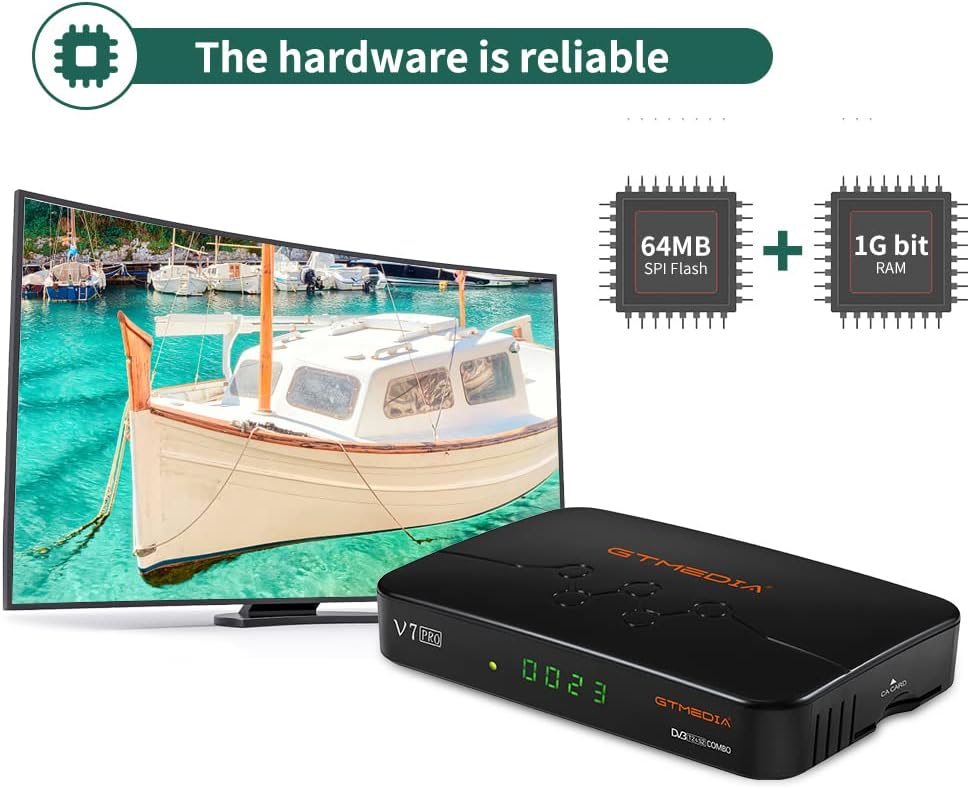
Imaj 9.2: Yon entèn view of the GTMEDIA V7 Pro's hardware, highlighting the 64MB SPI Flash and 1G bit RAM components, indicating reliable performance.
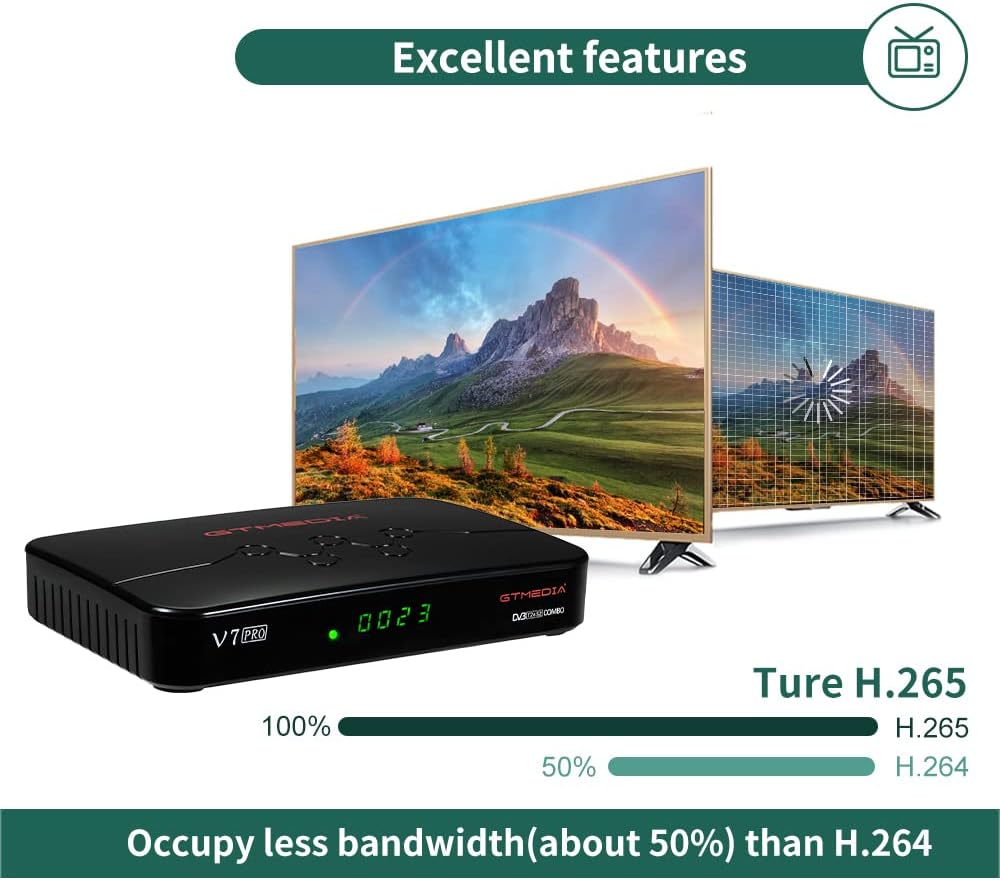
Image 9.3: An illustration demonstrating the GTMEDIA V7 Pro's H.265 (HEVC) decoding capability, which occupies approximately 50% less bandwidth compared to H.264, leading to more efficient video streaming.
10. Garanti & Sipò
For detailed warranty information, please refer to the Warranty Card included in your product package.
For technical support, firmware updates, and community assistance, visit the official GTMEDIA R&D center forum. You can post your questions on the forum and expect a response within 24 hours.
Resous sou entènèt:
- GTMEDIA Official Websit: www.gtmedia.cc
- GTMEDIA Support Forum: (Refer to product packaging or official website for specific forum link)