
MINLOVE PJ118S
Manyèl Itilizatè Pwojektè MINLOVE PJ118S la
Model: PJ118S | Brand: MINLOVE
1. Entwodiksyon
Thank you for choosing the MINLOVE PJ118S Native 1080P WiFi Bluetooth Projector with Built-in DVD Player. This projector is designed to provide a versatile and immersive home theater experience, offering high-definition visuals, robust connectivity, and the convenience of an integrated DVD player. This manual will guide you through the setup, operation, maintenance, and troubleshooting of your new device.

Figure 1.1: MINLOVE PJ118S Projector highlighting its key features.
2. Ki sa ki nan bwat la
Tanpri verifye sa ki nan pake a pou asire w tout atik yo la:
- Pwojektè (x1)
- Sak pou pote (x1)
- Remote Kontwòl (x1)
- Tripod (x1)
- Kab AV (x1)
- HDMI kab (x1)
- Fil elektrik (x1)
- Projector Lens Cover (x1)
- Manyèl itilizatè (x1)
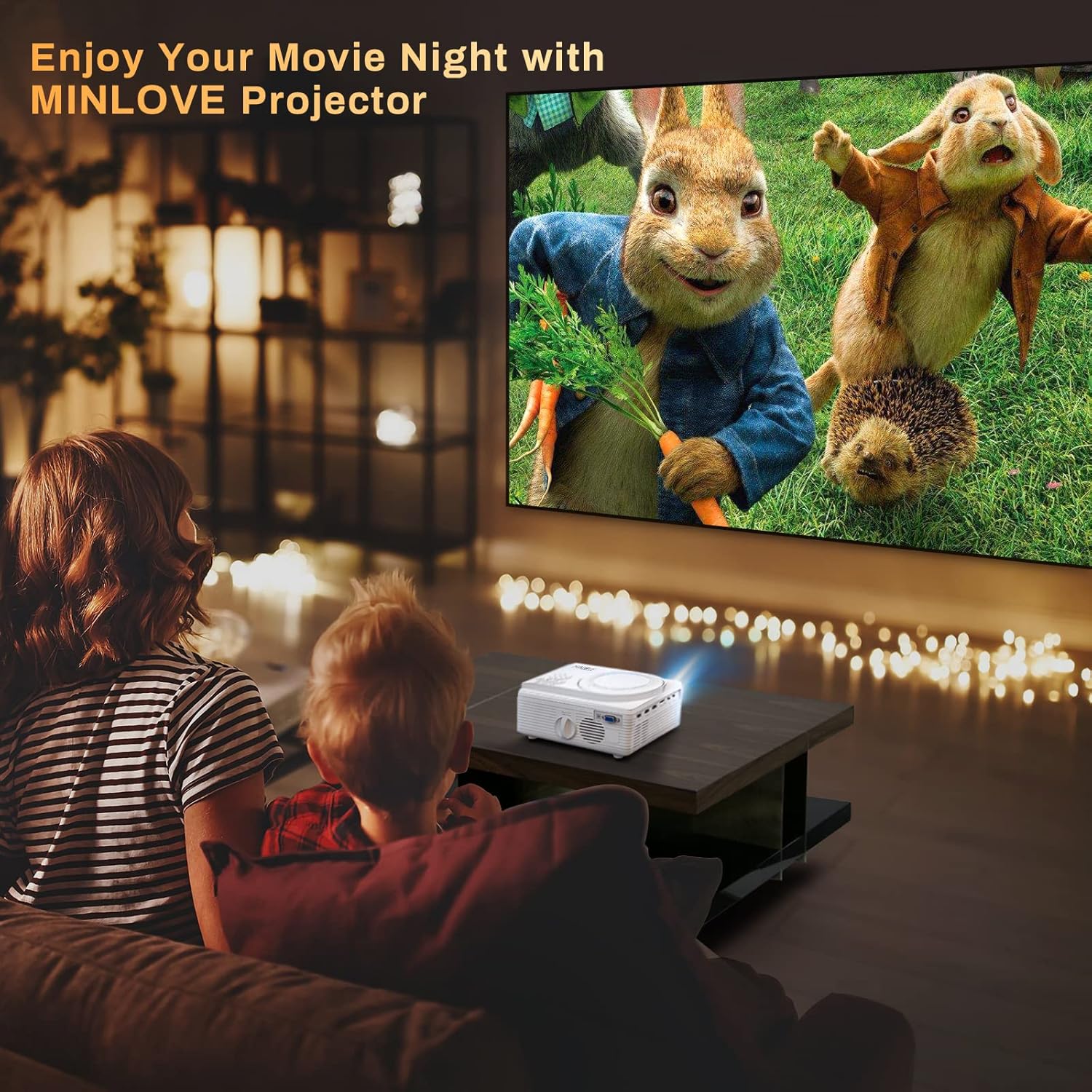
Figure 2.1: All items included in the MINLOVE PJ118S Projector package.
3. Gid Enstalasyon
3.1 Debalaj ak plasman
- Retire pwojektè a ak tout akseswa yo nan anbalaj la avèk prekosyon.
- Mete pwojektè a sou yon sifas ki estab e plat. Pou yon pi bon rezilta viewing, position it directly in front of your projection screen or wall.
- Ensure there is adequate ventilation around the projector to prevent overheating.
3.2 Koneksyon pouvwa
- Konekte kòd kouran an nan pò antre kouran pwojektè a.
- Branche lòt bout kòd kouran an nan yon priz elektrik estanda.
3.3 Lens Cap Removal
Before powering on the projector, ensure you remove the lens cap.

Figure 3.1: Remove the lens cap before operating the projector.
3.4 Ajisteman Fokus ak Keystone
After powering on, adjust the focus and keystone correction for a clear, rectangular image.
- Bag konsantre: Vire bag konsantre a sou lantiy pwojektè a jiskaske imaj la parèt byen file epi klè.
- Koreksyon Keystone: Use the keystone adjustment knob (usually located near the lens) to correct any trapezoidal distortion, ensuring the image is perfectly rectangular. The projector supports ±15° keystone correction.

Figure 3.2: Adjusting keystone correction for a perfect image.
4. Operasyon Enstriksyon
4.1 Operasyon debaz
Use the included remote control or the buttons on the projector to navigate menus, select input sources, and adjust settings.
4.2 Built-in DVD Player
The MINLOVE PJ118S features an integrated DVD player, allowing you to play your favorite discs directly.
- Open the DVD tray located on top of the projector.
- Gently place a DVD or CD onto the spindle, ensuring it is seated correctly.
- Close the DVD tray. The projector will automatically detect the disc and begin playback.

Figure 4.1: The projector's built-in DVD player in action.
4.3 Koneksyon san fil (WiFi ak Bluetooth)
The projector supports WiFi for screen mirroring and Bluetooth for audio output.
4.3.1 WiFi & Screen Mirroring
Connect your iOS or Android device wirelessly to mirror its screen content.
- For iOS Devices (Airplay Mode):
- Connect your iPhone/iPad to the projector's WiFi network (e.g., "MINLOVE-xxx").
- On your iPhone/iPad, open Control Center and tap "Screen Mirroring".
- Select "MINLOVE-xxx" from the list of devices.
- For Android Devices (Miracast Mode):
- On your Android phone, enable the "Miracast Function" (or similar, e.g., "Wireless Display", "Smart View").
- Select "MINLOVE-xxx" from the available devices.

Figure 4.2: Screen mirroring setup for iOS and Android devices.
4.3.2 Bluetooth Koneksyon
Konekte oratè Bluetooth ekstèn oswa kas ekoutè pou amelyore odyo.
- Asire w ke aparèy odyo Bluetooth ou a nan mòd koneksyon.
- Sou pwojektè a, ale nan paramèt Bluetooth yo.
- Chwazi aparèy ou a nan lis la pou konekte li.

Figure 4.3: Connecting Bluetooth audio devices.
4.4 Konekte Aparèy Ekstèn yo
Pwojektè a ofri plizyè pò pou konekte divès aparèy:
- HDMI (x2): Connect TV Box, Chromebook, PC, Laptop, Tablet, Blue-ray DVD player, Game Consoles (PS5, Xbox).
- USB: Connect USB Flash Drives for media playback.
- DE: Konekte ansyen aparèy yo lè l sèvi avèk kab AV ki enkli a.
- VGA: Connect computers or laptops.
- Kat mikwo SD: Insert Micro SD cards for media playback (supports up to 32GB; 64GB high-speed flash memory cards are not supported).

Figure 4.4: Various input ports and compatible devices.
4.5 Audio Settings for Fire TV Stick
If using a Fire TV Stick, you may need to adjust audio settings for optimal sound output, especially for copyrighted content.
- Click the "Setting" button on your Fire TV Stick remote.
- Choose "Display & Audio".
- Click "Audio".
- Click "Surround Sound", then select "PCM".
Note: Due to Netflix copyright protection, the sound of some Netflix videos may not play normally. Turning off Dolby sound (by selecting PCM) can resolve this. The WiFi feature does not support copyrighted smartphone apps such as Netflix, Amazon Prime Video, and Hulu directly; these can be played via HDMI connection.

Figure 4.5: Steps to adjust Fire TV Stick audio settings.
5. Antretyen
Bon antretyen asire lonjevite ak pèfòmans optimal pwojektè ou a.
- Netwaye lantiy la: Sèvi ak yon twal mou ki pa gen pousyè, espesyalman fèt pou lantiy optik. Pa sèvi ak pwodui netwayaj abrazif oswa twal ki ka grate lantiy la.
- Netwayaj kò pwojektè a: Wipe the exterior with a soft, dry cloth. For stubborn dirt, a slightly damp Ou ka itilize yon twal, epi apre sa, ou ka sèvi ak yon twal sèk.
- Vantilasyon: Regularly check that the ventilation ports are clear of dust and debris to ensure proper airflow and prevent overheating.
- Depo: When not in use for extended periods, store the projector in its carrying bag in a cool, dry place, away from direct sunlight and extreme temperatures.
NAN. Depanaj
Si ou rankontre pwoblèm ak pwojektè ou a, gade pwoblèm ak solisyon komen sa yo:
| Pwoblèm | Kòz posib | Solisyon |
|---|---|---|
| Pa gen imaj oswa imaj la twoub | Lens cap on, out of focus, incorrect keystone, incorrect input source. | Remove lens cap, adjust focus ring, adjust keystone, select correct input source. |
| Pa gen son oswa son ki ba | Volume too low, incorrect audio output settings, incompatible audio format (e.g., Dolby for Netflix). | Increase volume, check projector's audio settings, adjust external device audio settings (e.g., Fire TV Stick to PCM), connect external speakers. |
| WiFi/Screen Mirroring issues | Incorrect network connection, device compatibility, app copyright restrictions. | Ensure correct WiFi connection, verify device compatibility, use HDMI for copyrighted streaming apps. |
| Pwojektè surchof | Blocked ventilation, prolonged use. | Ensure vents are clear, turn off projector and allow to cool, operate in a well-ventilated area. |
| Remote kontwòl pa travay | Dead batteries, obstruction, too far from projector. | Replace batteries, remove obstructions, ensure line of sight to IR receiver. |
7. Espesifikasyon
| Karakteristik | Detay |
|---|---|
| Nimewo Modèl | PJ118S |
| Rezolisyon natif natal | 1920 x 1080P (Full HD) |
| Klète | 8000 Lumens (approx. 75% higher than similar projectors) |
| Pwopòsyon kontras | 10000:1 |
| Koneksyon Teknoloji | WiFi, Bluetooth 5.0 |
| Pò Antre | 2x HDMI, USB, AV, VGA, Micro SD Card |
| Karakteristik entegre | DVD Player, Stereo Speaker |
| Max Projection Screen Size | 250 pous |
| Koreksyon Keystone | ± 15° |
| Lamp Lavi | Jiska 60,000 èdtan |
| Pwa atik | 5.19 liv |
| Dimansyon pwodwi | 8.67 x 7.3 x 3.9 pous |
8. Garanti ak sipò
The MINLOVE PJ118S Projector comes with a 1-ane garanti. For any questions, technical assistance, or support, please contact our customer service team. We offer 7*24 after-sales service to provide satisfactory solutions as soon as possible.
Pou plis resous, ou ka al gade manyèl itilizatè ofisyèl la nan PDF: MINLOVE PJ118S User Manual (PDF)
Ask a question about this manual
Ask about setup, troubleshooting, compatibility, parts, safety, or missing instructions. Manuals+ will review the question and use this page’s manual context to help answer it.