
SteelSeries 62535
Manyèl Itilizatè Sourit Gaming SteelSeries Prime FPS Edisyon Neo Noir
Model: 62535 | Brand: SteelSeries
Pwodwi souview
The SteelSeries Prime FPS Gaming Mouse Neo Noir Edition is a limited edition, lightweight gaming mouse designed for competitive FPS gameplay. It features a battle-tested shape, hyper-durable design, and a textured matte finish for optimal grip and comfort during extended use. This mouse is equipped with advanced optical switches and a high-performance sensor to deliver precise and responsive control.
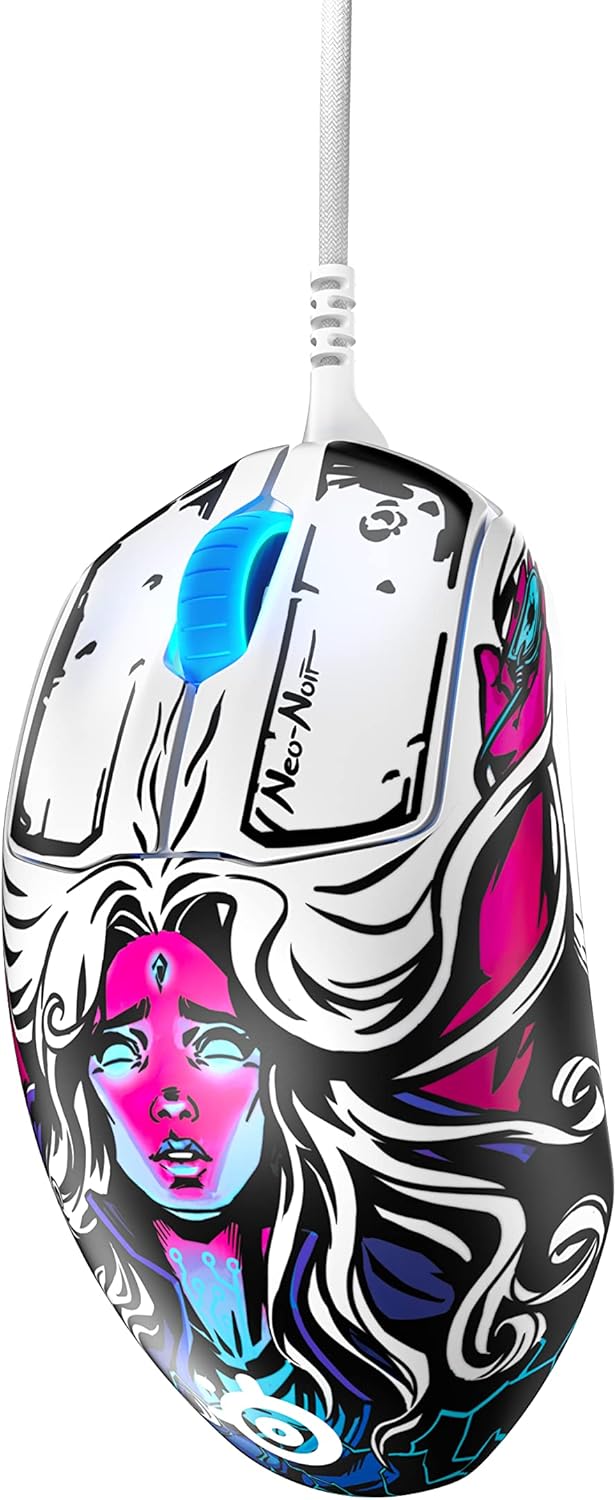
Karakteristik kle yo enkli:
- Prestige Optical Magnetic Switches: Revolutionary switches that actuate lightning fast using infrared beams, rated for an industry-best 100 million clicks using neodymium magnets, ensuring durability and consistent performance.
- TrueMove Pro Optical Sensor: A top-of-the-line sensor delivering 18,000 CPI (Counts Per Inch), 450 IPS (Inches Per Second), and 50G acceleration with advanced tilt tracking for unparalleled precision.
- Konsepsyon ki lejè: Weighing only 69g, developed with input from esports professionals for sustained comfort and battle-tested durability.
- On-board Customization: Allows for direct adjustment of 4 polling rates and up to 5 pre-set or customized CPIs without software.
- Brilliant Prism RGB Lighting: Customizable RGB lighting integrated into the scroll wheel.
Enstalasyon
Kondisyon sistèm
Before connecting your SteelSeries Prime FPS Gaming Mouse, ensure your system meets the following requirements:
- Operating System: Windows, macOS, Xbox, or Linux.
- Disponib USB Port.
Konekte sourit la
- Locate an available USB port on your computer or gaming console.
- Insert the USB connector of the SteelSeries Prime FPS Gaming Mouse into the USB port.
- Sistèm operasyon ou an ta dwe detekte epi enstale chofè ki nesesè yo otomatikman.

Software Installation (SteelSeries GG)
For full customization and advanced features, it is recommended to install the SteelSeries GG software:
- Visit the official SteelSeries websit: steelseries.com/gg
- Download the SteelSeries GG software compatible with your operating system.
- Swiv enstriksyon ki sou ekran pou konplete enstalasyon an.
- Once installed, launch SteelSeries GG to access mouse settings, including CPI, button remapping, and RGB lighting customization.
Operating Your SteelSeries Prime FPS Gaming Mouse
Fonksyon debaz yo
- Klike Goch: Bouton aksyon prensipal la.
- Klike sou dwa: Secondary action button, often used for context menus or alternate actions.
- wou woulo liv: Itilize pou defile nan dokiman oswa web pages. Can also be clicked for a middle-mouse button function.
- Bouton bò: Two programmable buttons located on the left side of the mouse, typically used for forward/back navigation or in-game actions.
- CPI Button: Located on the bottom of the mouse, this button allows for on-the-fly cycling through pre-set or customized CPI profiles.

Customization with SteelSeries GG
The SteelSeries GG software unlocks the full potential of your Prime FPS Gaming Mouse:
- Ajisteman CPI: Fine-tune your mouse sensitivity from 100 to 18,000 CPI. You can set up to 5 distinct CPI profiles and switch between them using the on-board CPI button.
- Programmasyon bouton: Remap any of the 5 programmable buttons to perform specific keyboard functions, macros, or media controls.
- Ekleraj RGB: Customize the Brilliant Prism RGB lighting on the scroll wheel with various effects, colors, and brightness levels.
- Pousantaj biwo vòt: Adjust the polling rate (125Hz, 250Hz, 500Hz, 1000Hz) to control how frequently the mouse reports its position to your computer. A higher polling rate generally provides smoother tracking.
- Akselerasyon/Deselerasyon: Adjust mouse acceleration and deceleration settings to suit your preference.
Antretyen
Netwaye sourit ou a
Regular cleaning helps maintain the performance and longevity of your mouse:
- Eksteryè: Sèvi ak yon moso twal mou, ki san pèl dampLave avèk dlo oswa yon solisyon netwayaj dou. Evite pwodui chimik ki agresif oswa materyèl abrazif.
- Capteur: Gently clean the optical sensor on the bottom of the mouse with a cotton swab or compressed air to remove dust and debris. Ensure the mouse is disconnected before cleaning.
- Pye sourit: Periodically check the PTFE feet on the bottom of the mouse for wear or debris. Clean gently if needed.

Depo
When not in use, store your mouse in a clean, dry environment away from extreme temperatures and direct sunlight. Avoid coiling the cable too tightly to prevent damage.
Depanaj
If you encounter issues with your SteelSeries Prime FPS Gaming Mouse, refer to the following common solutions:
Sourit la pa reponn
- Tcheke koneksyon USB a: Asire w kab USB a byen branche nan yon pò USB ki fonksyone sou òdinatè w la. Eseye yon lòt pò USB.
- Rekòmanse òdinatè: Yon senp rekòmanse ka souvan rezoud pwoblèm koneksyon.
- Tès sou yon lòt aparèy: Si posib, teste sourit la sou yon lòt òdinatè pou detèmine si pwoblèm nan se ak sourit la oswa ak sistèm ou an.
- Tcheke Manadjè Aparèy (Windows): Verify that the mouse is recognized in Device Manager and that there are no driver conflicts.
Inconsistent Tracking or Cursor Lag
- Netwaye Capteur: Dust or debris on the optical sensor can cause tracking issues. Refer to the Maintenance section for cleaning instructions.
- Sifas tapi sourit: Ensure you are using the mouse on a clean, uniform surface. Highly reflective or uneven surfaces can interfere with optical tracking.
- Adjust CPI: Experiment with different CPI settings in the SteelSeries GG software to find the optimal sensitivity for your usage.
- Pousantaj biwo vòt: Ensure the polling rate is set appropriately. While higher is generally better, very high polling rates on older systems might cause issues.
Buttons Not Registering or Double-Clicking
- Verifikasyon lojisyèl: Open SteelSeries GG and ensure button assignments are correct and there are no conflicting profiles.
- Mizajou mikrolojisyèl: Check for and install any available firmware updates for your mouse via the SteelSeries GG software.
- Obstriksyon fizik: Inspect the buttons for any physical debris that might be preventing proper actuation.
Espesifikasyon teknik
| Karakteristik | Detay |
|---|---|
| Mak | SteelSeries |
| Nimewo Modèl | 62535 |
| Capteur | TrueMove Pro Optical Sensor |
| CPI (Counts Per Inch) | Up to 18,000 CPI |
| IPS (pous pa segonn) | 450 ONSÈY |
| Akselerasyon | 50G |
| Chanjman | Prestige Optical Magnetic Switches (100M Click Rating) |
| Bouton | 5 Bouton pwogramasyon |
| Pwa | 69g (2.43 ons) |
| Dimansyon (LxWxH) | 7.32 x 4.96 x 2.17 pous |
| Koneksyon | Fil USB |
| Sistèm operasyon konpatibilite | Windows, macOS, Xbox, Linux |
| Koulè | Neo Noir |
Garanti ak sipò
Enfòmasyon sou Garanti
SteelSeries products are manufactured to the highest quality standards. This product is covered by a limited manufacturer's warranty. For specific warranty terms and conditions, including duration and coverage details, please refer to the warranty card included with your product or visit the official SteelSeries websit.
Sipò pou Kliyan
For technical assistance, troubleshooting, or general inquiries, please visit the SteelSeries support page:
Ou ka jwenn tou resous itil, FAQ, ak fowòm kominotè sou yo. websit.
Ask a question about this manual
Ask about setup, troubleshooting, compatibility, parts, safety, or missing instructions. Manuals+ will review the question and use this page’s manual context to help answer it.