
Entwodiksyon
This manual provides detailed instructions for the BINIZE Portable Carplay Screen Navigation system. It covers setup, operation, and maintenance to ensure optimal performance and user experience.
Enfòmasyon sou Sekirite
- Asire w ke aparèy la byen monte epi li pa bloke w. view oswa entèfere ak kontwòl machin yo.
- Connect the power cord only to a 12V cigarette lighter port.
- Pa eseye demonte oswa modifye aparèy la.
- Always prioritize safe driving. Do not operate the device in a way that distracts you from the road.
Kontni pake
Verifye ke tout atik yo prezan nan pakè a:
- BINIZE Portable Carplay Screen Navigation Unit
- Sigarèt Brikè pouvwa kab
- USB Ekstansyon Kab
- Odyo Sòti Kab (RCA)
- Mounting Bracket with 3M Adhesive
- Kontwòl Remote
- Manyèl Itilizatè (dokiman sa a)
Enstalasyon
1. Monte Aparèy la
Chwazi yon bon kote sou tablodbò ou a ki pa bloke ou. view oswa kontwòl machin yo.

The base of the mounting bracket comes with 3M adhesive. Clean the dashboard surface thoroughly before attaching the base. Securely attach the unit to the bracket.

Ajiste ang ekran an pou pi bon viewing.
2. Koneksyon pouvwa
Connect the cigarette lighter power cable to the device and insert it into your vehicle's 12V cigarette lighter port. The device will power on automatically.

Asire w ke volim machin nantage se ant 12V ak 14V.
This video demonstrates the initial power-up sequence of the BINIZE Portable Carplay Screen Navigation unit by connecting it to a cigarette lighter port. It shows the "welcome" screen appearing upon successful power-on.
Enstriksyon Operasyon
1. Premye Enstalasyon ak Seleksyon Lang
Upon first power-on, the device will display the home screen. Navigate to the "Settings" menu to select your preferred language.

2. Opsyon Sòti Odyo
The monitor itself does not have internal speakers. Sound is routed through your original car audio system.
Transmetè FM
To use the FM transmitter, set the device's FM frequency to match an unused FM channel on your car's stereo.

Ensure both the device and your car stereo are tuned to the same FM frequency for audio output.
Sòti odyo RCA
For additional audio requirements, such as connecting to a subwoofer or amplifier, use the two RCA ports (White: Audio Out Left, Red: Audio Out Right).
3. Koneksyon Apple CarPlay
To use Apple CarPlay, connect your iPhone to the device using an original Apple data cable via the USB port on the right side of the player.
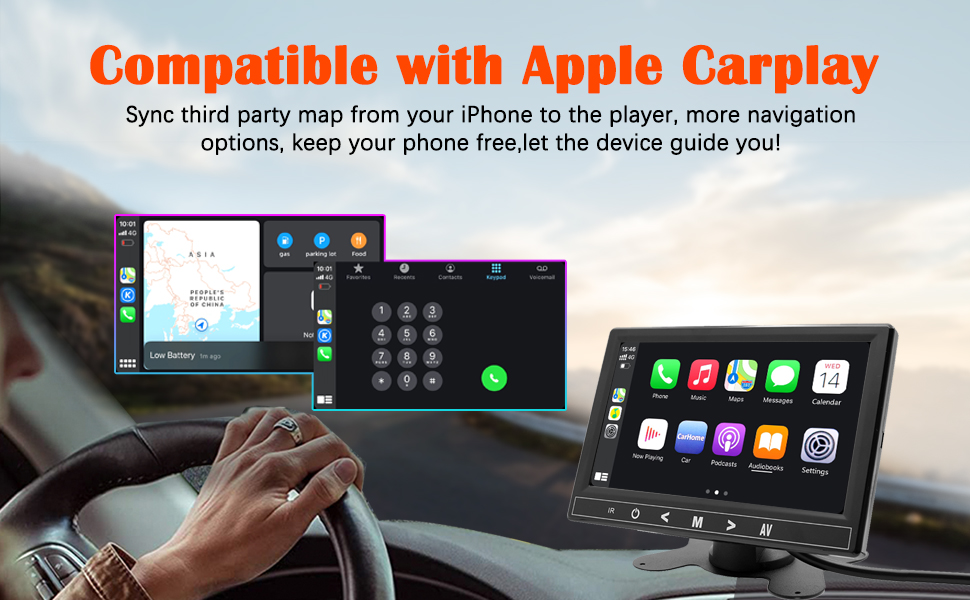
Select "i-Play" in the device settings. Grant any necessary permissions on your iPhone.
This video demonstrates how to connect an iPhone to the BINIZE Portable Carplay Screen Navigation for Apple CarPlay functionality. It shows the steps to select "i-Play" in settings and connect the original data cable.
4. Koneksyon Android Auto
To use Android Auto, connect your Android phone to the device using an original data cable via the USB port on the right side of the player.

Select "A-Auto" in the device settings. Grant any necessary permissions on your Android phone.
This video illustrates the process of connecting an Android phone to the BINIZE Portable Carplay Screen Navigation for Android Auto. It guides the user to select "A-Auto" in settings and connect the data cable.
5. MirrorLink (iPhone)
To mirror your iPhone screen, connect your iPhone to the device using an original Apple data cable via the USB port on the right side of the player.
Select "i-Mirror" in the device settings. Grant permissions on your iPhone. The iPhone screen will be projected onto the player's screen.
This video demonstrates the MirrorLink function for iPhone, showing how to connect the device and mirror the phone's display.
6. MirrorLink (Android Phone)
To mirror your Android phone screen, connect your Android phone to the device using an original data cable via the USB port on the right side of the player.
Select "A-Link" in the device settings. Grant permissions on your Android phone. The Android phone screen will be projected onto the player's screen.
This video demonstrates the MirrorLink function for Android phones, showing how to connect the device and mirror the phone's display.
7. USB Flash Drive Reading
Insert a USB flash drive into the USB extension cable to play music or videos. The device supports various media formats.
8. Chaje telefòn
The USB extension cable can also be used to charge your mobile phone.
Antretyen
- Kenbe ekran an pwòp avèk yon twal mou epi sèk. Evite pwodui netwayaj abrazif.
- Asire w ke tout koneksyon kab yo an sekirite.
- Evite ekspoze aparèy la nan tanperati ekstrèm oswa limyè solèy la dirèk pou peryòd pwolonje.
Depanaj
| Pwoblèm | Kòz posib | Solisyon |
|---|---|---|
| Aparèy pa limen. | No power from cigarette lighter. | Check vehicle's 12V port. Ensure power cable is securely connected. |
| Pa gen pwodiksyon son. | FM frequency not synchronized or incorrect RCA connection. | Match FM frequency on device and car stereo. Verify RCA cable connections. |
| CarPlay/Android Auto pa konekte. | Non-original data cable, incorrect settings, or phone permissions. | Use original data cable. Check "i-Play" or "A-Auto" settings. Grant all necessary phone permissions. |
| MirrorLink not working. | Incorrect settings or phone permissions. | Check "i-Mirror" or "A-Link" settings. Grant all necessary phone permissions. |
| Screen freezes or is unresponsive. | Pwoblèm lojisyèl tanporè. | Rekòmanse aparèy la lè w debranche epi rebranche kab kouran an. |
For further assistance, please contact BINIZE customer support.
Espesifikasyon
| Karakteristik | Detay |
|---|---|
| Mak | BINIZE |
| Nimewo Modèl | B09DSMJ59X |
| Koneksyon Teknoloji | Bluetooth, RCA, USB |
| Kalite kontwolè | Android, Asistan Google |
| Karakteristik espesyal | Touchscreen |
| Aparèy konpatib | Smartphone |
| Audio Sòti Mode | Stereo |
| Kantite Chanèl | 4 |
| Kodaj videyo | H.264, H.265/HEVC |
| Metòd kontwòl | Manyen |
| Teknoloji san fil | Bluetooth |
| Antre pouvwa | 12V (via cigarette lighter) |
Remak: Espesifikasyon yo sijè a chanje san avètisman davans.
Garanti ak sipò
BINIZE products come with a standard manufacturer's warranty. Please refer to the warranty card included in your package for specific terms and conditions.
For technical support, warranty claims, or any other inquiries, please visit the official BINIZE websit oswa kontakte ekip sèvis kliyan yo.