
DrayTek V2866-K
Manyèl Itilizatè Routeur DrayTek Vigor Seri 2866 la
Model: V2866-K
1. Entwodiksyon
This manual provides comprehensive instructions for the setup, operation, maintenance, and troubleshooting of your DrayTek Vigor 2866 Series Router. Designed for business environments, this high-performance router offers robust connectivity and security features.
Tanpri li manyèl sa a avèk atansyon anvan ou itilize aparèy la pou asire yon enstalasyon kòrèk ak yon pèfòmans optimal.
2. Pwodwi souview
The DrayTek Vigor 2866 Series is a versatile multi-WAN VPN router engineered for demanding network environments. Key features include:
- G.Fast and Ethernet Load Balancer: Connects to Ultrafast G.fast and Superfast VDSL2 FTTC with an integrated DSL modem. Supports load balancing with Ethernet WAN for enhanced resiliency and throughput.
- Routeur VPN wo-pèfòmans: Facilitates secure, high-speed connections for up to 32 VPN tunnels, supporting DrayTek SSL VPN and OpenVPN for remote access.
- 5+1 Gigabit LAN Ports with VLANs: Provides 6 Gigabit LAN ports for direct connection of computers, servers, and network storage. Supports up to 8 separate VLAN networks, including options for Hotspot Captive Portal and guest networks.
- Feature-Rich Functionality: Includes Quality of Service (QoS), Route Policy, Hotspot Web Portal, VPN Matcher, and DrayDDNS.
- VigorACS SD-WAN Central Management: Enables remote management and powerful SD-WAN features via the VigorACS 3 platform for centralized network control across multiple sites.
2.1. Pake kontni
Verifye ke tout atik yo prezan nan pakè a:
- DrayTek Vigor 2866 Router
- Câbles Ethernet
- Antennas (if applicable to your model variant)
- Inite ekipman pou pouvwa
2.2. Deskripsyon fizik ak pò yo
Familiarize yourself with the router's physical layout and port configurations.
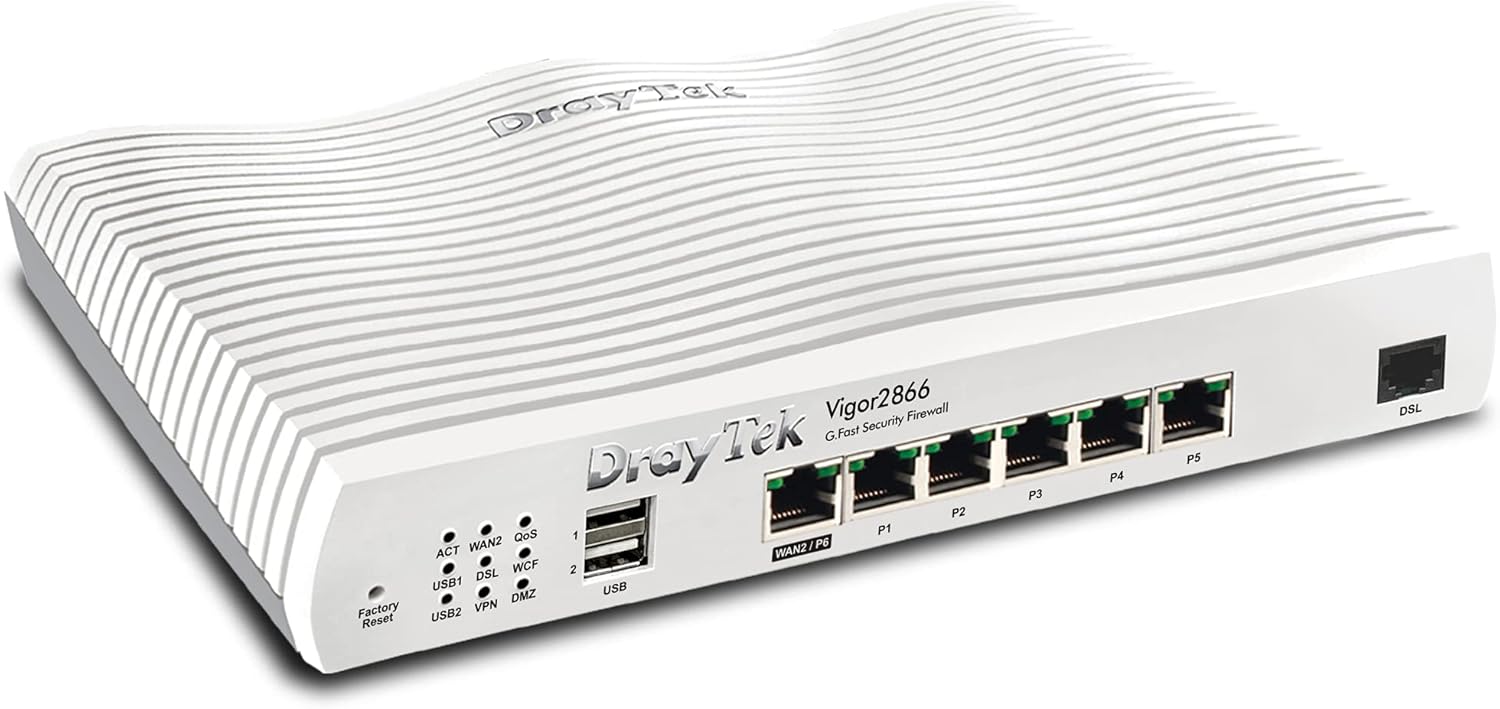
Figi 1: Devan-dwat view of the DrayTek Vigor 2866 Router. This image shows the compact design and the array of ports on the front panel.

Figi 2: Detaye view of the DrayTek Vigor 2866 Router's front panel with labeled ports and indicators.
- 1. Endikatè Estati ki ap dirije: Provide visual feedback on the router's operational status, including WAN activity, DSL connection, VPN status, and USB activity.
- 2. USB 2.0 Ports: Two USB ports for connecting external devices such as 3G/4G USB modems for backup WAN or USB storage.
- 3. 1GbE RJ-45 LAN/WAN Port (WAN2/P6): A versatile Gigabit Ethernet port that can function as either a LAN port or a secondary WAN port for fiber (FTTP) or other Ethernet-based internet connections.
- 4. 5x 1GbE RJ-45 LAN Ports (P1-P5): Five Gigabit Ethernet ports for connecting local network devices such as computers, switches, and network-attached storage (NAS).
- 5. G.Fast / VDSL2 / ADSL2+ RJ-11 Port (DSL): The primary WAN port for connecting to G.Fast, VDSL2 (FTTC), or ADSL2+ broadband lines.
3. Enstalasyon
3.1. Initial Hardware Connection
- Koneksyon pouvwa: Connect the provided power adapter to the router's power input and then to a wall outlet. Ensure the power switch is in the OFF position before connecting, then turn it ON.
- DSL/WAN Connection:
- For G.Fast/VDSL2/ADSL2+ (FTTC): Connect your DSL line from the wall socket to the RJ-11 DSL port on the router.
- For FTTP (Fiber to the Premises) or Ethernet WAN: Connect the Ethernet cable from your Optical Network Terminal (ONT) or existing modem to the WAN2/P6 port on the router.
- Koneksyon LAN: Connect an Ethernet cable from one of the LAN ports (P1-P5) on the router to your computer or network switch.
- Antenna Installation (if applicable): If your model includes external antennas, screw them firmly onto the connectors at the rear of the router.
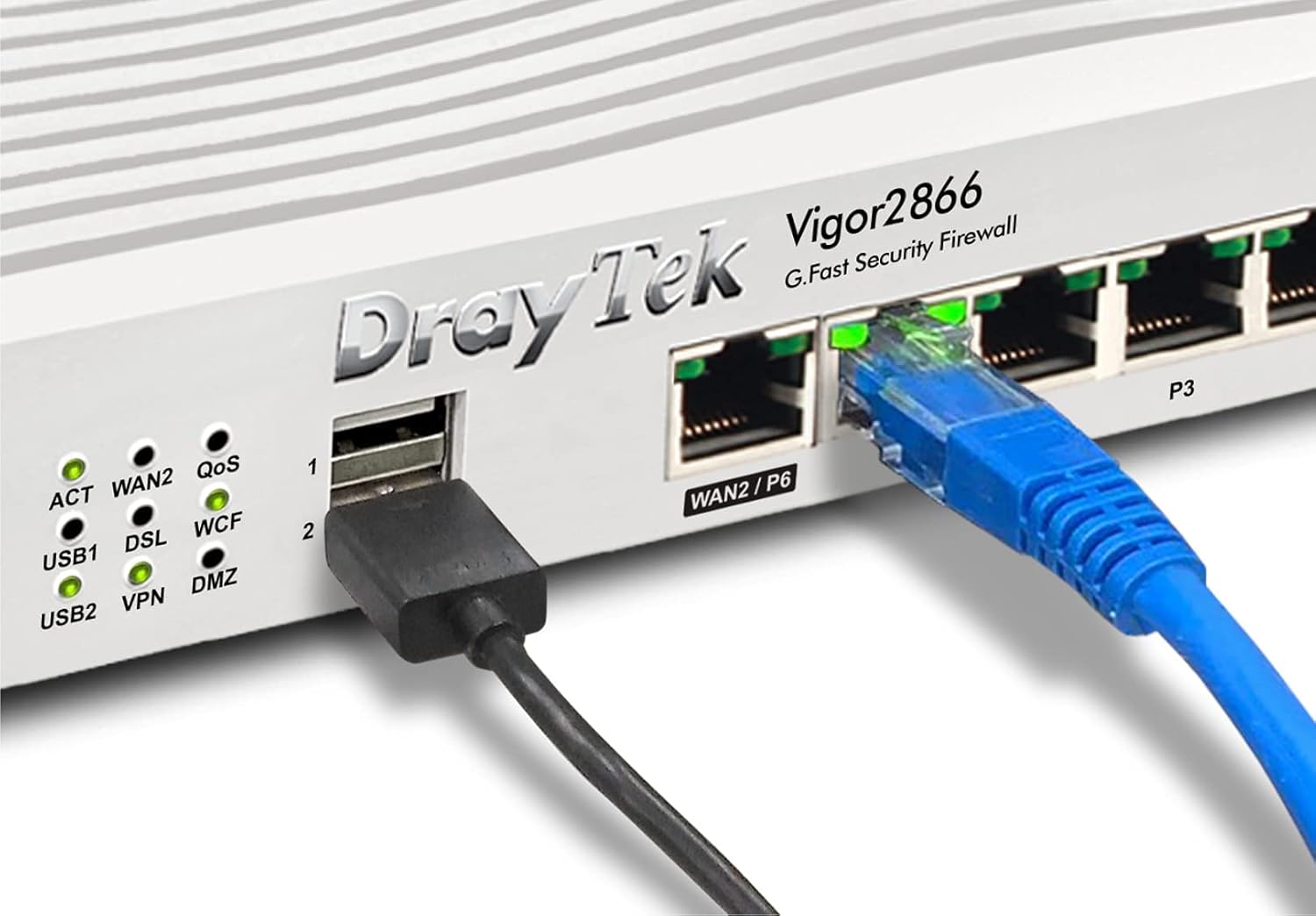
Figi 3: Egzample of cable connections to the DrayTek Vigor 2866 Router, showing an Ethernet cable connected to a LAN port and a USB device connected.
3.2. Aksè Konfigirasyon Inisyal
Pou jwenn aksè nan routeur la web koòdone konfigirasyon:
- Asire w ke òdinatè w lan konekte ak yon pò LAN nan routeur la.
- Louvri a web navigatè (pa egzanp, Chrome, Firefox, Edge).
- In the address bar, type the default IP address: 192.168.1.1 epi peze Antre.
- A login prompt will appear. Enter the default username and password (usually admin for both, or as specified on a label on the router).
- Follow the on-screen wizard for initial setup, including changing default login credentials and configuring your internet connection (WAN settings).
4. Operasyon Enstriksyon
4.1. Internet Connection Management
The Vigor 2866 supports multiple WAN interfaces for flexible internet connectivity and load balancing.
- WAN1 (DSL): Configured for G.Fast, VDSL2, or ADSL2+ connections. Access the WAN > General Setup menu to configure your ISP details.
- WAN2 (Ethernet): Configured for FTTP or other Ethernet-based connections. Access the WAN > General Setup menu to configure IP settings (DHCP, Static IP, PPPoE).
- Load Balance/Failover: Navige nan WAN > Load Balance/Route Policy to configure how internet traffic is distributed across multiple WANs or to set up failover for redundancy.
4.2. VPN Configuration
The router supports various VPN protocols for secure remote access and site-to-site connectivity.
- SSL VPN: For easy and secure remote access for individual users. Configure under VPN and Remote Access > SSL VPN.
- IPsec/PPTP/L2TP VPN: For site-to-site tunnels or traditional remote access. Configure under VPN and Remote Access > LAN to LAN or Remote Dial-in User.
4.3. Firewall and Content Filtering
Enhance network security using the built-in firewall and content filtering features.
- Règ firewall: Define rules to control inbound and outbound traffic under Firewall > Filter Setup.
- Filtrage kontni: Itilize URL Content Filter, Web Content Filter (WCF), and Application Filter to manage internet access and block undesirable content. Access these features under CSM (Content Security Management).
5. Antretyen
5.1. Mizajou Firmware
Regularly update the router's firmware to ensure optimal performance, security, and access to new features.
- Visit the official DrayTek websit (www.draytek.co.uk/support/downloads) to download the latest firmware for your Vigor 2866 model.
- Aksè routeur la web koòdone.
- Navige nan System Maintenance > Firmware Upgrade.
- Navige pou telechaje firmwèr la file and initiate the upgrade process. Do not power off the router during the upgrade.
5.2. Backup and Restore Configuration
It is recommended to back up your router's configuration settings before making significant changes or performing firmware updates.
- Sovgad: Ale nan System Maintenance > Configuration Backup to save your current settings to your computer.
- Renmèt: Use the same menu to upload a previously saved configuration file.
5.3. Reset faktori
If the router becomes unresponsive or you need to revert all settings to their default state, perform a factory reset.
- Reyajiste lojisyèl: Navige nan System Maintenance > Reboot System and select "Restore to Factory Default Settings".
- Materyèl Reyajiste: With the router powered on, use a paperclip to press and hold the 'Factory Reset' button (located on the front panel, near the USB ports) for approximately 5-10 seconds until the ACT LED starts blinking rapidly. Release the button and wait for the router to reboot.
NAN. Depanaj
This section addresses common issues you might encounter with your DrayTek Vigor 2866 router.
6.1. Pa gen koneksyon entènèt
- Tcheke Câbles: Ensure all Ethernet and DSL cables are securely connected to the correct ports on the router and your modem/wall socket.
- Endikatè ki ap dirije: Observe the WAN/DSL LED indicators on the router. If they are off or blinking incorrectly, refer to the LED status guide in the full user manual or DrayTek's support resources.
- ISP Credentials: Verify that your ISP username and password are correctly entered in the router's WAN settings.
- Modem/ONT Status: If using an external modem or ONT, check its status lights to ensure it has an active connection to your ISP.
- Reboot Cycle: Power cycle your modem/ONT, then the router, and finally your computer. Wait a few minutes between each step.
6.2. Pa ka jwenn aksè Web Entèfas
- Adrès IP: Confirm you are using the correct default IP address (192.168.1.1). If you changed it, use the new IP.
- Anviwònman rezo: Asire w adaptè rezo òdinatè w la configuré pou jwenn yon adrès IP otomatikman (DHCP).
- Pare-feu/Antiviris: Dezaktive tanporèman nenpòt lojisyèl pare-feu oswa pwogram antivirus sou òdinatè w la ki ta ka bloke aksè.
- Kach Navigatè: Klè ou web kach navigatè a ak bonbon yo, oubyen eseye yon lòt navigatè.
- Reset faktori: As a last resort, perform a factory reset (see Section 5.3) to revert to default settings, then try accessing the interface again.
6.3. Slow Network Performance
- Itilizasyon Pleasant: Tcheke routeur la Jesyon Bandwidth or Traffic Graph sections to identify any devices or applications consuming excessive bandwidth.
- Anviwònman QoS yo: Review your Quality of Service (QoS) settings under Bandwidth Management > QoS to ensure critical applications are prioritized correctly.
- Firmware: Ensure your router's firmware is up to date (see Section 5.1).
- Kalite kab: Use high-quality Ethernet cables (Cat5e or Cat6) for wired connections.
7. Espesifikasyon
| Karakteristik | Deskripsyon |
|---|---|
| Non modèl | Vigor 2866 |
| Nimewo Modèl | V2866-K |
| Dimansyon (H x W x P) | 4.4 x 24.1 x 16.5 cm (1.73 x 9.49 x 6.5 pous) |
| Pwa | 1.38 kg (3.04 liv) |
| WAN entèfas | 1x G.Fast/VDSL2/ADSL2+ (RJ-11), 1x Gigabit Ethernet (RJ-45, configurable as LAN/WAN) |
| Entèfas LAN | 5x Gigabit Ethernet (RJ-45) |
| Pò USB | 2x USB 2.0 (for 3G/4G modem or storage) |
| Tinèl VPN | Up to 32 VPN tunnels (IPsec, PPTP, L2TP, SSL VPN) |
| Firewall | SPI (Stateful Packet Inspection), DoS/DDoS Prevention, Object-based Firewall |
| Filtrage kontni | URL Content Filter, Web Content Filter (WCF), Application Filter |
| Jesyon | Web-based UI, CLI (Telnet/SSH), SNMP, TR-069 (VigorACS) |
| Pwovizyon pou pouvwa | Ekstèn pouvwa adaptè |
| Sistèm operasyon | RouterOS (Entèn) |
8. Garanti ak sipò
For detailed warranty information, please refer to the warranty card included with your product or visit the official DrayTek websit.
For technical support, firmware downloads, and additional resources, please visit the DrayTek support portal:
You may also contact DrayTek customer service through the contact information provided on their websit.
Ask a question about this manual
Ask about setup, troubleshooting, compatibility, parts, safety, or missing instructions. Manuals+ will review the question and use this page’s manual context to help answer it.