
1. Pwodwi souview
The NETVUE Sentry 2 is a 1080P outdoor security camera designed to provide comprehensive surveillance for your home. It features advanced functionalities such as 360° pan and 110° tilt for wide area coverage, real-time motion and human detection, two-way audio communication, and enhanced night vision capabilities. Its IP66 weatherproof rating ensures reliable performance in various outdoor conditions.
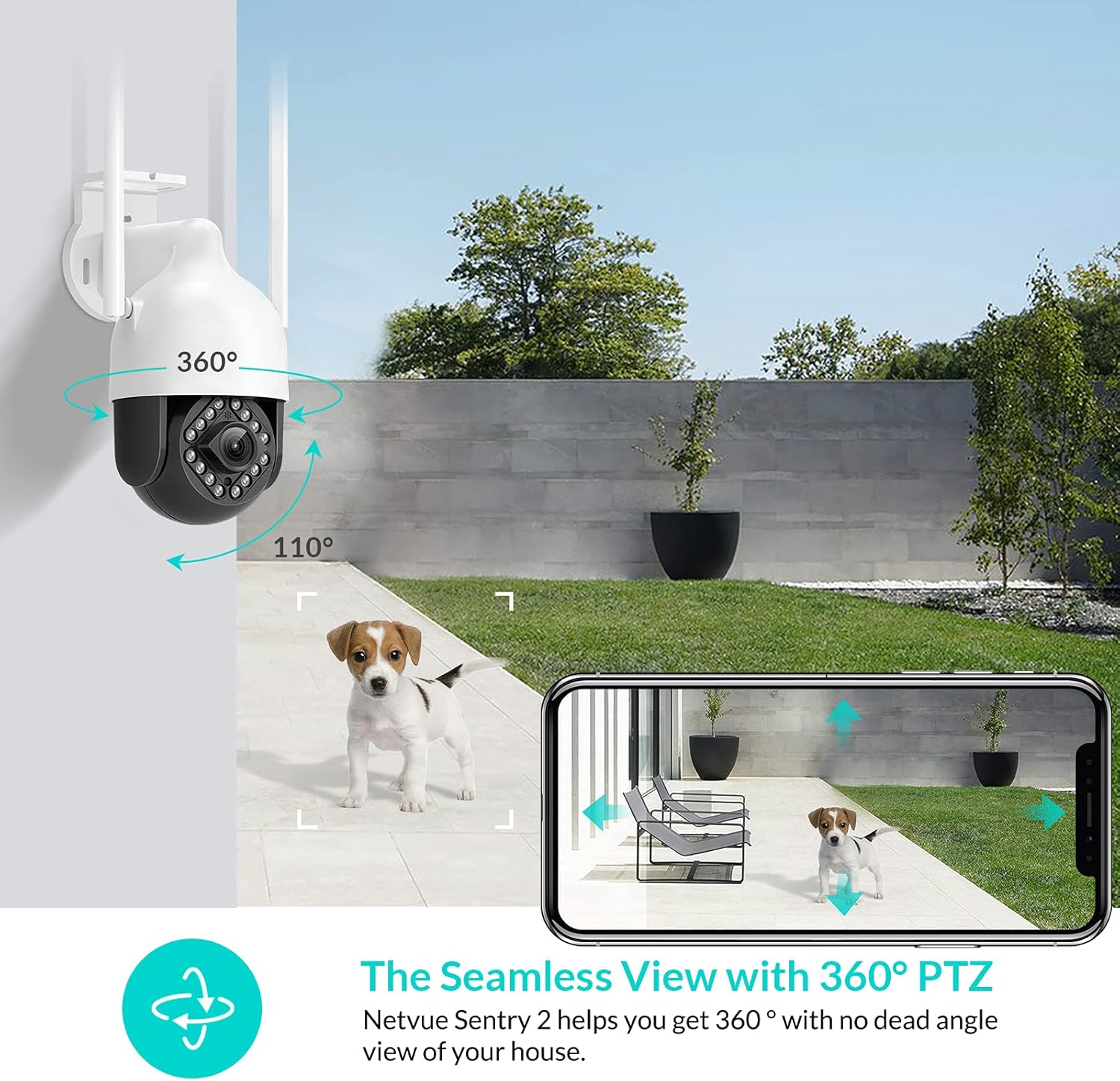
Image: NETVUE Sentry 2 Outdoor Security Camera showcasing its 360° pan and 110° tilt view.
2. Ki sa ki nan bwat la
Upon unboxing your NETVUE Sentry 2 camera, please verify that all components are present:
- NETVUE Sentry 2 Outdoor Security Camera
- Adaptè pouvwa
- Mounting Bracket
- Vis pou monte ak lank miray
- Waterproof Kit for Cable Connections
- Manyèl Itilizatè (dokiman sa a)
For a visual guide on the product and its components, please refer to the official product video below:
Video: Official Netvue Outdoor Security Camera Sentry 2 overview, including unboxing and installation steps.
3. Enstalasyon ak Enstalasyon
3.1 Limen
- Konekte adaptè kouran an nan antre kouran kamera a.
- Ploge adaptè pouvwa a nan yon priz elektrik estanda.
- Wait for the camera to power on and initiate its self-test.
3.2 Telechaje Aplikasyon an ak Kreye yon Kont
- Download the official NETVUE app from your device's app store (iOS or Android).
- Open the app and create a new account, or log in if you already have one.
3.3 Koneksyon Wi-Fi
The NETVUE Sentry 2 camera supports 2.4GHz Wi-Fi networks. Ensure your mobile device is connected to a 2.4GHz Wi-Fi network during the setup process.
- In the NETVUE app, tap 'Add Device' and select your camera model.
- Swiv enstriksyon ki sou ekran an pou konekte kamera a ak rezo Wi-Fi ou a. Sa anjeneral enplike eskane yon kòd QR aplikasyon an pwodui avèk lantiy kamera a.

Image: NETVUE Sentry 2 camera demonstrating stable Wi-Fi connection in distance.
3.4 Enstalasyon Fizik
Choose a suitable outdoor location for mounting the camera, ensuring it has a clear view and is within Wi-Fi range. The camera is IP66 weatherproof, suitable for various outdoor conditions.
- Use the mounting bracket as a template to mark drill holes on the desired surface.
- Fè twou yo epi mete lank miray yo.
- Fikse sipò montaj la sou sifas la avèk vis yo bay yo.
- Tache kamera a nan sipò montaj la.
- Ensure all cable connections are properly sealed using the waterproof kit to prevent water ingress.
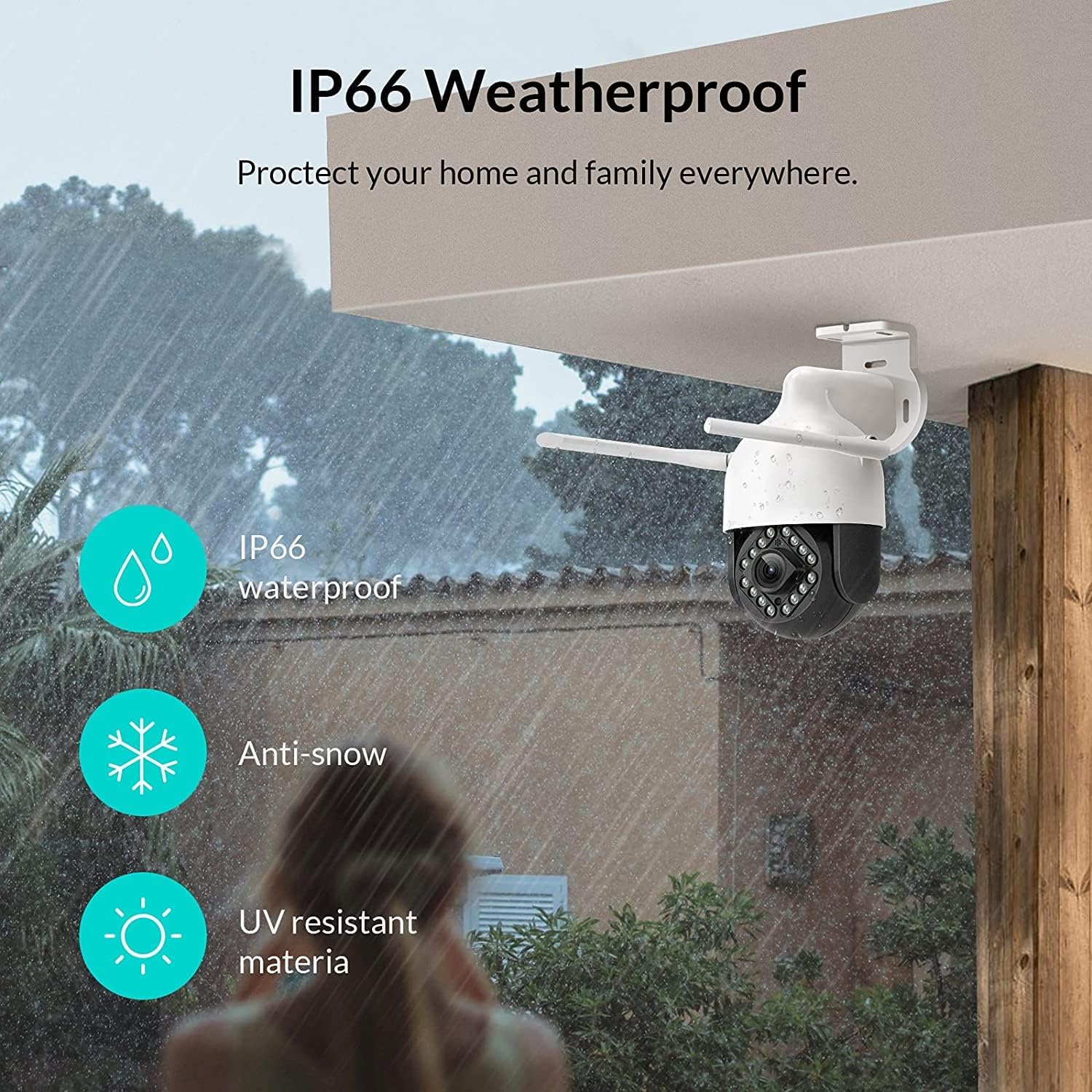
Image: NETVUE Sentry 2 camera highlighting its IP66 weatherproof features against rain and snow.
4. Itilizasyon Kamera a
4.1 Viv View ak Kontwòl Pan/Tilt
Access the live video feed from your camera through the NETVUE app. You can remotely control the camera's pan (horizontal) and tilt (vertical) movements to adjust the viewang ang jan sa nesesè.
4.2 Mouvman ak Deteksyon Moun
The camera is equipped with motion and human detection capabilities. When motion or a human figure is detected, you will receive immediate notifications on your mobile device.

Image: Real-time motion detection alert displayed on a smartphone from the NETVUE Sentry 2 camera.

Image: Motion and human detection alert from the NETVUE Sentry 2 camera, showing a person at the front door.
4.3 Odyo De-fason
Utilize the two-way audio feature to communicate with individuals near the camera. This is useful for interacting with visitors or deterring unwanted guests.

Image: Two-way audio feature of the NETVUE Sentry 2 camera, allowing communication with a delivery person.
4.4 Vizyon lannwit
The NETVUE Sentry 2 camera is equipped with 16 infrared lights for super night vision, providing clear video footage even in low-light or complete darkness.

Image: Close-up of the NETVUE Sentry 2 camera's 16 infrared lights for super night vision.
5. Antretyen
5.1 Netwayaj Kamera a
Periodically clean the camera lens and housing to ensure optimal performance. Use a soft, damp twal pou siye pousyè ak salte. Evite itilize pwodui chimik ki agresif oswa materyèl abrazif ki ka domaje lantiy la oswa fini an.
5.2 Mizajou Firmware
Regularly check the NETVUE app for available firmware updates. Keeping your camera's firmware up-to-date ensures you have the latest features, security enhancements, and bug fixes.
5.3 Jesyon Depo
The camera supports local storage via a microSD card (not included) and cloud storage options. If using a microSD card, ensure it is properly formatted and regularly check its status within the app to prevent recording issues.
NAN. Depanaj
6.1 Pwoblèm Koneksyon Wi-Fi
- Ensure 2.4GHz Wi-Fi: The camera only supports 2.4GHz Wi-Fi. Confirm your router is broadcasting a 2.4GHz signal and your phone is connected to it during setup.
- Fòs siyal: Verify the camera is installed within a strong Wi-Fi signal range. Relocate the camera or use a Wi-Fi extender if necessary.
- Anviwònman routeur: Check your router settings for any restrictions that might prevent new devices from connecting.
6.2 SD Card Not Detected or Recording
- Reinsert SD Card: Power off the camera, remove the microSD card, and reinsert it firmly. Power the camera back on.
- Fòma SD Kat: Format the SD card through the NETVUE app. If issues persist, try a different, high-quality microSD card.
- Tcheke Anviwònman Aplikasyon an: Ensure recording settings are correctly configured in the NETVUE app.
6.3 No Motion Alerts
- Pèmèt Alèt: Confirm motion detection and notification alerts are enabled in the NETVUE app settings.
- Ajiste sansiblite: Adjust the motion detection sensitivity to an appropriate level.
- Check Schedule: Ensure motion detection is not disabled during specific times via a schedule.
6.4 Pwoblèm Jeneral
- Rekòmanse Kamera a: Disconnect the power adapter, wait 10 seconds, and reconnect it to restart the camera.
- Mizajou aplikasyon an: Ensure your NETVUE app is updated to the latest version.
7. Espesifikasyon
| Aparèy konpatib | Videyo ki monitè kè bebe |
| Sous pouvwa | AC/DC |
| Pwotokòl Koneksyon | Wi-Fi |
| Kalite kontwolè | Iris |
| Kalite aliye | Mi mòn |
| Rezolisyon Capture Videyo | 1080p |
| Kantite Atik | 1 |
| Kantite Chanèl | 1 |
| Teknoloji kominikasyon san fil | Wi-Fi |
| Batri obligatwa? | Non |
| Teknoloji limyè ki ba | Koulè lannwit |
| Kalite Alèt | Mouvman sèlman |
| Kalite sous limyè | Enfrawouj |
| Fòma Capture Videyo | MPEG-4 |
| Konte inite | 1.0 Konte |
| Rating Pwoteksyon Entènasyonal | IP66 |
| Dimansyon pake | 11.3 x 6.1 x 5.91 pous |
| Pwa atik | 2.12 liv |
| Itilizasyon Rekòmande Pou Pwodwi | Deyò Sekirite |
| Itilizasyon Andedan kay la / Deyò | Deyò |
8. Garanti ak sipò
For warranty information and technical support, please refer to the official NETVUE website or contact NETVUE customer service directly. Keep your purchase receipt for warranty claims.