
1. Entwodiksyon
This manual provides detailed instructions for the installation, operation, and maintenance of the VIVOTEK ND9323P H.265 8-Channel Embedded PoE Network Video Recorder (NVR). Please read this manual thoroughly before using the product to ensure proper and safe operation. Keep this manual for future reference.
2. Enfòmasyon sou Sekirite
Observe the following safety precautions to prevent damage to the NVR and to ensure user safety:
- Pwovizyon pou pouvwa: Use only the power adapter supplied with the NVR. Ensure the power source matches the NVR's voltage kondisyon.
- Vantilasyon: Do not block any ventilation openings. Install the NVR in a well-ventilated area to prevent overheating.
- Anviwònman: Avoid exposing the NVR to water, moisture, extreme temperatures, or direct sunlight. Do not place heavy objects on the NVR.
- Sèvis: Pa eseye fè sèvis pwodui sa a tèt ou. Refere tout sèvis yo bay pèsonèl sèvis kalifye.
- Manyen: Handle the NVR with care. Avoid dropping or subjecting it to strong impacts.
3. Pake kontni
Carefully unpack the box and ensure all items are present and in good condition. If any items are missing or damaged, contact your vendor immediately.
- Inite NVR VIVOTEK ND9323P
- Adaptè pouvwa
- USB sourit
- Gid Enstalasyon Rapid
- Accessory Pack (Screws for HDD installation, Ethernet cable)
- Case (referring to the NVR enclosure itself)
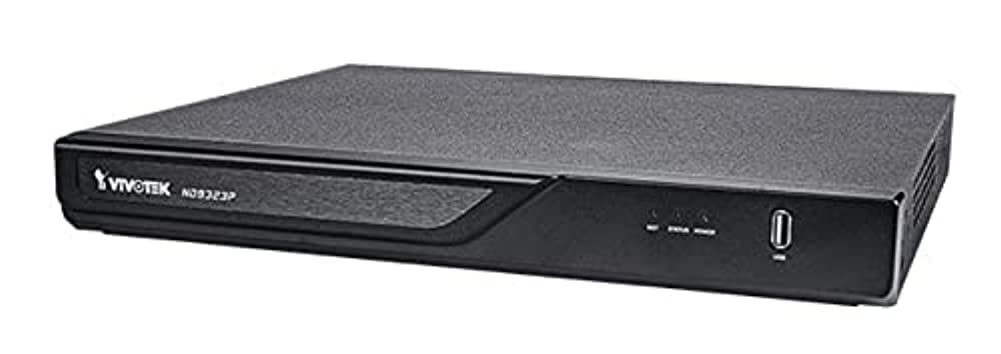
Figure 3.1: VIVOTEK ND9323P NVR unit. This image shows the front panel of the NVR, typically featuring status indicators and USB ports.
4. Pwodwi souview
The VIVOTEK ND9323P is an 8-channel embedded Network Video Recorder designed for IP surveillance systems. It supports H.265 video compression for efficient storage and bandwidth usage. With its integrated Power over Ethernet (PoE) ports, it simplifies camera installation by providing both power and data connectivity through a single Ethernet cable.
4.1 Karakteristik kle
- 8-Channel Video Input
- H.265/H.264 Video Compression
- 8 x 802.3at/af PoE Ports
- Local Display Output (HDMI/VGA)
- Remote Access via VIVOTEK VIVOCloud App or VMS
- Supports up to 16TB HDD storage (HDD not included)
4.2 Panno devan ak dèyè
Refer to the Quick Installation Guide for detailed diagrams of the front and rear panels, indicating ports and indicators.
- Panèl devan: Power LED, HDD LED, Network LED, USB ports.
- Dèyè Panel: Power input, LAN port, PoE ports (1-8), HDMI output, VGA output, Audio I/O, USB ports.
5. Enstalasyon
5.1 Enstalasyon Disk Di (Si ou vle)
The NVR does not typically include a pre-installed hard drive. Follow these steps to install a 3.5-inch SATA hard drive:
- Devise epi retire kouvèti anwo NVR la.
- Konekte kab done ak kouran SATA yo ki soti nan NVR a ak disk di a.
- Secure the hard drive to the NVR chassis using the provided screws.
- Ranplase kouvèti anwo a epi sere l ak vis yo.
Nòt: Ensure the NVR is powered off and unplugged before installing or removing a hard drive.
5.2 Koneksyon fizik
- Konekte Kamera yo: Connect your IP cameras to the NVR's PoE ports (1-8) using Ethernet cables. The NVR will provide power and network connectivity to the cameras.
- Konekte sou rezo a: Connect the NVR's LAN port to your local network router or switch using an Ethernet cable.
- Konekte Ekspozisyon: Konekte yon monitè nan pò pwodiksyon HDMI oswa VGA NVR la.
- Konekte sourit: Plug the USB mouse into one of the NVR's USB ports.
- Pouvwa sou: Konekte adaptè kouran an nan antre kouran NVR a epi branche li nan yon priz kouran. NVR a ap limen otomatikman.
5.3 Inisyal Konfigirasyon
Upon first boot, the NVR will guide you through a setup wizard on the connected monitor:
- Seleksyon Lang: Chwazi lang ou prefere.
- Enstalasyon modpas: Create a strong password for the administrator account. This is crucial for security.
- Anviwònman rezo: Configure network settings (DHCP or Static IP). DHCP is recommended for most home users.
- Lè ak Dat: Mete zòn tan, dat ak lè ki kòrèk la.
- Disk Disk Inisyalizasyon: If you installed a new hard drive, the NVR will prompt you to format it. Confirm to proceed. Avètisman: Formatting will erase all data on the drive.
- Rechèch Kamera epi Ajoute: The NVR will automatically search for connected VIVOTEK cameras. Select and add them to the NVR.
- Fini: Complete the wizard to access the NVR's live view.
6. Fonksyonman NVR la
6.1 Aksè nan NVR a
You can access and manage the NVR through various methods:
- Ekspozisyon lokal: Directly via the connected monitor and USB mouse.
- Web Navigatè: Enter the NVR's IP address into a web navigatè sou yon òdinatè ki konekte nan menm rezo a.
- VIVOTEK VIVOCloud App: Download the mobile app for remote viewing ak jesyon.
- VIVOTEK VAST 2 VMS: For advanced management and multi-NVR systems.
6.2 Viv View
Viv la view displays real-time video feeds from all connected cameras. You can switch between single-camera view, griy milti-kamera view, epi pèsonalize layout ekspozisyon an.
6.3 Anviwònman Anrejistreman
Configure recording schedules and modes for each camera:
- Anrejistreman kontinyèl: Anrejistreman 24/7.
- Mouvman Deteksyon Anrejistreman: Anrejistre sèlman lè yo detekte mouvman.
- Anrejistreman pwograme: Anrejistreman pandan peryòd tan espesifik.
- Anrejistreman evènman: Records based on external triggers or alarms.
Access these settings through the NVR's main menu: Configuration > Recording > Schedule.
6.4 Lektur
Pou review anrejistre footage:
- Nan meni prensipal la, chwazi Lektur.
- Choose the camera(s) and the date/time range you wish to review.
- Use the timeline and playback controls (play, pause, fast forward, rewind) to navigate through the footage.
6.5 Event Management and Notifications
Configure the NVR to respond to events such as motion detection, camera tampering, or network disconnection. The NVR can send email notifications, trigger alarms, or start recording.
Access these settings via: Configuration > Event.
7. Antretyen
7.1 Mizajou Firmware
Regularly check for and install firmware updates to ensure optimal performance, security, and access to new features. Firmware can be updated via the NVR's web interface or local display menu: Configuration > System > Firmware Upgrade.
Atansyon: Do not power off the NVR during a firmware upgrade. This can cause permanent damage.
7.2 Jesyon Disk Di
Monitor the health of your hard drive(s) and ensure sufficient storage space. The NVR will automatically overwrite the oldest recordings when the disk is full, based on your settings.
Access HDD status and settings via: Configuration > Storage > HDD Management.
7.3 Netwayaj
Keep the NVR unit clean and free from dust. Use a soft, dry cloth for cleaning. Do not use liquid cleaners or aerosols.
NAN. Depanaj
This section addresses common issues you might encounter with your VIVOTEK ND9323P NVR.
8.1 Pa gen okenn videyo ki parèt sou monitè a
- Tcheke Câbles: Asire w ke kab HDMI/VGA a byen konekte ak NVR a ak monitè a.
- Antre pou kontwole: Verifye monitè a configuré sou sous antre ki kòrèk la (HDMI/VGA).
- Pouvwa NVR: Confirm the NVR is powered on and its power LED is illuminated.
8.2 Cameras Not Showing Up / No Image
- Koneksyon PoE: Ensure cameras are properly connected to the NVR's PoE ports. Check if the PoE port LEDs on the NVR are active.
- Pouvwa kamera: If not using PoE, ensure cameras are receiving power from their own power adapters.
- Koneksyon rezo: Verify the NVR and cameras are on the same network segment if not directly connected via PoE.
- Estati Kamera: Check the camera's own status indicators.
- NVR Camera Management: Ale nan Configuration > Camera > Camera Management to ensure cameras are added and enabled. Try rescanning for cameras.
8.3 Cannot Access NVR via Web Navigatè
- Adrès IP: Confirm the NVR's IP address is correct and that your computer is on the same network.
- Kab rezo: Ensure the NVR's LAN port is connected to your network.
- Firewall: Temporarily disable your computer's firewall to check if it's blocking access.
- Konpatibilite navigatè: Use a recommended web navigatè (pa egzanp, Chrome, Firefox).
8.4 Modpas Bliye
If you forget the administrator password, you may need to perform a factory reset. Refer to the VIVOTEK support website or contact technical support for the specific procedure for your model, as this often involves a physical reset button or a specific utility.
9. Espesifikasyon
The following table lists the key specifications for the VIVOTEK ND9323P NVR:
| Karakteristik | Spesifikasyon |
|---|---|
| Nimewo Modèl | ND9323P |
| Mak | VIVOTEK |
| Kantite Chanèl | 8 |
| Koneksyon Teknoloji | Ethernet |
| Aparèy konpatib | Camera, Mobile Device |
| Konpresyon videyo | H.265, H.264 |
| Pò PoE | 8 x 802.3at/af |
| Dimansyon pwodwi | 19.69 x 19.69 x 11.02 pous |
| Pwa atik | 0.01 ons |
| Manifakti | Vivotek |
10. Garanti ak sipò
Pwodwi VIVOTEK yo kouvri pa yon garanti limite. Pou plis detay sou tèm ak kondisyon garanti a, tanpri al gade kat garanti ki vini ak pwodwi ou a oswa vizite sit entènèt ofisyèl VIVOTEK la. websit.
For technical support, product registration, or to download the latest firmware and software, please visit the VIVOTEK support portal:
VIVOTEK Official Support Websit
When contacting support, please have your NVR's model number (ND9323P) and serial number ready.