
Stiflix 70BT
Stiflix Double Din CarPlay Multimedia System
Modèl: 70BT
7 Inch Touchscreen Car Stereo Receiver
Entwodiksyon
This manual provides comprehensive instructions for the installation, operation, and maintenance of your Stiflix Double Din CarPlay Multimedia System. Please read this manual thoroughly before installation and use to ensure proper functionality and to maximize your experience with the device. This multimedia system is designed to enhance your in-car entertainment and connectivity, featuring Apple CarPlay, Android Auto, Bluetooth, and a rearview opinyon kamera.
Ki sa ki nan bwat la
- Double Din CarPlay Audio Receiver
- Backup Camera & 5m Camera Cable
- IR Wireless Remote
- Steering Wheel Control Remote
- Fil ekipay
- Frame Mounting Support
Espesifikasyon
| Karakteristik | Detay |
|---|---|
| Nimewo Modèl | 70BT |
| Gwosè ekspozisyon | 7 Pous Kapasitif Touchscreen |
| Rezolisyon | 1024 * 600 |
| Opere Voltage | DC 12V |
| Maksimòm pwodiksyon pouvwa | 200W |
| Bluetooth vèsyon | 5.3 |
| Dimansyon (L x W x H) | 7 x 2.36 x 4 pous |
| Pwa | 2.68 liv |
Enstalasyon ak Enstalasyon
Professional installation is recommended for this multimedia system. Ensure the vehicle's battery is disconnected before beginning any wiring or installation procedures. Refer to your vehicle's specific wiring diagram for accurate connections.
Enstalasyon jeneral
The unit is designed to fit a universal double din dash opening (7″ x 4″). Verify your dashboard opening size before installation. Secure the unit using the provided mounting brackets.

Figi 1: Standard Double Din Size and Wiring Diagram. This image illustrates the dimensions of the head unit and a comprehensive wiring schematic for connecting the stereo to your vehicle's electrical system, including power, speakers, and auxiliary inputs/outputs.
Koneksyon fil elektrik
Connect the harness wires according to the wiring diagram provided in Figure 1. Key connections include:
- Pouvwa (Jòn): Constant 12V (B+).
- Akseswa (Wouj): Switched 12V (ACC).
- Tè (Nwa): Vehicle chassis ground.
- Oratè Fil: Connect to corresponding vehicle speaker wires (Front Left, Front Right, Rear Left, Rear Right). Ensure correct polarity.
- Reverse Gear Signal (Brown): Connect to the vehicle's reverse light signal wire for automatic rearview aktivasyon kamera.
- Steering Wheel Control (Key1/Key2): Connect to vehicle's steering wheel control wires if applicable.
- Antèn (Ble): Connect to the vehicle's radio antenna.
Enstalasyon kamera sovgad
The included backup camera provides a 170° wide viewing angle. Install the camera at the rear of your vehicle, typically near the license plate. Connect the camera's video output to the "R-CAM" input on the head unit and its power wire to the vehicle's reverse light power (12V) so it activates when the vehicle is in reverse.

Figi 2: Easy to Install HD Reverse Camera. This diagram illustrates the process of installing the backup camera, including routing the cable and connecting it to the head unit and the vehicle's reverse light circuit.
Enstriksyon Operasyon
CarPlay ak Android Auto
Connect your iPhone or Android smartphone via USB to enable Apple CarPlay or Android Auto. This allows you to access navigation, music, calls, and messages directly from the stereo's touchscreen. Use voice commands (Siri or Google Assistant) for hands-free operation.

Figi 3: Apple CarPlay and Android Auto Interface. This image displays the user interface for both Apple CarPlay and Android Auto, highlighting the integration of smartphone features like navigation, music, and voice commands.
Bluetooth Hands-free and Audio Streaming
Pair your mobile device with the stereo via Bluetooth 5.3 for hands-free calling and wireless audio streaming. Navigate to the Bluetooth menu on the stereo, enable Bluetooth on your phone, and select "Stiflix 70BT" to pair. The built-in microphone and external mic jack ensure clear call quality.
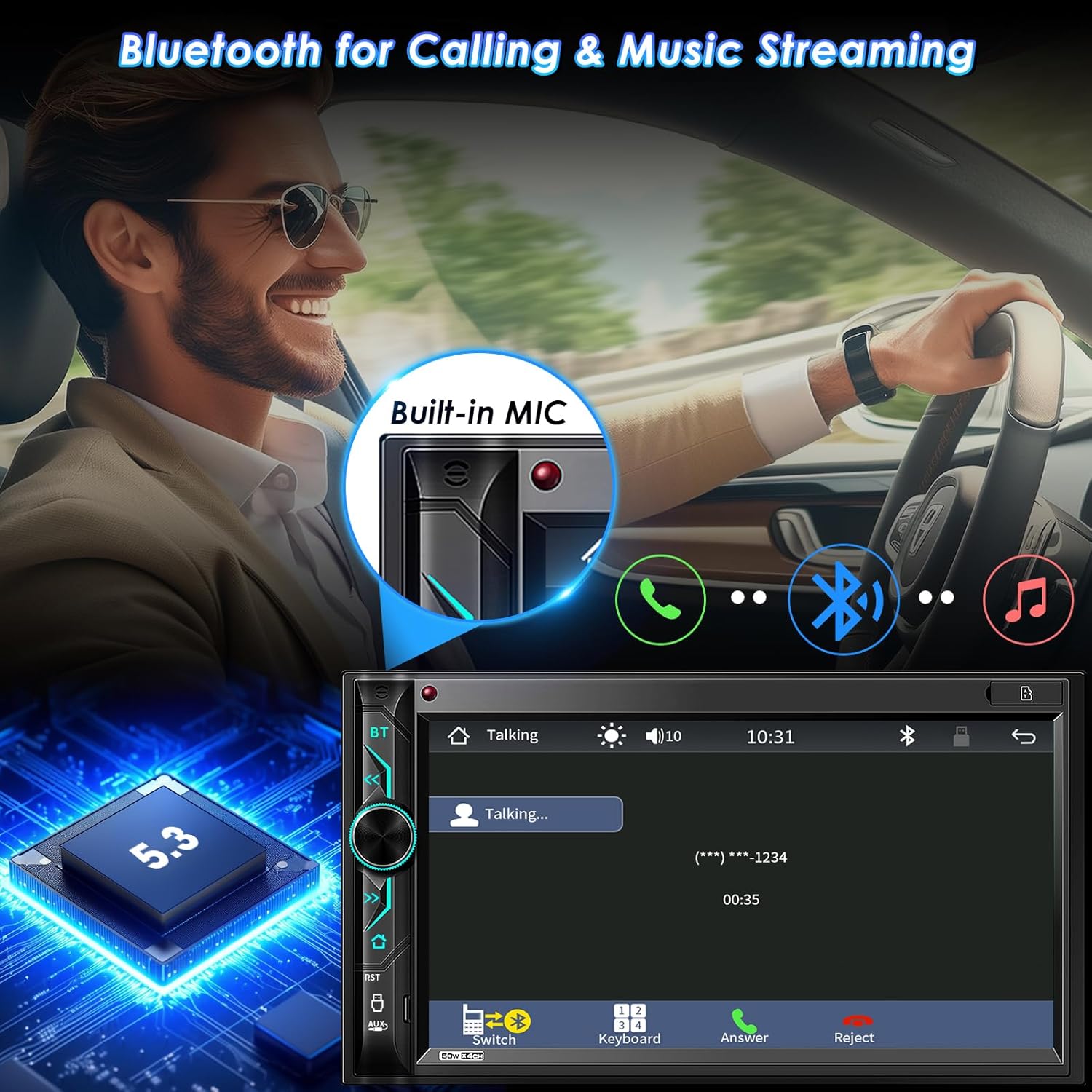
Figi 4: Bluetooth Connectivity. This image demonstrates the Bluetooth functionality for hands-free calls and streaming music, showing the integrated microphone and the Bluetooth 5.3 chip.
Lyen Mirror Telefòn
The stereo supports Mirror Link for both iOS (Note: Not compatible with iOS 18.0 or above) and Android phones. Connect your phone via USB to mirror its screen onto the stereo display. This allows you to view and control your smartphone's content, such as videos and apps, on the larger screen. The unit also provides 1.5A charging during Mirror Link operation.

Figi 5: Phone Mirror Link and HD Touchscreen. This image highlights the mirror link feature, allowing smartphone content to be displayed on the 7-inch HD touchscreen, along with details about the screen's resolution and wide viewang ang.
AM/FM radyo
Access the built-in AM/FM radio tuner. Use the touchscreen to scan for stations, save presets, and switch between AM and FM bands. The unit supports RDS (Radio Data System) where available.
Multimedia Playback (USB/SD/AUX)
Jwe odyo ak videyo files from various sources. Insert a USB drive into the USB port or an SD card into the SD slot. Connect external audio devices via the AUX-in port. The system supports 1080P video playback.
Figi 6: Car Multimedia Player. This image illustrates the various media input options available on the stereo, including SD card, USB drive, and auxiliary input for playing audio and video content.
Personnalisation odyo
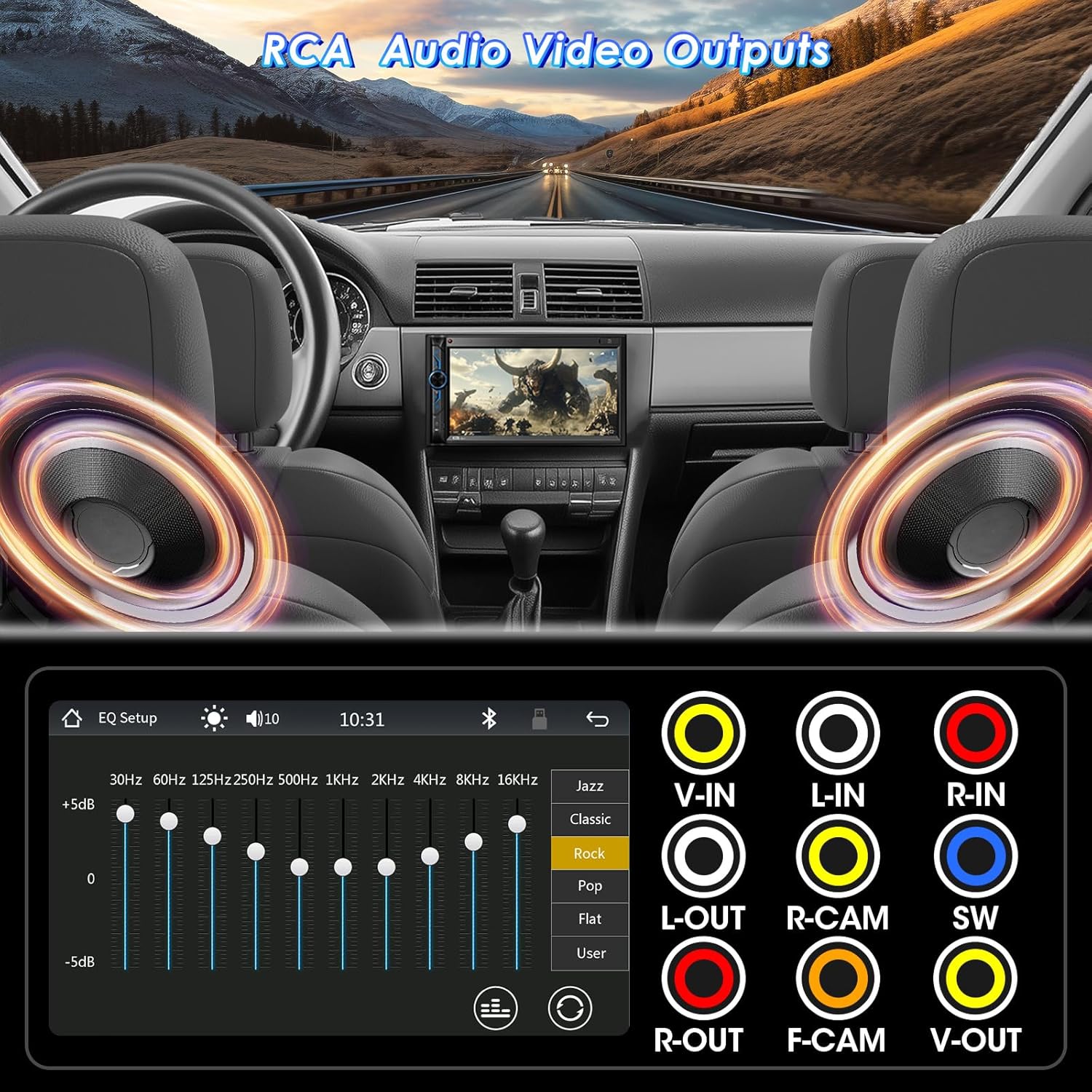
Utilize the 10-band EQ preset to customize sound settings according to your preference. The unit also features pre-amp and subwoofer audio outputs for connecting external amplifiers ak subwoofers.

Figi 7: RCA Audio Output and EQ Settings. This image displays the various RCA output ports for connecting external audio components like amplifiers and subwoofers, as well as the graphical equalizer interface for fine-tuning audio output.
Kontwòl
The system can be controlled via the 7-inch capacitive touchscreen, physical buttons and rotary knob on the unit, the included IR wireless remote, or the steering wheel control remote (requires proper wiring and configuration).

Figi 8: Wireless Remote Controller. This image shows the included wireless remote, which provides convenient control over the stereo's functions from a distance.
Antretyen
To ensure the longevity and optimal performance of your Stiflix multimedia system, follow these maintenance guidelines:
- Netwaye ekran an: Sèvi ak yon twal mou ki pa gen pousyè pou siye ekran tactile a dousman. Pou tach ki difisil pou retire, siye yon ti kras.ampLave twal la avèk dlo oswa yon pwodui netwayaj ki pa danjere pou ekran. Evite materyèl abrazif oswa pwodui chimik ki agresif.
- Netwayaj jeneral: Kenbe aparèy la pwòp de pousyè ak debri. Sèvi ak yon bwòs mou oswa lè konprese pou netwaye alantou bouton yo ak pò yo.
- Tanperati: Evite ekspoze aparèy la nan tanperati ekstrèm, ni cho ni frèt, pandan yon bon bout tan.
- Koneksyon: Tcheke tout koneksyon fil elektrik yo detanzantan pou asire yo byen fèm epi yo pa gen korozyon.
Depanaj
Si w rankontre pwoblèm ak sistèm miltimedya w la, gade pwoblèm ak solisyon komen sa yo:
| Pwoblèm | Kòz posib | Solisyon |
|---|---|---|
| Pa gen pouvwa | Fil elektrik ki pa kòrèk; Fuzib ki boule; Pwoblèm batri machin nan. | Check power and ground connections. Verify vehicle fuses and the unit's fuse. Ensure battery is charged. |
| Pa gen Son | Fil oratè yo dekonekte; Volim twò ba; Fonksyon silans aktif; Sous odyo ki pa kòrèk. | Check speaker wiring. Increase volume. Disable mute. Select correct audio source. |
| Bluetooth pa konekte | Bluetooth not enabled on phone/stereo; Incorrect pairing process; Interference. | Ensure Bluetooth is on for both devices. Delete previous pairings and re-pair. Move closer to the unit. |
| Mirror Link Not Working | Incorrect USB cable; Phone not compatible (e.g., iOS 18.0+); App not installed/updated. | Use a high-quality USB cable. Check phone OS version. Ensure necessary apps are installed and updated. |
| Kamera bak la pa parèt | Kab kouran/videyo kamera a dekonekte; Fil deklanchman envès la pa konekte. | Verify camera power and video connections. Ensure the reverse trigger wire is correctly connected to the vehicle's reverse light. |
Si pwoblèm nan pèsiste apre ou fin eseye solisyon sa yo, tanpri kontakte sèvis kliyan.
Garanti ak sipò
Stiflix products are manufactured with high-quality standards. For information regarding warranty coverage and terms, please refer to the warranty card included with your product or visit the official Stiflix website. For technical assistance or customer support, please use the contact information provided with your purchase or on the brand's official channels.
Note: Specific warranty details and contact information may vary. Always refer to the most current information provided by the manufacturer.
Ask a question about this manual
Ask about setup, troubleshooting, compatibility, parts, safety, or missing instructions. Manuals+ will review the question and use this page’s manual context to help answer it.