
Lectrus ES-KTLA133
LECTRUS Android 10 Tablet User Manual
Model: ES-KTLA133
Entwodiksyon
This manual provides comprehensive instructions for the setup, operation, maintenance, and troubleshooting of your LECTRUS Android 10 Tablet. Please read this manual carefully before using your device to ensure optimal performance and longevity.

Figure 1: LECTRUS Android 10 Tablet (Front and Rear View)
This image displays the sleek black design of the LECTRUS Android 10 Tablet, showcasing both its front display and the rear panel with the LECTRUS branding and camera module.
Gid Enstalasyon
1. Premye Chajman
Before first use, fully charge your tablet. Connect the provided USB cable to the tablet's charging port and the other end to a compatible USB power adapter (not always included) or a computer's USB port. The battery indicator on the screen will show charging progress.
The tablet is equipped with a 6000 mAh polymer lithium-ion battery, providing up to 7 hours of usage time on a full charge.
2. Power On/Off
- Pouvwa sou: Press and hold the Power button located on the side of the tablet until the LECTRUS logo appears on the screen.
- Pouvwa Off: Peze epi kenbe bouton pouvwa a jiskaske meni opsyon pouvwa a parèt. Chwazi "Etenn" epi konfime.
- Rekòmanse: From the power options menu, select "Restart" to reboot the device.
3. Inisyal Enstalasyon Sòsye
Lè w limen tablèt la pou premye fwa, li pral gide w nan yon pwosesis konfigirasyon inisyal. Swiv enstriksyon ki parèt sou ekran an pou:
- Chwazi lang ou.
- Konekte nan yon rezo Wi-Fi.
- Konekte avèk kont Google ou a oubyen kreye yon nouvo. Sa a esansyèl pou jwenn aksè nan Google Play Store ak lòt sèvis Google yo.
- Konfigire blokaj ekran an (Kòd PIN, modèl, modpas).
- Review epi aksepte tèm ak kondisyon yo.
4. Mete yon Kat MicroSD (Si ou vle)
The tablet supports expandable memory up to 128GB via a microSD card. To insert:
- Locate the microSD card slot on the side of the tablet.
- Gently insert the microSD card into the slot with the gold contacts facing down until it clicks into place.
- To remove, gently push the card inward until it pops out.

Figure 2: Tablet with App Icons and Storage Information
This image illustrates the tablet's capability to support numerous applications, highlighting its 32GB internal storage and expandability for massive app support.
Enstriksyon Operasyon
1. Navigating the Android 10 Interface
Your LECTRUS tablet runs on the Android 10.0 operating system, offering an intuitive and user-friendly experience.
- Ekran Kay: Ekran prensipal la kote ou ka jwenn aksè a aplikasyon, widjèt, ak rakoursi.
- Panèl Notifikasyon: Swipe down from the top of the screen to access notifications and quick settings (Wi-Fi, Bluetooth, Brightness, etc.).
- Tiwa aplikasyon: Glise moute anba nan fon an nan ekran an view tout aplikasyon enstale.
- Ba Navigasyon: Typically located at the bottom of the screen, it includes Back, Home, and Recent Apps buttons.

Figi 3: Entèfas Sistèm Operasyon Android 10.0 la
This image shows the tablet's display with the "Android 10.0 OS" branding, indicating the operating system version.
2. Wi-Fi Koneksyon
Pou konekte ak yon rezo Wi-Fi:
- Ale nan Anviwònman > Rezo & Entènèt > Wi-Fi.
- Aktive Wi-Fi a.
- Chwazi rezo ou vle a nan lis la.
- Antre modpas la si yo mande w epi tape Konekte.
3. Sèvi ak Kamera yo
The tablet features a 5MP rear camera and a 2MP front camera for photos and video calls.
- Louvri a Kamera aplikasyon.
- Tape ikòn chanjman kamera a pou chanje ant kamera devan ak dèyè.
- Tape bouton deklanchè a pou pran yon foto oswa pou kòmanse/sispann anrejistreman videyo.

Figure 4: Capturing Moments with the Tablet Camera
This image demonstrates the tablet's camera in use, capturing a precious moment, emphasizing its ability to record memories.
4. Multimedia and Applications
The 10.1-inch high-definition screen supports 1080p video playback, providing a clear and realistic viewing experience. You can download and use various applications from the Google Play Store, including:
- Divètisman: YouTube, Netflix, games.
- Kominikasyon: Email, Facebook, Twitter, InstagRAM.
- Navigasyon: GPS applications.
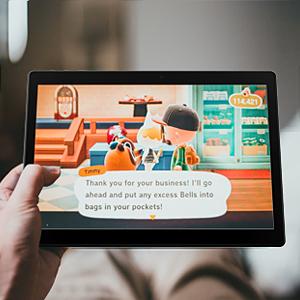
Figure 5: Tablet for Gaming
This image shows the tablet displaying a game, illustrating its use for entertainment.

Figure 6: Tablet for Navigation
This image depicts the tablet displaying a map with a route, highlighting its utility for navigation and GPS functions.
Antretyen
1. Netwaye Tablèt ou a
- Sèvi ak yon twal mou ki pa gen pousyè pou netwaye ekran an ak kò tablèt la.
- Pou tach ki difisil pou retire, yon ti kras dampRense twal la avèk dlo oswa yon pwodui netwayaj ekran ki fèt pou aparèy elektwonik.
- Evite sèvi ak pwodui chimik ki fò, materyèl abrazif, oswa espre ayewosòl dirèkteman sou tablèt la.
2. Swen batri
- Evite tanperati ekstrèm, paske yo ka diminye lavi batri a.
- Do not leave the tablet charging for excessively long periods after it's fully charged.
- If storing the tablet for an extended period, charge it to about 50% before turning it off.
3. Mizajou lojisyèl
Tcheke epi enstale mizajou lojisyèl yo regilyèman pou asire tablèt ou a gen dènye karakteristik yo, patch sekirite yo, ak amelyorasyon pèfòmans yo.
- Ale nan Anviwònman > Sistèm > Aktyalizasyon sistèm lan.
- Swiv enstriksyon ki sou ekran an pou telechaje epi enstale nenpòt mizajou ki disponib.
4. Sovgad Done
It is recommended to regularly back up your important data (photos, videos, documents) to a cloud service (e.g., Google Drive) or an external storage device to prevent data loss.
Depanaj
Pwoblèm komen ak solisyon yo
| Pwoblèm | Kòz posib | Solisyon |
|---|---|---|
| Tablèt la pa limen. | Batri fèb; sistèm nan kraze. | Chaje tablèt la pou omwen 30 minit. Peze epi kenbe bouton Pouvwa a pandan 10-15 segonn pou fòse rekòmanse li. |
| Pwoblèm koneksyon Wi-Fi. | Modpas ki pa kòrèk; pwoblèm ak routeur la; Wi-Fi tablèt la enfim. | Ensure correct password. Restart your Wi-Fi router. Toggle Wi-Fi off and on in tablet settings. |
| Aplikasyon yo ap plante oswa yo bloke. | RAM ensifizan; pwoblèm aplikasyon an; aplikasyon demode. | Close background apps. Clear app cache (Settings > Apps > [App Name] > Storage > Clear cache). Update the app from Google Play Store. |
| Pèfòmans ralanti. | Twòp aplikasyon k ap kouri; espas depo ki pa ase; lojisyèl ki pa ajou. | Close unused apps. Free up storage by deleting unnecessary files. Check for system updates. |
| Screen not responding. | Pwoblèm lojisyèl tanporè. | Force restart the tablet by holding the Power button for 10-15 seconds. |
Si pwoblèm nan pèsiste apre ou fin eseye solisyon sa yo, tanpri kontakte sèvis kliyan.
Espesifikasyon pwodwi
| Karakteristik | Detay |
|---|---|
| Mak | Lectrus |
| Nimewo Modèl | ES-KTLA133 |
| Koulè | Nwa |
| Sistèm operasyon | Android 10 |
| Mak processeur | Allwinner |
| Deskripsyon processeur | Kwadwilatè (1.6 GHz) |
| RAM | 2 GB |
| Depo Entèn (ROM) | 32 GB |
| Memwa dilatabl | Up to 128 GB (via Micro SD) |
| Gwosè ekran | 10.1 pous |
| Rezolisyon ekran | 1280 x 800 piksèl |
| Kamera dèyè | 5 MP |
| Kamera devan | 2 MP |
| Kalite koneksyon | Wi-Fi (802.11n) |
| Entèfas Materyèl | Bluetooth, USB, Micro SD |
| Kapasite batri | 6000 mAh |
| Lavi batri | Jiska 7 èdtan |
| Dimansyon atik (L x W x H) | 23.8 x 1 x 16.7 cm |
| Pwa pwodwi | 900 gram |
Garanti ak sipò
Enfòmasyon sou Garanti
Specific warranty details for your LECTRUS tablet may vary by region and retailer. Please refer to the warranty card included with your product or contact your point of purchase for detailed information regarding warranty coverage and duration.
Note: Information regarding spare parts availability and guaranteed software updates is not available at this time.
Sipò pou Kliyan
For technical assistance, troubleshooting beyond this manual, or warranty claims, please contact LECTRUS customer support through their official website or the contact information provided with your purchase. When contacting support, please have your model number (ES-KTLA133) and purchase details ready.
Ask a question about this manual
Ask about setup, troubleshooting, compatibility, parts, safety, or missing instructions. Manuals+ will review the question and use this page’s manual context to help answer it.