
1. Entwodiksyon
Thank you for choosing the NEC E438 43-inch LCD 4K UHD Commercial-Grade Monitor. This manual provides detailed instructions for the safe and efficient use of your display. Please read this manual thoroughly before operating the product and retain it for future reference.
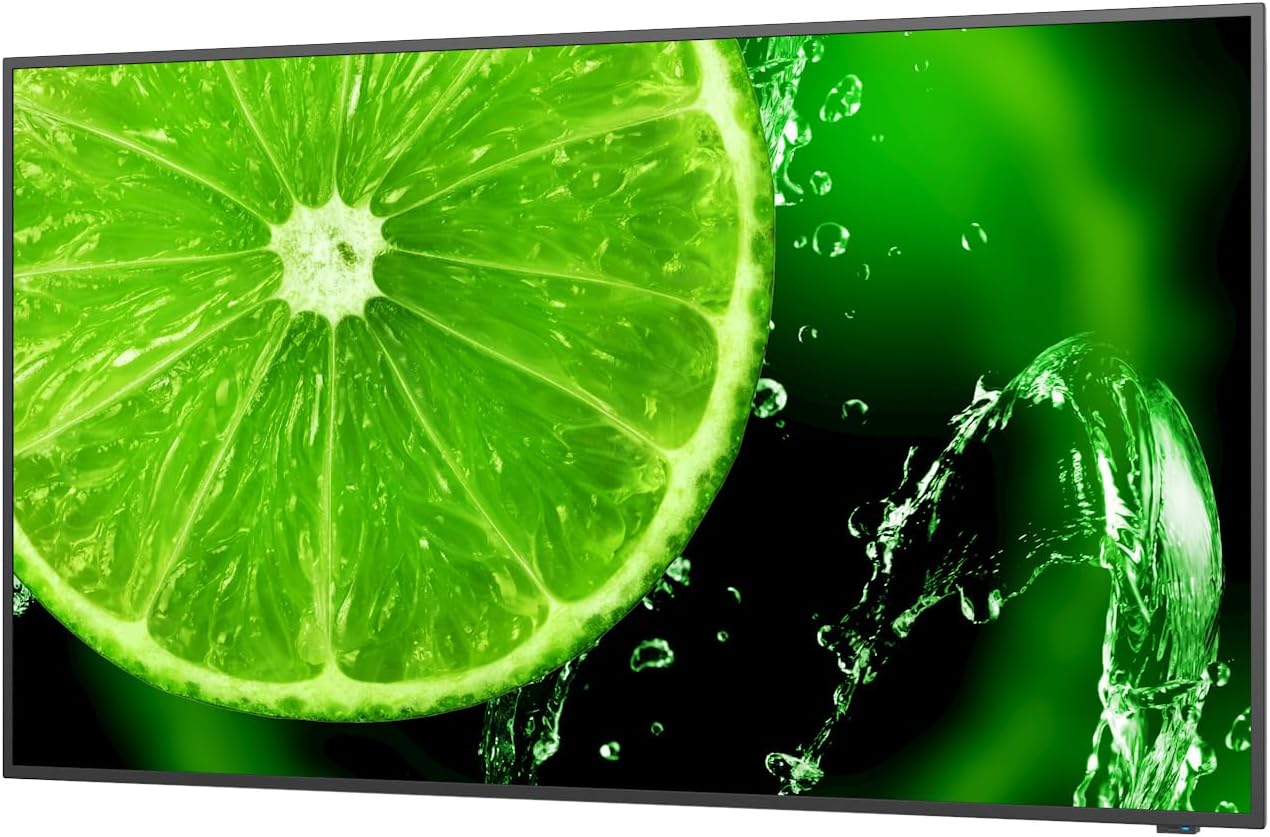
Figi 1: Devan view of the NEC E438 43-inch 4K UHD monitor.
2. Enfòmasyon sou Sekirite
Observe the following safety precautions to prevent damage to the product and to ensure your safety:
- Pa ekspoze monitè a anba lapli oswa imidite pou evite dife oswa chòk elektrik.
- Pa ouvri monitè a casing. Konfere tout antretyen bay pèsonèl sèvis kalifye.
- Asire bon vantilasyon. Pa bloke ouvèti vantilasyon yo.
- Use only the power cord supplied with the monitor or a suitable replacement.
- Place the monitor on a stable, level surface or mount it securely according to VESA standards.
- Dekonekte ploge kouran an nan priz miray la si ou pa pral itilize monitè a pou yon bon bout tan.
3. Pake kontni
Verifye ke tout atik yo prezan nan pakè a:
- NEC E438 43-inch LCD 4K UHD Monitor
- Kòd pouvwa
- HDMI kab
- USB-C kab
- Kontwòl Remote (ak pil)
- Manyèl Itilizatè (dokiman sa a)
- Quick Setup Gid
4. Enstalasyon
4.1 Plasman fizik
Place the monitor on a sturdy, flat surface or mount it using a VESA-compatible wall mount or stand. Ensure adequate space around the monitor for ventilation.
4.2 Konekte kab
Connect the necessary cables to the corresponding ports on the monitor and your source device (e.g., computer, media player).

Figi 2: Dèyè view of the monitor showing connection ports and mounting points.

Figi 3: Side view of the monitor illustrating the input port cluster.
- Pouvwa: Connect the power cord to the monitor's AC input and then to a grounded electrical outlet.
- Videyo Antre: Use an HDMI, VGA, or USB-C cable to connect your source device to the monitor. The monitor supports multiple HDMI inputs.
- LAN: Connect an Ethernet cable to the LAN port for network connectivity.
- USB-C: For video, data, and power delivery (if supported by the source device).
5. Operasyon Enstriksyon
5.1 Power On/Off
Press the power button located on the monitor or on the remote control to turn the display on or off. The power indicator light will illuminate when the monitor is on.
5.2 Seleksyon Antre
Use the 'Input' button on the remote control or the monitor's control panel to cycle through available input sources (HDMI 1, HDMI 2, HDMI 3, VGA, USB-C, etc.).
5.3 Meni OSD (On-Screen Display).
Access the OSD menu to adjust various display settings such as brightness, contrast, color temperature, aspect ratio, and audio settings. Navigate the menu using the directional buttons on the remote or monitor and confirm selections with the 'Enter' button.
5.4 Odyo
The monitor includes integrated speakers. Adjust the volume using the remote control or through the OSD menu. You can also connect external audio devices if desired.
6. Antretyen
6.1 Netwaye monitè a
- Toujou deploge monitè a anvan w netwaye.
- Sèvi ak yon ti moso twal mou, ki san pèl dampLave avèk dlo oswa yon pwodui netwayaj ekran dou ki pa abrazif.
- Pa flite pwodui netwayaj la dirèkteman sou ekran an.
- Evite itilize pwodui chimik ki agresif, solvang, oswa materyèl abrazif.
6.2 Swen Jeneral
- Kenbe monitè a lwen limyè solèy dirèk ak sous chalè.
- Asire bon vantilasyon pou anpeche surchof.
- Evite mete objè lou sou monitè a oswa sou kab li yo.
NAN. Depanaj
Si ou rankontre pwoblèm ak monitè ou a, gade etap depanaj komen sa yo:
| Pwoblèm | Solisyon posib |
|---|---|
| Pa gen pouvwa | Tcheke si kòd kouran an byen konekte ak monitè a ak priz kouran an. Asire w ke priz kouran an fonksyone byen. |
| Pa gen siyal | Verify that the video cable (HDMI, VGA, USB-C) is correctly connected to both the monitor and the source device. Select the correct input source using the 'Input' button. |
| Image is distorted or unclear | Adjust resolution and refresh rate settings on your source device. Check cable connections for looseness or damage. Perform an auto-adjustment via the OSD menu if using VGA. |
| Pa gen son ki soti nan moun kap pale | Check the volume settings on the monitor and your source device. Ensure the audio output is correctly configured on your source device. |
If the problem persists after trying these steps, please contact NEC customer support.
8. Espesifikasyon
Key technical specifications for the NEC E438 monitor:
- Gwosè ekran: 43 pous
- Rezolisyon: 3840 x 2160 (4K UHD)
- Rapò aspè: 16:9
- Kalite panèl: IPS (Chanjman nan avyon)
- Klète imaj: 350 cd/m² (NITS)
- Videyo Antre: HDMI (multiple), VGA, USB-C
- Lòt pò: LAN, Total 2 USB Ports
- Oratè: Entegre
- Dimansyon pwodwi: 2.8 x 38.2 x 22.04 pous
- Pwa atik: 19.58 liv
- Voltage: 240 Volts
- Nimewo Modèl: 60005045

Figure 4: Excerpt from the product data sheet.
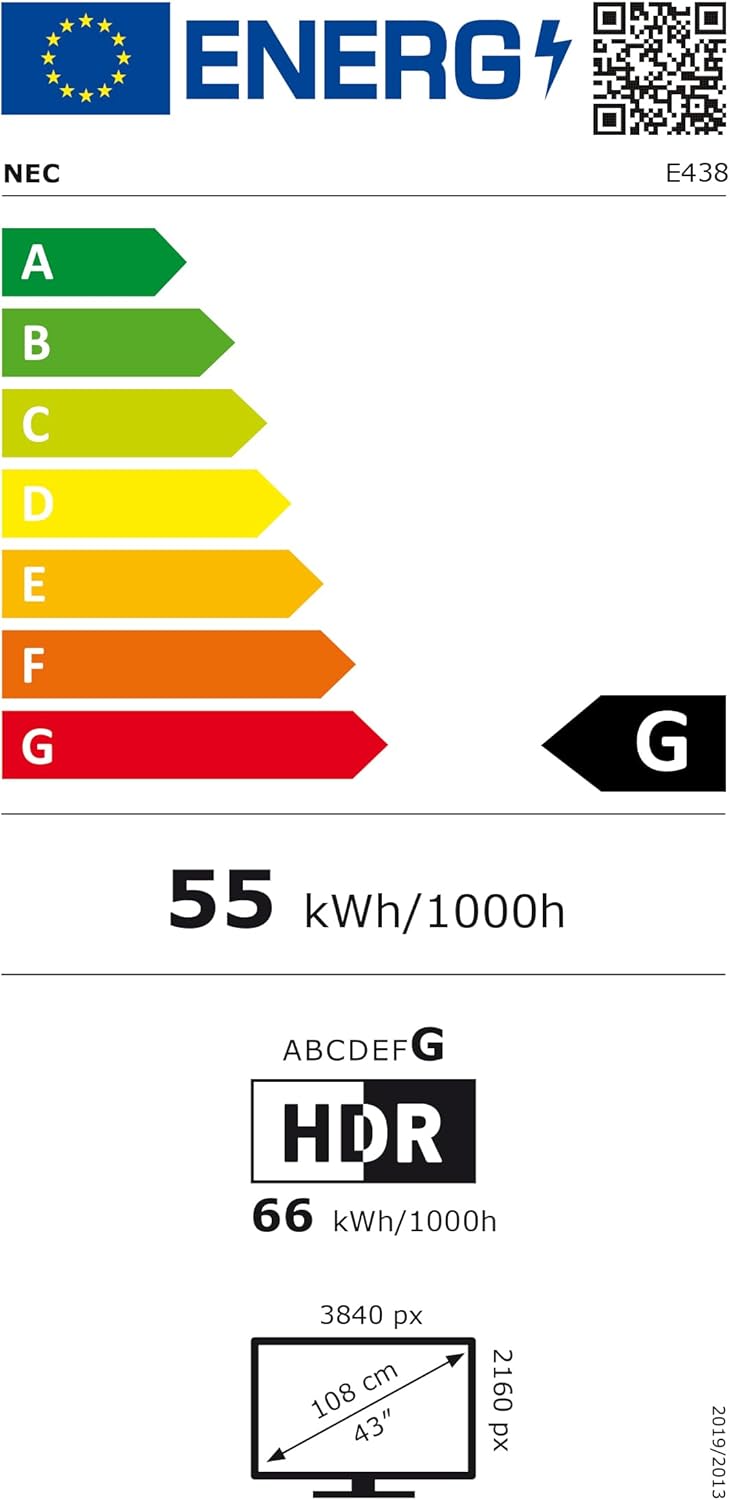
Figure 5: EU Energy Label for the NEC E438 monitor.
For more detailed energy information, please visit the EPREL database: https://eprel.ec.europa.eu/qr/429363
9. Garanti ak sipò
9.1 Enfòmasyon sou Garanti
This NEC E438 monitor comes with a 3-year limited warranty. Please refer to the warranty card included in your package for specific terms and conditions. Keep your proof of purchase for warranty claims.
9.2 Sipò pou Kliyan
For technical assistance, service, or further inquiries, please contact NEC customer support. Visit the official NEC websit la pou enfòmasyon kontak ak resous sipò.