
ABKO K560
ABKO Hacker K560 Mechanical Gaming Keyboard User Manual
Modèl: K560
1. Entwodiksyon
Mèsi pou acha aasing the ABKO Hacker K560 Mechanical Gaming Keyboard. This keyboard is designed for an enhanced gaming and typing experience, featuring hotswappable mechanical switches, vibrant Rainbow Moving LED lighting, and durable dual injection keycaps. This manual provides detailed instructions for setup, operation, maintenance, and troubleshooting to ensure optimal performance and longevity of your device.
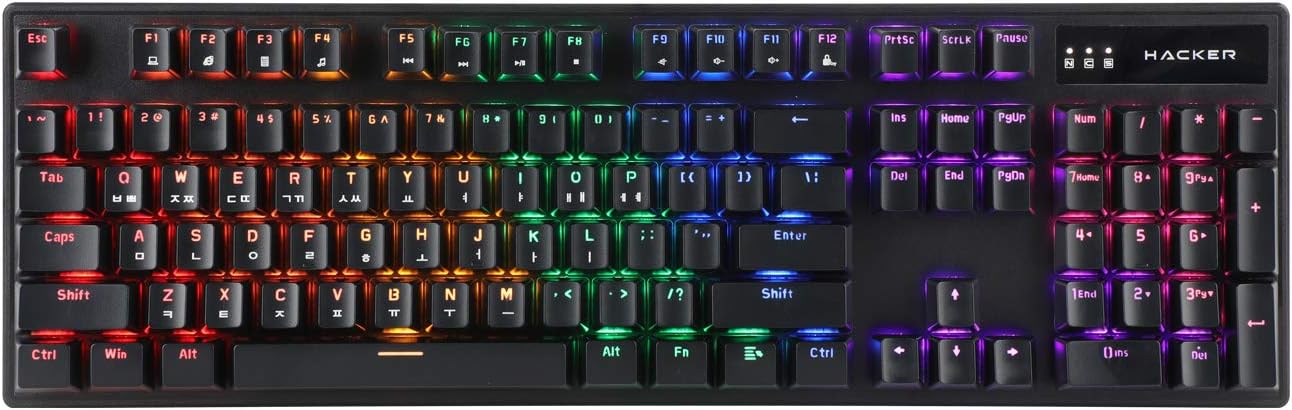
Figure 1.1: ABKO Hacker K560 Mechanical Gaming Keyboard (Top View)
This image displays the full layout of the ABKO Hacker K560 keyboard from a top-down perspective, showcasing its 104-key design and the vibrant rainbow LED backlighting illuminating each key. The Korean-English layout is visible on the keycaps.
2. Karakteristik kle
- Viki Type: Unique keycap profile pou tape alèz.
- Rainbow Moving LED: Dynamic and customizable RGB lighting effects.
- Chanjman mekanik: Equipped with durable and responsive mechanical switches (Brown Switch variant).
- Cherry Stabilizer: Enhanced stability for larger keys like Spacebar, Shift, and Enter.
- 104 Keys Layout: Full-size keyboard layout for comprehensive functionality.
- Double Injection Keycaps: Legends are molded into the keycap, preventing wear and fading.
- Hotswap Capability: Allows for easy replacement of switches without soldering.
- Rezistan dlo: Designed to withstand minor spills.

Figure 2.1: ABKO Hacker K560 Keyboard (Angled View)
This image provides an angled perspective of the keyboard, showcasing the ergonomic Viki Type keycap profile and the vibrant illumination of the Rainbow Moving LED backlighting from the side.
3. Gid Enstalasyon
3.1. Pake kontni
Anvan ou kontinye, asire w ke tout bagay yo prezan nan pake a:
- ABKO Hacker K560 Mechanical Gaming Keyboard
- Manyèl Itilizatè (dokiman sa a)
- Keycap Puller (may be included for hotswap functionality)
- Switch Puller (may be included for hotswap functionality)
3.2. Konekte klavye a
- Locate an available USB port on your computer (PC, Laptop, Gaming Console).
- Plug the USB connector of the ABKO Hacker K560 keyboard into the USB port.
- Sistèm operasyon an pral otomatikman detekte epi enstale chofè ki nesesè yo. Pwosesis sa a ka pran kèk minit.
- Once installation is complete, the keyboard's LED lighting will illuminate, indicating it is ready for use.
4. Operasyon Enstriksyon
4.1. Itilizasyon debaz
The ABKO Hacker K560 functions as a standard 104-key keyboard. Simply begin typing or using the keys as you would with any other keyboard.
4.2. LED Lighting Control (Rainbow Moving LED)
The keyboard features various dynamic LED lighting modes. Use the following key combinations to control the lighting:
- Fn + F1-F12: (Specific functions may vary, refer to keyboard legends for media controls, volume, etc.)
- Fn + Scroll Lock: Cycle through different Rainbow Moving LED lighting effects.
- Fn + Print Screen: Adjust LED brightness (usually multiple levels).
- Fn + Pause Break: Change LED lighting direction or speed (for moving effects).
- Fn + Flèch yo: Some models allow fine-tuning of specific lighting zones or effects.
Experiment with these combinations to find your preferred lighting mode and brightness.
4.3. Hotswap Switch Replacement
The ABKO Hacker K560 supports hotswappable mechanical switches, allowing you to change switches without soldering. This feature is useful for customizing typing feel or replacing faulty switches.
- Pouvwa Off: Disconnect the keyboard from your computer before attempting any switch replacement.
- Retire kouvèti kle a: Sèvi ak zouti pou rale bouchon kle a ki enkli a pou retire bouchon kle ou vle a dousman.
- Retire switch la: Use the included switch puller to carefully grip the top and bottom clips of the switch and pull it straight up.
- Mete yon nouvo switch: Aliyen broch nouvo switch la ak twou ki sou PCB a. Dousman pouse switch la desann jiskaske li klike an plas. Asire w broch yo pa pliye.
- Ranplase kle a: Press the keycap onto the new switch until it is firmly seated.
- Tès: Reconnect the keyboard and test the new switch.
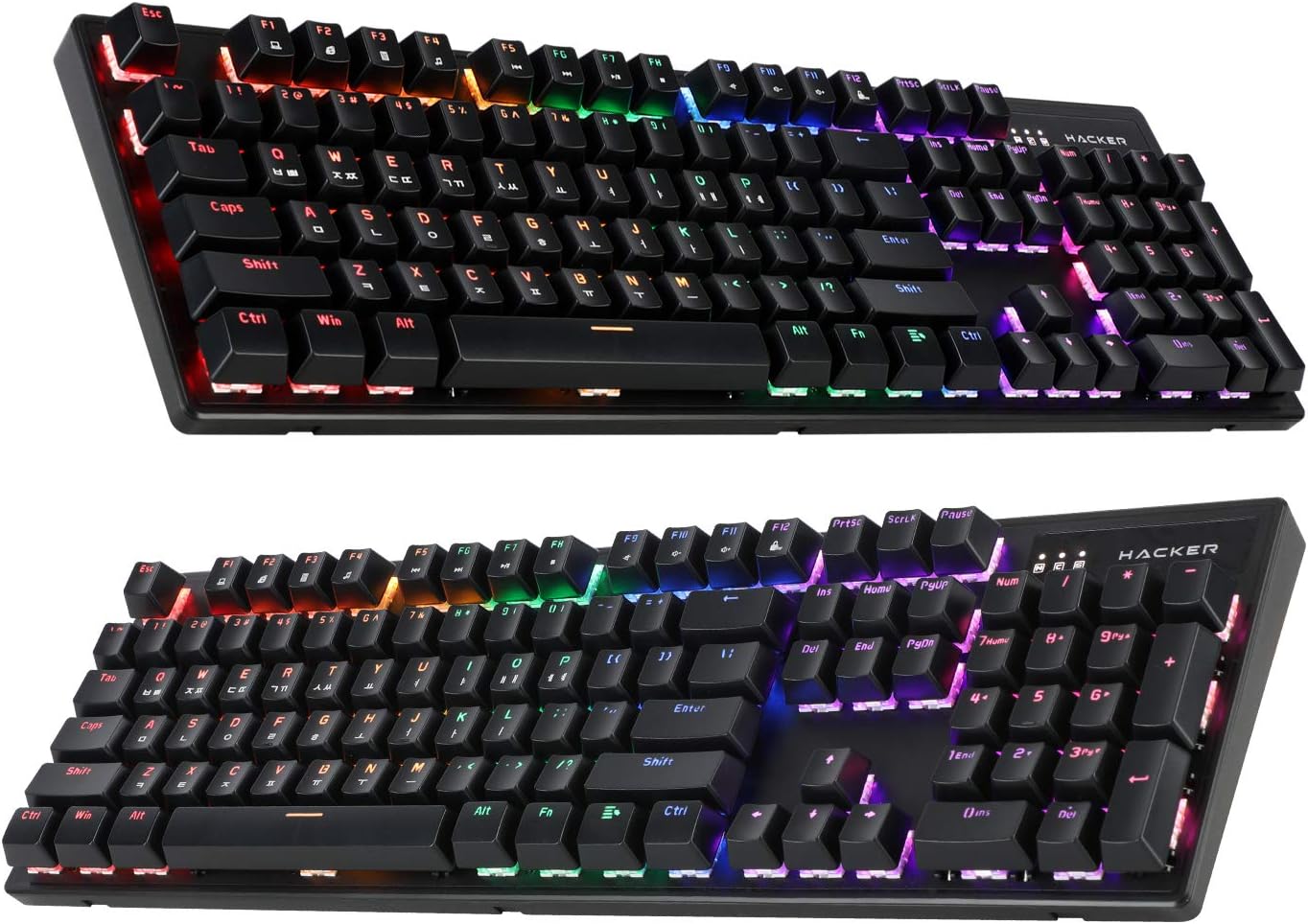
Figure 4.1: ABKO Hacker K560 Keyboard (Dual Angled View)
This image presents two different angled views of the ABKO Hacker K560 keyboard, providing a comprehensive look at its full 104-key layout and the distinct dual injection keycap design, which contributes to its durability and aesthetic.
5. Antretyen
5.1. Netwaye klavye a
Netwayaj regilye ede kenbe aparans ak fonksyonalite klavye a.
- Retire pousyè: Sèvi ak yon boutèy lè konprese pou soufle pousyè ak debri ki ant bouchon kle yo.
- Netwayaj sifas: Wipe the surface of the keycaps and frame with a soft, slightly damp, twal ki pa gen pousyè. Evite twòp imidite.
- Netwayaj pwofon (Si ou vle): For thorough cleaning, keycaps can be removed using a keycap puller and washed with mild soap and water. Ensure they are completely dry before reattaching.
Atansyon: Always disconnect the keyboard from your computer before cleaning. Do not immerse the keyboard in water, despite its water-resistant feature, as this is for minor spills, not submersion.
5.2. Depo
Lè w pa itilize klavye a pou yon bon bout tan, sere l nan yon kote ki fre epi sèk, lwen limyè solèy dirèk ak tanperati ekstrèm.
NAN. Depanaj
If you encounter issues with your ABKO Hacker K560 keyboard, refer to the following common solutions:
| Pwoblèm | Kòz posib | Solisyon |
|---|---|---|
| Keyboard not responding / No input | Koneksyon USB ki lach, pò USB ki defektye, pwoblèm chofè. |
|
| LED lights are off or not working correctly | LED mode turned off, brightness set to minimum, software conflict. |
|
| Specific key not working | Debri anba kouvèti kle a, switch ki gen pwoblèm. |
|
Si pwoblèm nan pèsiste apre ou fin eseye solisyon sa yo, tanpri kontakte sèvis kliyan.
7. Espesifikasyon
| Karakteristik | Detay |
|---|---|
| Non modèl | Hacker K560 |
| Mak | ABKO |
| Kalite klavye | Klavye mekanik Gaming |
| Chanje Kalite | Tactile (Brown Switch) |
| Layout | 104 Keys (Full-size, Korean-English Layout) |
| Materyèl Keycap | Double piki |
| Ekleraj | Rainbow Moving LED (RGB) |
| Koneksyon | Branche (USB) |
| Karakteristik espesyal | Hotswappable Switches, Cherry Stabilizer, Viki Type Keycaps, Water Resistant |
| Aparèy konpatib | Laptop, Konsole jwèt, PC, Tablèt, Telefòn entelijan |
8. Garanti ak sipò
ABKO products are manufactured to the highest quality standards. For information regarding warranty coverage, technical support, or service inquiries, please refer to the warranty card included with your product or visit the official ABKO websit.
Tanpri kenbe prèv ou achte pou reklamasyon garanti.
Ask a question about this manual
Ask about setup, troubleshooting, compatibility, parts, safety, or missing instructions. Manuals+ will review the question and use this page’s manual context to help answer it.