
Entwodiksyon
This manual provides detailed instructions for the safe and efficient operation of your KORAD KWR103 Programmable DC Power Supply. Please read this manual thoroughly before using the device to ensure proper functionality and to prevent damage or injury. The KWR103 is a versatile programmable DC power supply offering a wide range of voltage and current outputs, including 60V/15A/300W, designed for various testing and application needs.
Enfòmasyon enpòtan sou sekirite
Always observe the following safety precautions to prevent electric shock, injury, or damage to the device:
- Ensure the power supply is connected to a grounded AC outlet with the correct voltage.
- Pa opere aparèy la nan mouye oswa damp kondisyon yo.
- Pa ouvri c laasing; pa gen okenn pyès ki ka sèvi ak men itilizatè a anndan an. Konfye sèvis la bay pèsonèl kalifye.
- Verifye polarite ak volim ki kòrèk latage/current settings before connecting to any load.
- Evite kout-sikwi tèminal pwodiksyon yo.
- Dekonekte kouran an anvan ou fè oswa chanje koneksyon.
- Asire w ke gen ase vantilasyon toutotou aparèy la pou anpeche l chofe twòp.
Pwodwi souview
The KORAD KWR103 is a high-precision programmable DC power supply. Familiarize yourself with its components:
Front Panel

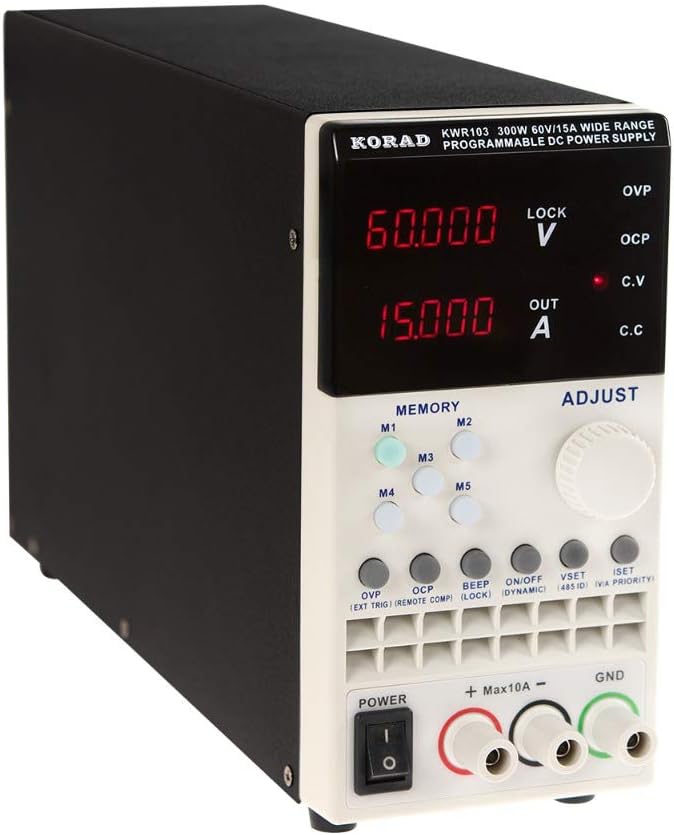
Figi 1: Front panel of the KORAD KWR103, showing the display, control buttons, adjustment knob, and output terminals.
- Ekspozisyon: Digital readouts for voltage (V) ak aktyèl (A).
- Memory Buttons (M1-M5): For saving and recalling preset voltage ak valè aktyèl yo.
- Ajiste bouton: Rotary encoder for precise adjustment of voltage ak aktyèl.
- Bouton Fonksyon: OVP, OCP, BEEP, ON/OFF, VSET, ISET, V/A PRIORITY for various settings and controls.
- Tèminal Sòti: Positive (+), Negative (-), and Ground (GND) connections. Max 10A output directly from front terminals.
- Pouvwa switch: Main power control for the unit.
Panèl dèyè

Figi 2: Rear panel of the KORAD KWR103, featuring power input, communication ports, and sense terminals.
- AC pouvwa Antre: Pou konekte kòd prensipal kouran an.
- Detantè Fuse: Gen ladan l fizib pwoteksyon an.
- Sense Terminals (SENSE TRIG IN+): For remote sensing to compensate for voltage gout atravè fil chaj yo.
- RS485 Terminals: Pou kominikasyon RS485.
- Pò USB: For computer control and communication.
- Pò RS232: For serial communication.
- Pò LAN: For network communication and control.
Pwodwi pou Telefòn enkli
Figi 3: The KORAD KWR103 power supply shown with its standard accessories, including power cord, output cables, USB cable, RS232 cable, and software CD.
Your KWR103 package typically includes:
- KORAD KWR103 Programmable DC Power Supply Unit
- AC pouvwa kòd
- Output Test Leads (Red/Black)
- USB kominikasyon kab
- RS232 Kominikasyon kab
- Software CD (for PC control)
- Manyèl Itilizatè (dokiman sa a)
Enstalasyon
- Debake: Carefully remove the power supply and all accessories from the packaging. Inspect for any signs of damage.
- Plasman: Place the unit on a stable, level surface with adequate ventilation. Ensure no vents are obstructed.
- Koneksyon pouvwa:
- Ensure the power switch on the front panel is in the OFF position.
- Connect the supplied AC power cord to the AC power input on the rear panel.
- Branche lòt bout kòd kouran AC a nan yon priz elektrik ki gen koneksyon ak tè.
- Koneksyon chaj:
- Connect the red output test lead to the positive (+) terminal and the black output test lead to the negative (-) terminal on the front panel.
- Connect the other ends of the test leads to your load, ensuring correct polarity. For currents exceeding 10A, use the rear output terminals (if available on your specific model) or thicker gauge wires directly to the internal terminals, following safety guidelines.
- Pou volim egzaktage regulation at the load, especially with long cables or high currents, connect the remote sense wires (SENSE TRIG IN+) from the rear panel directly across your load.
- Communication Interface Connection (Optional):
- USB: Connect the USB cable from the rear panel to your computer.
- RS232: Connect the RS232 cable from the rear panel to your computer's serial port or a USB-to-serial adapter.
- LAN: Connect an Ethernet cable from the rear panel to your network router or switch.
- Install the provided software drivers and control application from the included CD or manufacturer's websit.
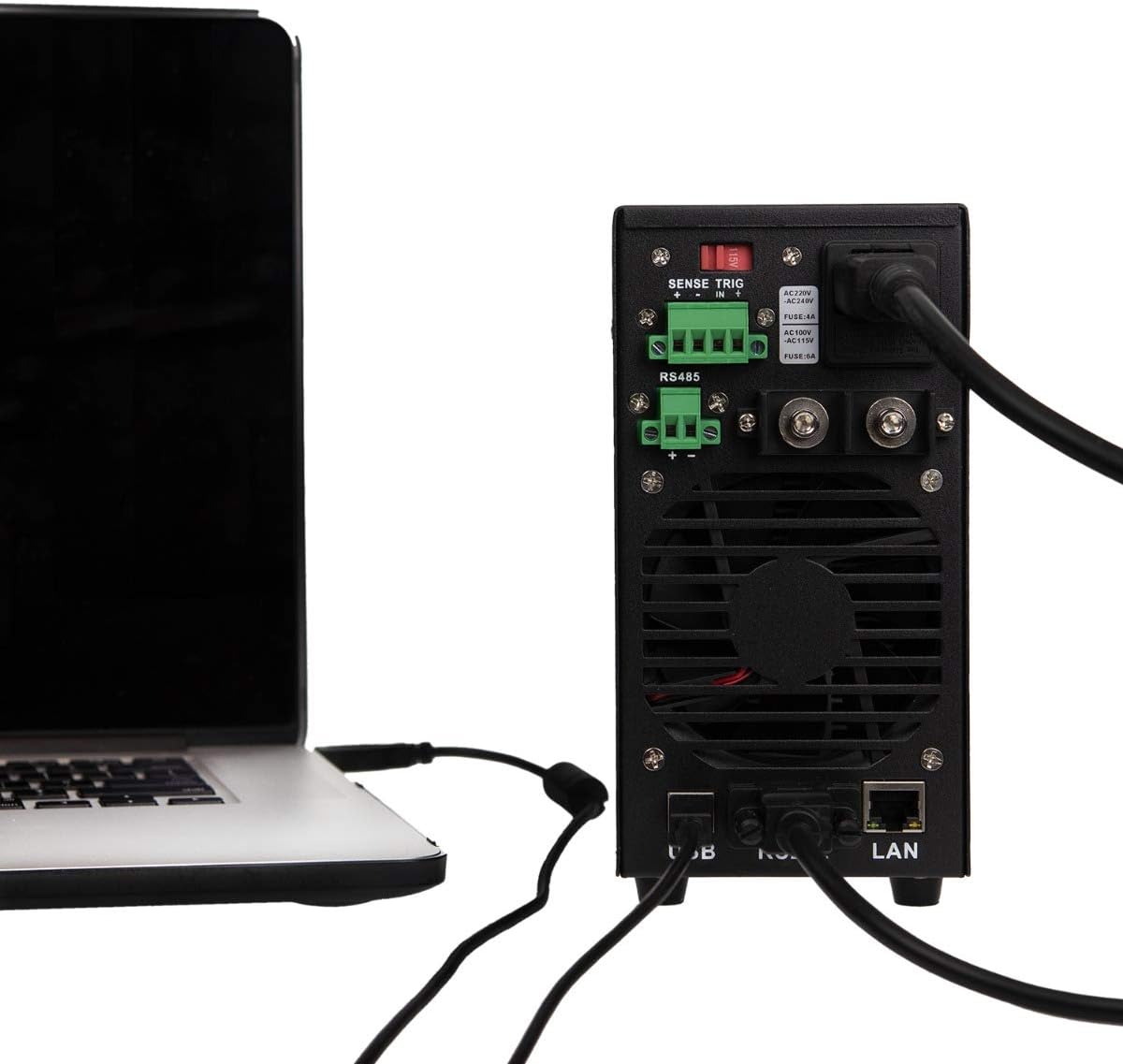
Figi 4: Example of the KORAD KWR103 rear panel connected to a laptop, illustrating USB and LAN connections for remote control.
Enstriksyon Operasyon
- Pouvwa sou: Flip the power switch on the front panel to the ON position. The display will illuminate.
- Anviwònman Voltage ak aktyèl:
- Peze a VSET bouton pou antre voltage setting mode. The voltage display will flash.
- Vire a Ajiste bouton to set the desired voltage. Press the knob to move between digits for fine adjustment.
- Peze a ISET button to enter current setting mode. The current display will flash.
- Vire a Ajiste bouton to set the desired current limit. Press the knob to move between digits.
- Peze VSET or ISET again to exit setting mode, or wait a few seconds for it to exit automatically.
- Kontwòl Sòti:
- Apre mete voltage ak aktyèl, peze bouton an ON/OFF button to enable the output. The "OUT" indicator will light up.
- Peze ON/OFF again to disable the output.
- Memory Functions (M1-M5):
- Enregistrement Paramètres: Mete vol la vletage and current. Press and hold one of the M1-M5 buttons until a beep sounds, indicating the settings are saved.
- Rapèl Anviwònman yo: Yon ti tan peze youn nan yo M1-M5 buttons to recall the saved settings.
- Plis pase Voltage Protection (OVP) and Over Current Protection (OCP):
- Peze a OVP button to set the over-voltage protection limit. Use the Ajiste bouton.
- Peze a OCP button to set the over-current protection limit. Use the Ajiste bouton.
- These functions automatically shut down the output if the set limits are exceeded, protecting the load and the power supply.
- Kontwòl Remote:
- Once the communication drivers and software are installed, you can control the power supply via USB, RS232, or LAN.
- Refer to the software manual for detailed instructions on using the PC control application.
Antretyen
- Netwayaj: Disconnect the power supply from the AC outlet before cleaning. Use a soft, dry cloth to wipe the exterior. Do not use abrasive cleaners or solvents.
- Vantilasyon: Ensure the ventilation openings are clear of dust and debris. Periodically clean the fan intake/exhaust areas.
- Ranplasman Fuse: If the unit does not power on, the fuse may need replacement.
- Dekonekte fil elektrik AC a.
- Locate the fuse holder on the rear panel.
- Carefully remove the fuse holder and replace the fuse with one of the same type and rating (e.g., FUSE: 4A for AC220V, FUSE: 6A for AC110V).
- Reinsert the fuse holder and reconnect the AC power.
Depanaj
| Pwoblèm | Kòz posib | Solisyon |
|---|---|---|
| Aparèy pa limen. | No AC power; Blown fuse; Power switch off. | Check AC power connection; Replace fuse (see Maintenance); Ensure power switch is ON. |
| Pa gen pwodiksyon voltage / kouran. | Output disabled; OVP/OCP triggered; Incorrect settings; Loose connections. | Press ON/OFF button; Check OVP/OCP settings; Verify voltage/current settings; Secure output connections. |
| Voltage/Current unstable. | Poor load connection; Remote sense not used or incorrectly connected; Overheating. | Check load connections; Use remote sense for critical applications; Ensure adequate ventilation. |
| Remote kontwòl pa travay. | Incorrect cable; Driver not installed; Software configuration error. | Verify correct USB/RS232/LAN cable; Install drivers; Check software settings and communication parameters. |
Espesifikasyon
| Paramèt | Valè |
|---|---|
| Modèl | KWR103 |
| Sòti Voltage | 0-60V |
| Sòti aktyèl | 0-15A |
| Sortie pouvwa | 300W |
| Voltage Rezolisyon | 1mV |
| Rezolisyon aktyèl la | 1mA |
| Entèfas | LAN, USB, RS232, RS485 |
| Fonksyon Pwoteksyon | OVP (Pwosè VoltagPwoteksyon kont kouran), OCP (Pwoteksyon kont surkouran), OTP (Pwoteksyon kont surtanperati) |
| Pwa atik | 11.29 liv (apeprè 5.12 kg) |
| Dimansyon pake | 16.14 x 11.22 x 7.68 pous (apeprè 41 x 28.5 x 19.5 cm) |
| Metòd refwadisman | Air |
Garanti ak sipò
For warranty information and technical support, please refer to the documentation included with your purchase or contact KORAD customer service. Keep your purchase receipt as proof of purchase for warranty claims.
For the latest drivers, software, and additional support resources, please visit the official KORAD websit.