
1. Entwodiksyon
The i-tec USB-C Quattro Docking Station is designed to expand the connectivity of your USB-C enabled laptop or tablet, allowing for connection of up to four external displays, multiple USB peripherals, Gigabit Ethernet, and audio devices. It also provides up to 85W Power Delivery to charge your host device. This manual provides detailed instructions for setting up, operating, and maintaining your docking station.
2. Pake kontni
Tanpri verifye ke tout atik ki nan lis anba a yo prezan nan pakè ou a:
- i-tec USB-C Quattro Docking Station
- Adaptè pouvwa
- Pouvwa kab
- USB-C pou USB-C kab
- Gid Quick Start

Figi 2.1: Package Contents. The image displays the docking station, its power adapter, a power cable, and a quick setup guide.
3. Pwodwi souview
Familiarize yourself with the ports and indicators on your i-tec USB-C Quattro Docking Station.
3.1 Panèl devan

Figi 3.1: Front Panel. This image shows the front of the docking station with a power button, microphone input jack, headphone output jack, one USB-C data port, and one USB 3.0 port.
- Bouton pouvwa: Pou limen/etenn estasyon docking la.
- Pak mikwofòn (3.5mm): Konekte yon mikwofòn.
- Jack kas ekoutè (3.5mm): Konekte kas ekoutè oswa moun kap pale.
- Port done USB-C: For connecting USB-C peripherals.
- USB 3.0 pò: For connecting USB 3.0/2.0 peripherals.
3.2 Panèl dèyè

Figi 3.2: Rear Panel. This image displays the rear of the docking station, featuring the DC 20V power input, USB-C PD host connection, two DisplayPort outputs, two HDMI outputs, a Gigabit Ethernet (LAN) port, and four additional USB 3.0 ports.
- DC 20V Antre pouvwa: Konekte adaptè pouvwa a enkli.
- USB-C PD Host Port: Connect to your laptop/tablet for data, video, and power delivery.
- 2x DisplayPort: Connect external monitors via DisplayPort cables.
- 2x HDMI: Connect external monitors via HDMI cables.
- GLAN (RJ-45) Port: Konekte nan yon rezo filaire.
- 4x USB 3.0 Ports: Connect USB 3.0/2.0 peripherals.
4. Enstriksyon Enstalasyon
Follow these steps to set up your i-tec USB-C Quattro Docking Station:
- Konekte pouvwa: Connect the power adapter to the DC 20V input on the rear of the docking station, then plug the power cable into a wall outlet.
- Konekte ak aparèy lame a: Use the provided USB-C to USB-C cable to connect the docking station's USB-C PD Host Port to your laptop's USB-C port. Ensure your laptop's USB-C port supports DisplayPort Alternate Mode and Power Delivery for full functionality.
- Konekte Ekran Ekstèn yo: Connect your monitors to the DisplayPort and/or HDMI ports on the rear of the docking station. You can connect up to four displays simultaneously.
- Konekte periferik: Plug your USB devices (keyboard, mouse, external drives) into the available USB 3.0 or USB-C data ports. Connect an Ethernet cable to the GLAN port for wired network access. Connect headphones/speakers and a microphone to the respective audio jacks on the front panel.
- Pouvwa sou: Press the power button on the front of the docking station. Your operating system should automatically detect the connected devices.
- Enstalasyon chofè (si sa nesesè): For optimal performance or specific features, visit www.i-tec.cz/setup to download and install any required drivers for your operating system.
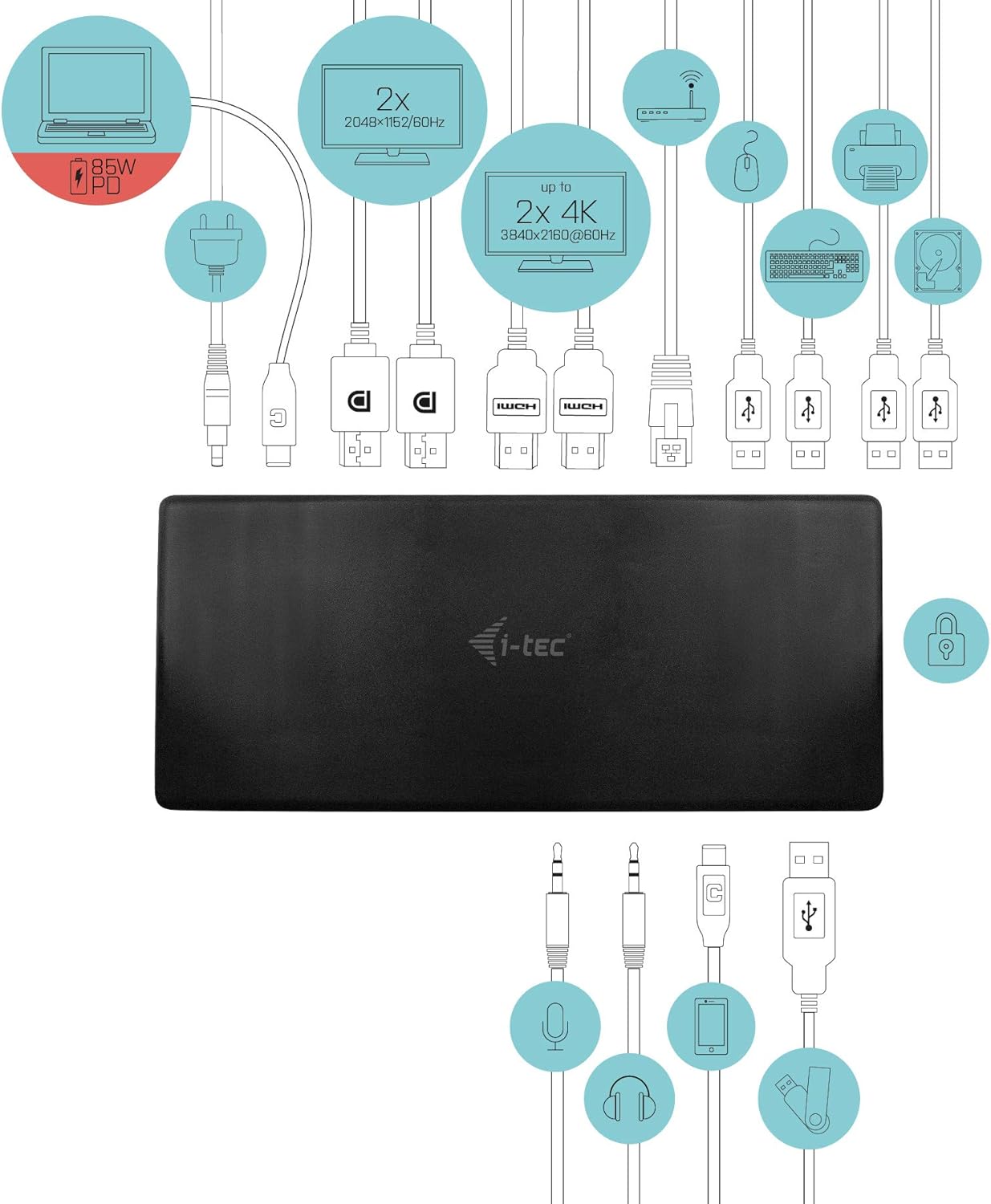
Figi 4.1: Connection Diagram. This diagram shows the various connections to the docking station, including power, host laptop, multiple monitors (DisplayPort and HDMI), Ethernet, and USB peripherals like a mouse, keyboard, and external storage.
5. Operasyon Enstriksyon
Once set up, your docking station provides enhanced functionality for your workspace.
5.1 Multi-Display Configuration
The docking station supports up to four external displays. You can configure these displays in various modes (extended, mirrored) through your operating system's display settings.
- Rezolisyon: Supports up to 2x 2048x1152@60Hz and 2x 4K/60Hz, depending on your host device's capabilities and display connections.
- Windows: Right-click on the desktop, select 'Display settings' to arrange and configure your monitors.
- MacOS: Go to 'System Preferences' > 'Displays' to adjust settings.

Figi 5.1: Four-Display Setup Example. This image illustrates a workstation with a laptop connected to the docking station, driving four external monitors simultaneously, showcasinyon anviwònman milti-tach.
5.2 Livrezon pouvwa
The USB-C PD Host Port provides up to 85W of power to charge your connected laptop or tablet, eliminating the need for a separate power adapter for your host device.
5.3 USB Koneksyon
Utilize the 5x USB 3.0 ports and 1x USB-C data port for connecting various peripherals such as external hard drives, USB flash drives, keyboards, mice, and printers. USB 3.0 ports offer high-speed data transfer.
5.4 Gigabit Ethernet
The GLAN RJ-45 port provides a stable and high-speed wired internet connection (10/100/1000 Mbps), which is often more reliable than Wi-Fi.
5.5 Fonksyonalite Odyo
Connect your headphones, speakers, or microphone to the 3.5mm audio jacks on the front panel for integrated audio input and output.

Figi 5.2: Productivity Setup. This image shows a professional desk environment where the docking station facilitates a multi-monitor setup for enhanced productivity, displaying various applications and data across four screens.
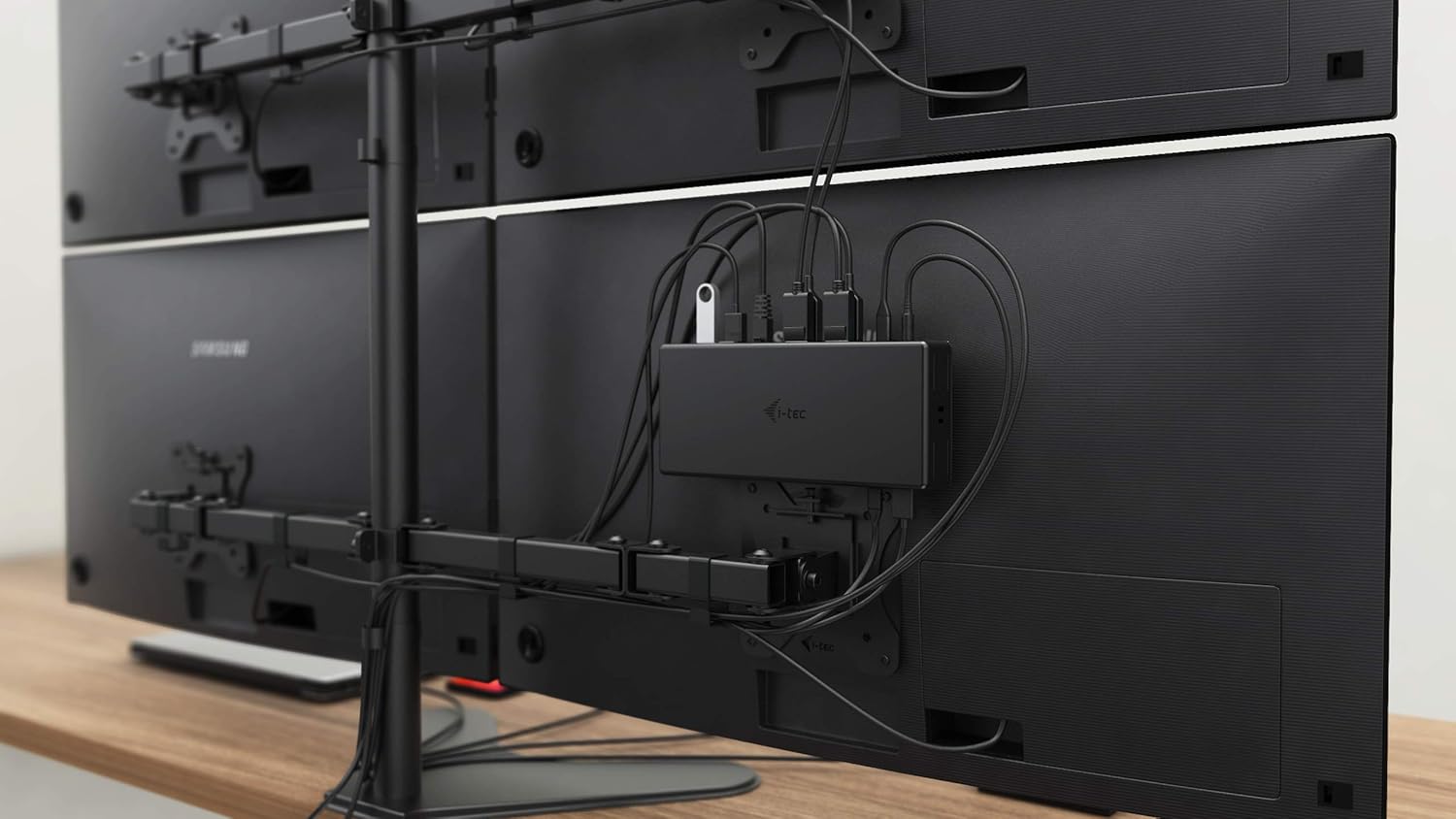
Figi 5.3: VESA Mounting. The docking station is shown mounted vertically on the back of a VESA-compatible monitor, demonstrating its space-saving installation capability and organized cable routing.

Figi 5.4: Connected Workstation. This image provides a close-up of the docking station on a desk, connected to a laptop via USB-C, and featuring various peripherals plugged into its front ports, including a USB drive and audio devices.
6. Antretyen
Pou asire lonjevite ak pèfòmans optimal estasyon docking ou a, swiv gid antretyen sa yo:
- Netwayaj: Sèvi ak yon twal mou epi sèk pou netwaye deyò estasyon an. Pa sèvi ak pwodui netwayaj likid oswa ayewosòl.
- Vantilasyon: Ensure the docking station is placed in a well-ventilated area to prevent overheating. Do not block any ventilation openings.
- Manyen: Evite lage estasyon an chaj la oswa soumèt li a gwo enpak.
- Anviwònman: Kenbe aparèy la lwen tanperati ekstrèm, imidite, ak limyè solèy la dirèk.
- Jesyon kab: Ensure cables are not excessively bent or strained to prevent damage to ports and cables.
NAN. Depanaj
Si ou rankontre pwoblèm ak estasyon ancrage ou a, gade pwoblèm ak solisyon komen sa yo:
7.1 Pa gen okenn pwodiksyon ekspozisyon
- Tcheke Koneksyon: Ensure all display cables (HDMI/DisplayPort) are securely connected to both the docking station and the monitors.
- Koneksyon Otès: Verify the USB-C cable from the docking station is firmly connected to your laptop's USB-C port.
- Pouvwa: Confirm the docking station is powered on and receiving power from the adapter.
- Laptop konpatibilite: Ensure your laptop's USB-C port supports DisplayPort Alternate Mode.
- Chofè: Install the latest drivers from www.i-tec.cz/setup.
- Montre Anviwònman: Adjust your operating system's display settings to detect and extend/mirror displays.
7.2 USB Devices Not Working
- Rekonekte: Disconnect and reconnect the USB device to a different port on the docking station.
- Pouvwa: Asire w ke estasyon ancrage a limen.
- Koneksyon Otès: Verify the USB-C connection to your laptop.
- Konsomasyon pouvwa: If connecting high-power USB devices, ensure the docking station's power adapter is correctly connected and providing sufficient power.
7.3 No Network Connection (GLAN)
- Tcheke kab: Asire w ke kab Ethernet la byen konekte ak estasyon docking la ak routeur/modem ou a.
- Routeur/Modèm: Verify your router/modem is working correctly.
- Chofè: Ensure the latest network drivers are installed for the docking station.
7.4 Laptop Not Charging (Power Delivery)
- Adaptè pouvwa: Confirm the docking station's power adapter is correctly connected and functioning.
- USB-C kab: Ensure the USB-C cable connecting the dock to your laptop supports Power Delivery.
- Laptop konpatibilite: Verify your laptop's USB-C port supports Power Delivery input.
8. Espesifikasyon
| Karakteristik | Detay |
|---|---|
| Nimewo Modèl | C31QUATTRODOCKPDUK |
| Mak | mwen-tec |
| Dimansyon pwodwi | 10 x 2 x 2.7 pous (25.4 x 5.08 x 6.86 cm) |
| Pwa atik | 10.2 ons (0.29 kg) |
| Entèfas Materyèl | DisplayPort, Ethernet, HDMI, USB, USB 3.0, USB Type C |
| Aparèy konpatib | Laptop, Monitor, Tablet with USB-C (DisplayPort Alt Mode & Power Delivery support recommended) |
| Total pò USB | 6 (5x USB 3.0, 1x USB-C Data) |
| Total pò HDMI | 2 |
| Total DisplayPort | 2 |
| Ethernet | Gigabit Ethernet (RJ-45) |
| Jacks Audio | 1x Microphone (3.5mm), 1x Headphone (3.5mm) |
| Livrezon pouvwa | Up to 85W to host device |
| Koulè | Nwa |
| Sistèm operasyon yo | Windows 10, macOS, Android, Linux |
9. Enfòmasyon sou Garanti
The i-tec USB-C Quattro Docking Station is covered by a manufacturer's warranty. Please refer to the warranty card included in your package or visit the official i-tec websit la pou plis detay sou tèm ak kondisyon garanti a. Kenbe prèv acha ou pou reklamasyon garanti.
10. Sipò pou Kliyan
For further assistance, technical support, or to download the latest drivers and firmware, please visit the official i-tec support websit:
You may also find helpful resources and FAQs on the product's dedicated setup page: www.i-tec.cz/setup