
Axis Communications Q1615-LE Mk III
AXIS Q1615-LE Mk III Network Camera User Manual
Model: Q1615-LE Mk III | Brand: Axis Communications
Entwodiksyon
The AXIS Q1615-LE Mk III is a high-performance 2-megapixel outdoor network camera, engineered to deliver exceptional imaging and video quality. This model integrates advanced hardware and processing capabilities, making it an ideal platform for analytics powered by artificial intelligence (AI) and deep learning. Its robust design ensures reliable operation in diverse outdoor environments.
Karakteristik kle
- Powerful AI with Deep Learning: Equipped with a dual chipset (Axis ARTPEC and DLPU) for advanced AI-based object classification.
- Granular Object Classification: Distinguishes between various vehicle types (bikes, cars, buses, trucks) and humans, reducing false alarms.
- Support for 3rd-Party AI Applications: Open Axis platform allows integration of tailor-made AI applications.
- Edge-Based Processing for Scalability: Analytics run directly on the camera, reducing server load, improving speed, and lowering costs.
- Premium Axis Q-line Camera Features: Includes high-quality imaging, OptimizedIR (up to 60m/196ft) for clear night vision, and robust outdoor ratings (IP66, IP67, NEMA 4X).
Enfòmasyon sou Sekirite
Please read all safety instructions carefully before installation and operation. Failure to follow these instructions may result in injury, damage to the product, or voiding of the warranty.
- Sekirite elektrik: Installation must be performed by qualified personnel in accordance with all local and national electrical codes. Ensure power is disconnected before any installation or maintenance.
- Montaj: The camera must be securely mounted to a surface capable of supporting its weight. Use appropriate fasteners for the mounting surface.
- Kondisyon anviwònman: While designed for outdoor use, avoid exposing the camera to extreme conditions beyond its specified operating temperature and humidity ranges.
- Netwayaj: Sèvi ak sèlman yon mou, damp cloth for cleaning. Avoid abrasive cleaners or solvents that could damage the camera's finish or lens.
Kontni pake
Verifye ke tout atik yo prezan nan pake a anvan ou kontinye ak enstalasyon an:
- AXIS Q1615-LE Mk III Network Camera
- AXIS T94Q01A Wall Mount
- Gid enstalasyon
- Resistorx T20 Tool
- Sunshield Connector Kit
- Windows Decoder 1-user License
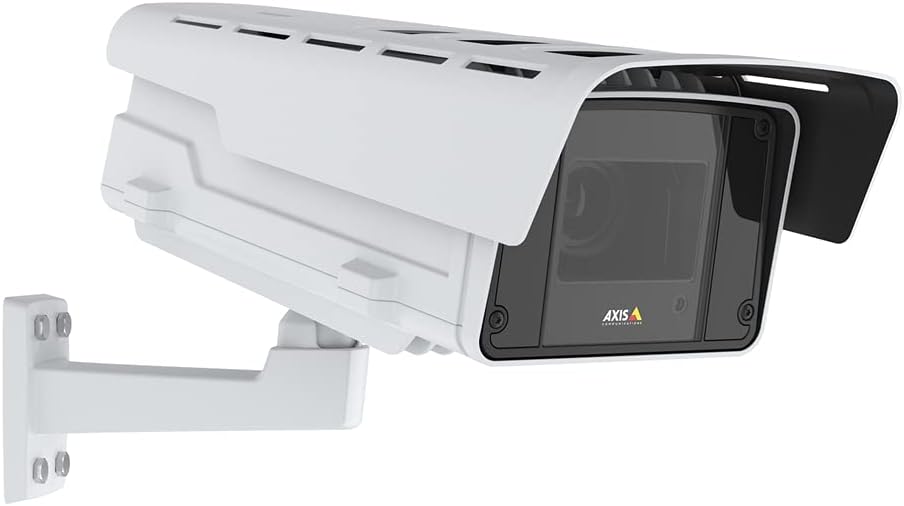
Figure 1: AXIS Q1615-LE Mk III Network Camera with included wall mount.
Enstalasyon
Monte Kamera a
- Chwazi yon kote: Chwazi yon bon kote deyò ki bay bon jan kalite limyè. view and is within reach of power and network connections. Ensure the mounting surface is sturdy.
- Attach Wall Mount: Use the included AXIS T94Q01A Wall Mount. Securely fasten the mount to the chosen surface using appropriate screws (not included, typically).
- Atache Kamera a sou Mòn nan: Align the camera with the wall mount and secure it using the provided hardware. Adjust the camera's angle for optimal viewing.
- Install Sunshield: Attach the sunshield using the Sunshield Connector Kit to protect the lens from direct sunlight and reduce glare.
Limen
The AXIS Q1615-LE Mk III camera can be powered via Power over Ethernet (PoE) or a DC power supply.
- Koneksyon PoE: Connect an Ethernet cable from a PoE-enabled switch or injector to the camera's Ethernet port. This provides both power and network connectivity.
- DC pouvwa: If not using PoE, connect a compatible DC power adapter (not included) to the camera's DC input port.
Koneksyon rezo
Connect the camera to your network using a standard Ethernet cable. For initial setup, it is recommended to connect the camera directly to a computer or a local network segment where you can easily discover its IP address.
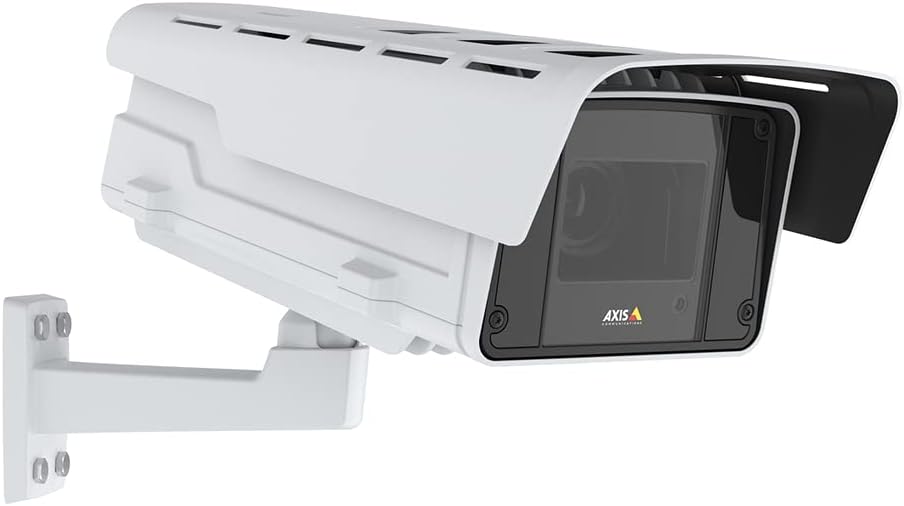
Figi 2: Side view of the camera illustrating potential mounting and connection points.
Enstriksyon Operasyon
Accessing the Camera Interface
- Dekouvri Kamera: Use the AXIS IP Utility or AXIS Device Manager software to discover the camera on your network and find its IP address.
- Konekte: Louvri a web browser and enter the camera's IP address. Log in using the default credentials (typically username 'root' and password 'pass' for first-time setup, which you will be prompted to change).
Configuring Video Settings
Once logged in, navigate to the 'Video' or 'Stream' settings to adjust parameters such as resolution, frame rate, compression, and image quality. The camera supports 1080p video capture resolution.
Using Object Analytics
The AXIS Q1615-LE Mk III features powerful AI-based object analytics. Access the 'Analytics' section in the camera's web interface to configure detection zones, set up rules for different object types (e.g., cars, bikes, humans), and define actions to be triggered upon detection (e.g., send notifications, record video).
Antretyen
Netwayaj
Netwayaj regilye ede kenbe yon bon jan kalite imaj optimal epi pwolonje lavi kamera a.
- Lantiy: Siye lantiy la dousman avèk yon twal mou ki pa gen pousyè. Pou pousyè tè ki difisil pou netwaye, sèvi ak yon solisyon netwayaj lantiy ki fèt pou sifas optik.
- Lojman: Clean the camera housing with a soft, damp twal. Evite itilize pwodwi chimik piman bouk oswa materyèl abrazif.
Mizajou mikrolojisyèl
Periodically check the Axis Communications website for firmware updates. Keeping your camera's firmware up-to-date ensures access to the latest features, performance improvements, and security patches. Follow the instructions provided by Axis for the update process.
Depanaj
Seksyon sa a bay solisyon pou pwoblèm komen ou ka rankontre.
- Pa gen pouvwa:
- Verify that the PoE switch/injector is powered on and functioning correctly.
- If using a DC adapter, ensure it is properly connected and providing the correct voltage.
- Check the Ethernet cable for damage or loose connections.
- Pa gen koneksyon rezo:
- Asire w ke kab Ethernet la byen konekte nan tou de bout yo.
- Check network switch/router status.
- Verify the camera's IP address and network settings are correct and not conflicting with other devices.
- Temporarily disable any firewall on your computer during initial setup.
- Kalite imaj pòv:
- Netwaye lantiy kamera a.
- Adjust focus settings in the camera's web interface (Auto Focus is available).
- Check lighting conditions. Ensure OptimizedIR is enabled for low-light environments.
- Adjust video resolution and compression settings.
- False Alarms from Analytics:
- Refine detection zones and sensitivity settings in the analytics configuration.
- Asire w ke kamera a view is clear of obstructions that might trigger false detections.
- Update camera firmware to the latest version for improved analytics performance.
For more detailed troubleshooting or issues not covered here, please refer to the comprehensive support documentation on the Axis Communications websit la oubyen kontakte sipò teknik yo.
Espesifikasyon
| Karakteristik | Spesifikasyon |
|---|---|
| Non modèl | Q1615-LE Mk III |
| Itilizasyon Andedan kay la / Deyò | Deyò |
| Rezolisyon Capture Videyo | 1080p |
| Rezolisyon toujou efikas | 2 MP |
| Koneksyon Teknoloji | Ethernet, Wi-Fi (Wireless Communication Technology) |
| Sous pouvwa | DC |
| Wattage | 11 wat |
| Rating Pwoteksyon Entènasyonal | IP67 |
| Dimansyon atik L x W x H | 27.5 x 11.5 x 11 pous |
| Pwa atik | 20.1 liv |
| Maksimòm vitès vole | 1/125000 - 2 Seconds |
| Kalite Konsantre | Konsantre oto |
| Teknoloji limyè ki ba | Jou / Lannwit |
| Kalite Alèt | Mouvman sèlman |
| Konpozan ki enkli | AXIS T94Q01A Wall Mount, Installation Guide, Q1615-LE Mk III Network Camera, Resistorx T20 Tool, Sunshield Connector Kit, Windows Decoder 1-user License |
Garanti ak sipò
Enfòmasyon sou Garanti
The AXIS Q1615-LE Mk III Network Camera comes with a Garanti manifakti 5 zanTanpri konsève prèv acha ou a pou reklamasyon garanti. Garanti a kouvri domaj nan materyèl ak nan fabrikasyon anba itilizasyon nòmal.
Sipò teknik
For technical assistance, product registration, or to download the latest software and documentation, please visit the official Axis Communications website. Their support resources include FAQs, troubleshooting guides, and contact information for direct technical support.
Websit: www.axis.com
Ask a question about this manual
Ask about setup, troubleshooting, compatibility, parts, safety, or missing instructions. Manuals+ will review the question and use this page’s manual context to help answer it.