
MERCUSYS MR50G
Mercusys MR50G AC1900 Dual-Band Wi-Fi 5 Router User Manual
Model: MR50G
Entwodiksyon
This manual provides comprehensive instructions for setting up, operating, maintaining, and troubleshooting your Mercusys MR50G AC1900 Dual-Band Wi-Fi 5 Router. The MR50G is designed to deliver high-speed wireless connectivity with AC1900 speeds, Gigabit Ethernet ports, and advanced features like MU-MIMO and Beamforming.

Imaj: Devan view of the Mercusys MR50G router, illustrating its dual-band capabilities with 5GHz (1300 Mbps) and 2.4GHz (600 Mbps) speeds.
Gid Enstalasyon
1. Pake kontni
Verifye ke pake ou a gen atik sa yo:
- Mercusys MR50G AC1900 Dual-Band Wi-Fi 5 Router
- Adaptè pouvwa
- Ethernet kab
- Quick Installation Guide (User Guide)
2. Koneksyon fizik
Swiv etap sa yo pou konekte routeur ou a:
- Pouvwa Off: Dekonekte kouran an nan modèm ou ak routeur ou a (si sa aplikab).
- Konekte Modem nan ak Routeur a: Connect one end of the provided Ethernet cable to the WAN port (usually blue) on your MR50G router and the other end to your modem's Ethernet port.
- Konekte Aparèy yo (Si ou vle): For wired connections, connect your computer or other devices to the LAN ports (yellow) on the MR50G router using Ethernet cables.
- Pouvwa sou: Connect the power adapter to the router's power port and plug it into a power outlet. Power on your modem, then power on the MR50G router.
- Tann Endikatè yo: Wait for the router's LED indicators to stabilize. The Power LED should be solid green.
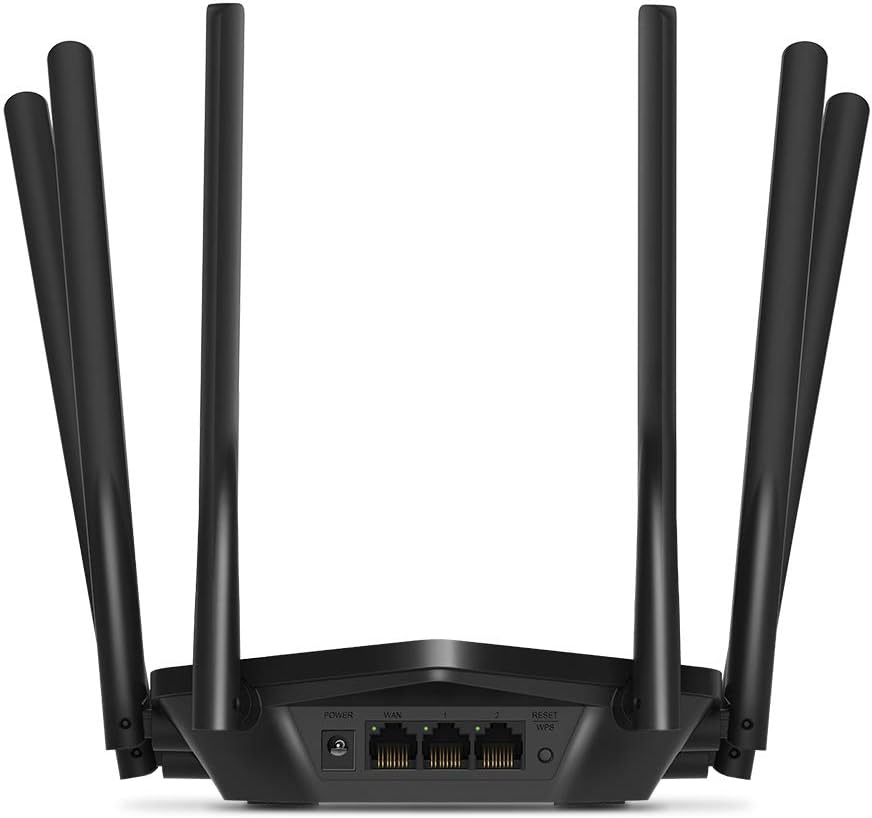
Imaj: Dèyè view of the Mercusys MR50G router, illustrating the power input, WAN port (blue), and three LAN ports (yellow) for wired connections, along with the Reset/WPS button.
3. Inisyal Konfigirasyon
Pou konfigirasyon routeur ou a pou premye fwa:
- Konekte ak Wi-Fi: Connect your computer or mobile device to the router's default Wi-Fi network (SSID and password are typically printed on a label on the bottom of the router).
- Aksè Web Entèfas: Louvri a web navigatè ak kalite
mwlogin.netor192.168.1.1nan ba adrès la. - Kreye Modpas Koneksyon: Follow the on-screen instructions to create a login password for the router's management page.
- Swiv Enstalasyon Rapid la: The Quick Setup wizard will guide you through basic internet and wireless settings.
Enstriksyon Operasyon
1. Basic Wi-Fi Settings
Apre ou fin konekte nan web koòdone:
- Rezo Non (SSID): Navigate to the Wireless settings to change your Wi-Fi network names (SSIDs) for both 2.4 GHz and 5 GHz bands.
- Modpas: Set a strong, unique password for your Wi-Fi networks. The MR50G supports WPA3 for enhanced security.
- Kalite sekirite: It is recommended to use WPA2-PSK/WPA3-Personal for optimal security.
2. Operasyon Doub-Band
The MR50G operates on two frequency bands:
- 2.4 GHz: Bay yon pwoteksyon pi laj ak pi bon penetrasyon nan mi yo, apwopriye pou itilizasyon entènèt jeneral ak aparèy ki pi ansyen.
- 5 GHz: Offers faster speeds and less interference, ideal for bandwidth-intensive activities like 4K streaming and online gaming, but with a shorter range.
You can configure separate SSIDs for each band or use Smart Connect to combine them into a single SSID, allowing the router to automatically assign devices to the optimal band.
3. Mòd Pwen Aksè
To use the MR50G as an Access Point (AP) to extend an existing wired network:
- Konekte: Connect an Ethernet cable from your existing router's LAN port to one of the MR50G's LAN ports (not the WAN port).
- Configured: Log into the MR50G's web interface, navigate to the Operation Mode settings, and select "Access Point Mode". Follow the prompts to complete the setup.
4. Karakteristik avanse
- MU-MIMO: Multi-User, Multiple-Input, Multiple-Output technology allows the router to communicate with multiple devices simultaneously, improving network efficiency.
- Beamforming: Focuses Wi-Fi signals towards connected devices, enhancing signal strength and range.
- Sipò VPN: The router supports VPN functionality, allowing for secure remote access or connection to VPN services. Refer to the router's web interface for specific VPN client/server configurations.
- Kontwòl paran yo: Jere epi limite aksè entènèt pou aparèy oswa itilizatè espesifik.
- Rezo Guest: Kreye yon rezo Wi-Fi apa pou envite yo, pou kenbe rezo prensipal ou a an sekirite.
Antretyen
1. Mizajou Firmware
Regularly check for and install firmware updates to ensure optimal performance, security, and access to new features. Firmware updates can typically be found in the router's web interface under System Tools or Advanced settings.
2. Reyajiste Routeur la
If you encounter persistent issues or forget your login password, you may need to reset the router to its factory default settings:
- With the router powered on, press and hold the Reset/WPS button on the back panel for approximately 5-10 seconds until the LED indicators flash.
- Release the button and wait for the router to restart. All settings will be restored to factory defaults.
3. Plasman Optimal
For the best Wi-Fi coverage and performance:
- Place the router in a central location in your home or office.
- Evite mete l toupre obstak tankou mi epè, objè metal, oswa gwo aparèy (mikwo ond, frijidè) ki ka entèfere ak siyal Wi-Fi yo.
- Si sa posib, monte routeur la, paske siyal Wi-Fi yo gen tandans gaye anba.

Image: Mercusys MR50G router positioned on a table, demonstrating a typical placement for optimal signal distribution within a living space.
Depanaj
1. Pa gen Aksè Entènèt
- Tcheke Koneksyon: Asire w tout kab Ethernet yo byen konekte nan pò ki kòrèk yo (WAN pou modèm, LAN pou aparèy).
- Rekòmanse Aparèy: Power cycle your modem, then the router, and then your connected devices.
- Check WAN LED: Verify that the WAN LED on the router is lit, indicating a connection to the modem.
- Estati Founisè Sèvis Entènèt la: Kontakte Founisè Sèvis Entènèt ou (FSI) pou konfime pa gen okenn sèvis ki disponib.tages nan zòn ou an.
2. Vitès Wi-Fi ki ba
- Plasman Routeur: Ensure the router is placed optimally (refer to "Optimal Placement" section).
- Entèferans: Move the router away from other electronic devices that may cause interference.
- Seleksyon Band: For speed-critical applications, ensure your device is connected to the 5 GHz band.
- Optimizasyon Chanèl: Nan routeur la web interface, try changing the Wi-Fi channel for both 2.4 GHz and 5 GHz bands to a less congested one.
- Firmware: Asire w ke firmwèr routeur ou a ajou.
3. Pa ka jwenn aksè nan paj jesyon routeur la
- Adrès IP: Ensure you are using the correct address (
mwlogin.netor192.168.1.1). - Koneksyon filaire: Try accessing the page from a computer connected directly to the router via an Ethernet cable.
- Efase kach navigatè a: Klè ou web kach navigatè a ak bonbon yo, oubyen eseye yon lòt navigatè.
- Pare-feu/Antiviris: Dezaktive tanporèman nenpòt pare-feu oswa lojisyèl antivirus sou òdinatè w la ki ta ka bloke aksè.
- Reyajiste Routeur a: If all else fails, perform a factory reset (refer to "Resetting the Router" section).
Espesifikasyon
| Modèl | MR50G (EU) |
| Estanda san fil | IEEE 802.11a / b / g / n / ac |
| Frekans | 2.4 GHz ak 5 GHz (Double-Band) |
| Done Pousantaj | AC1900 (600 Mbps sou 2.4 GHz, 1300 Mbps sou 5 GHz) |
| Pò Ethernet | 1 pò Gigabit WAN, 3 pò Gigabit LAN |
| Antèn | 6x Fixed Omni-Directional Antennas |
| Sekirite | WPA-PSK / WPA2-PSK / WPA3-Personal |
| Dimansyon (W x P x H) | 15.72 x 17.56 x 4.5 cm |
| Pwa | 450 g |
| Karakteristik espesyal | MU-MIMO, Beamforming, Access Point Mode, VPN Support, Parental Controls, Guest Network |
| Antre pouvwa | 100-240V ~ 50/60Hz |
Garanti ak sipò
Mercusys products come with a limited warranty. For detailed warranty information, please refer to the warranty card included with your product or visit the official Mercusys websit.
For technical support, firmware updates, and additional resources, please visit the Mercusys support website. You can typically find contact information and FAQs there.
Official Mercusys Websit: www.mercusys.com
Ask a question about this manual
Ask about setup, troubleshooting, compatibility, parts, safety, or missing instructions. Manuals+ will review the question and use this page’s manual context to help answer it.