
Entwodiksyon
This manual provides detailed instructions for the installation, operation, maintenance, and troubleshooting of the HP ProDesk 400 G3 MS-7957 motherboard. Please read this manual thoroughly before proceeding with any installation or operation to ensure proper functionality and safety.
Enfòmasyon sou Sekirite
Toujou obsève prekosyon sekirite sa yo pou evite domaje kat manman an oswa blese tèt ou:
- Disconnect the power supply from the wall outlet before installing or removing any components.
- Wear an anti-static wrist strap or frequently touch a grounded metal object to discharge static electricity before handling the motherboard.
- Manyen kat manman an nan kwen li yo pou evite touche konpozan sansib yo.
- Ensure proper ventilation within the computer case to prevent overheating.
- Kenbe kat manman an lwen imidite ak tanperati ekstrèm.
Pwodwi souview
The HP ProDesk 400 G3 MS-7957 is a MicroATX motherboard designed for Intel processors with an LGA 1151 socket. It supports DDR4 RAM and features a B250 chipset, offering a reliable foundation for desktop computing.
Karakteristik kle
- Compatible CPU Brand: Intel
- Kalite priz: LGA 1151/Socket H4
- Faktè fòm: MicroATX
- I/O Konektè: Ethernet (RJ-45), USB 2.0, USB 3.0, VGA, DisplayPort, HD Audio Jack
Idantifikasyon konpozan
Familiarize yourself with the layout of the motherboard to facilitate proper installation and connection of components.

Figi 1: Angle view of the HP ProDesk 400 G3 MS-7957 motherboard. This image highlights the CPU socket (LGA 1151), four DDR4 RAM slots, PCIe slots, and various headers for front panel connections and storage devices.
Enstalasyon ak Enstalasyon
Anvan w kòmanse
- Ensure your computer case is compatible with the MicroATX form factor.
- Gather all necessary components: CPU, RAM, CPU cooler, power supply, storage devices, and graphics card (if not using integrated graphics).
- Prepare your workspace by ensuring it is clean, well-lit, and static-free.
Enstalasyon mèr
- Install the CPU into the LGA 1151 socket. Carefully align the CPU with the socket's notch and gently lower it into place. Close the retention arm.
- Aplike pat tèmik sou CPU a epi enstale radyatè CPU a dapre enstriksyon manifakti a.
- Install the DDR4 RAM modules into the designated slots. Ensure they are fully seated until the clips lock into place.
- Mount the motherboard into the computer case using the appropriate standoffs and screws.
- Konekte konektè prensipal pouvwa ATX 24-pin lan ak konektè pouvwa CPU 4-pin oubyen 8-pin ki soti nan ekipman pouvwa ou a ak kat manman an.
- Install any expansion cards (e.g., graphics card) into the PCIe slots.

Figi 2: Anglè anwo-anba view of the HP ProDesk 400 G3 MS-7957 motherboard. This perspective provides a clear view of the processor socket, memory slots, and the layout of the various internal connectors and components.
Konekte periferik
- Connect SATA storage devices (HDDs/SSDs) to the SATA ports on the motherboard.
- Konekte konektè panèl devan an (bouton pouvwa, bouton reset, pò USB, priz odyo) ak broch respektif yo sou kat manman an. Gade manyèl bwat ou a pou plasman broch espesifik.
- Connect external peripherals such as monitor, keyboard, mouse, and Ethernet cable to the rear I/O panel.
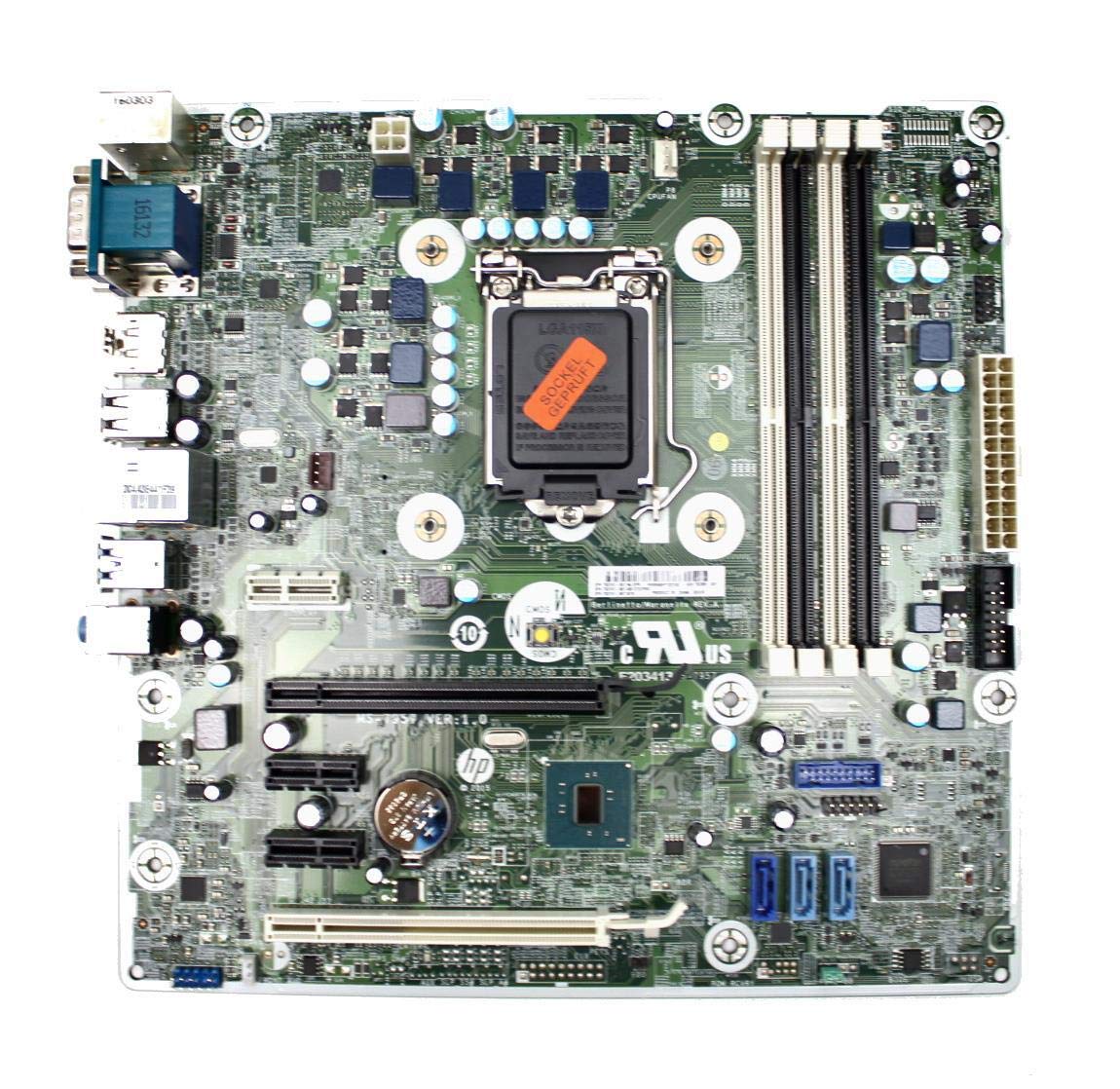
Figure 3: Rear I/O panel of the HP ProDesk 400 G3 MS-7957 motherboard. This image displays the available external connectivity options, including PS/2 ports, serial port, VGA, DisplayPort, USB 2.0, USB 3.0, Ethernet (RJ-45), and HD audio jacks.
Enstriksyon Operasyon
Premye pouvwa sou
After all components are installed and connected, connect the power cable to the power supply and press the power button on your computer case. The system should initiate the boot process.
Konfigirasyon BIOS/UEFI
Pou jwenn aksè nan zouti konfigirasyon BIOS/UEFI a, peze bouton ki deziyen an (souvan Del, F2, F10, oswa F12) during the initial boot sequence. Here you can configure boot order, system time, and other hardware settings.
Enstalasyon chofè
After installing your operating system, it is crucial to install the latest drivers for your motherboard's chipset, integrated graphics, audio, and network adapter. These drivers can typically be found on the HP support websit la oswa manifakti chipset la websit.
Antretyen
- Netwayaj: Netwaye pousyè ki sou kat manman an ak konpozan yo regilyèman avèk lè konprese. Asire w ke sistèm nan etenn epi debranche anvan ou netwaye li.
- Mizajou BIOS/UEFI: Periodically check for BIOS/UEFI updates from HP's official support website. Updates can improve stability, compatibility, and performance. Follow update instructions carefully to avoid system damage.
- Mizajou chofè: Kenbe tout chofè sistèm yo ajou pou asire pèfòmans optimal ak konpatibilite ak nouvo lojisyèl ak pyès ki nan konpitè.
Depanaj
Seksyon sa a bay solisyon pou pwoblèm komen ou ka rankontre:
- Pa gen pouvwa: Check all power connections, including the 24-pin ATX and CPU power cables. Ensure the power supply is switched on and the wall outlet is functional.
- Pa gen ekspozisyon: Verify that your monitor is connected to the correct video output (VGA or DisplayPort) and is powered on. Reseat the graphics card (if applicable) and RAM modules.
- Enstabilite/Pwoblèm Sistèm: This could be due to overheating, faulty RAM, or outdated drivers. Check CPU and GPU temperatures, run memory diagnostic tools, and update drivers.
- Periferik pa detekte: Ensure the peripheral is properly connected. Try a different port or update the relevant drivers.
- BIOS/UEFI Issues: If you encounter issues after changing BIOS settings, try resetting the CMOS by removing the CMOS battery for a few minutes or using the clear CMOS jumper (refer to motherboard diagram for location).
Espesifikasyon
| Karakteristik | Spesifikasyon |
|---|---|
| Mak | HP |
| CPU Socket | LGA 1151 |
| Aparèy konpatib | Desktop òdinatè |
| Teknoloji RAM | DDR4 |
| Procesè konpatib yo | Intel Core i3-6xxx, Intel Core i5-6xxx, Intel Core i7-6xxx, Intel Core i3-7xxx, Intel Core i5-7xxx, Intel Core i7-7xxx, Intel Core i3-8xxx, Intel Core i5-8xxx, Intel Core i7-8xxx |
| Kalite Chipset | Intel B250 |
| Platfòm | Windows |
| Non modèl | MS-7957 |
| Modèl CPU | Nwayo i3 (Note: Supports i3, i5, i7 as listed above) |
| Kalite Konektè prensipal pouvwa | 24 broch |
| Entèfas kat grafik | PCI Express |
| Available Memory Slots | 4 |
| Total SATA Ports | 6 |
| Total pò USB | 2 (Note: Refers to internal headers, rear I/O has more) |
| Total pò Ethernet | 1 |
| Total PCIe Ports | 3 |
| Manifakti | Computer Store Berlin (Reseller/Supplier) |
| Nimewo Pati | 4061435962741 |
| ASIN | B08CS13PTQ |
Garanti ak sipò
Pwodwi sa a vini ak yon 1-ane garanti soti nan dat acha a. Garanti sa a kouvri domaj nan materyèl ak atizan konn fè nan itilizasyon nòmal.
For technical support, warranty claims, or further assistance, please contact your point of purchase or refer to the official HP support resources for the ProDesk 400 G3 series.