
1. Pwodwi souview
The Phomemo M110 is a versatile thermal label printer designed for both smartphone and PC use. It supports various label types for applications such as mailing addresses, price tags, food labeling, package shipping, DIY projects, and organization. This compact and portable device offers efficient printing for both personal and business needs.
1.1 Kontni pake a
Tanpri verifye ke tout atik yo prezan nan pakè ou a:
- Phomemo M110 Printer Unit
- 40*30mm Sample Label Roll
- Kalite-C chaje kab
- Manyèl Itilizatè (dokiman sa a)

Image: Phomemo M110 printer, sample label roll, and charging cable.
1.2 Eleman pwodwi
Familiarize yourself with the different parts of your Phomemo M110 printer:
- Kouvri Top: Protects the label compartment.
- Ekspozisyon: Shows printer status and information.
- Bouton Pouvwa/Meni: Turns the printer on/off and navigates menus.
- Paper Feed/Select Button: Feeds labels or confirms selections.
- Label Output Slot: Where printed labels exit.
- Type-C Cable Connection Port: Pou chaje ak konekte ak PC.
- Reyajiste twou: For factory reset (use a pin).

Imaj: Detaye view of the Phomemo M110 printer with labels indicating its various parts.
2. Enstalasyon
2.1 Premye Preparasyon
- Remove any protective films from the printer.
- Press and hold the Power button for 3 seconds until the display lights up.
- Enprimant lan pare pou itilize kounye a.
2.2 Chaje Etikèt yo
The M110 printer supports die-cut labels with widths ranging from 20mm to 50mm. Ensure the labels are thermal-sensitive and have a protective coating for water, oil, and durability.
- Louvri kouvèti anwo aparèy pou enprime a.
- Place the label roll into the paper cassette, ensuring the printing side faces upwards.
- Fèmen kouvèti anwo a.
- Press the paper feed button to automatically position the label.

Image: The Phomemo M110 printer with the top cover open, showing how to insert a label roll.
2.3 Mobile App Installation (Print Master)
The 'Print Master' app is required for smartphone and tablet operation. It offers various frames, fonts, templates, and icons for label customization.
- Chèche pou 'Print Master' on the App Store (iOS) or Google Play (Android).
- Telechaje epi enstale aplikasyon an.
- Open the 'Print Master' app.
- Tap 'Auto Connect' and allow necessary permissions. The app will automatically search for and connect to your M110 printer.
Video: Phomemo M110 Quick Start Guide, demonstrating initial setup and mobile app connection.
2.4 PC Software Installation (Labelife)
For PC connectivity, the M110 supports Mac OS and Windows 10 via USB. (Note: Linux and Chromebook systems are not supported).
- Visit the official Phomemo website, navigate to 'Support' -> 'Download Center', and select M110 to download the driver. Alternatively, visit labelife.net.
- Download the appropriate 'Labelife' software for your operating system (Windows or Mac).
- Enstale lojisyèl an swiv enstriksyon ki sou ekran an.
Video: Guide on downloading and installing the PC application for the Phomemo M110 printer.
3. Operasyon Enstriksyon
3.1 Connecting to a Smartphone/Tablet (Bluetooth)
- Asire w ke Bluetooth aktive sou telefòn entelijan oswa tablèt ou.
- Open the 'Print Master' app.
- The app will automatically detect and connect to your M110 printer. If not, tap 'Auto Connect' or manually select your printer from the device list.

Image: Visual guide for connecting the M110 printer to a smartphone or tablet via Bluetooth.
3.2 Connecting to a PC (USB)
- Connect the M110 printer to your PC using the provided Type-C USB cable.
- Open the 'Labelife' software on your PC.
- The software should automatically detect and connect to the printer. If not, follow the software's prompts to add a printer.

Image: Visual guide for connecting the M110 printer to a PC via USB cable.
3.3 Kreye ak Enprime Etikèt
Both the 'Print Master' app and 'Labelife' software offer extensive customization options for your labels, including text, QR codes, barcodes, images, and various templates.
- Select your desired label size within the app/software.
- Design your label using the available tools (text, icons, barcodes, etc.).
- Preview etikèt ou a pou asire presizyon.
- Click the 'Print' button to send the label to the printer.
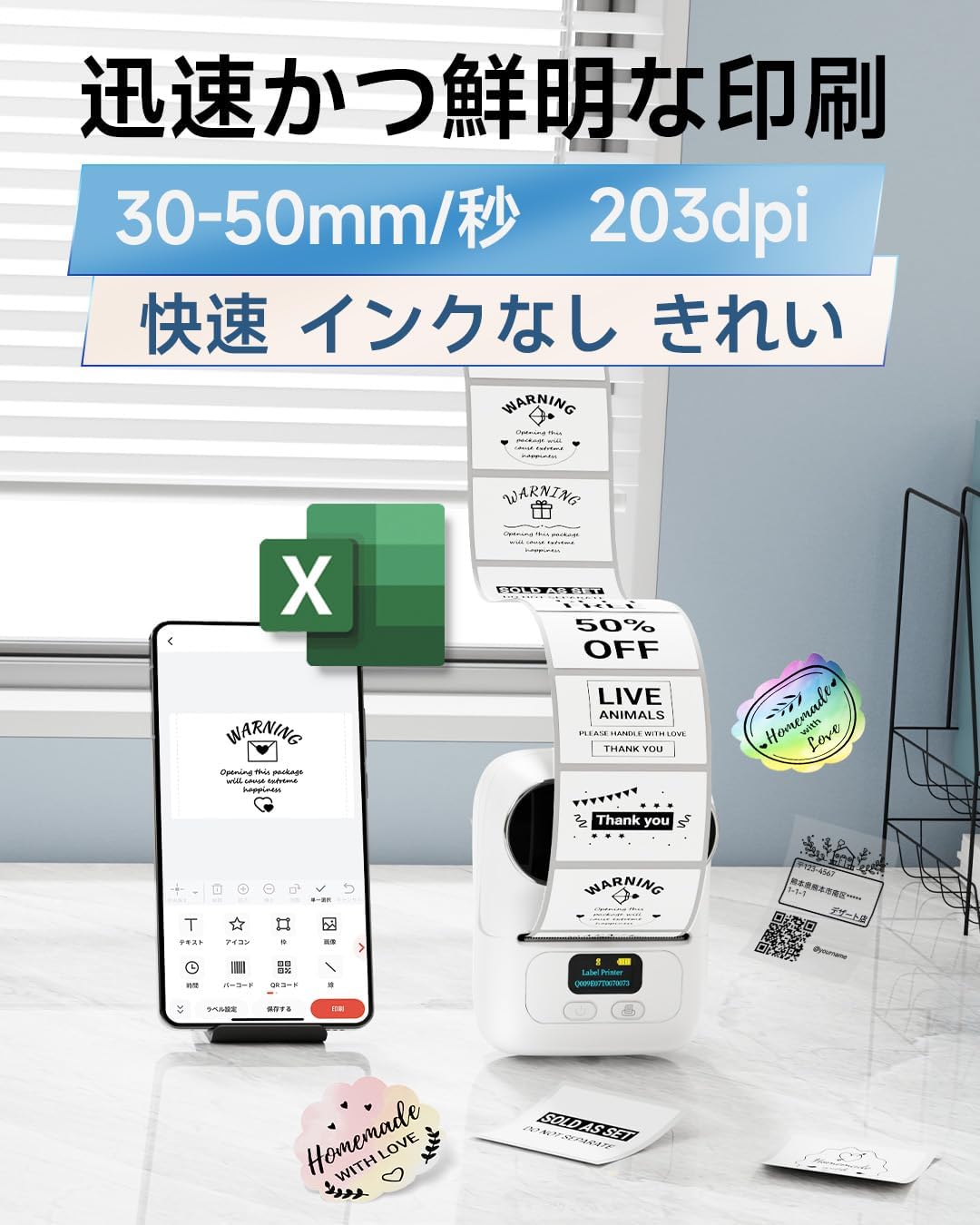
Image: A smartphone displaying the 'Print Master' app interface for designing labels.

Imaj: Plis paseview of additional app functions including voice-to-text, barcode/QR code recognition, OCR, and PDF/Excel printing.
4. Antretyen
To ensure optimal performance and longevity of your Phomemo M110 printer, regular maintenance is recommended.
- Netwaye tèt enprime a: Sèvi ak yon moso twal mou, ki san pèl damptranpe avèk alkòl izopropilik pou siye tèt enprime a dousman. Asire w ke enprimant lan etenn epi li frèt anvan ou netwaye li.
- Netwaye eksteryè a: Siye deyò enprimant lan avèk yon twal mou epi sèk. Evite itilize pwodui chimik ki agresif oswa materyèl abrazif.
- Depo: Store the printer in a cool, dry place away from direct sunlight and extreme temperatures. Remove the label roll if storing for an extended period.
- Swen batri: For optimal battery life, avoid fully discharging the battery frequently. Charge the printer regularly, even if not in use, to maintain battery health.
NAN. Depanaj
If you encounter issues with your Phomemo M110 printer, refer to the following common troubleshooting steps:
| Pwoblèm | Kòz posib | Solisyon |
|---|---|---|
| Enprimant pa limen | Batri fèb; Bouton pouvwa a pa peze ase lontan | Charge the printer; Press and hold the Power button for 3 seconds. |
| Pa ka konekte via Bluetooth | Bluetooth off on device; Printer not discoverable; App permissions denied | Ensure Bluetooth is on; Restart printer; Grant app location/Bluetooth permissions. |
| Move kalite enprime | Dirty print head; Incorrect label type; Low battery | Clean print head; Use genuine Phomemo thermal labels; Charge printer. |
| Etikèt yo pa ap byen manje | Label roll incorrectly inserted; Labels jammed | Re-insert label roll correctly; Clear any jammed labels. |
If the issue persists after trying these steps, please contact Phomemo customer support.
6. Espesifikasyon
| Karakteristik | Spesifikasyon |
|---|---|
| Dimansyon pwodwi | 11.4 x 6.3 x 8.7 cm (Pwofondè x Lajè x Wotè) |
| Gwosè Maksimòm Medya (Papye) | 50mm |
| Konpozan ki enkli | 40*30mm Sample Label Roll, Type-C Charging Cable, M110 Printer Unit, User Manual |
| Enprime Media | Etikèt |
| Kalite eskanè | Pòtab |
| Kapasite maksimòm fèy | 100 |
| Vitès Kopi Maksimòm (Nwa ak Blan) | 45 paj / minit |
| Aparèy konpatib | Smartphones, Tablets, Desktop PCs, Laptops |
| Gwosè Fèy | 20 ~ 50mm |
| Max Print Resolution (Monochrome) | 300 dpi |
| Duplex Enpresyon | Non |
| Batri | 1 batri ityòm Ion (enkli) |
| Koulè | Blan |
| Faktè fòm | Enprimant |
| Koneksyon Teknoloji | Bluetooth, USB |
| OS | Android, iOS |
| Kontni enèji batri ityòm | 8.88 Watt èdtan |
| Anbalaj batri ityòm | Batri ki genyen nan ekipman yo |
| Lithium Ion Cell Count | 2 |
| Pwa atik | 228 g |
7. Garanti ak sipò
Phomemo products are designed for reliability and performance. For warranty information and customer support, please refer to the following:
- Garanti: Please consult the warranty card included in your product packaging for specific terms and conditions.
- Sipò Kliyan: For technical assistance, troubleshooting, or any product-related inquiries, please visit the official Phomemo websit nan www.phomemo.com or contact their customer service team directly.