
Broadlink RM4 mini
BroadLink RM4mini Smart Remote Hub User Manual
Model: RM4 mini
Brand: Broadlink
1. Entwodiksyon
The BroadLink RM4mini Smart Remote Hub is a versatile Wi-Fi enabled infrared (IR) blaster designed to centralize control of your home entertainment and smart appliances. This device allows you to manage various IR-controlled devices such as TVs, air conditioners, set-top boxes, and more, directly from your smartphone or through voice commands using popular smart assistants like Alexa and Google Home. The RM4mini, especially when paired with the sensor cable, also provides real-time temperature and humidity monitoring, enabling advanced automation scenarios.
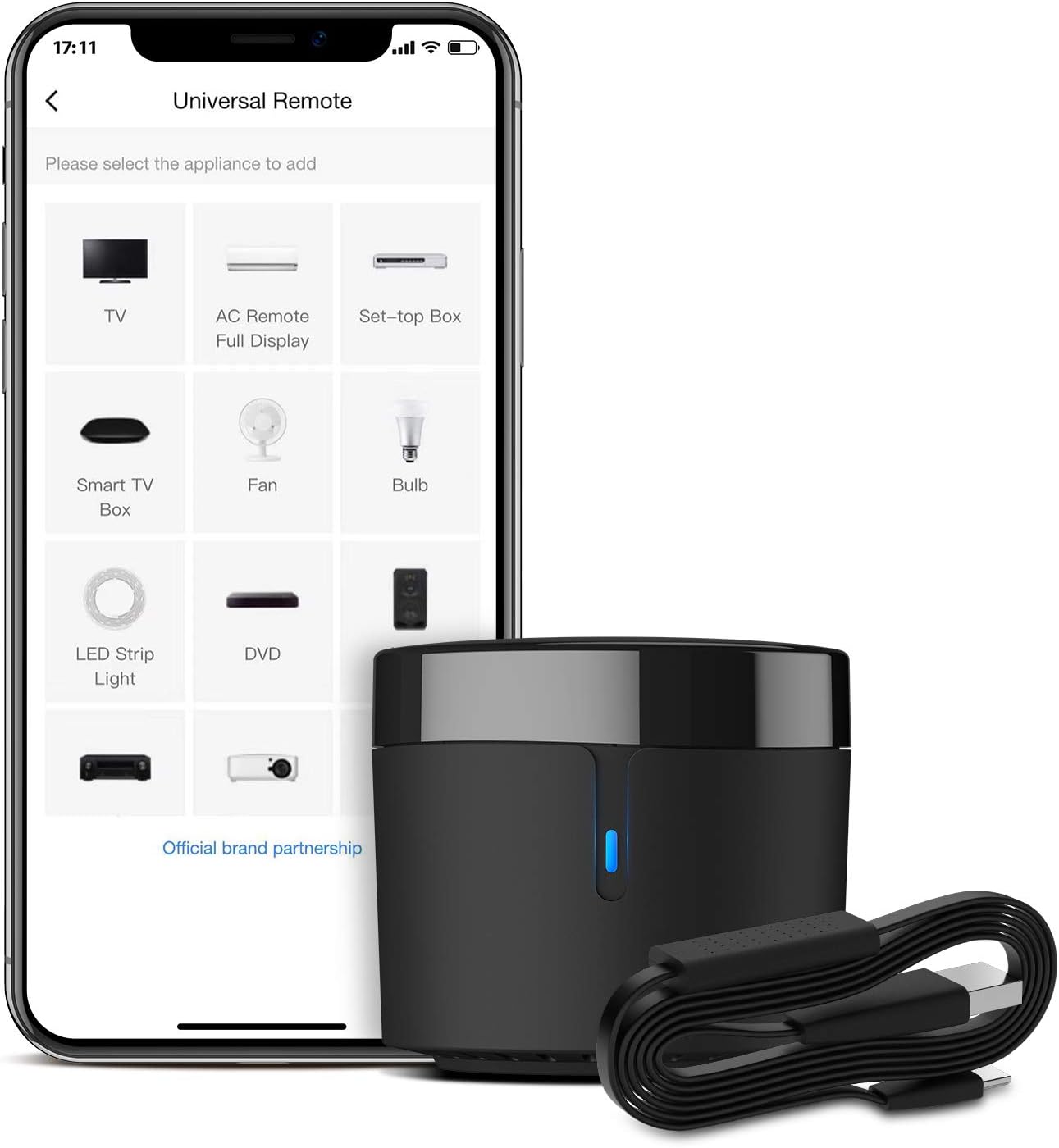
Figure 1.1: The BroadLink RM4mini Smart Remote Hub with its sensor cable, displayed alongside a smartphone showing the universal remote application interface. This image highlights the compact design of the device and its primary function as a smart universal remote.
2. Gid Enstalasyon
Follow these steps to set up your BroadLink RM4mini Smart Remote Hub and integrate it into your smart home system.
2.1. Initial Requirements
- A secured 2.4GHz Wi-Fi network. 5GHz Wi-Fi signals and mesh networks are not supported.
- A 5V/1A USB power adapter (not included in the package).
- A smartphone (iOS 11 / Android 5.1 or above).
- Ensure the Wi-Fi password contains no more than 32 characters and no special characters.

Figi 2.1: Yon anlèview of the BroadLink RM4mini's key features and requirements, including its reliance on 2.4GHz Wi-Fi, its function as an IR controller, the need for a 5V/1A adapter, 360-degree IR coverage, code learning capability, and the one-way nature of its IR communication.
2.2. Three-Step Simple Setup
- Download the BroadLink App: Chèche pou "BroadLink" on Google Play Store or Apple App Store. Install the application on your smartphone. Register an account and log in.
- Ajoute Aparèy: Go to the app homepage and follow the instructions to add a new device. Ensure your phone is connected to the 2.4GHz Wi-Fi network. Disable mobile data traffic during the setup process. Select the device AP (Access Point) for BroadLink Wi-Fi devices and stay connected.
- Match Remote Panel: Configure your home Wi-Fi (2.4GHz only) by entering the correct Wi-Fi password. The app will guide you through matching the remote panel for your IR devices.
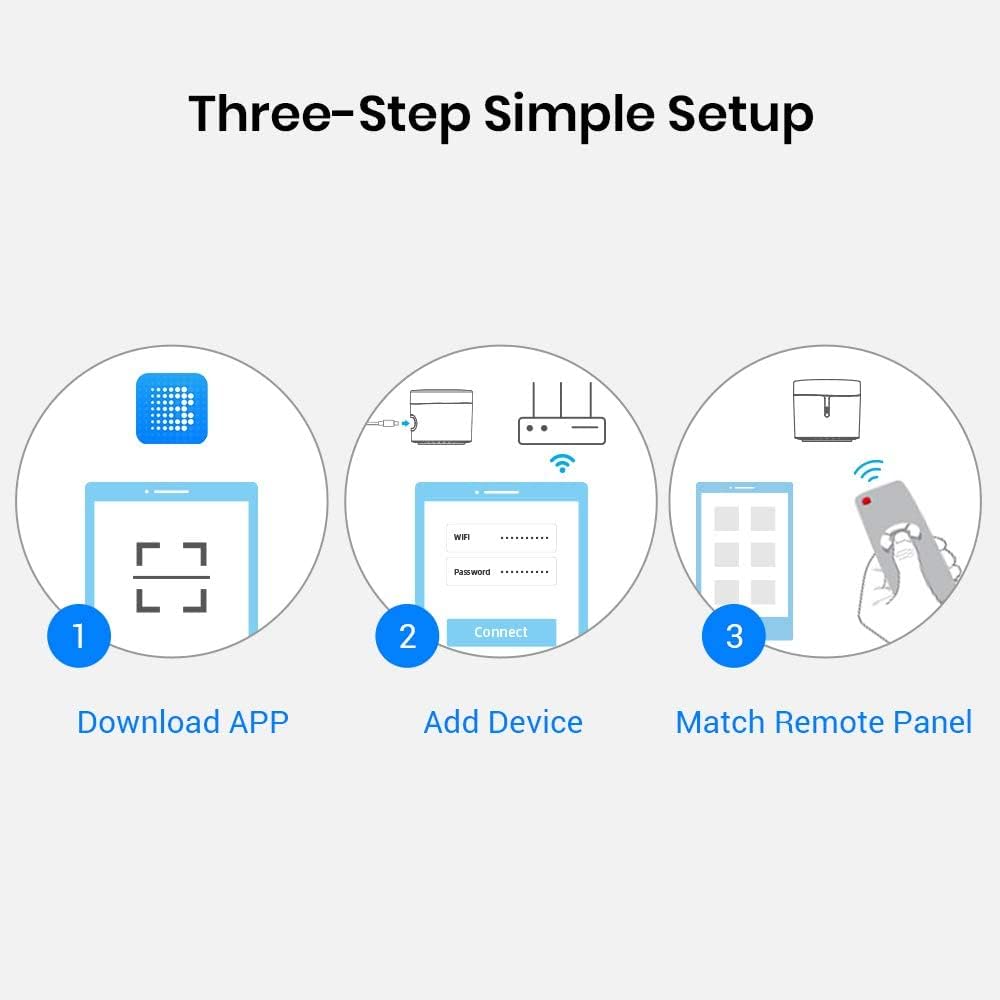
Figure 2.2: A visual representation of the three-step setup process for the BroadLink RM4mini, illustrating downloading the app, adding the device, and matching the remote panel.

Figure 2.3: A comprehensive four-step guide detailing the setup of the BroadLink RM4mini, from downloading the app to connecting the device, configuring Wi-Fi, and finally linking with voice assistants like Alexa, Google Home, and IFTTT.
2.3. Linking with Voice Assistants and IFTTT
To enable voice control and advanced automation, link your BroadLink RM4mini with Alexa, Google Assistant, or IFTTT.
- Go to the BroadLink App homepage.
- Tap "+" in the upper right corner or navigate to "Add Voice Assistant".
- Select your desired voice assistant (Alexa, Google Home) or IFTTT.
- Follow the on-screen instructions to enable the "BroadLink" skill/service and link your account. Discover devices to complete the integration.

Figure 2.4: An illustration of the voice control capabilities of the BroadLink RM4mini, demonstrating its compatibility with Alexa and Google Assistant for hands-free operation of IR appliances.
3. Operasyon Enstriksyon
The BroadLink RM4mini offers extensive control over your IR devices through its app and voice commands.
3.1. Universal IR Control
The RM4mini supports over 50,000 IR (38Khz) controlled entertainment and home appliances. Its extensive IR library is continuously updated via the cloud. If a device is not found, you can use the learning function to program custom IR codes.

Figure 3.1: A visual representation of the BroadLink RM4mini's capability to integrate and control various IR appliances, such as TVs, set-top boxes, air conditioners, fans, audio equipment, and DVD players.

Figi 3.2: Yon eksplozyon view of the BroadLink RM4mini, illustrating its internal structure and highlighting its connection to a vast cloud IR code database that supports numerous brands and allows for user learning of new codes.
3.2. Kontwòl Aplikasyon Remote
Your smartphone becomes a smart remote with the BroadLink App. You can control your IR devices remotely from anywhere, whether you are at home or away.
- TV/AC Control: Use the app to power on/off, adjust volume, change channels, switch inputs for TVs, or control temperature, fan speed, and mode for air conditioners.
- Custom Remotes: If your device is not in the cloud library, you can use the app's learning feature to program individual buttons from your original remote.

Figure 3.3: This image depicts the convenience of the BroadLink app, allowing users to remotely control their air conditioner, for example, while on their way home, with the RM4mini acting as the central hub.

Figure 3.4: A user is shown comfortably controlling their television using the BroadLink app on their smartphone, demonstrating the ease of remote operation with the RM4mini device positioned nearby.
3.3. Scheduling and Scenes
Create customized scenes and multiple timers to automate your smart home devices.
- Timer: Set specific times for devices to turn on or off. For example, schedule your TV to turn on to a specific channel at a certain time.
- Sèn: Combine multiple actions into a single command. For instance, a "Good Morning" scene could turn on your TV and adjust the AC.

Figure 3.5: This image illustrates the schedule control feature of the BroadLink RM4mini, demonstrating how users can program their TV to turn on to a specific channel, such as ESPN, at a set time.

Figure 3.6: A visual guide showcasing various daily routines that can be automated using the BroadLink RM4mini, including power saving, pet comfort, entertainment, and sleep optimization.

Figure 3.7: A screenshot from the BroadLink app demonstrating the process of editing a routine, specifically setting a timer to automatically turn off an air conditioner, illustrating the app's automation capabilities.
3.4. Temperature and Humidity Detection
The included sensor cable allows the RM4mini to detect and display real-time temperature and humidity of the room in the BroadLink App. This data can be used to set up triggers for automated actions, such as turning on your air conditioner when the temperature rises above a certain threshold.

Figure 3.8: The BroadLink RM4mini, connected to its sensor cable, is shown actively detecting room temperature and humidity, with the real-time data displayed on the BroadLink mobile application.

Figure 3.9: The BroadLink RM4mini is depicted on a desk with its sensor cable, visually indicating its capability for temperature and humidity detection through associated icons.
3.5. TV Guide Integration
The BroadLink App can integrate with TV guides, allowing you to schedule and automatically switch programs, ensuring you never miss your favorite shows.

Figure 3.10: The BroadLink RM4mini is shown in a living room setting, controlling a television, while a smartphone displays a TV guide interface, highlighting the device's ability to schedule and automatically switch programs.
4. Antretyen
To ensure optimal performance and longevity of your BroadLink RM4mini, consider the following maintenance guidelines:
- Plasman: Ensure there is no obstruction between the RM4mini and the devices it controls, as IR signals cannot pass through obstacles. Place the device on a neutral surface, away from heat sources or direct sunlight.
- Netwayaj: Sèvi ak yon twal mou epi sèk pou netwaye aparèy la. Evite itilize pwodui netwayaj likid oswa materyèl abrazif.
- Pwovizyon pou pouvwa: Always use a stable 5V/1A power adapter to prevent operational interruptions.
- Mizajou lojisyèl: Regularly check for and install the latest BroadLink App updates to benefit from new features, performance improvements, and bug fixes.
NAN. Depanaj
If you encounter issues with your BroadLink RM4mini, refer to the following common problems and their solutions.
5.1. Pwoblèm koneksyon
- Aparèy la pa konekte ak Wi-Fi a:
- Ensure your Wi-Fi network is 2.4GHz. The RM4mini does not support 5GHz or mesh networks.
- Verify your Wi-Fi password. It should not exceed 32 characters and should not contain special characters.
- Temporarily disable "Smart Connect" or similar features on your router if it combines 2.4GHz and 5GHz bands under one SSID during initial setup. Re-enable it after successful connection.
- Make sure your smartphone is connected to the 2.4GHz network during the device addition process.
- IR signal not reaching devices:
- Ensure there are no physical obstructions (furniture, walls, etc.) between the RM4mini and the IR-controlled appliance. IR signals require a clear line of sight.
- Check the placement of the RM4mini. Its signal range is typically about 8 meters (line-of-sight).
5.2. Device Control Issues
- Aparèy la pa reponn a kòmandman yo:
- Verify that the correct remote profile is selected in the BroadLink App for the device you are trying to control.
- If using a learned code, ensure the learning process was successful. Re-learn the IR commands if necessary, pointing the original remote directly at the RM4mini.
- Confirm the RM4mini is powered on and connected to your Wi-Fi network (indicated by the blue LED).
- Kontwòl vwa a pa fonksyone:
- Ensure the BroadLink skill/service is enabled and linked correctly in your Alexa or Google Home app.
- Redo device discovery in your voice assistant app after adding new devices or making changes in the BroadLink App.
- Check your voice commands for accuracy and clarity.
5.3. App Related Issues
- Temperature/Humidity readings not updating:
- Exit and relaunch the BroadLink App to refresh the readings.
- Ensure the sensor cable is securely connected to the RM4mini.
- General app issues:
- Ensure your BroadLink App is updated to the latest version.
- Clear the app cache or reinstall the app if persistent issues occur.
6. Espesifikasyon
| Karakteristik | Detay |
|---|---|
| Nimewo Modèl | RM4 mini |
| Dimansyon pwodwi | 1.85 x 1.85 x 1.65 pous |
| Pwa atik | 2.1 ons |
| Mak | Broadlink |
| Koulè | Nwa |
| Karakteristik espesyal | Inivèsèl IR Remote |
| Max Kantite Aparèy Sipòte | 255 |
| Aparèy konpatib | TV, Air Conditioner, Set top box, Streaming player, Video Recorder, DVD, Projector, Amplifier, Home Theater, Sound Bar, Home Stereo, Fan, etc. |
| Enfrawouj Frekans | 38Khz |
| Enfrawouj Range | ≤ 8m (Typical, line-of-sight) |
| Tanperati travay | 0-50 ° C (32-122 ° F) |
| Travay imidite | ≤ 85% RH |
| Mòd kominikasyon | Wi-Fi 802.11b/g/n (2.4GHz)/Bluetooth (4.0 and above) |
| Sipòte OS | iOS 11 / Android™ 5.1 and above |
| Antre pouvwa | 5V DC / 1A (via USB) |
| Manifakti | Hangzhou BroadLink Teknoloji co, Ltd. |
| Peyi orijin | Lachin |

Figure 6.1: The back of the BroadLink RM4mini product box, providing a comprehensive list of technical specifications, including model number, power requirements, infrared frequency, operating conditions, and supported communication modes.
7. Garanti ak sipò
For technical support, warranty information, or any inquiries regarding your BroadLink RM4mini Smart Remote Hub, please contact BroadLink customer service.
- Manifakti: Hangzhou BroadLink Teknoloji co, Ltd.
- Websit: www.ibroadlink.com
- Sipò App: Utilize the "Feedback" or "Help" sections within the BroadLink App for assistance.
Tanpri kenbe prèv ou achte pou reklamasyon garanti.

Figure 7.1: The bottom panel of the BroadLink product box, displaying the manufacturer's contact information, including their website and social media presence, for customer support and promotions.
Ask a question about this manual
Ask about setup, troubleshooting, compatibility, parts, safety, or missing instructions. Manuals+ will review the question and use this page’s manual context to help answer it.