
1. Entwodiksyon
This manual provides essential information for the proper use and care of your Amazon Renewed Samsung Galaxy Note 10+ Plus N975 smartphone. This device features a 6.8-inch Quad HD+ Dynamic AMOLED screen, a versatile camera system including 12MP Telephoto, 12MP Wide-angle, and 16MP Ultra Wide rear cameras, a 10MP selfie camera, 12GB RAM, 256GB internal storage, and runs on Android 9 (Pie). It also includes stereo speakers tuned by AKG with Dolby Atmos technology and the S Pen for remote, intuitive gestures. As a renewed product, it has been professionally inspected and tested to work and look like new.

Figure 1.1: Samsung Galaxy Note 10+ Plus N975 Smartphone Overview
2. Ki sa ki nan bwat la
Please verify that all the following items are included with your renewed device:
- Samsung Galaxy Note 10+ Plus N975 Smartphone
- Blòk Charger USB
- USB Chaje Kab
Nòt: As an Amazon Renewed product, accessories may be generic but are fully compatible and functional.
3. Gid Enstalasyon
3.1 Premye chaj
Before first use, fully charge your device. Connect the USB charging cable to the USB charger block, then plug it into a power outlet. Insert the USB-C end of the cable into the charging port at the bottom of your phone.
3.2 Enstalasyon kat SIM
- Jwenn plato kat SIM lan sou kwen anwo telefòn nan.
- Insert the SIM ejection tool (not always included with renewed products; a paperclip can be used) into the small hole next to the tray to eject it.
- Mete kat Nano-SIM ou a sou plato a ak kontak lò yo anba.
- Remete plato a nan telefòn nan ak anpil atansyon jiskaske li fè yon klik.
3.3 Limen/Etenyen
- Pou limen: Peze epi kenbe bouton Pouvwa/Lateral la (ki sitiye sou bò dwat la) jiskaske logo Samsung lan parèt.
- Pou etenn: Press and hold the Power/Side key, then tap 'Power off' on the screen. Alternatively, swipe down from the top of the screen to open the Quick Settings panel, tap the Power icon, and select 'Power off'.
3.4 Asistan Enstalasyon Inisyal
Lè w limen l pou premye fwa, swiv enstriksyon ki parèt sou ekran an pou:
- Chwazi lang ou.
- Konekte nan yon rezo Wi-Fi.
- Konekte avèk kont Google ou a oubyen kreye yon nouvo.
- Set up security features (fingerprint, face recognition, PIN, pattern).
- Transfere done soti nan yon ansyen aparèy (opsyonèl).
4. Operasyon Enstriksyon
4.1 Navigasyon debaz
The Galaxy Note 10+ Plus uses a touchscreen interface. Swipe up, down, left, or right to navigate menus and content. Tap icons to open applications. Use pinch-to-zoom gestures for images and web paj.
4.2 Itilizasyon Kamera
Your device features a versatile camera system:
- Kamera dèyè: 12MP Telephoto, 12MP Wide-angle, 16MP Ultra Wide. Open the Camera app and tap the lens icons to switch between modes.
- Kamera devan: 10MP Selfie Camera. Tap the camera switch icon to activate.
Tap the shutter button to take photos or the record button to capture videos. Explore various modes like Pro, Panorama, and Live Focus for enhanced photography.
4.3 Karakteristik odyo
Experience rich audio with stereo speakers tuned by AKG and surround sound with Dolby Atmos technology. Connect compatible earphones (sound by AKG) for a personalized audio experience.
4.4 Fonksyonalite S Pen an
The S Pen is integrated into your Galaxy Note 10+ Plus. Eject it from its slot at the bottom of the phone. Use it for:
- Memo Ekran Etenn: Jot down notes instantly when the screen is off.
- Aksyon nan lè a: Perform remote gestures to control camera, media playback, and more.
- Smart Select: Kaptire zòn espesifik sou ekran an.
- Mesaj an dirèk: Create animated handwritten messages.
4.5 Android 9 (Pie) Basics
Familiarize yourself with the Android 9 operating system. Key features include adaptive battery, gesture navigation (optional), digital wellbeing tools, and enhanced privacy controls. Access settings by swiping down from the top of the screen and tapping the gear icon.
5. Antretyen
5.1 Netwaye aparèy ou an
Sèvi ak yon twal mou ki pa gen pousyè pou netwaye ekran ak kò telefòn ou an. Evite materyèl abrazif oswa pwodui chimik ki agresif. Pou tach ki difisil pou retire, siye yon ti kras.ampRense twal la avèk dlo oswa yon pwodui netwayaj ekran ki fèt pou aparèy elektwonik.
5.2 Swen Batri
Your device has an intelligent 3500 mAh battery. To prolong battery life:
- Evite tanperati ekstrèm.
- Pa kite telefòn nan ap chaje pou yon bon bout tan apre li rive nan 100%.
- Utilize power-saving modes when necessary.
- Keep software updated for optimal battery management.
5.3 Mizajou lojisyèl
Regularly check for and install software updates. These updates often include performance improvements, security patches, and new features. Go to Anviwònman > Mizajou lojisyèl > Telechaje epi enstale.
5.4 Jesyon Depo
Avèk 256GB nan depo entèn, ou genyen ample space. To manage storage:
- Efase regilyèman sa ki pa nesesè files, foto, ak videyo.
- Dezenstale aplikasyon ki pa itilize yo.
- Sèvi ak sèvis depo nwaj pou backup.
5.5 General Care for Renewed Devices
While renewed devices are tested for functionality, they may show minor cosmetic imperfections. Handle your device with care, use a protective case and screen protector to prevent further damage.
NAN. Depanaj
Si ou rankontre pwoblèm ak aparèy ou an, eseye etap sa yo:
6.1 Aparèy la pa limen
- Asire w batri a chaje. Konekte chajè a epi tann kèk minit anvan ou eseye limen l.
- Perform a forced restart: Press and hold the Volume Down button and the Power/Side key simultaneously for about 7-10 seconds.
6.2 Pwoblèm chaj
- Check the charging cable and adapter for damage. Try a different cable and adapter if available.
- Asire w ke pò chaj la pwòp epi li pa gen debri.
6.3 Ekran an pa reponn
- Restart the device using the forced restart method (Volume Down + Power/Side key).
- If the issue persists, consider a factory reset (Nòt: Sa ap efase tout done yo).
6.4 Pwoblèm koneksyon rezo
- Aktive oubyen dezaktive Mòd Avyon an.
- Tcheke enstalasyon kat SIM lan.
- Reyajiste paramèt rezo yo: Anviwònman > Jesyon jeneral > Reyajiste > Reyajiste paramèt rezo yo.
6.5 Reyajisteman faktori (Dènye rekou)
If all other troubleshooting fails, you may need to perform a factory reset. This will erase all data on your device. Back up important data before proceeding. Go to Anviwònman > Jesyon jeneral > Reyajiste > Reyajiste done faktori.
7. Espesifikasyon
| Non modèl | Galaxy Note 10 Plus |
| Nimewo Modèl Atik | SM-N975U |
| Sistèm operasyon | Android 9.0 (Pie) |
| Gwosè ekran | 6.8 Inches Quad HD+ Dynamic AMOLED |
| Rezolisyon | 1440 x 2960 |
| Gwosè memwa RAM enstale | 12 GB |
| Kapasite Depo memwa | 256 GB |
| Kamera dèyè | 12MP Telephoto, 12MP Wide-angle, 16MP Ultra Wide |
| Kamera devan | Kamera Selfie 10MP |
| Kapasite batri | 3500 Miliamp Èdtan (Iyon Lityòm) |
| Dimansyon pwodwi | 6.39 x 3.04 x 0.31 pous |
| Pwa atik | 12 ons |
| Wireless Carrier | AT&T (for this specific variant) |
8. Amazon Renewed Product Conditions
As an Amazon Renewed product, your device has undergone a thorough inspection and testing process. It is guaranteed to be fully functional. The cosmetic condition is categorized as follows:
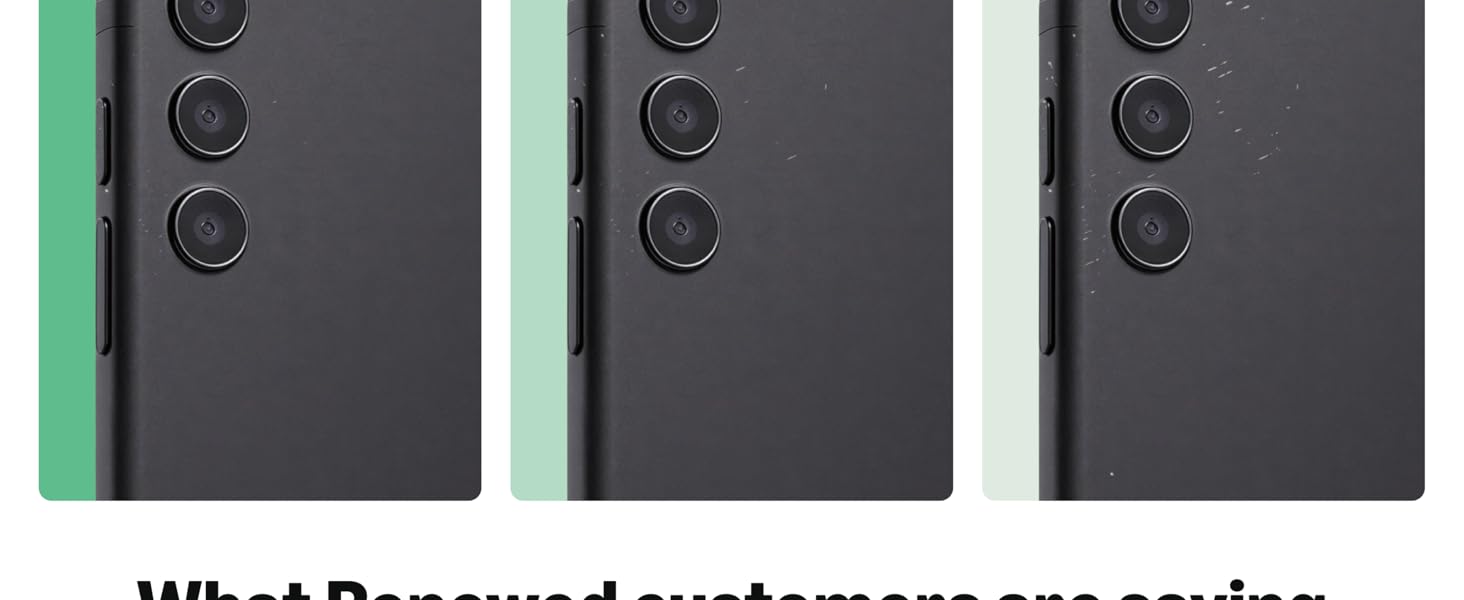
Figure 8.1: Amazon Renewed Condition Guidelines
9. Garanti ak sipò
9.1 Garanti Amazon Renouvle
Your Amazon Renewed purchase is backed by the Amazon Renewed Guarantee. This provides a 90-day refund or replacement policy if the product does not work as expected. Please refer to the Amazon Renewed program terms for full details.
9.2 Sipò pou Kliyan
For any issues, questions, or support requests regarding your Amazon Renewed Samsung Galaxy Note 10+ Plus, please contact Amazon Customer Service or the seller directly through your Amazon order history. Provide your order number and a detailed description of the issue for efficient assistance.