
Wendry Wendryaohxguqf62
Wendry 9461NGW Bluetooth 5.0 M.2 Network Card User Manual
Model: Wendryaohxguqf62
Brand: Wendry
1. Entwodiksyon
The Wendry 9461NGW is a high-performance M.2 network card designed to provide reliable wireless connectivity for compatible devices. It integrates both Wi-Fi and Bluetooth functionalities, supporting the latest standards for fast and stable connections.

Figi 1.1: Anwo-anba view of the Wendry 9461NGW M.2 Network Card, showing its compact form factor and M.2 interface.
Karakteristik kle:
- High Speed Connectivity: Achieves AC speeds up to 433Mbps for efficient data transfer.
- Sipò pou Doub Band: Operates on both 2.4G and 5G networks for versatile wireless access.
- Bluetooth 5.0: Integrated Bluetooth 5.0 for seamless connection with compatible peripherals.
- M.2 CNVi Interface: Designed with an M.2 CNVi interface for stable and reliable connection performance.
- Gwo konpatibilite: Compatible with various desktops, all-in-ones, and industrial computers featuring NGFF / M.2 interfaces on the motherboard. Specifically compatible with HP 14-CE1010TX and 14-CE1006TX.
- Sistèm operasyon: Optimized for Windows 10.
2. Enstalasyon ak Enstalasyon
Proper installation of the 9461NGW network card is crucial for optimal performance. Ensure your system is powered off and disconnected from the power source before proceeding.
2.1 Kondisyon sistèm:
- Available M.2 CNVi slot on motherboard.
- Operating System: Windows 10 (64-bit recommended).
2.2 Etap enstalasyon:
- Prepare Sistèm ou an: Power off your computer and unplug all cables. Open the computer case to access the motherboard.
- Jwenn plas M.2 a: Identify an available M.2 CNVi slot on your motherboard. Refer to your computer or motherboard manual if unsure.
- Insert Network Card: Gently align the notch on the 9461NGW network card with the key in the M.2 slot. Insert the card at a slight angle (approximately 30 degrees) until it is fully seated.
- Sekirize kat la: Once inserted, gently push the card down towards the motherboard. Secure it with the small screw provided with your motherboard or computer, typically at the end of the M.2 slot.
- Connect Antennas (if applicable): If your system requires external antennas, carefully connect them to the small connectors on the network card. Ensure they are securely fastened.
- Fèmen bwat la epi limen l: Close your computer case, reconnect all cables, and power on your system.

Figi 2.1: Angle view of the network card, illustrating its M.2 connector and overall dimensions.

Figi 2.2: Devan ak dèyè views of the network card, showing component layout and regulatory markings.
3. Operasyon Enstriksyon
After physical installation, the operating system needs to recognize and utilize the network card. This typically involves driver installation.
3.1 Driver Installation:
- Enstalasyon otomatik: For Windows 10, the operating system may automatically detect and install the necessary drivers upon first boot after installation.
- Enstalasyon manyèl: If drivers are not automatically installed, you may need to download them from the manufacturer's website (e.g., Intel for 9461NGW chipsets) or from your computer/motherboard manufacturer's support page.
- Manadjè Aparèy: Verify driver status in Windows Device Manager (Right-click Start > Device Manager). Look under 'Network adapters' and 'Bluetooth'. If there are yellow exclamation marks, drivers need to be updated or installed.
3.2 Wi-Fi Connectivity:
Once drivers are installed, the network card will enable Wi-Fi functionality.
- Konekte sou rezo a: Click the Wi-Fi icon in the system tray, select your desired network, enter the password, and connect.
- Operasyon Doub Band: The card supports both 2.4GHz and 5GHz bands. The 5GHz band generally offers faster speeds over shorter distances, while 2.4GHz provides better range.
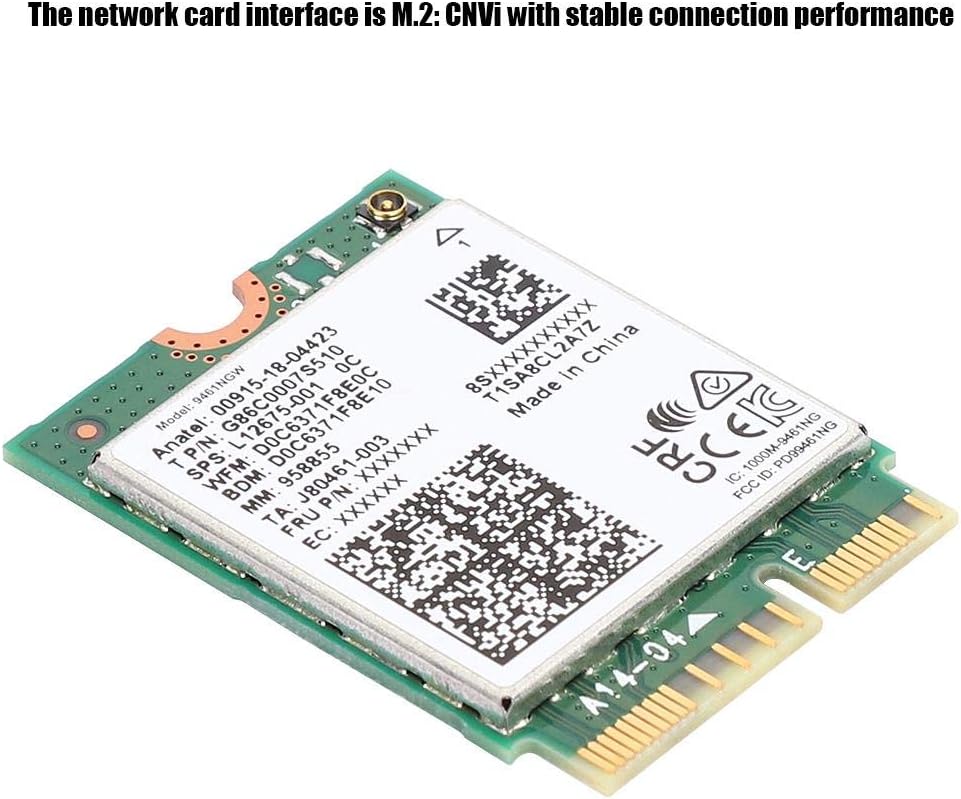
Figure 3.1: The network card supports both 2.4G and 5G wireless networks for flexible connectivity options.
3.3 Bluetooth Connectivity:
The integrated Bluetooth 5.0 allows connection to various Bluetooth devices.
- Pèmèt Bluetooth: Go to Windows Settings > Devices > Bluetooth & other devices and ensure Bluetooth is turned On.
- Pè Aparèy yo: Click 'Add Bluetooth or other device', select 'Bluetooth', and follow the on-screen prompts to pair your Bluetooth devices (e.g., headphones, mouse, keyboard).
4. Antretyen
The Wendry 9461NGW network card is a robust component designed for long-term use with minimal maintenance. However, following these general guidelines can help ensure its longevity and optimal performance:
- Kenbe Sistèm nan Pwòp: Regularly clean the interior of your computer case to prevent dust buildup, which can impede airflow and lead to overheating of components, including the network card. Use compressed air for this purpose.
- Bon manyen: When handling the network card, always hold it by its edges to avoid touching the gold connectors or sensitive components, which can be damaged by static electricity or oils from your skin.
- Mizajou chofè: Periodically check for updated drivers from the chipset manufacturer (e.g., Intel) or your computer/motherboard manufacturer. Updated drivers can improve performance, stability, and security.
- Kondisyon anviwònman: Ensure your computer operates in a well-ventilated area with stable temperature and humidity to prevent component stress.
NAN. Depanaj
If you encounter issues with your 9461NGW network card, refer to the following troubleshooting steps:
5.1 Wi-Fi or Bluetooth Not Detected:
- Tcheke Koneksyon Fizik: Power off your computer and verify that the network card is securely seated in the M.2 slot and the retaining screw is tightened.
- Manadjè Aparèy: Open Device Manager in Windows. Look for 'Network adapters' and 'Bluetooth'. If the device is listed with a yellow exclamation mark or not present, try the following:
- Right-click and select 'Scan for hardware changes'.
- If present, right-click the device and select 'Update driver'. Choose 'Search automatically for updated driver software'.
- If still problematic, try uninstalling the device (right-click > 'Uninstall device') and then restart your computer. Windows should attempt to reinstall it.
- Anviwònman BIOS/UEFI yo: Some motherboards have options to enable/disable M.2 slots or integrated Wi-Fi/Bluetooth. Check your system's BIOS/UEFI settings to ensure the M.2 slot is enabled.
5.2 Slow Wi-Fi Speed or Frequent Disconnections:
- Mizajou chofè: Ensure you have the latest drivers installed for the network card.
- Koneksyon antèn: If using external antennas, ensure they are securely connected to the card.
- Pwòksimite routeur: Move closer to your Wi-Fi router or ensure there are no significant obstructions (e.g., thick walls, metal objects) between your computer and the router.
- Entèferans: Lòt aparèy elektwonik (telefòn san fil, mikwo ond, lòt rezo Wi-Fi) ka lakòz entèferans. Eseye chanje chanèl Wi-Fi ou sou routeur ou a.
- Anviwònman routeur: Ensure your router is configured for optimal performance, including using WPA2/WPA3 encryption and appropriate channel width.
5.3 Bluetooth Device Pairing Issues:
- Ensure Device is in Pairing Mode: Refer to your Bluetooth device's manual to ensure it is in discoverable or pairing mode.
- Remove and Re-pair: In Windows Bluetooth settings, remove the problematic device and attempt to pair it again.
- Mizajou chofè: Ensure Bluetooth drivers are up to date.
- Rekòmanse sèvis Bluetooth la: In Windows Services (search 'services.msc'), find 'Bluetooth Support Service', right-click, and select 'Restart'.
6. Espesifikasyon
Detailed technical specifications for the Wendry 9461NGW Bluetooth 5.0 M.2 Network Card:
| Karakteristik | Spesifikasyon |
|---|---|
| Nimewo Modèl | Wendryaohxguqf62 |
| Entèfas | M.2 (CNVi) |
| Wireless Creole | 802.11ac |
| Pousantaj Transfè Done | Jiska 433 Mbps |
| Bann Frekans | 2.4 GHz, 5 GHz |
| Bluetooth vèsyon | Bluetooth 5.0 |
| Aparèy konpatib | Desktop, Laptop (with M.2 CNVi slot) |
| Sistèm operasyon sipò | Windows 10 |
| Pwa atik | 1.44 ons |
| UPC | 738602925116 |
7. Garanti ak sipò
For warranty information and technical support regarding your Wendry 9461NGW network card, please refer to the following:
- Garanti manifakti a: Specific warranty terms and duration may vary. Please retain your proof of purchase.
- Sipò teknik: For assistance with installation, troubleshooting, or product inquiries, please contact Wendry customer support through their official channels or the seller from whom you purchased the product.
- Resous sou entènèt: Visit the official Wendry store page on Amazon for additional product information and support resources: Wendry Store on Amazon.
Ask a question about this manual
Ask about setup, troubleshooting, compatibility, parts, safety, or missing instructions. Manuals+ will review the question and use this page’s manual context to help answer it.