
Entwodiksyon
The NEDIS Universal Programmable Remote Control (model TVRC1140BK) is designed to manage up to 4 different devices. This remote can be programmed via a personal computer (PC) to replace original remote controls for various electronic devices, including televisions (TV), video cassette recorders (VCR), digital versatile disc players (DVD), and digital video broadcasting terrestrial receivers (DVB-T). It is engineered to replicate most functions of your original remotes, providing a consolidated control solution.
Enfòmasyon sou Sekirite
- Do not expose the remote control to direct sunlight, heat, or moisture.
- Evite lage telekòmand lan oswa soumèt li a gwo enpak.
- Pa eseye demonte oswa modifye kontwòl remote la. Sa ap anile garanti a.
- Kenbe pil yo pa rive jwenn timoun yo. Si vale, chèche swen medikal imedya.
- Jete pil ize yo dapre règleman lokal yo. Pa jete pil yo nan dife.
- Use only the specified battery type (2x AAA Alkaline).
Kontni pake
Tanpri tcheke pake a pou atik sa yo:
- NEDIS Universal Programmable Remote Control (TVRC1140BK)
- USB pwogramasyon kab
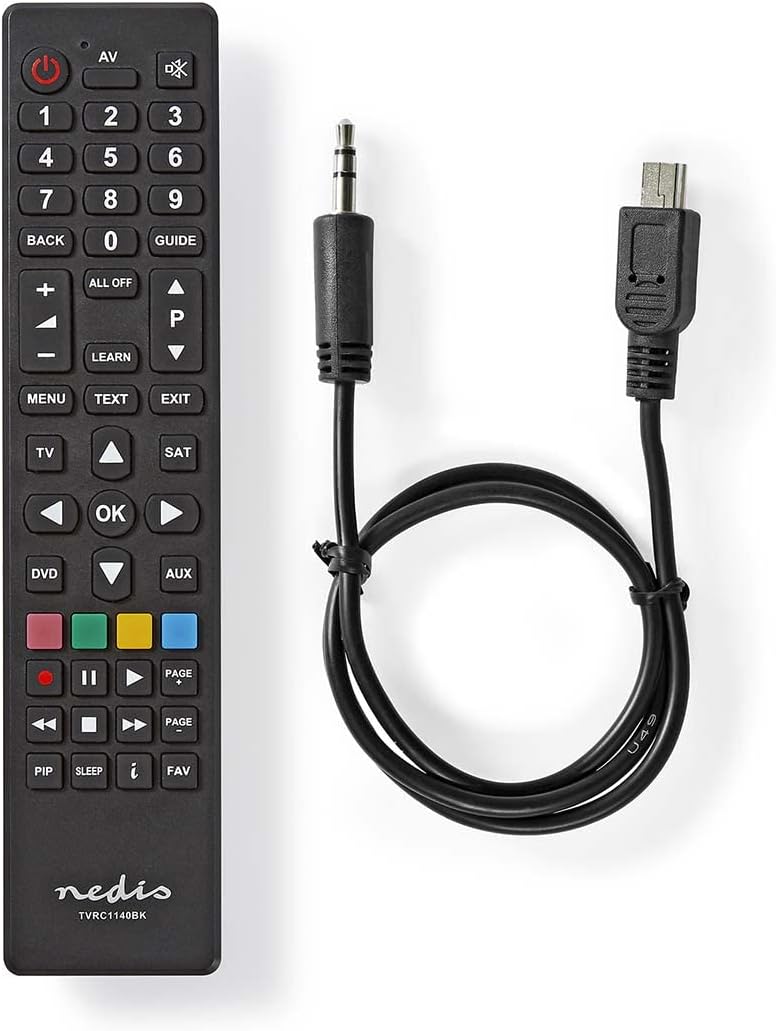
Image: The NEDIS Universal Remote Control TVRC1140BK shown alongside its USB programming cable.
Pwodwi souview
The remote control features a clear button layout for intuitive operation. Familiarize yourself with the various buttons and their functions before use.

Imaj: Devan view of the NEDIS Universal Remote Control TVRC1140BK, displaying all control buttons.
Bouton kle ak fonksyon:
- Bouton pouvwa (): Turns devices on or off.
- Device Selection Buttons (TV, DVD, SAT, AUX): Selects the device you wish to control.
- Klavye nimerik (0-9): For channel selection and data input.
- Volim monte/desann (+/-): Ajiste volim nan.
- Channel Up/Down (P/P): Chanjman chanèl yo.
- Bouton Navigasyon (Anlè, Anba, Agoch, Adwat, OK): Pou navigasyon ak seleksyon meni.
- Meni/Sòti: Accesses or exits device menus.
- Aprann bouton: Used for programming functions from an original remote.
- Bouton ki gen koulè (wouj, vèt, jòn, ble): Often used for specific functions in menus or teletext.
Enstalasyon
1. Enstalasyon batri
- Louvri kouvèti a lòj batri sou do a nan kontwòl la remote.
- Insert two (2) AAA Alkaline batteries, ensuring the correct polarity (+ and -) as indicated inside the compartment.
- Fèmen kouvèti lòj batri a byen.
2. Pwogramasyon PC
The NEDIS TVRC1140BK remote control is programmed using dedicated software on a PC. This method allows for comprehensive device code loading and customization.
- Download lojisyèl: Visit the official NEDIS support website to download the latest programming software for the TVRC1140BK model.
- Enstalasyon lojisyèl:
- If you have previously installed an older version of the software, uninstall it completely before proceeding.
- For new users, install the downloaded software directly by following the on-screen instructions.
- Konekte Remote a: Use the provided USB programming cable to connect the remote control to an available USB port on your PC.
- Programming Process: Follow the instructions within the software to select your device types (TV, DVD, VCR, DVB-T, etc.) and load the appropriate control codes onto the remote. The software typically guides you through the process of assigning functions to buttons.
Nòt: For optimal performance and access to the latest device codes, always use the most current version of the programming software available from the manufacturer.
Opere kontwòl remote la
Once programmed, the remote control functions similarly to your original device remotes.
- Chwazi Aparèy: Peze bouton aparèy ki koresponn lan (pa egzanp, TV, DVD, SAT, AUX) to select the device you wish to control. The indicator light on the remote may illuminate to confirm selection.
- Point and Operate: Point the remote control directly at the device's infrared receiver.
- Use Functions: Press the desired function buttons (e.g., Power, Volume, Channel, Menu, Play, Pause) to control your selected device.
Antretyen
- Netwayaj: Siye kontwòl remote la avèk yon twal mou epi sèk. Pa sèvi ak pwodui netwayaj abrazif oswa solvan.
- Ranplasman batri: Replace batteries when the remote's performance degrades or if the indicator light does not illuminate. Always replace both batteries at the same time with new AAA Alkaline batteries.
- Depo: Si ou pa pral itilize kontwòl remote la pou yon bon bout tan, retire pil yo pou anpeche likid koule.
Depanaj
- Remote pa reponn:
- Tcheke si pil yo byen mete epi yo gen ase chaj. Ranplase yo si sa nesesè.
- Ensure there is a clear line of sight between the remote control and the device's infrared receiver.
- Verify that the correct device mode (TV, DVD, etc.) is selected on the remote.
- Device functions not working correctly after programming:
- The device code may be incorrect or incomplete. Re-program the remote using the PC software, ensuring you select the correct manufacturer and model for your device.
- Some specific functions might not be available if the original remote had unique features not supported by the universal remote's code database.
- Consult the NEDIS support website for updated software or additional programming tips.
- PC programming software issues:
- Ensure you have uninstalled any previous versions of the software before installing the latest one.
- Check your PC's operating system compatibility with the software.
- Eseye itilize yon lòt pò USB oubyen rekòmanse òdinatè w la.
Espesifikasyon
| Mak | NEDIS |
| Nimewo Modèl | TVRC1140BK |
| Koneksyon Teknoloji | Enfrawouj |
| Maksimòm Aparèy Sipòte | 4 |
| Aparèy konpatib | TV, DVD/Blu-ray Player, Set-top Box, VCR |
| Kalite kontwolè | Kontwòl bouton |
| Maksimòm Range | 10 mèt |
| Batri obligatwa | 2x AAA alkalin (pa enkli) |
| Koulè | Nwa |
Garanti ak sipò
For warranty information, please refer to the terms and conditions provided by your retailer at the time of purchase or contact NEDIS customer support directly. For technical assistance, software updates, and additional resources, please visit the official NEDIS websit.