
1. Entwodiksyon
This manual provides detailed instructions for the installation, setup, and operation of your meross Smart Ceiling Fan Control & Dimmer Light Switch (Model MFC100). This device allows you to control your ceiling fan and light independently via the Meross app, voice commands (Apple HomeKit, Amazon Alexa, Google Home), or directly from the wall switch.

Image: meross Smart Ceiling Fan Control & Dimmer Light Switch (MFC100).
The meross MFC100 is a smart wall switch designed to integrate your ceiling fan and light into your smart home system, offering convenient control options.
Enfòmasyon enpòtan sou sekirite
- Risk chòk elektrik: Installation requires handling 120V AC wiring. Ensure power is OFF at the circuit breaker before installation.
- Fil net obligatwa: This switch requires a neutral wire for operation. Verify its presence in your electrical box before proceeding.
- Single-Pole Use Only: Designed for single-pole applications (controlling a fan/light from one location). Not compatible with 3-way switches.
- Enstalasyon pwofesyonèl rekòmande: Si ou pa sèten sou nenpòt pati nan pwosesis enstalasyon an, konsilte yon elektrisyen kalifye.
2. Konpatibilite
2.1 Kondisyon pou fil elektrik
The meross MFC100 requires specific wiring in your electrical box:
- Fil net: Essential for operation (usually white).
- Line/Hot Wire: (usually black).
- Fil tè: (bare copper or green insulated wire).
- Fil chaj separe: Your ceiling fan must have two separate load wires – one for the fan and one for the light. If your fan only has one load wire for both, this switch is not compatible.

Image: Wiring diagram for the meross MFC100 switch.
This diagram illustrates the required wiring connections for the meross MFC100. Ensure your electrical box has all five necessary wires: Neutral, Line, Ground, Fan Load, and Light Load.
2.2 Fan and Bulb Compatibility
- Kalite fanatik: Compatible with pull-chain ceiling fans that lack electronic controls. Not suitable for fans with built-in remote control, Bluetooth/Wi-Fi control systems, or DC motors.
- Kalite anpoul: Compatible with dimmable LED/CFL bulbs (up to 150W max) and incandescent (INC) bulbs (up to 300W max). Not compatible with smart bulbs.
- Pouvwa fanatik: Supports fans up to 120W Max.
- Kontwòl vitès fanatik: Supports 3 or 4-speed fan control.
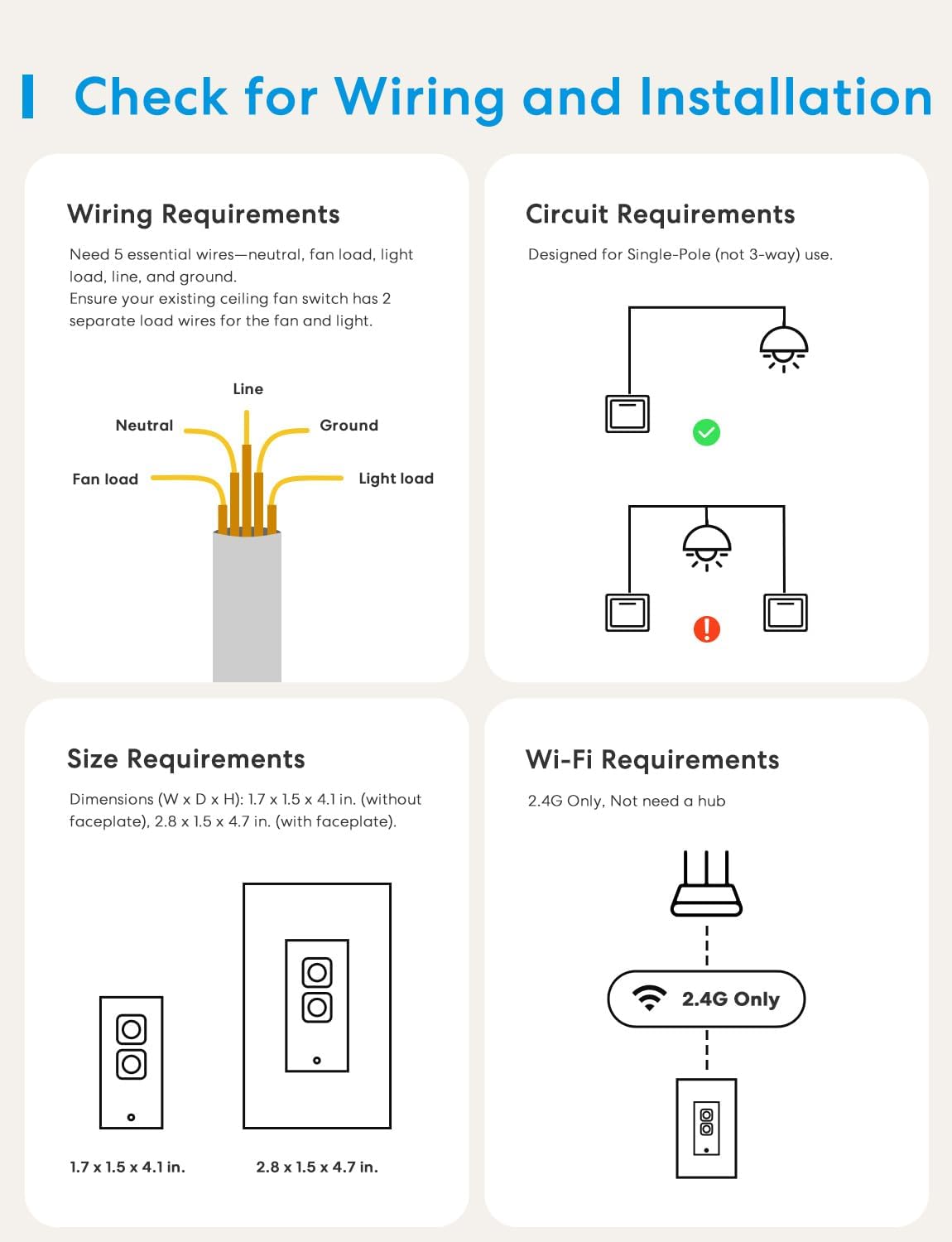
Image: Visual guide to fan and bulb compatibility.
This image details the types of bulbs and fans that are compatible or incompatible with the MFC100. It highlights that smart bulbs, fans with integrated electronic controls, or DC motors are not supported.
Video: Important considerations before purchasing the meross Smart Ceiling Fan Control.
This video provides essential information regarding the compatibility requirements of the meross Smart Ceiling Fan Control, helping users determine if their existing setup is suitable.
2.3 Wi-Fi Requirements
- Supports 2.4GHz Wi-Fi networks only. 5GHz Wi-Fi is not supported.
- No separate hub is required for operation.
3. Pake kontni
The meross MFC100 package includes the following items:
- 1 x meross Smart Wi-Fi Fan Control (MFC100)
- 1 x Faceplate
- 1 x manyèl itilizatè
- 2 x Vis
- 5 x Wiring Nuts
- 1 x Wire Sticker Sheet
Videyo: Debale ak plis ankòview of the meross MFC100 package contents.
This video provides a visual guide to what's included in your meross MFC100 package, demonstrating each component and its purpose.
4. Enstalasyon
4.1 Lis Enstriksyon Pre-Enstalasyon an
- Verify your ceiling fan has two separate load wires (one for fan, one for light).
- Confirm the presence of a neutral wire in your electrical box.
- Ensure your fan does not have built-in remote or smart controls.
- Koupe kouran an nan disjonktè a anvan ou kòmanse.
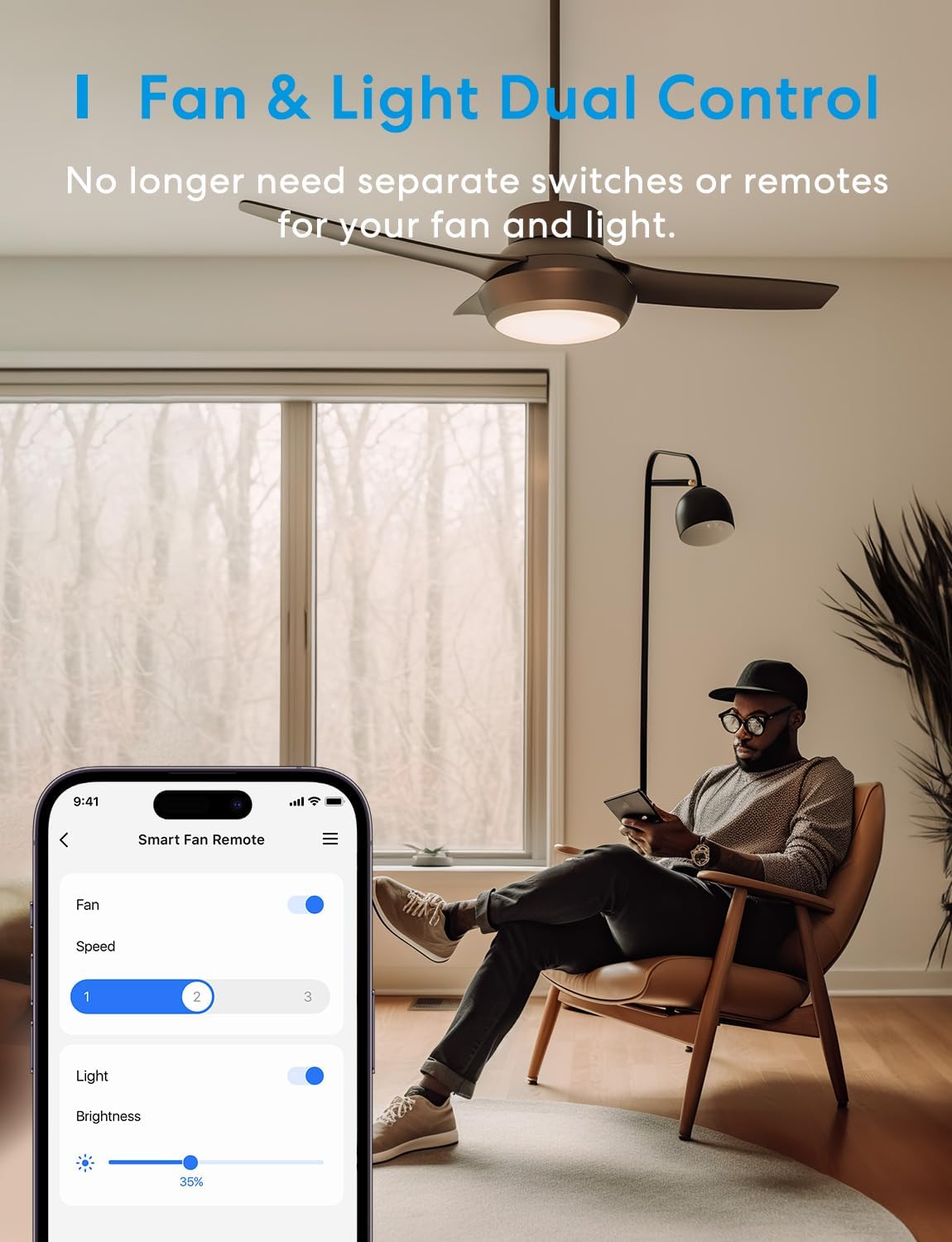
Image: Checklist for wiring and installation.
This image summarizes the critical checks before installation, including wiring, circuit type (single-pole), physical dimensions, and 2.4G Wi-Fi requirement.
4.2 Etap fil elektrik
- Etenn pouvwa: Locate the circuit breaker controlling the fan/light switch and turn it OFF. Test the existing switch to ensure power is disconnected.
- Retire ansyen switch la: Carefully remove the faceplate and unscrew the old switch from the wall box. Disconnect the wires, noting their connections. Use the provided wire stickers to label each wire (Line, Neutral, Ground, Fan Load, Light Load).
- Konekte nouvo switch la: Using the provided wiring nuts, connect the wires from the wall box to the corresponding wires on the meross MFC100 switch.
- Konekte a Liy (cho) wire from the wall to the switch's Line wire.
- Konekte a net wire from the wall to the switch's Neutral wire.
- Konekte a Tè wire from the wall to the switch's Ground wire.
- Konekte a Chaj fanatik wire from the wall to the switch's Fan Load wire.
- Konekte a Chaj limyè wire from the wall to the switch's Light Load wire.
- Chanjman Monte: Carefully tuck all wires into the electrical box. Secure the meross MFC100 switch into the wall box using the provided screws.
- Tache plak fasad la: Snap the new faceplate onto the switch.
- Retabli pouvwa: Remete kouran an nan disjonktè a.
5. Enstalasyon
5.1 Meross App Setup
- Telechaje aplikasyon Meross la nan App Store oubyen Google Play.
- Enskri oswa konekte sou kont Meross ou a.
- Tape ikòn "+" ki nan kwen anwo dwat la pou ajoute yon nouvo aparèy.
- Follow the in-app instructions to connect your MFC100 to your 2.4GHz Wi-Fi network.

Image: Meross app interface for smart fan control.
This image shows the Meross app interface, demonstrating how to control the fan speed and light brightness from your smartphone.
5.2 Smart Home Integration (Apple HomeKit, Alexa, Google Home)
The MFC100 is compatible with major smart home platforms:
- Apple HomeKit:
- Disable 5GHz network and connect your phone to a stable 2.4GHz Wi-Fi network.
- Ensure your device's operating system is iOS 16 or higher.
- Open the Apple Home App, tap "+", then "Add Accessory".
- Scan the QR code on the switch or input the setup code.
- Follow the onboarding instructions in the Home App.
- If adding fails, factory reset the device and restart your phone. You can also visit sipò Meross pou asistans.
- Amazon Alexa / Google Kay:
- Ensure your MFC100 is already set up in the Meross app.
- Louvri aplikasyon Alexa a oswa Google Home la.
- Navigate to the "Skills" or "Works with Google" section and search for "Meross".
- Enable the Meross skill and link your Meross account.
- Discover devices, and your MFC100 should appear.

Image: Step-by-step guide for HomeKit integration.
This image provides a visual walkthrough for connecting your meross MFC100 to Apple HomeKit, including troubleshooting tips.
6. Operasyon Enstriksyon
6.1 Manyèl Kontwòl
- Kontwòl fanatik: Press the fan button to cycle through fan speeds (Off, Low, Medium, High). Double-press to adjust speed settings.
- Kontwòl limyè: Press the light button to turn the light ON/OFF. Double-press to adjust brightness (3 settings).
- Mèt kontwòl: A master button may be present to turn both fan and light ON/OFF simultaneously.
Video: Demonstrating manual control of fan and light with a simple touch.
This video illustrates how to manually control the fan speed and light brightness directly from the meross smart switch.
6.2 Kontwòl App
Use the Meross app to:
- Turn the fan and light ON/OFF.
- Adjust fan speeds (3 or 4 speeds, depending on settings).
- Diminye limyè a soti nan 1% pou rive nan 100%.
- Access advanced features like scheduling and timers.
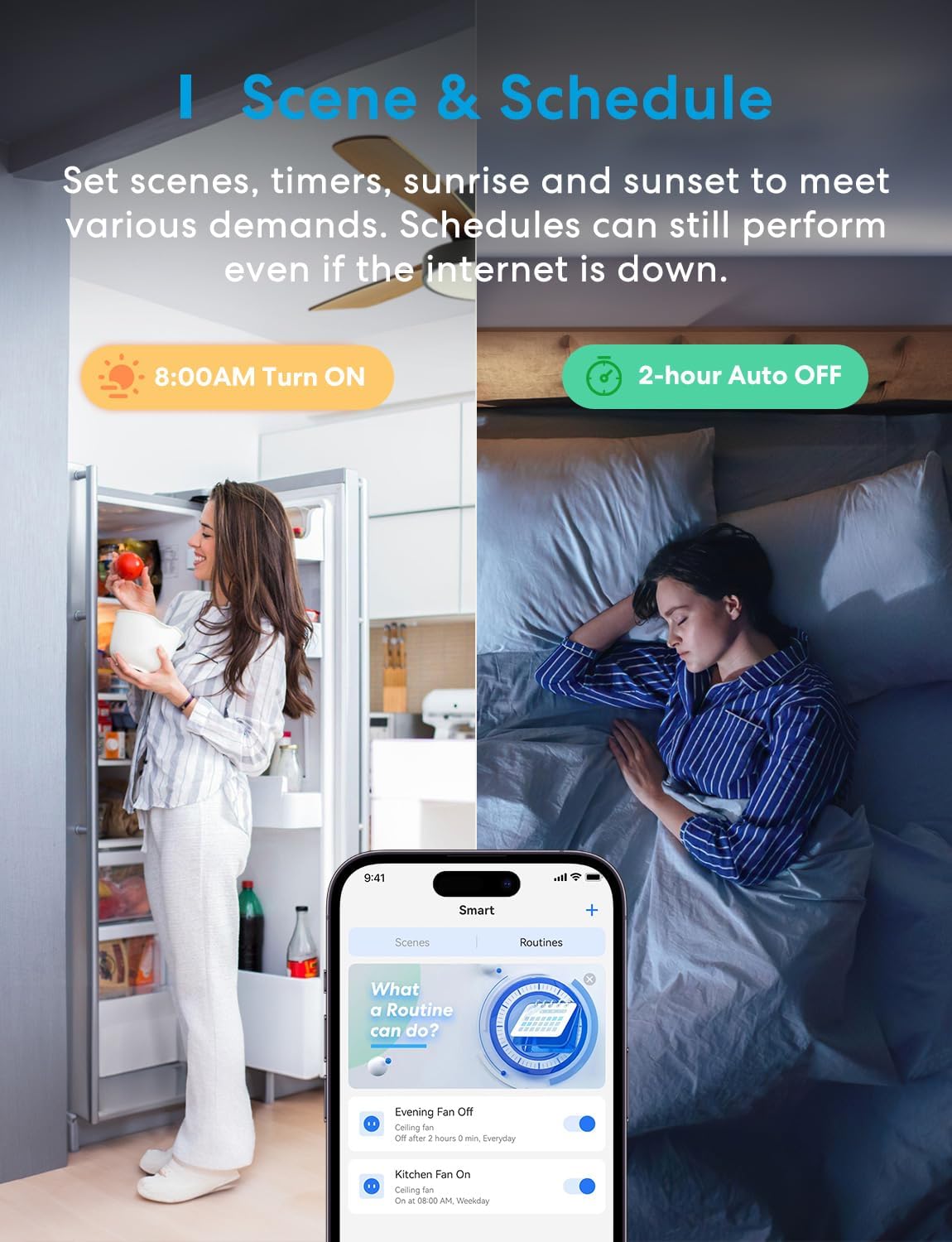
Image: App control for fan and light.
This image shows a user controlling their ceiling fan and light using the Meross app on their smartphone, highlighting the dual control functionality.
6.3 Kontwòl vwa
Once integrated with your smart home assistant, use voice commands:
- "Hey Siri, set the bedroom fan to high."
- "Alexa, turn up the living room fan speed."
- "Hey Google, bese limyè a a 50%."

Image: Voice control options.
This image illustrates how to use voice commands with Siri, Alexa, and Google Assistant to control the fan and light functions of the meross smart switch.
Video: Demonstrating hands-free voice control with Alexa.
This video showcases the convenience of controlling your meross smart fan and light switch using voice commands through Alexa.
7. Karakteristik
- Orè ak tan: Create custom schedules or countdowns for automatic ON/OFF times for both fan and light. Supports sunrise/sunset settings. Schedules continue to run even if the internet connection is lost.
- Dimmable limyè: Smoothly dim your light from 1% to 100% via the app or voice control.
- Vitès fanatik reglabl: Control your fan with 3 or 4 speed levels (customizable in settings).
- Backlight Off Mode: Customize the switch's LED backlight to stay on or off, preventing light pollution during sleep.
- Superfast Local Control: Enjoy millisecond response times and no drop-off with local control when you are at home, ensuring quick and reliable operation.
- Kontwòl Offline: Preset routines in the Meross app will continue to run even if your internet connection is temporarily lost.
- Karakteristik sekirite entegre: The MFC100 features fire-retardant housing (UL94-V0 rating) and is FCC/IC/ETL certified for safe use.

Image: Scene and schedule settings.
This image illustrates how to set up scenes and schedules within the Meross app to automate your fan and light operation, including sunrise/sunset and auto-off functions.
Video: Setting schedules for automatic fan and light operation.
This video demonstrates how to set up schedules to automatically turn the fan and light on or off at specific times.

Image: 1%-100% dimmable range.
This image visually represents the light dimming capability of the MFC100, allowing adjustment from 1% to 100% brightness.

Image: Adjustable fan speed levels.
This image demonstrates the adjustable fan speed feature, showing levels from 1 to 4 for customized airflow.

Image: Backlight off feature for undisturbed sleep.
This image highlights the "Backlight Off" feature, which allows users to disable the LED light on the switch for a more comfortable sleeping environment.

Image: Superfast local control diagram.
This diagram illustrates the efficiency of Meross's local control, showing significantly faster response times compared to other devices that rely solely on cloud communication.

Image: Offline control functionality.
This image demonstrates that the meross smart switch can maintain scheduled operations even when the internet connection is unavailable.

Image: Safety and quality features.
This image details the safety features of the MFC100, including its fire-retardant housing, broad bulb compatibility, and various safety certifications.
8. Antretyen
- Netwayaj: Wipe the switch and faceplate with a soft, dry cloth. Do not use liquid cleaners or aerosols.
- Mizajou mikrolojisyèl: Regularly check the Meross app for firmware updates to ensure optimal performance and security.
NAN. Depanaj
- Switch la pa reponn:
- Check the circuit breaker to ensure power is ON.
- Verifye tout koneksyon fil yo byen fèm.
- Perform a factory reset (refer to the Meross app or support for instructions).
- Pa ka konekte ak Wi-Fi:
- Asire w ke rezo Wi-Fi ou a se 2.4GHz.
- Deplase switch la pi pre routeur Wi-Fi ou a.
- Temporarily disable 5GHz on your router during setup if possible.
- Tcheke modpas Wi-Fi ou a.
- Light Not Dimming / Fan Speed Issues:
- Confirm your bulbs are dimmable and within the wattage limits (300W INC, 150W LED/CFL).
- Ensure your fan is compatible (not DC motor, no integrated smart controls).
- Use the Meross app's compatibility test feature to check for optimal dimming performance.

Image: Meross app compatibility test.
This image displays the Meross app's built-in compatibility test, which helps ensure your lights are fully compatible and provide optimal dimming.
10. Espesifikasyon
| Modèl | MFC100 |
| Antre Voltage | 120V AC |
| Max Fan Power | 120W |
| Max limyè pouvwa | 300W INC / 150W LED/CFL |
| Koneksyon | Wi-Fi IEEE 802.11 b/g/n, 2.4GHz |
| Metòd kontwòl | App, Voice, Manual Switch |
| Konpatibilite | Apple HomeKit, Amazon Alexa, Google Home, SmartThings |
| Dimansyon (W x P x H) | 1.7 x 1.5 x 4.1 in (without faceplate), 2.8 x 1.5 x 4.7 in (with faceplate) |
| Tanperati Fonksyònman | 32°F - 104°F (0°C - 40°C) |
| Sètifikasyon | ETL, FCC, IC |
11. Garanti & Sipò
meross products come with a standard manufacturer's warranty. For detailed warranty information, product support, or technical assistance, please visit the official meross websit oswa kontakte ekip sipò kliyan yo.
Sipò sou entènèt: www.meross.com/support
Sipò Imèl: support@meross.com