
Globe Electric 50000
Globe Electric Wi-Fi Smart Plug User Manual
Modèl: 50000
Entwodiksyon
The Globe Electric Wi-Fi Smart Plug (Model 50000) allows you to control your plugged-in devices from anywhere using your smartphone or voice commands. This smart plug connects directly to your home Wi-Fi network, eliminating the need for a separate hub. It is designed for indoor use and offers convenient features such as scheduling and remote access.

Image: The Globe Electric Wi-Fi Smart Plug, a compact white device, shown alongside its retail packaging. The packaging highlights features like "easy setup" and "Wi-Fi" connectivity, along with icons for app stores.
Enfòmasyon sou Sekirite
- Itilize andedan kay la sèlman: This smart plug is designed exclusively for indoor environments. Do not use it outdoors or in damp/kondisyon mouye.
- Sekirite elektrik: Ensure the plug is fully inserted into the outlet. Do not overload the outlet. Refer to the specifications for maximum wattage ak evalyasyon aktyèl yo.
- Netwayaj: Disconnect the smart plug from the power outlet before cleaning. Use a dry, soft cloth for cleaning. Do not use liquid cleaners.
- Demonte: Do not attempt to disassemble or modify the smart plug. This may void the warranty and pose safety risks.
- Timoun ak bèt kay: Keep the device out of reach of children and pets to prevent accidental misuse or damage.
Kontni pake
Your Globe Electric Wi-Fi Smart Plug package should contain the following:
- 1 x Globe Electric Wi-Fi Smart Plug (Model 50000)
- 1 x Manyèl Itilizatè (dokiman sa a)
Enstalasyon
Follow these steps to set up your Globe Electric Wi-Fi Smart Plug:
- Download the Globe Suite App: Chèche pou "Globe Suite" in your smartphone's app store (available on iOS and Android) and download the application.
- Kreye yon kont: Open the Globe Suite app and follow the on-screen instructions to create a new user account or log in if you already have one.
- Branche priz entelijan an: Insert the Globe Electric Wi-Fi Smart Plug into a standard grounded electrical outlet. The indicator light on the plug should begin to blink, indicating it's in pairing mode.
- Ajoute yon aparèy nan aplikasyon an: In the Globe Suite app, tap the "+" icon (usually in the top right corner) to add a new device. Select "Electrical Outlet" or "Smart Plug" from the device list.
- Konekte ak Wi-Fi: Follow the app's prompts to connect the smart plug to your 2.4 GHz Wi-Fi network. Ensure your phone is also connected to the same 2.4 GHz network during setup. Enter your Wi-Fi password when prompted.
- Konfimasyon pè: Once successfully paired, the indicator light on the smart plug will stop blinking and remain solid. You can then rename your smart plug within the app for easier identification (e.g., "Living Room Lamp").
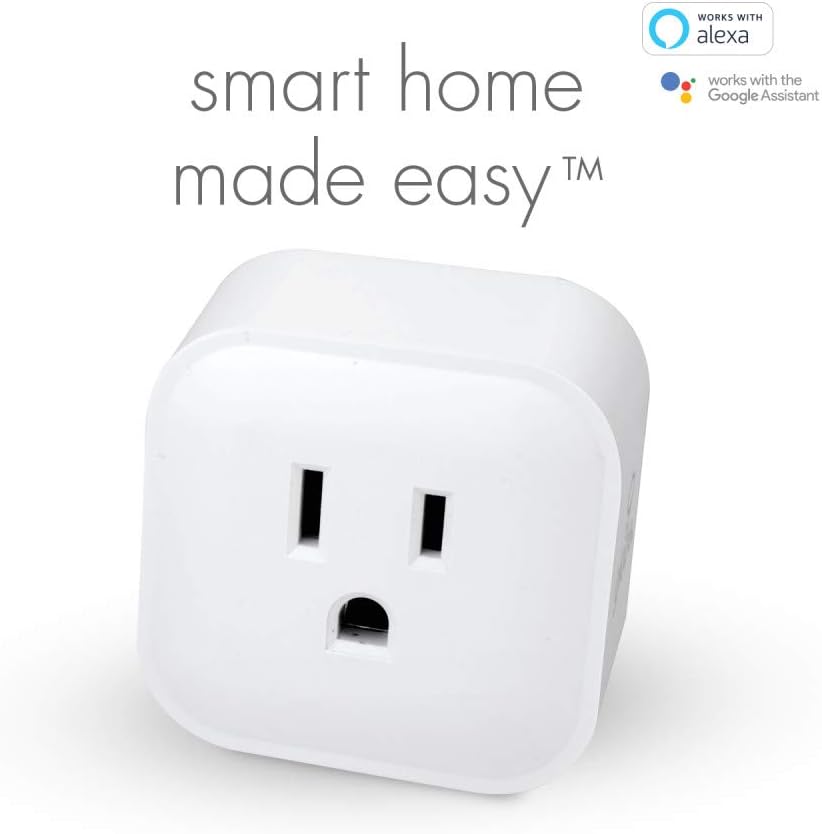
Image: A close-up of the Globe Electric Smart Plug, emphasizing its compatibility with Amazon Alexa and Google Assistant, indicating ease of integration into a smart home system.

Image: A smartphone displaying the Globe Suite app interface, showing a green power button for controlling a smart plug and options for scheduling and timers. This illustrates the app's control capabilities.
Enstriksyon Operasyon
Controlling via Globe Suite App:
- Manyèl On/Off: Open the Globe Suite app, select your smart plug from the device list, and tap the power icon to turn it on or off.
- Kontwòl Remote: As long as your smart plug is connected to Wi-Fi and your smartphone has internet access, you can control your devices from anywhere in the world.
- Orè: Use the scheduling feature within the app to set specific times for your smart plug to turn on or off automatically. This is useful for lights, coffee makers, or other appliances.
- Timer: Set countdown timers for your smart plug to turn off after a specified duration.
- Sèn: Create custom scenes to control multiple Globe smart products simultaneously with a single tap or voice command.

Image: A person sitting and looking at a smartphone, which displays the Globe Suite app with a list of smart devices like "Bedroom Lights" and "TV," illustrating the ability to control outlets remotely.

Image: A hand opening a door into a room with a lamp, visually representing the convenience of scheduling the smart plug to turn devices on or off automatically, such as lights when arriving home.
Kontwòl vwa:
The Globe Electric Wi-Fi Smart Plug is compatible with Amazon Alexa and Google Assistant. To enable voice control:
- Ensure your smart plug is successfully set up in the Globe Suite app.
- Louvri aplikasyon Amazon Alexa a oswa aplikasyon Google Home la.
- Link the "Globe Suite" skill/service within your voice assistant app.
- Discover devices. Once linked, you can use voice commands such as:
- "Alexa, turn on [Smart Plug Name]"
- "Hey Google, turn off [Smart Plug Name]"
Antretyen
The Globe Electric Wi-Fi Smart Plug requires minimal maintenance. Follow these guidelines to ensure its longevity:
- Netwayaj: Disconnect the smart plug from the power outlet before cleaning. Use a dry, soft cloth to wipe the surface. Do not use abrasive cleaners, solvents, or harsh chemicals.
- Anviwònman: Keep the smart plug in a dry environment, away from excessive heat, humidity, and direct sunlight.
- Depo: If storing the device for an extended period, unplug it and store it in a cool, dry place.
Depanaj
If you encounter issues with your Globe Electric Wi-Fi Smart Plug, refer to the following common problems and solutions:
| Pwoblèm | Kòz posib | Solisyon |
|---|---|---|
| Priz entelijan an pa konekte ak Wi-Fi a. | Incorrect Wi-Fi password; Plug too far from router; Only 5 GHz Wi-Fi network available; Router firewall settings. | Double-check Wi-Fi password. Move the plug closer to your Wi-Fi router. Ensure you are connecting to a 2.4 GHz Wi-Fi network. Temporarily disable firewall or consult router manual. |
| Device not responding in app. | No internet connection; Smart plug is offline; App issue. | Check your home internet connection. Unplug the smart plug for 10 seconds and plug it back in. Restart the Globe Suite app. |
| Kontwòl vwa a pa fonksyone. | Skill/service not linked; Device name not recognized; Voice assistant device offline. | Ensure the "Globe Suite" skill/service is correctly linked in your Alexa/Google Home app. Try renaming the smart plug to something simpler. Check if your voice assistant device (e.g., Echo, Google Home) is online. |
| Plug is warm to the touch. | Normal operation; Overloaded circuit. | A slight warmth is normal. If it's excessively hot, unplug immediately and ensure the connected appliance does not exceed the plug's maximum wattage/aktyèl evalyasyon. |
Espesifikasyon
| Atribi | Detay |
|---|---|
| Nimewo Modèl | 50000 |
| Mak | Globe elektrik |
| Koulè | Blan |
| Materyèl | Plastik |
| Dimansyon pwodwi (L x W x H) | 4.98 x 4.98 x 4.98 cm (approx. 50 x 50 x 50 millimeters) |
| Pwa atik | 49.9 g |
| Sous pouvwa | AC/DC |
| Voltage | 125 Volts |
| Wattage | 1875.0 Watts |
| Rating aktyèl | 15 Amps |
| Chanje style | Chanjman elektwonik |
| Itilizasyon | Itilize andedan kay la sèlman |
| Koneksyon | Wi-Fi (XN GHz) |
| Konpatibilite | Amazon Alexa, Google Asistan |
Garanti ak sipò
Garanti: The Globe Electric Wi-Fi Smart Plug (Model 50000) comes with a 2-year manufacturer's limited warranty. Please retain your proof of purchase for warranty claims. The warranty covers defects in materials and workmanship under normal use.
Sipò Kliyan: For technical assistance, troubleshooting beyond this manual, or warranty inquiries, please contact Globe Electric customer support. Refer to the product packaging or the Globe Electric websit la pou jwenn enfòmasyon kontak ki pi resan yo.
You can often find support resources, FAQs, and contact details on the official Globe Electric websit: www.globe-electric.com
Ask a question about this manual
Ask about setup, troubleshooting, compatibility, parts, safety, or missing instructions. Manuals+ will review the question and use this page’s manual context to help answer it.