
1. Entwodiksyon
Thank you for choosing the Wendry Ergonomic Vertical USB Wired Mouse. This manual provides essential information for setting up, operating, and maintaining your new mouse. Designed for left-handed users, this vertical mouse promotes a natural hand and wrist posture, aiming to reduce strain and discomfort during extended computer use. Its ergonomic design, adjustable DPI settings, and programmable buttons enhance productivity and comfort for various tasks, including office work, graphic design, and gaming.
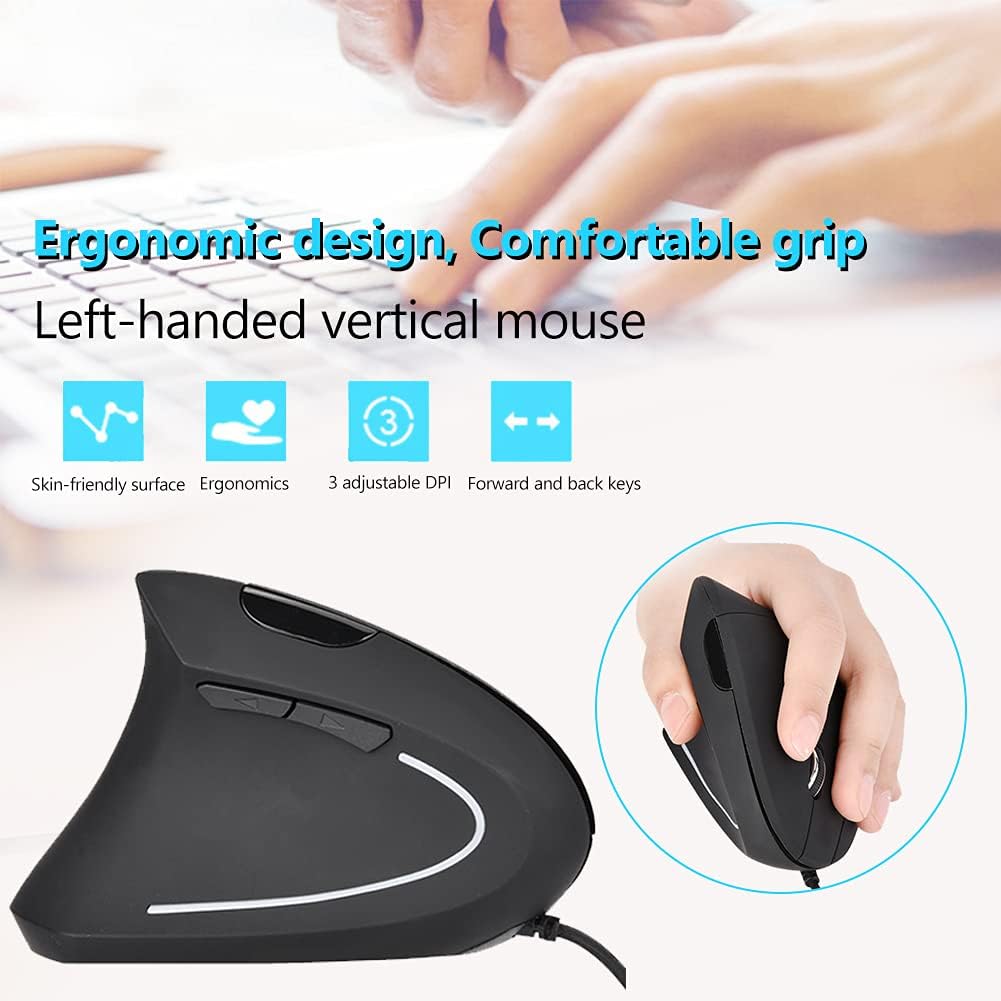
Image 1: The Wendry Ergonomic Vertical USB Wired Mouse, showcasing its design features including a skin-friendly surface, ergonomic shape, 3 adjustable DPI settings, and dedicated forward/back keys.
2. Pwodwi souview
The Wendry Ergonomic Vertical USB Wired Mouse is engineered to provide a comfortable and efficient user experience. Key features include:
- Konsepsyon ergonomique: Vertical orientation to relieve wrist tension through comfortable thumb and pinky support, and contoured palm support.
- Left-Handed Specific: Tailored for left-handers to align with palm and wrist muscles.
- DPI reglabl: Three levels of DPI settings (800/1200/1600) for precise cursor control.
- 6 bouton pwogramasyon: Customize functions for enhanced workflow.
- Web Switch Keys: Dedicated forward and back buttons for easy web navigasyon paj la.
- Optical Tracking Technology: Premium optical engine for quicker response, smoother tracking, and higher precision.
- Lajè konpatibilite: Supports most operating systems including Windows 2000, 7, 8, 98, Vista, ME, and OS.
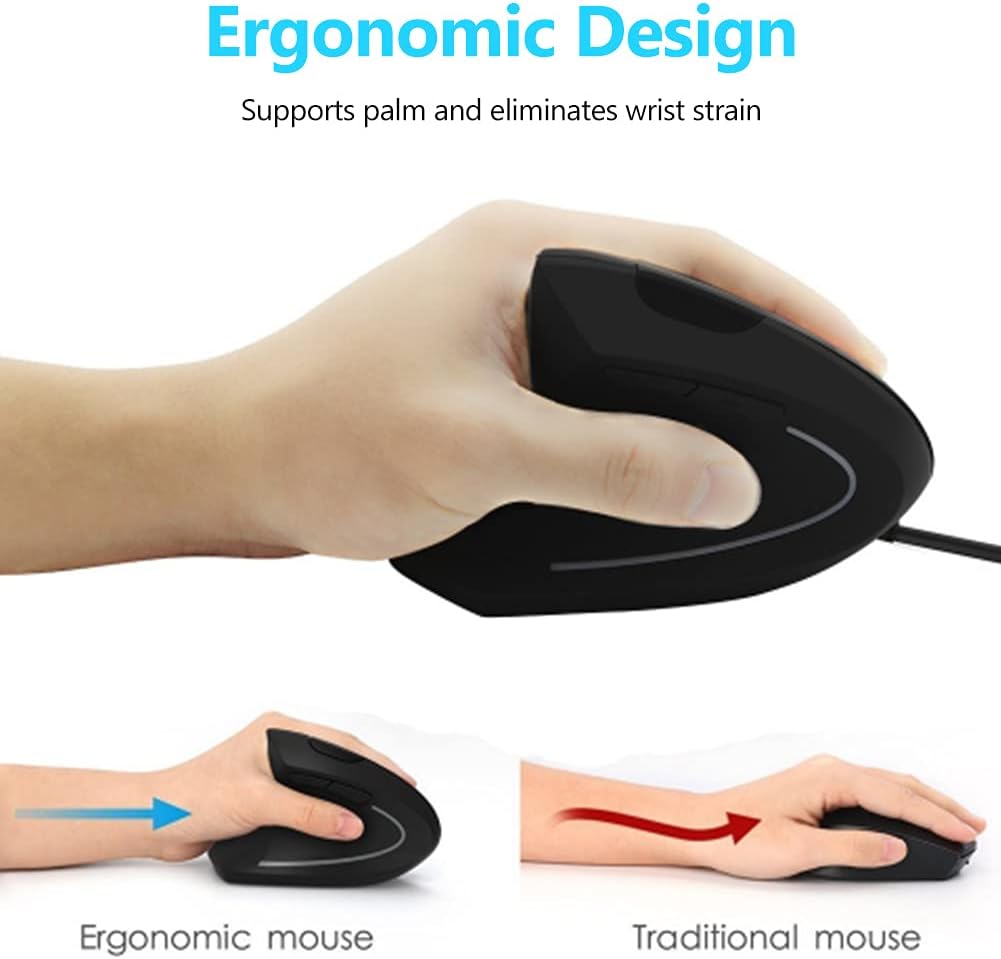
Image 2: A visual comparison demonstrating the ergonomic advantage of the vertical mouse, showing how it supports the palm and reduces wrist strain compared to a traditional horizontal mouse.
3. Enstriksyon Enstalasyon
Setting up your Wendry Ergonomic Vertical USB Wired Mouse is a simple plug-and-play process:
- Konekte kab USB a: Locate an available USB port on your computer (laptop, desktop, notebook, PC, etc.).
- Insert the USB connector of the mouse firmly into the USB port.
- Enstalasyon chofè: The mouse is plug-and-play and typically does not require any additional driver installation. Your operating system should automatically detect and configure the device.
- Pare pou itilize: Once connected, the mouse is ready for immediate use.

Imaj 3: Yon imaj detaye view of the USB connector, which is used to connect the mouse to your computer.
4. Operasyon Enstriksyon
Familiarize yourself with the various buttons and functions of your vertical mouse for optimal control:
- Bouton Goch: Fonksyon klike gòch estanda.
- Dwa bouton: Fonksyon estanda klike sou bò dwat la.
- wou woulo liv: Defile anlè oswa anba nan dokiman yo epi web paj yo. Ou kapab klike tou pou fonksyonalite klike sou bouton mitan an.
- Bouton DPI: Located on the top of the mouse, press this button to cycle through the 3 adjustable DPI settings (800/1200/1600). This allows you to adjust cursor sensitivity to your preference.
- Bouton Avanse/Aryè: Located on the side, these buttons allow for quick navigation between web pages or folders (e.g., going back or forward in your browser history).

Image 4: An illustration detailing the location and labels of the six programmable buttons on the vertical mouse, including the DPI button, left/right click, scroll wheel, and forward/backward buttons.

Image 5: A visual guide to using the forward and back buttons, highlighting their convenience for navigating web paj ak files with a single click.
Videyo pwodwi ofisyèl la
Video 1: An official product video from Wendryer demonstrating the Ergonomic Vertical USB Wired Mouse in use, highlighting its design and functionality.
5. Antretyen
To ensure the longevity and optimal performance of your mouse, follow these simple maintenance tips:
- Netwayaj: Sèvi ak yon twal mou epi sèk pou siye sifas sourit la. Pou pousyè tè ki difisil pou retire, siye yon ti kras.ampRense twal la avèk dlo oswa yon solisyon netwayaj dou. Evite pwodui chimik ki agresif oswa materyèl abrazif.
- Optical sensor: Periodically check the optical sensor on the underside of the mouse for dust or debris. Use a cotton swab or compressed air to gently clean it.
- Swen kab: Avoid sharply bending or pulling the USB cable to prevent damage. Store the cable neatly when not in use.
NAN. Depanaj
If you encounter any issues with your mouse, refer to the following troubleshooting steps:
- Sourit la pa reponn:
- Asire w kab USB a byen branche nan yon pò USB ki fonksyone sou òdinatè w la.
- Eseye branche sourit la nan yon lòt pò USB.
- Rekòmanse òdinatè w lan.
- Inaccurate or Jerky Cursor Movement:
- Netwaye detèktè optik ki anba sourit la.
- Ensure you are using the mouse on a suitable surface (e.g., a mouse pad or a non-reflective, uniform surface).
- Ajiste paramèt DPI a avèk bouton DPI a pou wè si yon lòt sansiblite amelyore pèfòmans lan.
- Bouton ki pa fonksyone:
- Asire w sourit la byen konekte.
- Teste sourit la sou yon lòt òdinatè pou detèmine si pwoblèm nan soti nan sourit la oswa nan paramèt òdinatè a.
7. Espesifikasyon
Detailed specifications for your Wendry Ergonomic Vertical USB Wired Mouse:
| Karakteristik | Spesifikasyon |
|---|---|
| Dimansyon pwodwi | 4.92 x 2.95 x 2.44 pous |
| Pwa atik | 4.9 ons |
| Nimewo Modèl Atik | Wendrymcb5iqnw3g |
| Koneksyon Teknoloji | USB, branche |
| Karakteristik espesyal | Ergonomik konsepsyon |
| Teknoloji deteksyon mouvman | Optik |
| Nivo DPI reglabl | 800/1200/1600 |
| Kantite bouton | 6 |
| Koulè | Nwa |
| Manifakti | Wendry |
| Premye Dat ki disponib | 28 me 2019 |
8. Garanti ak sipò
For any product inquiries, technical assistance, or warranty claims, please contact Wendry customer support through the retailer's platform or the official brand websit la. Tanpri konsève prèv acha ou a pou validasyon garanti a.