
Entwodiksyon
This manual provides essential instructions for the setup, operation, and maintenance of your Verbatim Fingerprint Secure HDD 2TB, Model 53651. This external hard drive offers secure data storage with fingerprint authentication and 256-bit AES hardware encryption.
Ki sa ki nan bwat la
- Verbatim Fingerprint Secure External Hard Drive
- USB-C to USB-A Cable (includes USB-A to USB-C adapter)
- Nero Backup Software (pre-loaded on the drive)

Image: The Verbatim Fingerprint Secure HDD 2TB, a compact black external hard drive with a textured surface and fingerprint sensor.
Enstalasyon
1. Konekte Kondwi a
Connect the Verbatim Fingerprint Secure HDD to your computer using the provided USB-C to USB-A cable. If your computer has a USB-C port, use the included USB-A to USB-C adapter. The drive is compatible with both Mac and PC operating systems.
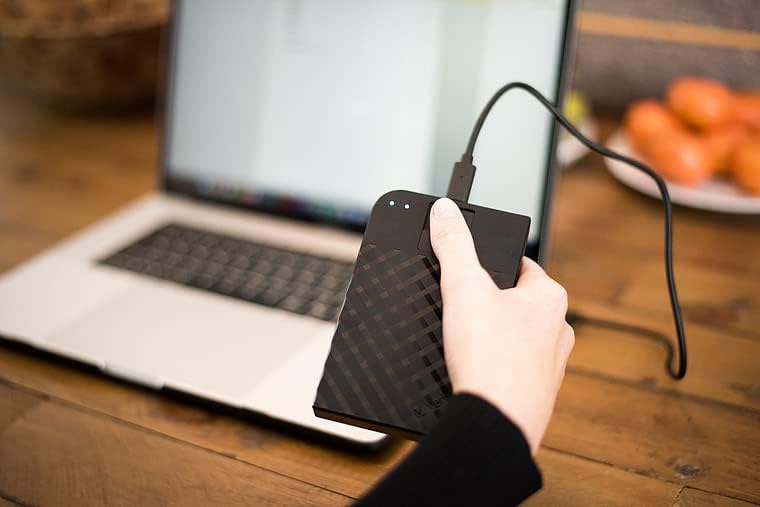
Image: A hand connecting the Verbatim Fingerprint Secure HDD to a laptop via a USB cable.
2. Initial Software Installation and Fingerprint Registration
Upon first connection, the drive will appear as a small partition containing the necessary software for fingerprint management and encryption. Follow the on-screen prompts to install the software. During this process, you will be guided to register your fingerprints. It is recommended to register multiple fingers for convenience and as a backup.
- Locate and run the setup executable on the drive.
- Follow the instructions to install the fingerprint management utility.
- Register your administrator fingerprint first.
- Add additional user fingerprints as needed.
- Set up a password as an alternative access method.
3. Nero Backup Software
The drive includes Nero Backup Software. Install this software from the drive to manage your backups. Refer to the Nero Backup Software documentation for detailed usage instructions.
Opere Aparèy la
Accessing Data with Fingerprint
Once connected, place a registered finger on the fingerprint sensor. The drive will unlock, and the main data partition will become accessible on your computer. The LED indicator on the drive will change to confirm successful authentication.

Imaj: Anlè view of the Verbatim Fingerprint Secure HDD, highlighting the fingerprint sensor area.
Managing Fingerprints and Settings
Use the installed fingerprint management utility to add or remove fingerprints, change the administrator password, or adjust security settings. Always ensure you have at least one administrator fingerprint or password for access.

Imaj: Yon gwo plan anlè view of the Verbatim Fingerprint Secure HDD, showcasing its textured design.
Transfè Done
After successful authentication, the drive functions like any standard external hard drive. You can drag and drop files, copy, paste, and manage your data. The drive utilizes USB 3.0 for fast data transfer speeds.
Antretyen
Cleaning the Fingerprint Sensor
To ensure optimal performance of the fingerprint sensor, keep it clean and free from dust or debris. Gently wipe the sensor with a soft, dry, lint-free cloth. Avoid using harsh chemicals or abrasive materials.
Safe Disconnection
Always safely eject the drive from your operating system before physically disconnecting it. This prevents data corruption and ensures the longevity of the device.
Mizajou mikrolojisyèl
Periodically check the Verbatim support website for any available firmware updates for your Fingerprint Secure HDD. Updates can improve performance, add features, or address security vulnerabilities.
Depanaj
- Kondwi pa rekonèt: Ensure the USB cable is securely connected to both the drive and your computer. Try a different USB port or cable. Restart your computer.
- Anprent dijital pa rekonèt: Ensure your finger is clean and dry. Try placing your finger on the sensor from different angles. If multiple attempts fail, try a different registered finger or use the administrator password to unlock the drive. Re-registering your fingerprint through the utility might be necessary.
- Transfè Done Ralanti: Ensure you are connected to a USB 3.0 port for optimal speed. Close any unnecessary applications that might be consuming system resources.
- Pwoblèm lojisyèl: If the fingerprint management software is not functioning correctly, try reinstalling it from the drive or downloading the latest version from the Verbatim support websit.
- Modpas bliye: If you forget your administrator password and cannot access the drive with a registered fingerprint, you may need to reset the drive, which will erase all data. Contact Verbatim support for guidance on this process.
For further assistance, refer to the Verbatim support websit oswa kontakte sèvis kliyan yo.
Espesifikasyon
| Nimewo Modèl | 53651 |
| Kapasite depo dijital | 2000 GB (2 TB) |
| Entèfas Disk Difisil | USB 3.0 |
| Koneksyon Teknoloji | USB |
| Mak | Verbatim |
| Karakteristik espesyal | Portable, Fingerprint Security, 256-bit AES Hardware Encryption |
| Disk Disk Fòm Faktè | 2.5 pous |
| Deskripsyon Hard Disk | Disk difisil mekanik |
| Aparèy konpatib | Desktop, Laptop (Mac, PC) |
| Kalite enstalasyon | Ekstèn Disk Disk |
| Koulè | Nwa |
| Li vitès | Jiska 625 megabytes pa segonn |
| Vitès medya | 60 MB/s |
| Pwa atik | 182 gram |
| Manifakti | VERBATIM CORPORATION |

Imaj: Bò kote view of the Verbatim Fingerprint Secure HDD, showing its slim profile.
Garanti ak sipò
Enfòmasyon sou Garanti
The Verbatim Fingerprint Secure HDD comes with a limited warranty. For specific warranty terms and conditions, including the duration and coverage, please refer to the documentation included with your product or visit the official Verbatim website. Note that EU spare part availability duration is 1 year.
Sipò pou Kliyan
For technical support, product registration, or to download the latest drivers and software, please visit the official Verbatim support website. You can typically find contact information for customer service on their websit tou.
Verbatim Official Websit: www.verbatim.com