
BESDER BES-MH03
BESDER Home Security IP Camera User Manual
Model: BES-MH03
1. Entwodiksyon
Thank you for choosing the BESDER Home Security IP Camera. This wireless smart WiFi camera is designed to provide reliable surveillance, audio recording, and baby monitoring capabilities with high-definition video. This manual will guide you through the setup, operation, and maintenance of your new device to ensure optimal performance and security.
2. Enfòmasyon sou Sekirite
- Ensure the camera is powered by the correct voltage (DC 5V) as specified.
- Do not expose the camera to water or moisture. It is designed for indoor use only.
- Evite mete kamera a anba limyè solèy dirèk oswa toupre sous chalè.
- Do not attempt to disassemble or repair the camera yourself. Contact qualified personnel for service.
- Kenbe kamera a ak akseswa li yo lwen timoun yo.
- Use only the provided power adapter and cable to prevent damage.
3. Pake kontni
Tanpri verifye pake a pou asire w tout atik yo prezan epi yo an bon kondisyon:
- BESDER Home Security IP Camera
- USB pouvwa kab
- Adaptè pouvwa (DC 5V)
- Vis ak ploge miray pou monte
- Manyèl Itilizatè (dokiman sa a)

Image showing the BESDER IP Camera along with its accessories: a USB power cable, a power adapter, and a packet of mounting screws.
4. Pwodwi souview
Familiarize yourself with the main components of your BESDER IP Camera:
- Lantiy kamera: Kaptire videyo footage.
- Dirije enfrawouj: For night vision.
- Mikwofòn: Pou opinyon odyo.
- Oratè: Pou kominikasyon odyo de-fason.
- Plas kat SD: Pou depo videyo lokal (sipòte jiska 64GB).
- Power Interface (DC 5V): Konekte ak adaptè pouvwa a.
- Bouton Reyajiste: Itilize pou retabli paramèt faktori yo.

Diagram illustrating the side view of the BESDER IP Camera, highlighting the SD Card slot, Power interface (DC 5V), and Reset button.
5. Enstalasyon
5.1. Limen
- Connect the USB power cable to the camera's power interface.
- Ploge adaptè pouvwa a nan yon priz elektrik estanda.
- The camera will power on, and its indicator light will begin to flash, indicating it's ready for setup.
5.2. App Installation (iCSee)
The BESDER IP Camera uses the iCSee application for remote monitoring and control.
- Download the iCSee app from your mobile device's app store (App Store for iOS or Google Play Store for Android).
Telechaje pou iOS | Telechaje pou android - Anrejistre yon nouvo kont oubyen konekte si ou deja genyen youn.
5.3. Koneksyon Wi-Fi
Swiv etap sa yo pou konekte kamera ou a ak rezo Wi-Fi lakay ou:
- Open the iCSee app and tap the "+" icon to add a new device.
- Select "Add My Device" or "Add Camera".
- Choose the "Wi-Fi Camera" option.
- Follow the on-screen prompts to enter your Wi-Fi network name (SSID) and password. Ensure your phone is connected to a 2.4GHz Wi-Fi network, as the camera may not support 5GHz.
- The app will generate a QR code. Position your phone's screen in front of the camera lens (approx. 15-20 cm away) until you hear a confirmation sound from the camera.
- Once connected, the camera's indicator light will turn solid blue. You can now name your camera and start monitoring.
5.4. Monte
Kamera a ka mete sou yon sifas plat oswa monte sou yon miray oswa plafon.
- Chwazi yon kote ki apwopriye epi ki klè view and within Wi-Fi range.
- If mounting, use the provided mounting screws and wall plugs to secure the camera base.
- Adjust the camera's angle as needed within the app after mounting.
6. Opere
6.1. Viv View
Access real-time video feed from your camera through the iCSee app.
- Open the iCSee app and select your camera from the device list.
- The live video feed will appear. You can pan and tilt the camera remotely using the controls in the app.

Screenshot of a multi-camera monitoring interface, likely from the iCSee application, displaying live feeds from multiple cameras and recording controls.
6.2. Anrejistreman ak Depo
The camera supports local storage via a MicroSD card.
- Insert a MicroSD card (up to 64GB, Class 10 recommended) into the SD card slot.
- In the iCSee app settings, navigate to "Storage Settings" to format the SD card and configure recording modes (e.g., continuous, motion-triggered).
- Anrejistre footage kapab viewed and downloaded directly from the app.
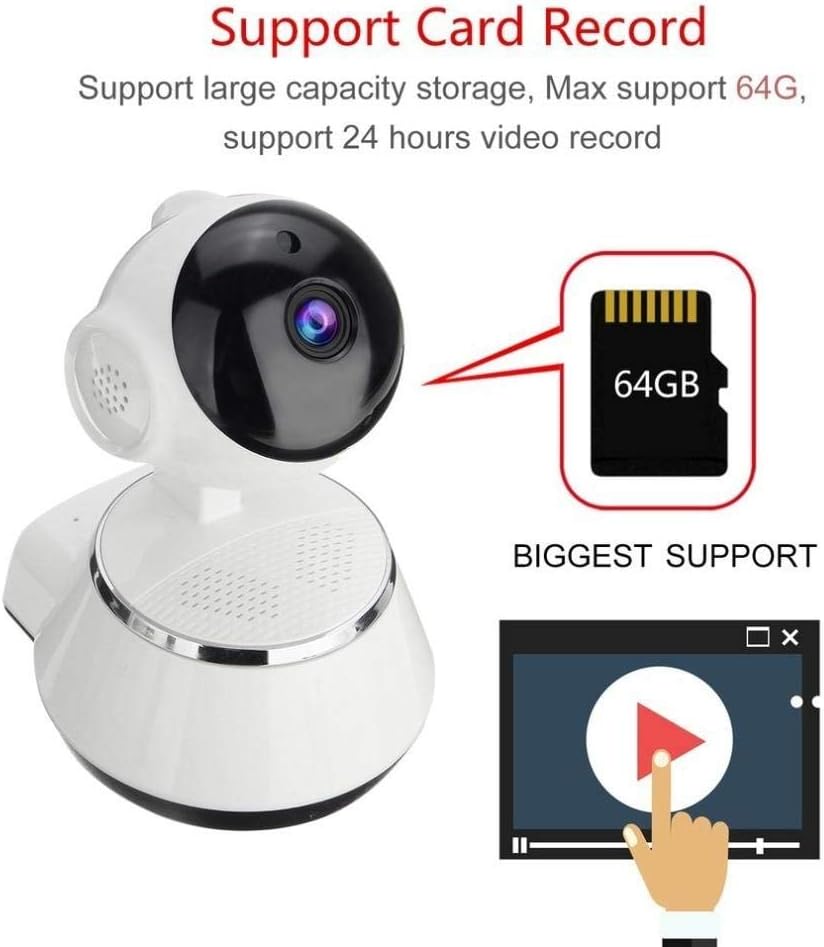
Image demonstrating the camera's support for large capacity storage, specifically showing a 64GB MicroSD card, indicating support for 24-hour video recording.
6.3. Deteksyon Mouvman
Receive alerts when motion is detected in the camera's field of view.
- Enable "Motion Detection" in the camera settings within the iCSee app.
- Adjust sensitivity levels and set up notification preferences (e.g., push notifications, email alerts).
6.4. Vizyon lannwit
Kamera a chanje otomatikman sou vizyon lannwit nan kondisyon ki pa twò klere.
- Infrared LEDs provide clear black-and-white video up to 10 meters in complete darkness.
- No manual intervention is required for night vision activation.

Comparison image displayed on a smartphone screen, showing the difference between daytime and nighttime monitoring views, highlighting the infrared night vision capability.
6.5. Odyo Bidireksyonèl
Kominike atravè kamera a lè l sèvi avèk mikwofòn ak oratè entegre a.
- Pandan w ap viv la view, tap the microphone icon in the iCSee app to speak through the camera.
- Tape ikòn oratè a pou koute odyo ki soti bò kote kamera a.
6.6. Aksè Remote
Monitor your property from anywhere with an internet connection.
- As long as your camera is connected to Wi-Fi and your phone has internet access, you can view live feeds and manage settings remotely via the iCSee app.
7. Antretyen
- Netwayaj: Sèvi ak yon twal mou epi sèk pou netwaye lantiy kamera a ak kò a. Pa sèvi ak pwodui netwayaj likid oswa ayewosòl.
- Mizajou mikrolojisyèl: Regularly check for firmware updates through the iCSee app to ensure your camera has the latest features and security patches.
- SD Kat Jesyon: Periodically back up important recordings and format the SD card to maintain optimal performance.
- Depo: Lè w pa itilize kamera a pou yon bon bout tan, sere l nan yon kote ki fre epi sèk, lwen limyè solèy dirèk.
NAN. Depanaj
| Pwoblèm | Kòz posib / Solisyon |
|---|---|
| Kamera pa limen | Ensure the power adapter is securely connected to both the camera and the power outlet. Try a different outlet. |
| Pa ka konekte ak Wi-Fi | Check if your Wi-Fi network is 2.4GHz. Ensure the Wi-Fi password is correct. Move the camera closer to the router. Reset the camera and try again. |
| Viv view is blurry or dark | Clean the camera lens. Check lighting conditions. Ensure night vision is functioning correctly in low light. |
| Kat SD a pa anrejistre | Ensure the SD card is inserted correctly and formatted in the app. Check if the card is full or corrupted. Try a different SD card. |
| Pa gen odyo oswa move kalite odyo | Tcheke paramèt mikwofòn nan ak oratè a nan aplikasyon an. Asire w pa gen okenn obstak ki bloke mikwofòn nan oswa oratè a. |
| Kamera dekonekte souvan | Weak Wi-Fi signal. Move the camera closer to the router or consider a Wi-Fi extender. Reduce network congestion. |
9. Espesifikasyon
| Karakteristik | Detay |
|---|---|
| Nimewo Modèl | BES-MH03 |
| Koneksyon Teknoloji | San fil (Wi-Fi) |
| Itilizasyon Rekòmande | Baby Monitoring, Home Security |
| Karakteristik espesyal | Motion Sensor, Night Vision (Infrared distance 10m) |
| Faktè fòm | Dome |
| Wattage | 3 wat |
| Sipò pou Depo | Kat MicroSD (Max 64GB) |
| Odyo | Two-way audio (Audio Record) |
10. Garanti ak sipò
BESDER products are manufactured to high-quality standards. For warranty information, please refer to the terms and conditions provided at the point of purchase or contact your retailer. For technical support or further assistance, please refer to the support section within the iCSee application or visit the official BESDER websit (si disponib).
Ask a question about this manual
Ask about setup, troubleshooting, compatibility, parts, safety, or missing instructions. Manuals+ will review the question and use this page’s manual context to help answer it.