
1. Entwodiksyon
Thank you for choosing the Gembird MUS-6B-01 Optical USB Mouse. This manual provides essential information for setting up, operating, maintaining, and troubleshooting your new mouse. Please read these instructions carefully to ensure optimal performance and longevity of your device.

Image: The official Gembird brand logo, featuring the company name in a stylized font with a geometric design.
2. Pwodwi souview
The Gembird MUS-6B-01 is a reliable 6-button optical USB mouse designed for comfortable and precise navigation. Its ambidextrous design makes it suitable for both left and right-handed users.
Karakteristik kle:
- Suivi optik: Bay yon kontwòl kurseur ki lis e egzak.
- 6 Bouton: Includes standard left/right click, scroll wheel, DPI adjustment, and two side buttons for enhanced functionality.
- Koneksyon USB: Simple plug-and-play connection to your computer.
- Konsepsyon anbidextre: Comfortable for both left and right-handed users.
Eleman:
- Klike sou bouton gòch
- Dwa Klike sou bouton
- Scroll Wheel (also functions as a middle click button)
- Bouton Ajisteman DPI
- Bouton Avanse (sou kote)
- Bouton pou retounen dèyè (sou kote)
- Optical Sensor (underside)
- USB Connector (at the end of the cable)
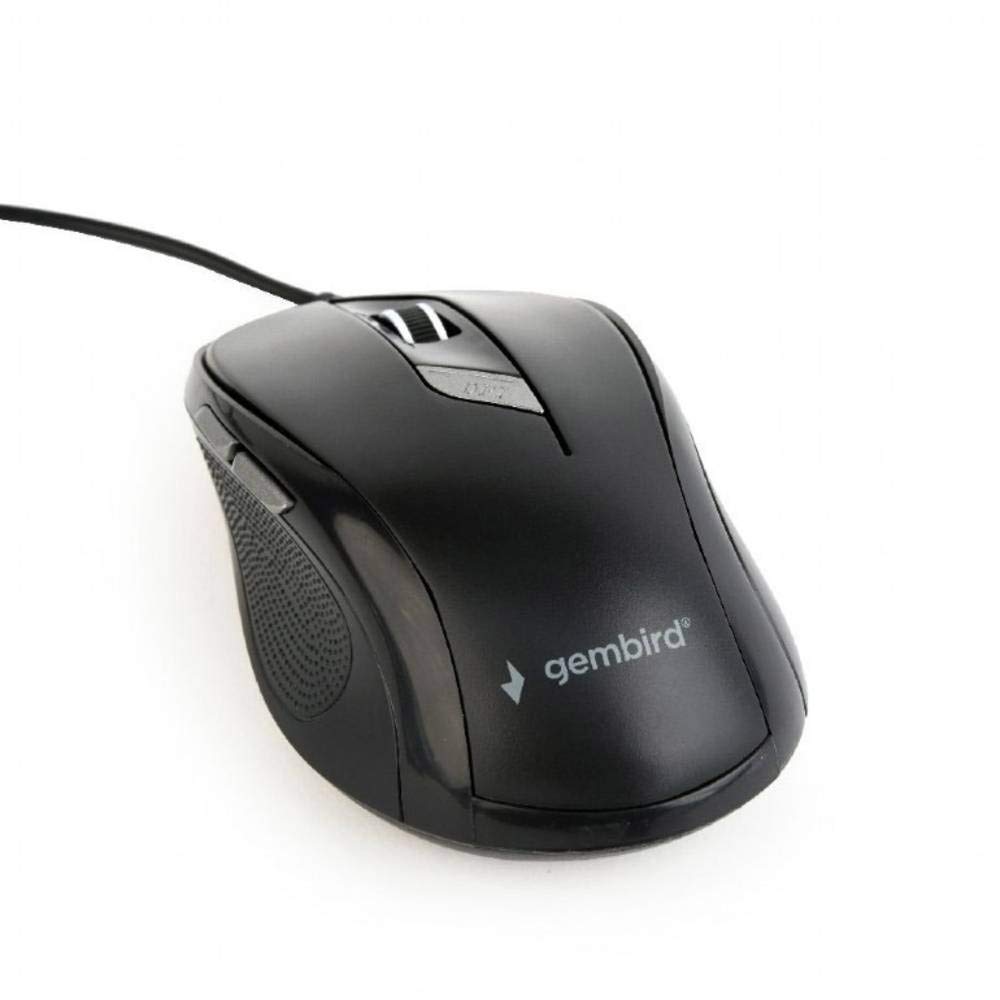
Imaj: Yon imaj anwo-anba view of the Gembird MUS-6B-01 optical USB mouse. The mouse is black with a matte finish, featuring a scroll wheel, left and right click buttons, a DPI button, and two side buttons. A black USB cable extends from the front of the mouse.
3. Enstalasyon
Setting up your Gembird MUS-6B-01 mouse is a simple plug-and-play process.
Etap enstalasyon:
- Jwenn yon pò USB ki disponib sou òdinatè w lan.
- Plug the USB connector of the Gembird MUS-6B-01 mouse firmly into the USB port.
- Your operating system (Windows, Linux) will automatically detect and install the necessary drivers. This process may take a few moments.
- Yon fwa chofè yo enstale, sourit la pare pou itilize.
No additional software installation is typically required for basic functionality.
4. Operasyon Enstriksyon
Familiarize yourself with the functions of each button on your Gembird MUS-6B-01 mouse.
Fonksyon debaz:
- Klike Goch: Primary action, selecting items, opening files.
- Klike sou dwa: Opens context menus, provides additional options.
- wou woulo liv: Defile anlè oswa anba nan dokiman yo epi web paj.
- Klike nan mitan (Peze wou defile): Often used to open links in new tabs or for specific application functions.
Fonksyon avanse:
- Bouton Ajisteman DPI: Located behind the scroll wheel, this button allows you to cycle through different sensitivity (DPI) settings. Press it to change the cursor speed to suit your preference.
- Bouton Avanse (Sou bò): Typically navigates forward in web navigatè oswa file eksploratè.
- Bouton pou retounen dèyè (sou kote): Typically navigates backward in web navigatè oswa file eksploratè.
The functionality of the side buttons may vary depending on the application or operating system settings. Some operating systems allow customization of these buttons.
5. Antretyen
Proper care will help extend the life of your Gembird MUS-6B-01 mouse.
Netwayaj:
- Dekonekte sourit la nan òdinatè w la anvan ou netwaye li.
- Sèvi ak yon mou, yon ti kras damp, lint-free cloth to wipe the surface of the mouse.
- For stubborn dirt, a small amount of mild soap solution can be applied to the cloth (not directly to the mouse).
- Sèvi ak yon ti koton oswa lè konprese pou netwaye ozalantou wou woulo liv la ak ant bouton yo.
- Ensure the optical sensor on the underside is clean and free of dust or debris.
- Do not use harsh chemicals, abrasive cleaners, or immerse the mouse in water.
Depo:
Lè w pa itilize sourit la pou yon bon bout tan, sere l nan yon anviwònman pwòp epi sèk, lwen tanperati ekstrèm ak limyè solèy dirèk.
NAN. Depanaj
If you encounter issues with your Gembird MUS-6B-01 mouse, try the following troubleshooting steps:
| Pwoblèm | Solisyon posib |
|---|---|
| Sourit pa reponn |
|
| Erratic or jumpy cursor movement |
|
| Bouton pa travay |
|
7. Espesifikasyon
Detailed technical specifications for the Gembird MUS-6B-01 Optical USB Mouse:
| Karakteristik | Spesifikasyon |
|---|---|
| Mak | Gembird |
| Non modèl | MUS-6B-01 |
| Koneksyon Teknoloji | Branche (USB) |
| Teknoloji deteksyon mouvman | Optik |
| Kantite bouton | 6 |
| Oryantasyon men | Anbidextr |
| Sistèm operasyon konpatib | Linux, Windows 7, Windows XP (ak vèsyon ki pi resan yo) |
| Platfòm pyès ki nan konpitè | Odinatè pèsonèl |
| Longè kab | 5.0 mèt |
| Pwa atik | 74 gram |
| Materyèl | Plastik |
| Koulè | Nwa |
| Batri obligatwa | Non |
8. Enfòmasyon sou Sekirite
Tanpri obsève direktiv sekirite sa yo:
- Pa ekspoze sourit la nan dlo oswa twòp imidite.
- Evite jete oswa soumèt sourit la nan enpak fò.
- Do not attempt to disassemble or repair the mouse yourself. Refer to qualified service personnel.
- Kenbe aparèy la lwen tanperati ekstrèm ak limyè solèy la dirèk.
- Jete dechè elektwonik yo yon fason responsab dapre règleman lokal yo.
9. Garanti ak sipò
Gembird products are designed for reliability and performance. For specific warranty terms and conditions, please refer to the warranty card included with your product or visit the official Gembird website. For technical support or further assistance, please contact your retailer or the Gembird customer service department.