
Entwodiksyon
This manual provides comprehensive instructions for the Apple iPhone Xs Smart Battery Silicone Case (Model MRXK2LL/A). It covers essential information regarding installation, operation, maintenance, and troubleshooting to ensure optimal performance and longevity of your device. This case is designed to extend your iPhone Xs battery life while providing protection and supporting wireless charging.
Enstalasyon
1. Installing the Smart Battery Case
The Smart Battery Case features a soft elastomer hinge designed for easy installation. Gently bend the top portion of the case backward. Carefully slide your iPhone Xs into the case, ensuring the Lightning connector on the iPhone aligns and connects securely with the connector inside the case. Push the iPhone fully into the case until it is seated properly.
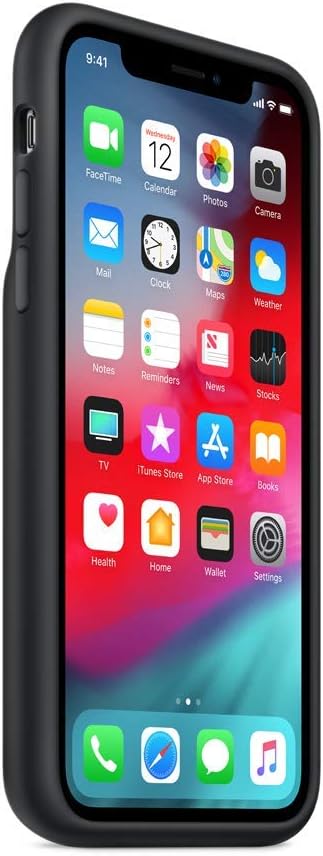
Imaj: Bò kote view of the Apple iPhone Xs Smart Battery Case installed on an iPhone Xs, highlighting the elastomer hinge for installation.
2. Premye Chajman
Before first use, it is recommended to fully charge the Smart Battery Case. Connect a Lightning to USB cable to the case's Lightning port and then to a USB power adapter. If your iPhone Xs is already installed in the case, both the iPhone and the Smart Battery Case will charge simultaneously.
Opere
Otomatik chaje
Once installed, the Smart Battery Case automatically begins charging your iPhone Xs when its battery level is low. The case prioritizes charging the iPhone first to ensure your phone has power.
Tcheke estati batri a
The intelligent battery status for both your iPhone and the Smart Battery Case is displayed on the iPhone Lock screen and within the Notification Center's Battery widget. This allows you to monitor the charge levels of both devices.

Image: Apple iPhone Xs Smart Battery Case installed on an iPhone Xs, demonstrating how battery status is displayed on the phone's screen.
Chaje san fil
The Smart Battery Case is compatible with Qi-certified wireless chargers. To charge, place your iPhone Xs with the case on a compatible wireless charging pad. Both the iPhone and the case will charge simultaneously.
Wired Charging and Accessory Support
Connect a Lightning to USB cable to the Lightning port on the bottom of the case for wired charging. For faster charging, use a USB-PD compatible charger. The case also supports Lightning accessories, such as Apple EarPods with Lightning Connector or the Lightning Digital AV Adapter (sold separately).

Imaj: Dèyè view of the Apple iPhone Xs Smart Battery Case in black, illustrating the design and location of the Lightning port at the bottom for wired charging.
Antretyen
Netwaye Eksteryè a
To clean the silicone exterior of the case, gently wipe it with a soft, damp, lint-free cloth. Avoid using abrasive materials, solvents, or harsh chemicals, as these can damage the finish. Ensure the case is completely dry before reattaching it to your iPhone.
Caring for the Interior
The case features a soft microfiber lining to protect your iPhone. Periodically inspect the interior and gently remove any accumulated dust or debris to prevent scratches on your device.
Depanaj
Ka a pa chaje
- Ensure the Lightning cable and power adapter are functioning correctly and securely connected.
- Verifye si sous kouran an aktif.
- If using wireless charging, ensure the charging pad is Qi-certified and the case is properly aligned on the pad.
iPhone Not Charging While in Case
- Check that the iPhone is correctly seated in the case and the Lightning connector is fully engaged.
- Rekòmanse iPhone ou.
- If the issue persists, remove the case, clean the Lightning port on both the iPhone and the case, then reattach.
Battery Status Not Displaying
- Ensure your iPhone's software is up to date.
- Check the Battery widget in Notification Center. If the widget is not present, add it through the 'Edit' option.
Pwoblèm Jeneral
If problems persist after attempting the above steps, visit the official Apple Support website or contact Apple customer service for further assistance.
Espesifikasyon
| Karakteristik | Detay |
|---|---|
| Dimansyon pwodwi | 7.32 x 3.7 x 0.94 pous |
| Pwa atik | 6.4 ons |
| Manifakti | Apple |
| Nimewo Modèl | MRXK2LL/A |
| Batri | 1 Lityòm Ion (enkli) |
| Modèl Telefòn konpatib | iPhone XS |
| Materyèl | Silicone |
Enfòmasyon sou Garanti
This Apple product is covered by Apple's standard limited warranty. For detailed information regarding warranty terms, coverage, and duration, please refer to the official Apple website or the documentation included with your original iPhone purchase. Proof of purchase may be required for warranty claims.
Sipò
For additional support, technical assistance, or service inquiries, please visit the official Apple Support websit: