
1. Gid Enstalasyon
This section provides instructions for the initial setup of your Rii RK200 Wireless Keyboard and Mouse Combo.
1.1 Kontni pake a
- Rii RK200 Wireless Keyboard
- Rii Wireless Mouse
- Nano USB Receiver (stored in the mouse battery compartment)
1.2 Enstalasyon batri
The keyboard and mouse require batteries (not included) for operation. Please ensure correct polarity when inserting batteries.
Batri sourit: Open the battery compartment cover on the underside of the mouse. Insert 1 batri AA. The Nano USB receiver is also located here. Remove it before closing the compartment.

Batri klavye: Open the battery compartment cover on the underside of the keyboard. Insert 1 batri AAA.
1.3 Konekte ak aparèy ou an
The Rii RK200 combo uses a single Nano USB receiver for both the keyboard and mouse, offering a stable 2.4 GHz wireless connection up to 10 meters (33 feet).
- Locate the Nano USB receiver. It is typically stored in the battery compartment of the mouse.
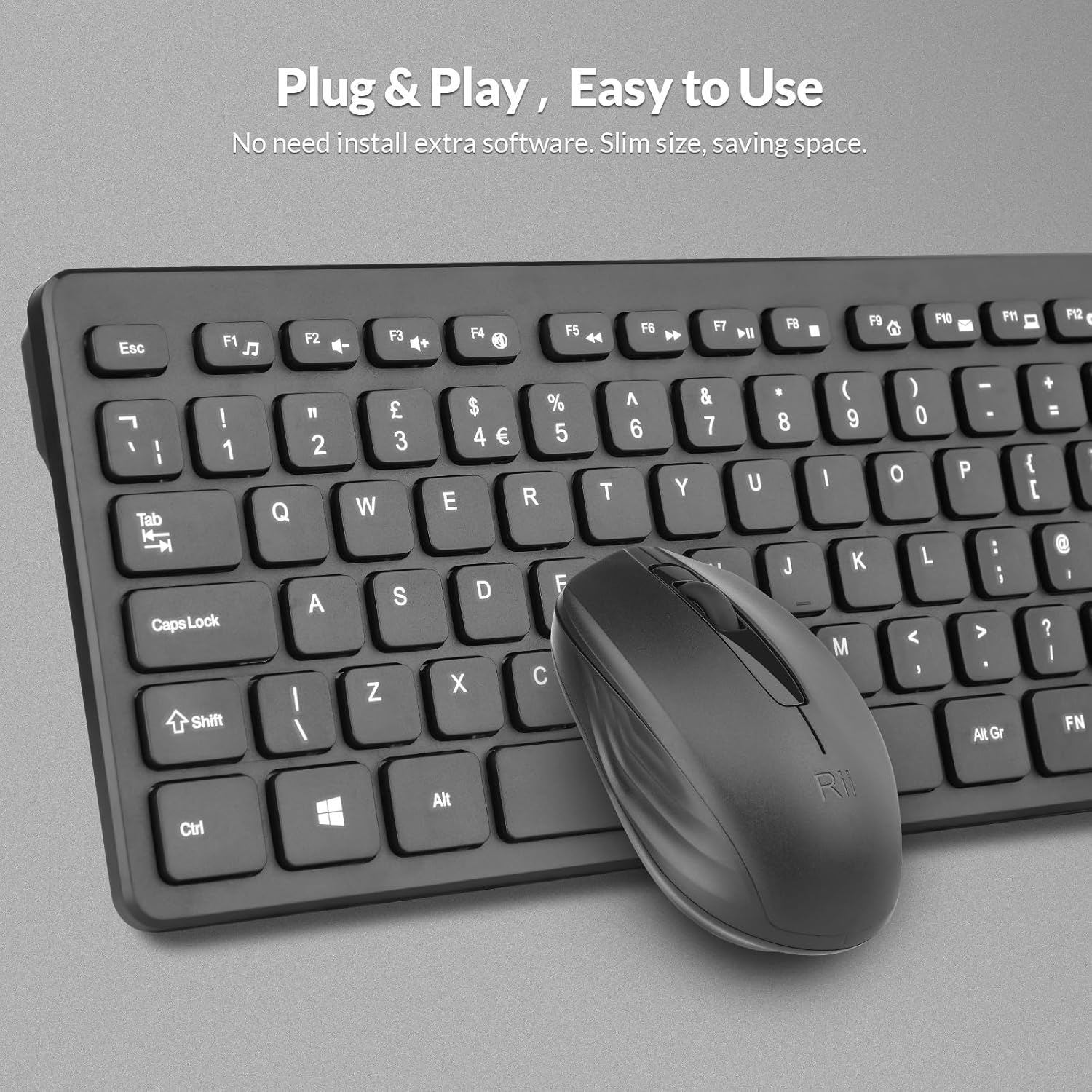
- Plug the Nano USB receiver into an available USB port on your computer or compatible device.
- Limen sourit la avèk bouton pouvwa ki anba li a.
- Your device should automatically detect and install the necessary drivers. No additional software installation is required.

The Nano USB receiver provides a plug-and-play connection for both the keyboard and mouse.
1.4 Gid Videyo Enstalasyon
This video demonstrates the unboxing and initial setup steps for the Rii Wireless Keyboard and Mouse Combo, including battery installation and USB receiver connection.
2. Operasyon Enstriksyon
Learn how to effectively use your Rii RK200 Wireless Keyboard and Mouse Combo.
2.1 Karakteristik klavye a
The Rii RK200 keyboard features silent keys for a quiet typing experience and an ergonomic design with adjustable stands for comfort during extended use.
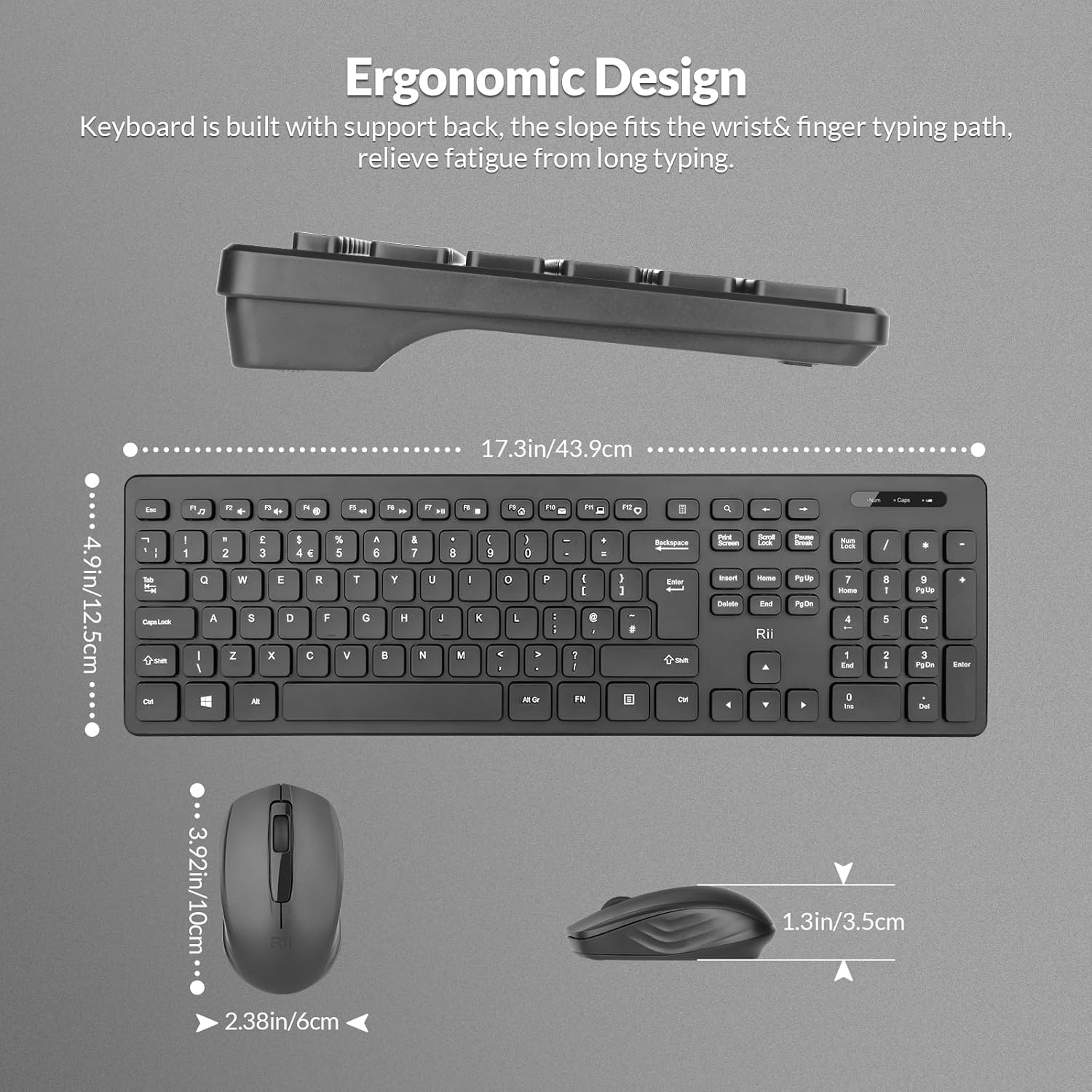
The keyboard is designed with a slight incline to reduce wrist strain.
Limyè Endikatè
The keyboard includes indicator lights for essential functions:
- NumLock Indicator: Lights up when the numeric keypad is active.
- Endikatè Caps Lock: Limen lè Caps Lock aktive.
- Endikatè batri ki ba: Illuminates when the keyboard battery is low and requires replacement.

Indicator lights provide visual feedback on keyboard status.
Kle Fonksyon (F1-F12)
The keyboard features 12 function keys that can be used for multimedia control and other shortcuts. These keys often require pressing the Fn key simultaneously with the desired function key for their secondary functions.
2.2 Karakteristik Sourit
The Rii RK200 mouse offers a comfortable, ergonomic design and a DPI of 1000 for precise cursor movement.

The mouse features a scroll wheel, left-click, and right-click buttons for standard navigation.
DPI Anviwònman
The mouse operates at a fixed DPI of 1000, providing a balanced sensitivity for most tasks, from general browsing to office work.
Mòd dòmi oto
To conserve battery life, both the keyboard and mouse enter a power-saving sleep mode after 10 minutes of inactivity. Press any key or click the mouse to reactivate them.
3. Antretyen
Proper care ensures the longevity and optimal performance of your Rii RK200 combo.
3.1 Netwayaj
- Sèvi ak yon twal mou epi sèk pou siye sifas klavye a ak sourit la.
- Pou pousyè tè ki difisil pou retire, yon ti kras dampRense twal la avèk dlo oswa yon pwodui netwayaj dou ki pa abrazif. Evite imidite twòp.
- Do not spray cleaning solutions directly onto the devices.
- Sèvi ak lè konprese pou retire pousyè ak debri ki ant bouton klavye yo.
3.2 Depo
When not in use for extended periods, store the keyboard and mouse in a cool, dry place. Consider removing batteries if storing for several months to prevent leakage.
NAN. Depanaj
If you encounter issues with your Rii RK200 Wireless Keyboard and Mouse Combo, refer to the following solutions.
4.1 Pwoblèm Koneksyon
- No response from keyboard/mouse: Ensure the Nano USB receiver is securely plugged into a working USB port on your device.
- Koneksyon tanzantan: Try plugging the USB receiver into a different USB port. Ensure the keyboard and mouse are within the 10-meter (33-foot) operating range and there are no large metallic objects or other wireless devices causing interference.
- Mouse not moving: Check if the mouse power switch is in the 'ON' position.
4.2 Pwoblèm pouvwa
- Devices not turning on: Replace the batteries in both the keyboard (1 AAA) and mouse (1 AA) with fresh ones. Ensure batteries are inserted with correct polarity.
- Low-Battery Indicator is on: Replace the keyboard battery promptly.
4.3 Lòt Pwoblèm
- Kle yo pa reponn: Netwaye klavye a pou retire tout debri ki ta ka bloke ou lè w ap peze bouton yo.
- Kisè sourit la pa fonksyone byen: Clean the optical sensor on the underside of the mouse. Ensure you are using the mouse on a suitable surface.
5. Espesifikasyon
| Karakteristik | Detay |
|---|---|
| Nimewo Modèl | RK200 |
| Mak | Rii |
| Koneksyon Teknoloji | 2.4 GHz san fil (Reseptè USB) |
| Layout klavye | QWERTY, 104 Keys |
| Deteksyon Mouvman Sourit | Optik |
| DPI sourit | 1000 |
| Sous pouvwa klavye | 1 pil AAA (pa enkli) |
| Sous pouvwa sourit | 1 x batri AA (pa enkli) |
| Range opere | Jiska 10 mèt (33 pye) |
| Sistèm operasyon konpatib | Windows 7/8/10/11, Android OS, Mac OS, Raspberry Pi OS, iOS |
| Aparèy konpatib | Laptop, Personal Computer, Smart TV, Android TV Box, Raspberry Pi |
| Dimansyon pwodwi (klavye) | 40 x 14 x 2 cm |
| Pwa atik | 450 gram |
| Peyi orijin | Lachin |
6. Garanti ak sipò
6.1 Enfòmasyon sou Garanti
The Rii RK200 Wireless Keyboard and Mouse Combo comes with a 12-mwa garanti soti nan dat acha a.
6.2 Sipò pou Kliyan
For any issues or questions regarding your product, please contact our customer support team. We offer 7x24 service to assist you.
Please refer to your purchase platform or the Rii official websit la pou jwenn enfòmasyon kontak espesifik.